
ആമുഖം
This manual provides instructions for setting up, operating, and maintaining your Logitech Cordless Desktop EX110. This wireless keyboard and mouse combination offers reliable performance and convenience for your desktop or notebook computer. Please read this manual thoroughly before using your new device.
പാക്കേജ് ഉള്ളടക്കം
- Logitech Cordless Keyboard EX110
- Logitech Cordless Mouse EX110
- USB/PS/2 Wireless Receiver
- AA Batteries (for mouse)
- AAA Batteries (for keyboard)
സജ്ജമാക്കുക
1. ബാറ്ററി ഇൻസ്റ്റാളേഷൻ
The Logitech Cordless Desktop EX110 requires batteries for both the keyboard and mouse.
- കീബോർഡിനായി: Locate the battery compartment on the underside of the keyboard. Insert two (2) AAA alkaline batteries, ensuring correct polarity (+/-). Close the battery compartment cover.
- മൗസിന് വേണ്ടി: Locate the battery compartment on the underside of the mouse. Insert two (2) AA alkaline batteries, ensuring correct polarity (+/-). Close the battery compartment cover.
കുറിപ്പ്: For optimal performance and longevity, use high-quality alkaline batteries. Rechargeable NiMH batteries can also be used.
2. വയർലെസ് റിസീവർ ബന്ധിപ്പിക്കുന്നു
The wireless receiver connects both your keyboard and mouse to your computer.
- USB കണക്ഷൻ: Plug the USB connector of the wireless receiver into an available USB port on your computer.
- PS/2 കണക്ഷൻ: If your computer has PS/2 ports and you prefer to use them, connect the appropriate PS/2 adapters (if included) to the receiver's connectors, then plug them into the corresponding PS/2 keyboard and mouse ports on your computer.
The system should automatically detect the devices. No additional drivers are typically required for basic functionality.
3. കണക്ഷൻ സ്ഥാപിക്കൽ
After connecting the receiver and installing batteries, press the 'Connect' button on the wireless receiver, then press the 'Connect' button on the underside of the keyboard and the mouse. The devices should establish a connection within a few seconds.
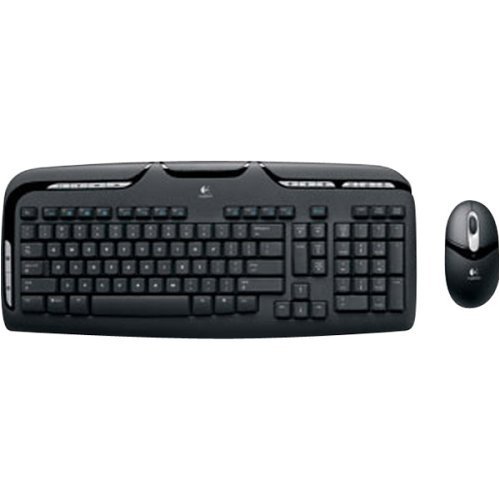
Image: Logitech Cordless Desktop EX110, showing the wireless keyboard, mouse, and USB receiver.
പ്രവർത്തന നിർദ്ദേശങ്ങൾ
കീബോർഡ് സവിശേഷതകൾ
- മീഡിയ നിയന്ത്രണങ്ങൾ: Dedicated one-touch buttons allow for quick control of audio and video playback, including volume adjustment and mute functions.
- പ്രോഗ്രാം ചെയ്യാവുന്ന എഫ്-കീകൾ: Enhanced F-keys provide direct access to common tasks such as launching your internet home page, email client, or the onscreen calculator.
- സ്പിൽ-റെസിസ്റ്റന്റ് ഡിസൈൻ: The keyboard is designed to withstand minor liquid spills, protecting internal components.
മൗസ് സവിശേഷതകൾ
- 800-dpi Optical Tracking: Provides precise and responsive cursor control on various surfaces.
- സ്ക്രോൾ വീൽ: Facilitates easy navigation through web പേജുകളും രേഖകളും.
- Left-Hand Buttons: Conveniently located buttons on the left side of the mouse allow for quick web navigation (e.g., back/forward) or closing browser windows.
മെയിൻ്റനൻസ്
വൃത്തിയാക്കൽ
To clean your keyboard and mouse, use a soft, damp cloth. Avoid using harsh chemicals or abrasive cleaners. For the keyboard, you may use compressed air to remove debris from between the keys.
ബാറ്ററി മാറ്റിസ്ഥാപിക്കൽ
When the keyboard or mouse performance degrades, or if an indicator light (if present) signals low battery, replace the batteries as described in the 'Battery Installation' section. Dispose of used batteries according to local regulations.
ട്രബിൾഷൂട്ടിംഗ്
- No response from keyboard or mouse:
- ബാറ്ററികൾ ശരിയായി ഇൻസ്റ്റാൾ ചെയ്തിട്ടുണ്ടെന്നും തീർന്നിട്ടില്ലെന്നും ഉറപ്പാക്കുക. ആവശ്യമെങ്കിൽ മാറ്റിസ്ഥാപിക്കുക.
- Verify the wireless receiver is securely plugged into a functional USB or PS/2 port.
- Press the 'Connect' buttons on the receiver, keyboard, and mouse to re-establish the connection.
- Ensure the devices are within the operational range (approximately 6 feet) of the receiver.
- Lag or intermittent response:
- Wireless interference can affect performance. Avoid placing cordless phones, cell phones, or wireless network antennas too close to the receiver.
- Ensure there are no large metal objects between the devices and the receiver that could block the signal.
- മൗസ് കഴ്സർ ക്രമരഹിതമോ ട്രാക്ക് ചെയ്യുന്നില്ലയോ:
- മൗസിന്റെ അടിവശത്തുള്ള ഒപ്റ്റിക്കൽ സെൻസർ വൃത്തിയാക്കുക.
- Use the mouse on a suitable surface; highly reflective or transparent surfaces may cause issues.
സ്പെസിഫിക്കേഷനുകൾ
| ബ്രാൻഡ് | ലോജിടെക് |
| മോഡൽ നമ്പർ | 967561-0403 |
| കണക്റ്റിവിറ്റി ടെക്നോളജി | യുഎസ്ബി / പിഎസ്/2 |
| ചലനം കണ്ടെത്തൽ | ഒപ്റ്റിക്കൽ (മൗസ്) |
| കീബോർഡ് ലേഔട്ട് | QWERTY |
| കീകളുടെ എണ്ണം | 110 |
| കീബോർഡ് ബാറ്ററി തരം | 2 x AAA ബാറ്ററികൾ |
| മൗസ് ബാറ്ററി തരം | 2 x AA ബാറ്ററികൾ |
| അനുയോജ്യമായ ഓപ്പറേറ്റിംഗ് സിസ്റ്റങ്ങൾ | വിൻഡോസ്, മാകോസ്, ലിനക്സ് |
| പ്രത്യേക സവിശേഷതകൾ | One-touch media controls, Convenient left-hand mouse buttons, Spill-resistant keyboard |
വാറൻ്റിയും പിന്തുണയും
The Logitech Cordless Desktop EX110 is covered by a 5 വർഷത്തെ പരിമിത വാറൻ്റി. For detailed warranty information, technical support, or to download additional software (if available), please visit the official Logitech support webവാറന്റി ക്ലെയിമുകൾക്കുള്ള വാങ്ങലിന്റെ തെളിവായി നിങ്ങളുടെ വാങ്ങൽ രസീത് സൂക്ഷിക്കുക.


