
1. ആമുഖം
The Adesso ARC-1100 is an infrared remote control designed to enhance your experience with Windows Media Center on various Windows operating systems, including Windows 8, 7, Vista, and XP. This remote allows for convenient control of your digital media and provides integrated mouse functionality from a distance of up to 10 meters (32.8 feet).
It features 46 media hotkeys and 3 dedicated mouse keys, offering comprehensive control over your media playback and PC functions without needing to be directly at your computer.
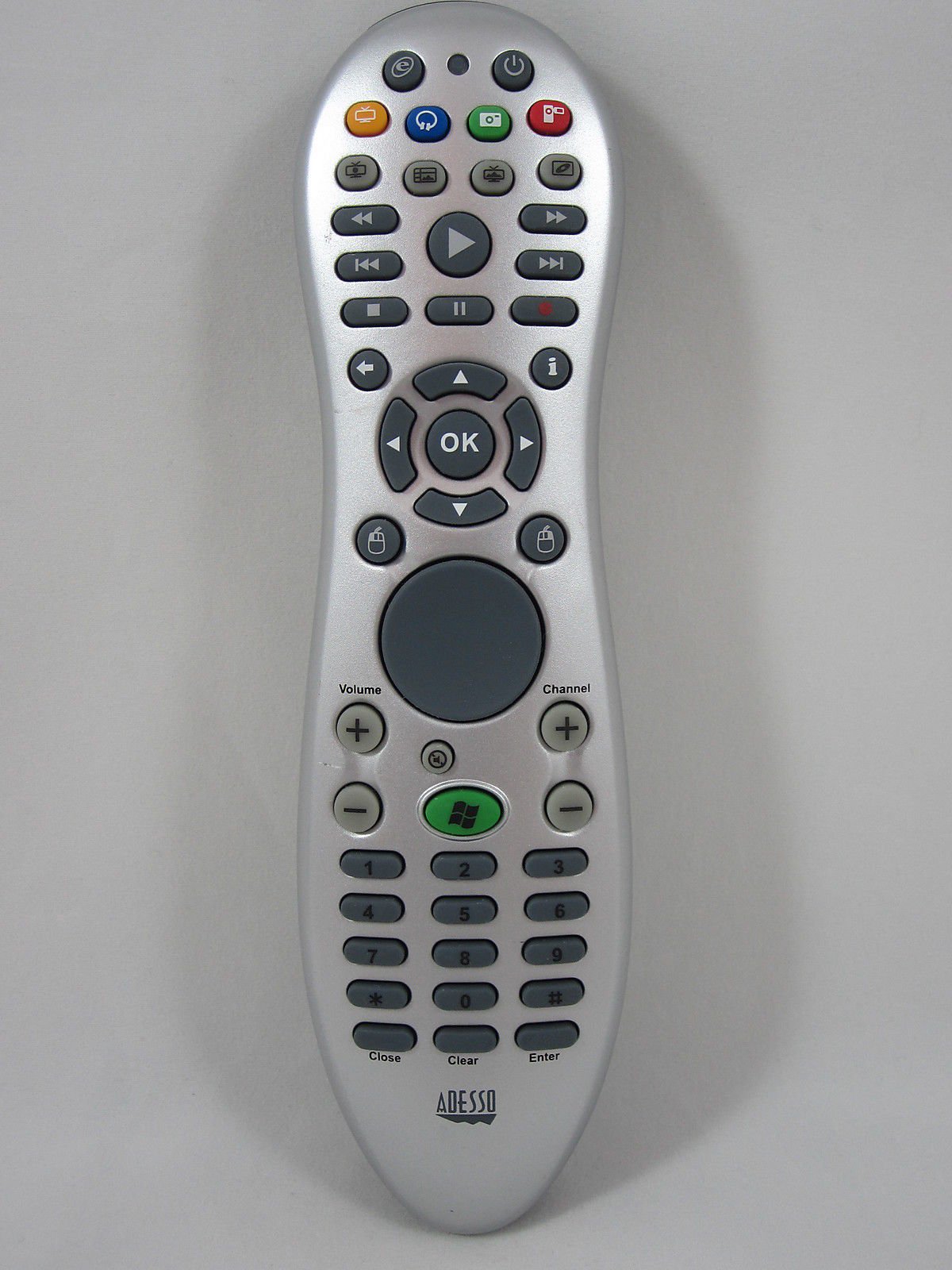
Image of the Adesso ARC-1100 MCE Remote Control, showing its ergonomic design and button layout.
2. സജ്ജീകരണം
- ബാറ്ററികൾ ഇൻസ്റ്റാൾ ചെയ്യുക: Open the battery compartment on the back of the remote control. Insert two AAA batteries, ensuring correct polarity (+/-). The remote requires 2 AAA batteries, which are typically included.
- USB റിസീവർ ബന്ധിപ്പിക്കുക: Locate the small infrared (IR) USB receiver. Plug this receiver into an available USB port on your computer.
- ഓട്ടോമാറ്റിക് ഡ്രൈവർ ഇൻസ്റ്റാളേഷൻ: Your Windows operating system should automatically detect the new hardware and install the necessary drivers. This process may take a few moments.
- System Restart (Optional): Windows may prompt you to restart your computer after the driver installation is complete. It is recommended to restart to ensure all features of the remote function correctly.
- കണക്ഷൻ സ്ഥിരീകരിക്കുക: Once installed, the dongle on the USB receiver may light up (often red) to indicate it is receiving a signal from the remote.
The remote is designed for plug-and-play functionality, requiring no manual driver installation in most Windows environments.
3. പ്രവർത്തന നിർദ്ദേശങ്ങൾ
3.1 പൊതു പ്രവർത്തനം
- The ARC-1100 operates using infrared (IR) technology. Ensure there is a clear line of sight between the remote control and the USB IR receiver for optimal performance.
- The maximum operating distance is approximately 10 meters (32.8 feet).
- The remote features a logical button layout for ease of use, even in low-light conditions.
3.2 ബട്ടൺ ലേഔട്ടും പ്രവർത്തനങ്ങളും
The remote's buttons are generally grouped into three main zones:
- ഉയർന്ന വിഭാഗം: Contains power and specific Windows Media Center buttons.
- മധ്യ വിഭാഗം: Includes video playback controls (Play, Pause, FFWD, RWND, Stop, Record), navigation keys (4 arrow keys with an OK button in the center), and additional function buttons like 'Back' and 'Information'.
- Lower Section: Dedicated to mouse control.
3.3 മൗസ് നിയന്ത്രണം
The lower section of the remote features a multi-directional thumb pad for mouse movement, accompanied by left and right mouse click buttons. To move the mouse pointer:
- Use the central thumb pad to navigate the cursor on your screen.
- Press the thumb pad briefly for small movements, or hold it down for longer, faster cursor movement. The longer you hold, the faster the pointer will travel.
- For precise control, you can adjust the mouse speed settings within your Windows Control Panel.
4. പരിപാലനം
- ബാറ്ററി മാറ്റിസ്ഥാപിക്കൽ: Replace batteries when the remote's responsiveness decreases. Always use fresh AAA batteries and dispose of old batteries responsibly.
- വൃത്തിയാക്കൽ: Use a soft, dry cloth to clean the remote control. For stubborn dirt, a slightly damp cloth can be used, but ensure no moisture enters the remote. Avoid harsh chemicals or abrasive cleaners.
- സംഭരണം: ദീർഘനേരം ഉപയോഗിക്കാത്തപ്പോൾ നേരിട്ടുള്ള സൂര്യപ്രകാശത്തിൽ നിന്നും കടുത്ത താപനിലയിൽ നിന്നും മാറി തണുത്തതും വരണ്ടതുമായ സ്ഥലത്ത് റിമോട്ട് സൂക്ഷിക്കുക.
5. പ്രശ്നപരിഹാരം
- റിമോട്ട് പ്രതികരിക്കുന്നില്ല:
- ബാറ്ററികൾ ശരിയായി ചേർത്തിട്ടുണ്ടോ എന്നും ആവശ്യത്തിന് ചാർജ് ഉണ്ടോ എന്നും പരിശോധിക്കുക. ആവശ്യമെങ്കിൽ മാറ്റി സ്ഥാപിക്കുക.
- Ensure there is a clear line of sight between the remote and the USB IR receiver. Obstructions can block the infrared signal.
- Verify that the USB IR receiver is securely plugged into a functioning USB port on your computer. Try a different USB port if needed.
- Mouse Pointer Too Slow/Fast:
- The mouse pointer speed can be adjusted through your computer's operating system settings. Navigate to the Mouse settings in the Windows Control Panel to customize sensitivity.
- USB Receiver Instability:
- The lightweight nature of the USB receiver might cause it to be easily dislodged or misaligned. Ensure it is placed in a stable position. While pinpoint accuracy is not required for signal reception, a stable orientation is recommended.
6 സ്പെസിഫിക്കേഷനുകൾ
| ബ്രാൻഡ് | അഡെസോ |
| മോഡൽ നമ്പർ | ARC-1100 |
| കണക്റ്റിവിറ്റി ടെക്നോളജി | ഇൻഫ്രാറെഡ് (IR) |
| അനുയോജ്യമായ ഉപകരണങ്ങൾ | Windows Media Center PCs (Windows 8/7/Vista/XP) |
| പരമാവധി പ്രവർത്തന ശ്രേണി | 10 മീറ്റർ (32.8 അടി) |
| കൺട്രോളർ തരം | Button Control, Multi-directional Thumb Pad |
| കീകളുടെ എണ്ണം | 46 Media Keys, 3 Mouse Keys |
| ബാറ്ററി തരം | 2 x AAA ബാറ്ററികൾ |
| ഇനത്തിൻ്റെ ഭാരം | 0.6 പൗണ്ട് |
| പ്രത്യേക ഫീച്ചർ | എർഗണോമിക് ഡിസൈൻ |
7. വാറൻ്റിയും പിന്തുണയും
For warranty information and technical support, please refer to the documentation provided with your purchase or visit the official Adesso website. You can also contact Adesso customer service for assistance with product inquiries, troubleshooting, or warranty claims.
അഡെസോ Webസൈറ്റ്: www.adesso.com (ദയവായി ശ്രദ്ധിക്കുക: ഇതൊരു പ്ലെയ്സ്ഹോൾഡറാണ് URL. Refer to your product packaging for the exact support webസൈറ്റ്.)