BlackBerry BB 9900 Bold Touch Smartphone User Manual
Model: BB 9900
1. ആമുഖം
This manual provides essential instructions for setting up, operating, and maintaining your BlackBerry BB 9900 Bold Touch smartphone. Please read this guide thoroughly to ensure proper use and to maximize the device's capabilities. The BlackBerry BB 9900 Bold Touch combines a capacitive touchscreen with a full QWERTY keyboard, running on BlackBerry OS 7.
2. പാക്കേജ് ഉള്ളടക്കം
നിങ്ങളുടെ പാക്കേജിൽ ഇനിപ്പറയുന്ന ഇനങ്ങൾ അടങ്ങിയിട്ടുണ്ടെന്ന് പരിശോധിക്കുക:
BlackBerry BB 9900 Bold Touch Smartphone
റീചാർജ് ചെയ്യാവുന്ന ബാറ്ററി
വാൾ ചാർജർ
USB കേബിൾ
ഉപയോക്തൃ മാനുവൽ (ഈ പ്രമാണം)
3. ഡിവൈസ് ഓവർview
Familiarize yourself with the physical features of your BlackBerry BB 9900 Bold Touch.
3.1 ഫ്രണ്ട് View
ചിത്രം: മുൻഭാഗം view of the BlackBerry BB 9900 Bold Touch, highlighting the 2.8-inch touchscreen and the physical QWERTY keyboard below it. The device also features a trackpad and call/end buttons.
ടച്ച്സ്ക്രീൻ ഡിസ്പ്ലേ: 2.8-inch capacitive display for interactive navigation.
QWERTY കീബോർഡ്: Full physical keyboard for efficient typing.
Optical Trackpad: For precise navigation and selection.
Call/End Buttons: Standard telephony controls.
3.2 പിൻഭാഗം View
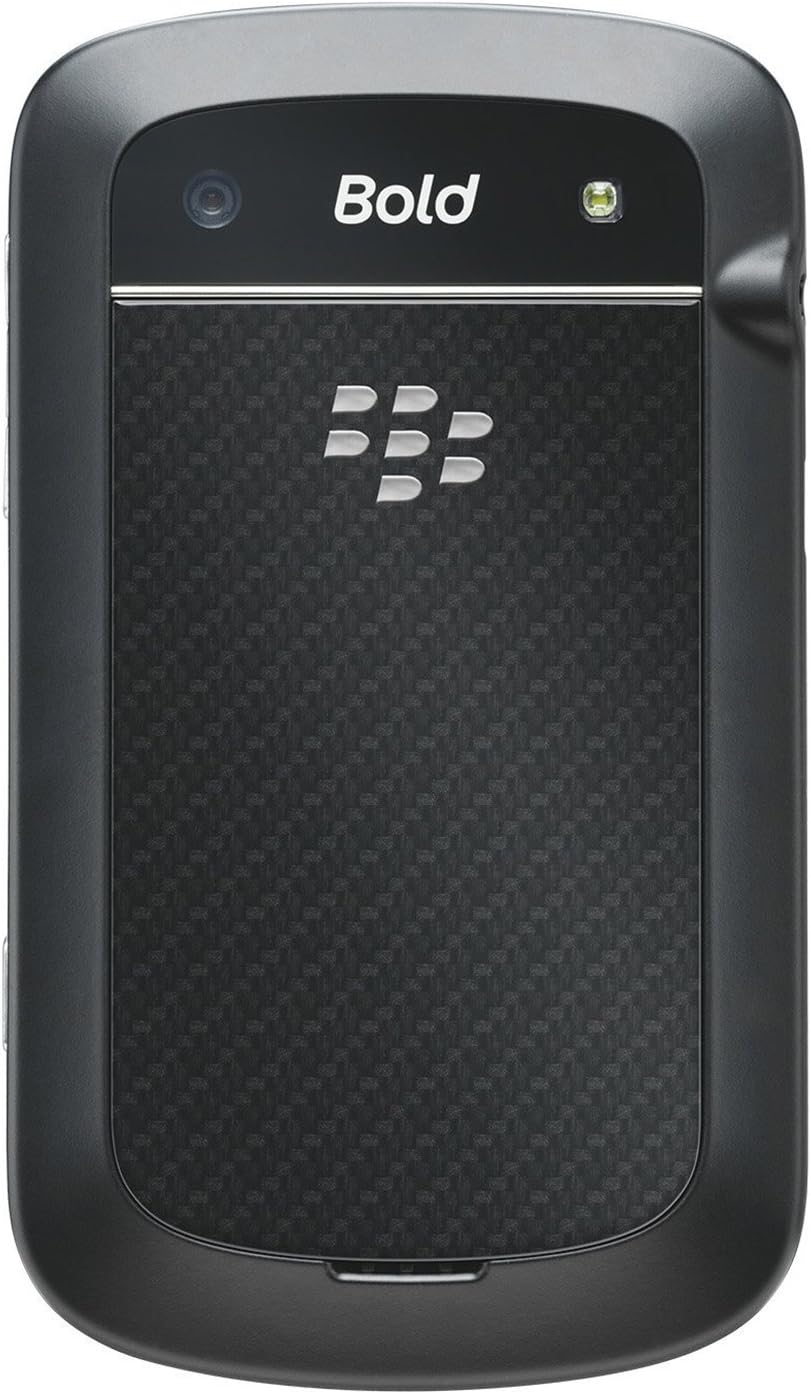
ചിത്രം: പിൻഭാഗം view of the BlackBerry BB 9900 Bold Touch, featuring the 5-megapixel camera lens, LED flash, and the BlackBerry logo.
5MP ക്യാമറ: Primary camera with autofocus and LED flash.
ബാറ്ററി കവർ: Removable cover for battery and SIM card access.
3.3 വശം View
ചിത്രം: വശം view of the BlackBerry BB 9900 Bold Touch, illustrating the placement of the volume control buttons and a customizable convenience key.
ഉപകരണത്തിന്റെ പിന്നിൽ നിന്ന് ബാറ്ററി കവർ നീക്കം ചെയ്യുക.
സിം കാർഡ് സ്ലോട്ട് കണ്ടെത്തുക.
സ്വർണ്ണ കോൺടാക്റ്റുകൾ താഴേക്ക് അഭിമുഖീകരിച്ചും മുറിച്ച കോർണർ സ്ലോട്ടിനൊപ്പം വിന്യസിച്ചും സിം കാർഡ് ഇടുക.
സിം കാർഡ് സുരക്ഷിതമായി സ്ഥാപിച്ചിട്ടുണ്ടെന്ന് ഉറപ്പാക്കുക.
4.2 ബാറ്ററി ചേർക്കുന്നു
After inserting the SIM card, align the battery's gold contacts with the contacts in the battery compartment.
ബാറ്ററി ക്ലിക്ക് ആകുന്നത് വരെ പതുക്കെ അമർത്തിപ്പിടിക്കുക.
ബാറ്ററി കവർ മാറ്റിസ്ഥാപിക്കുക.
4.3 ഉപകരണം ചാർജ് ചെയ്യുന്നു
Connect the USB cable to the charging port on your device.
Plug the other end of the USB cable into the wall charger, then into a power outlet.
ആദ്യ ഉപയോഗത്തിന് മുമ്പ് ഉപകരണം പൂർണ്ണമായും ചാർജ് ചെയ്യാൻ അനുവദിക്കുക. സ്ക്രീനിലെ ബാറ്ററി ഇൻഡിക്കേറ്റർ ചാർജിംഗ് സ്റ്റാറ്റസ് കാണിക്കും.
4.4 പവർ ഓൺ/ഓഫ്
പവർ ഓണാക്കാൻ: Press and hold the Power/Lock button (usually located on the top edge) until the BlackBerry logo appears.
പവർ ഓഫ് ചെയ്യാൻ: Press and hold the Power/Lock button until the 'Power Off' option appears on the screen. Tap 'Power Off' to confirm.
5. പ്രവർത്തന നിർദ്ദേശങ്ങൾ
5.1 ടച്ച് സ്ക്രീൻ നാവിഗേഷൻ
ടാപ്പ് ചെയ്യുക: Touch the screen briefly to open applications, select items, or activate buttons.
സ്വൈപ്പ്: Drag your finger across the screen to scroll through lists or switch between home screen panels.
പിഞ്ച്-ടു-സൂം: Use two fingers to zoom in or out on photos, web പേജുകൾ, അല്ലെങ്കിൽ മാപ്പുകൾ.
5.2 QWERTY കീബോർഡ് ഉപയോഗിക്കുന്നു
The physical QWERTY keyboard allows for fast and accurate text entry. Each key corresponds to a letter, number, or symbol. Use the 'Alt' key for alternate characters and the 'Shift' key for capitalization.
5.3 കോളുകൾ ചെയ്യുന്നു
From the home screen, tap the Phone icon or press the green Call button.
Enter the phone number using the keyboard.
Press the green Call button to initiate the call.
To end a call, press the red End Call button.
5.4 സന്ദേശങ്ങൾ അയയ്ക്കുന്നു
Tap the Messages icon from the home screen.
Select 'Compose New' or similar option.
സ്വീകർത്താവിന്റെ നമ്പർ നൽകുക അല്ലെങ്കിൽ കോൺടാക്റ്റുകളിൽ നിന്ന് തിരഞ്ഞെടുക്കുക.
Type your message using the QWERTY keyboard.
Tap 'Send'.
5.5 ക്യാമറ ഉപയോഗിക്കുന്നത്
ക്യാമറ ആപ്ലിക്കേഷൻ തുറക്കാൻ ക്യാമറ ഐക്കണിൽ ടാപ്പ് ചെയ്യുക.
സ്ക്രീൻ ഉപയോഗിച്ച് നിങ്ങളുടെ ഷോട്ട് ഫ്രെയിം ചെയ്യുക a ആയി viewഫൈൻഡർ.
Tap the screen or press the convenience key (if configured) to take a photo.
The 5MP camera features autofocus and an LED flash for improved image quality.
5.6 Wi-Fi-ലേക്ക് ബന്ധിപ്പിക്കുന്നു
Go to 'Options' > 'Networks and Connections' > 'Wi-Fi'.
Turn Wi-Fi on. The device will scan for available networks.
നിങ്ങൾക്ക് ആവശ്യമുള്ള നെറ്റ്വർക്ക് തിരഞ്ഞെടുത്ത് ആവശ്യപ്പെടുകയാണെങ്കിൽ പാസ്വേഡ് നൽകുക.
Once connected, the Wi-Fi indicator will appear in the status bar.
5.7 Using NFC (Near Field Communication)
The BlackBerry BB 9900 Bold Touch supports NFC for short-range wireless communication. This allows for quick pairing with compatible accessories or sharing data with other NFC-enabled devices by tapping them together.
നിങ്ങളുടെ ഉപകരണ ക്രമീകരണങ്ങളിൽ NFC പ്രവർത്തനക്ഷമമാക്കിയിട്ടുണ്ടെന്ന് ഉറപ്പാക്കുക.
Hold your device close to another NFC-enabled device or tag.
Follow on-screen prompts to complete the desired action (e.g., pairing, data transfer).
6. പരിപാലനം
6.1 നിങ്ങളുടെ ഉപകരണം വൃത്തിയാക്കൽ
Use a soft, lint-free cloth to wipe the screen and body of the device.
കഠിനമായ രാസവസ്തുക്കൾ, അബ്രസീവ് ക്ലീനറുകൾ, അല്ലെങ്കിൽ എയറോസോൾ സ്പ്രേകൾ എന്നിവ ഉപയോഗിക്കുന്നത് ഒഴിവാക്കുക.
ഉപകരണം അമിതമായ ഈർപ്പം കാണിക്കരുത്.
6.2 ബാറ്ററി കെയർ
ബാറ്ററിയുടെ പ്രകടനം മോശമാക്കാൻ സാധ്യതയുള്ള, ഉയർന്ന താപനില ഒഴിവാക്കുക.
ഒറിജിനൽ അല്ലെങ്കിൽ അംഗീകൃത ചാർജർ മാത്രം ഉപയോഗിക്കുക.
ബാറ്ററി പഞ്ചർ ചെയ്യുകയോ കേടുവരുത്തുകയോ ചെയ്യരുത്.
6.3 സോഫ്റ്റ്വെയർ അപ്ഡേറ്റുകൾ
Periodically check for software updates to ensure your device has the latest features and security enhancements. Updates can typically be found in the device's 'Options' or 'Settings' menu under 'Software Updates'.
7. പ്രശ്നപരിഹാരം
7.1 ഉപകരണം ഓണാക്കുന്നില്ല
ബാറ്ററി ശരിയായി ചേർത്തിട്ടുണ്ടെന്നും ചാർജ് ചെയ്തിട്ടുണ്ടെന്നും ഉറപ്പാക്കുക.
ഉപകരണം ചാർജറുമായി ബന്ധിപ്പിച്ച് വീണ്ടും പവർ ചെയ്യാൻ ശ്രമിക്കുന്നതിന് മുമ്പ് കുറച്ച് മിനിറ്റ് കാത്തിരിക്കുക.
പ്രശ്നം നിലനിൽക്കുകയാണെങ്കിൽ, ബാറ്ററി നീക്കം ചെയ്ത് വീണ്ടും ഇടാൻ ശ്രമിക്കുക.
7.2 നെറ്റ്വർക്ക് കണക്റ്റിവിറ്റി പ്രശ്നങ്ങൾ
Check if your SIM card is correctly inserted and activated with your carrier.
Verify that cellular data or Wi-Fi is enabled in your device settings.
ഉപകരണം പുനരാരംഭിക്കുക.
If using Wi-Fi, ensure your router is working and you have entered the correct password.
7.3 ടച്ച് സ്ക്രീൻ പ്രതികരിക്കുന്നില്ല
ഉപകരണം പുനരാരംഭിക്കുക.
സ്ക്രീൻ വൃത്തിയുള്ളതും അവശിഷ്ടങ്ങളോ ഈർപ്പമോ ഇല്ലാത്തതുമാണെന്ന് ഉറപ്പാക്കുക.
If the issue is intermittent, check for any recent software installations that might be causing conflicts.
8 സ്പെസിഫിക്കേഷനുകൾ
ഫീച്ചർ
വിശദാംശങ്ങൾ
മോഡലിൻ്റെ പേര്
BB 9900
ഓപ്പറേറ്റിംഗ് സിസ്റ്റം
BlackBerry OS 7
പ്രദർശിപ്പിക്കുക
2.8-inch Capacitive Touchscreen, 640 x 480 Resolution
പ്രോസസ്സർ
Not specified (typically 1.2 GHz for this model)
റാം
768 MB
ആന്തരിക സംഭരണം
8 ജിബി
പിൻ ക്യാമറ
5 MP, Autofocus, LED Flash
കണക്റ്റിവിറ്റി
Wi-Fi 802.11 b/g/n, NFC, Bluetooth, GPS
നെറ്റ്വർക്ക് പിന്തുണ
Quad-band GSM/GPRS/EDGE, Tri-band HSPA+
അളവുകൾ
4.53 x 2.6 x 0.41 ഇഞ്ച് (115 x 66 x 10.5 മിമി)
ഭാരം
4.6 ഔൺസ് (130 ഗ്രാം)
ഓഡിയോ ജാക്ക്
3.5 മി.മീ
9. പിന്തുണയും വാറണ്ടിയും
9.1 ഉപഭോക്തൃ പിന്തുണ
For technical assistance, troubleshooting beyond this manual, or service inquiries, please visit the official BlackBerry support website or contact your local service provider. Refer to the packaging or official webനിർദ്ദിഷ്ട കോൺടാക്റ്റ് വിശദാംശങ്ങൾക്കായി സൈറ്റ്.
9.2 വാറൻ്റി വിവരങ്ങൾ
Your BlackBerry BB 9900 Bold Touch is covered by a limited warranty. Please refer to the warranty card included in your product packaging or visit the official BlackBerry webവാറന്റി കാലയളവ്, കവറേജ് സവിശേഷതകൾ എന്നിവയുൾപ്പെടെ വിശദമായ നിബന്ധനകൾക്കും വ്യവസ്ഥകൾക്കും സൈറ്റ് സന്ദർശിക്കുക. വാറന്റി ക്ലെയിമുകൾക്കായി നിങ്ങളുടെ വാങ്ങലിന്റെ തെളിവ് സൂക്ഷിക്കുക.
Ask a question about this manual
Ask about setup, troubleshooting, compatibility, parts, safety, or missing instructions. Manuals+ will review the question and use this page’s manual context to help answer it.