
ആമുഖം
This manual provides detailed instructions for the installation and operation of the TooQ TQDS-802B Dual Bay SATA Docking Station. This device allows for easy connection of 2.5-inch and 3.5-inch SATA I/II/III hard drives or solid-state drives (SSDs) to your computer via USB 3.0, and features an offline cloning function for direct drive duplication without a PC.
പാക്കേജ് ഉള്ളടക്കം
- TooQ TQDS-802B Dual Bay SATA Docking Station
- പവർ അഡാപ്റ്റർ (DC 12V)
- USB 3.0 Type-A to Type-B Cable
- ഉപയോക്തൃ മാനുവൽ
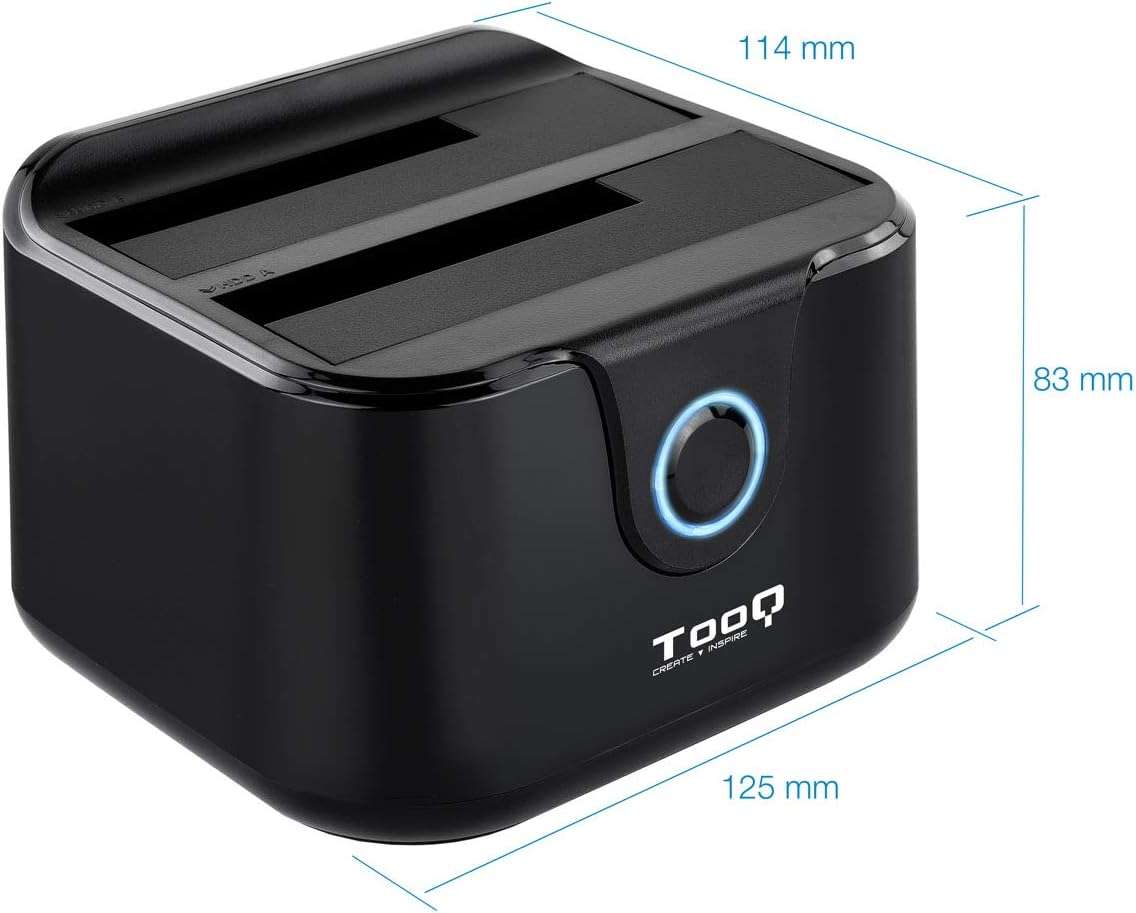
Image: Package contents including the docking station, power adapter, and USB 3.0 cable.
ഉൽപ്പന്നം കഴിഞ്ഞുview
ഫ്രണ്ട് പാനൽ

ചിത്രം: മുൻഭാഗം view of the docking station. The central button serves as the Clone button, surrounded by an LED indicator.
- LED സൂചകം: Illuminates to indicate power and activity.
- Clone Button: Initiates the offline disk cloning process.
പിൻ പാനൽ

ചിത്രം: പിൻഭാഗം view of the docking station, detailing the power switch, DC 12V power input, and USB-B port for computer connection.
- ഓൺ/ഓഫ് സ്വിച്ച്: ഡോക്കിംഗ് സ്റ്റേഷൻ ഓൺ അല്ലെങ്കിൽ ഓഫ് ചെയ്യുന്നു.
- DC 12V ജാക്ക്: ഉൾപ്പെടുത്തിയിരിക്കുന്ന പവർ അഡാപ്റ്ററുമായി ബന്ധിപ്പിക്കുന്നു.
- USB-B പോർട്ട്: Connects the docking station to your computer via the USB 3.0 cable.
മുകളിൽ View (Drive Bays)

ചിത്രം: മുകളിൽ view showing two drive bays, labeled A and B, designed to accommodate both 2.5-inch and 3.5-inch SATA HDDs/SSDs.
- Drive Bay A: For inserting the source drive during cloning, or a primary drive for data access. Compatible with 2.5" and 3.5" SATA drives.
- Drive Bay B: For inserting the target drive during cloning, or a secondary drive for data access. Compatible with 2.5" and 3.5" SATA drives.
സജ്ജമാക്കുക
- പവർ ബന്ധിപ്പിക്കുക: Connect the included power adapter to the DC 12V jack on the rear of the docking station, then plug the adapter into a power outlet. Do not power on the device yet.
- Connect to Computer (Optional for Data Transfer): If you intend to use the docking station for data transfer with a computer, connect the USB 3.0 cable from the USB-B port on the docking station to an available USB 3.0 port on your computer.
- ഡ്രൈവുകൾ ചേർക്കുക: Gently insert your 2.5-inch or 3.5-inch SATA hard drives or SSDs into the drive bays (A and/or B) until they are firmly seated. Ensure the SATA connectors align correctly.
- പവർ ഓൺ: Flip the ON/OFF switch on the rear panel to the 'ON' position. The LED indicator will illuminate.
പ്രവർത്തന നിർദ്ദേശങ്ങൾ
A. Data Transfer (Connected to PC)
When connected to a computer via USB, the docking station functions as an external drive enclosure. Insert one or two SATA drives into the bays. Your operating system should automatically detect the drives. You can then access, read, and write data to them as you would with any other external storage device.
- Ensure the docking station is powered on and connected to your computer.
- Insert the SATA drive(s) into the bays.
- The drives will appear as removable storage in your computer's file പര്യവേക്ഷകൻ.
- For safe removal, always eject the drives through your operating system before powering off the docking station or disconnecting the USB cable.
B. Offline Clone Function
The offline clone function allows you to duplicate a source drive to a target drive without needing a computer connection. The target drive must be equal to or larger in capacity than the source drive.
- ഡ്രൈവുകൾ തയ്യാറാക്കുക: Ensure both the source drive (the drive you want to copy FROM) and the target drive (the drive you want to copy TO) are free of errors. All data on the target drive will be erased during the cloning process.
- ഡ്രൈവുകൾ ചേർക്കുക:
- തിരുകുക ഉറവിട ഡ്രൈവ് കടന്നു ബേ എ.
- തിരുകുക ടാർഗെറ്റ് ഡ്രൈവ് കടന്നു ബേ ബി.
- പിസിയിൽ നിന്ന് വിച്ഛേദിക്കുക: Ensure the USB cable is disconnected from the computer. The docking station must be operating independently for offline cloning.
- പവർ ഓൺ: ഓൺ/ഓഫ് സ്വിച്ച് ഉപയോഗിച്ച് ഡോക്കിംഗ് സ്റ്റേഷൻ ഓണാക്കുക.
- ഇനിഷ്യേറ്റ് ക്ലോൺ: അമർത്തിപ്പിടിക്കുക ക്ലോൺ ബട്ടൺ for approximately 3-5 seconds until the LED indicator begins to flash. Release the button.
- പുരോഗതി നിരീക്ഷിക്കുക: The LED indicator will show the cloning progress. It will typically flash or change color to indicate different stages (e.g., 25%, 50%, 75%, 100%).
- പൂർത്തീകരണം: Once the cloning process is complete, the LED indicator will stop flashing and remain solid. You can then power off the docking station and remove the drives.
Important: Do not interrupt the cloning process by powering off the device or removing drives, as this may lead to data corruption on both drives.
മെയിൻ്റനൻസ്
- ഡോക്കിംഗ് സ്റ്റേഷൻ വൃത്തിയുള്ളതും വരണ്ടതുമായ അന്തരീക്ഷത്തിൽ സൂക്ഷിക്കുക, നേരിട്ടുള്ള സൂര്യപ്രകാശത്തിൽ നിന്നും കടുത്ത താപനിലയിൽ നിന്നും അകറ്റി നിർത്തുക.
- ശക്തമായ ആഘാതങ്ങൾക്ക് ഉപകരണം ഇടുകയോ ഇടുകയോ ചെയ്യുന്നത് ഒഴിവാക്കുക.
- മൃദുവായതും ഉണങ്ങിയതുമായ തുണി ഉപയോഗിച്ച് പുറംഭാഗം വൃത്തിയാക്കുക. ലിക്വിഡ് ക്ലീനറുകളോ ലായകങ്ങളോ ഉപയോഗിക്കരുത്.
- പ്രവർത്തന സമയത്ത് ഉപകരണത്തിന് ചുറ്റും ശരിയായ വായുസഞ്ചാരം ഉറപ്പാക്കുക.
ട്രബിൾഷൂട്ടിംഗ്
Drive Not Detected by Computer
- Ensure the docking station is powered on and the USB cable is securely connected to both the docking station and the computer.
- നിങ്ങളുടെ കമ്പ്യൂട്ടറിലെ മറ്റൊരു യുഎസ്ബി പോർട്ടിലേക്ക് കണക്റ്റുചെയ്യാൻ ശ്രമിക്കുക.
- Verify that the hard drive is properly seated in the bay.
- ഡ്രൈവ് തിരിച്ചറിഞ്ഞിട്ടുണ്ടെങ്കിലും ഫോർമാറ്റ് ചെയ്തിട്ടില്ല അല്ലെങ്കിൽ അലോക്കേറ്റ് ചെയ്തിട്ടില്ല എന്ന് കാണാൻ ഡിസ്ക് മാനേജ്മെന്റ് (വിൻഡോസ്) അല്ലെങ്കിൽ ഡിസ്ക് യൂട്ടിലിറ്റി (മാകോസ്) പരിശോധിക്കുക.
- Test the drive directly in a computer or with another enclosure to rule out drive failure.
Offline Clone Fails or Does Not Start
- Ensure the USB cable is disconnected from the computer. Offline cloning requires the device to be standalone.
- Verify that the source drive is in Bay A and the target drive is in Bay B.
- Confirm that the target drive's capacity is equal to or greater than the source drive's capacity.
- Ensure both drives are properly inserted and seated.
- Press and hold the Clone button for the specified duration (3-5 seconds) until the LED indicator responds.
- Check for any errors on the source drive before attempting to clone.
സ്പെസിഫിക്കേഷനുകൾ
| മോഡൽ നമ്പർ | TQDS-802B |
| ബ്രാൻഡ് | TOOQ |
| അനുയോജ്യമായ ഡ്രൈവുകൾ | 2.5" and 3.5" SATA I/II/III HDDs/SSDs |
| ഡ്രൈവ് ബേകൾ | 2 (Dual Bay) |
| പിസിക്കുള്ള ഇന്റർഫേസ് | USB 3.0 (യുഎസ്ബി 2.0-ന് പിന്നിലേക്ക് അനുയോജ്യം) |
| ഡാറ്റ കൈമാറ്റ നിരക്ക് | 5.0 Gbps വരെ (USB 3.0) |
| ഓഫ്ലൈൻ ക്ലോൺ പ്രവർത്തനം | Supported (PC-independent) |
| Max Drive Capacity | Up to 2.0 TB (32-bit/64-bit systems) and 3.0 TB or more (64-bit systems) |
| പിന്തുണയ്ക്കുന്ന OS | Windows, macOS, Linux (for USB connection) |
| വൈദ്യുതി വിതരണം | DC 12V പവർ അഡാപ്റ്റർ |
| അളവുകൾ | ഏകദേശം 125mm x 114mm x 83mm |
| ഭാരം | 350 ഗ്രാം |

Image: Dimensions of the TooQ TQDS-802B Dual Bay SATA Docking Station.
വാറൻ്റിയും പിന്തുണയും
TOOQ products are designed for reliability and performance. For warranty information, please refer to the warranty card included with your product or visit the official TOOQ website. For technical support or further assistance, please contact TOOQ customer service through their official channels.
Manufacturer: Tooq & Nanocable Spain