
1. ആമുഖം
The Whistler WS1040 is a handheld digital trunking scanner designed for receiving P25 Phase I communications. It features object-oriented programming, allowing for flexible configuration and management of scannable objects. The scanner supports multi-system operation and includes dedicated functions for weather alerts and spectrum sweeping. This manual provides instructions for the setup, operation, and maintenance of your WS1040 scanner.
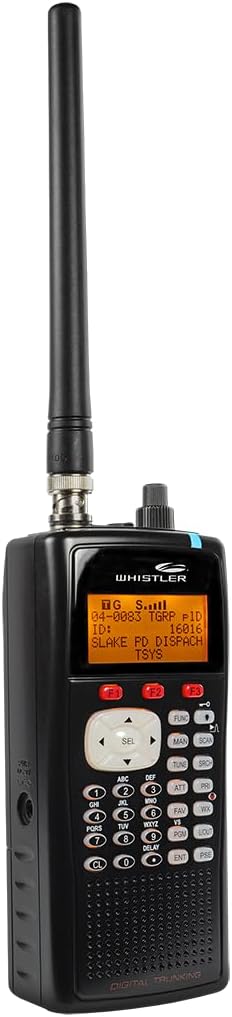
ചിത്രം 1.1: മുൻഭാഗം view of the Whistler WS1040 Handheld Digital Scanner.
2. സജ്ജീകരണം
2.1 അൺപാക്കിംഗും പ്രാരംഭ പരിശോധനയും
Carefully remove all components from the packaging. Verify that all items listed in the product contents are present and undamaged. Retain the packaging for future storage or shipping.
2.2. ബാറ്ററി ഇൻസ്റ്റാളേഷൻ
The WS1040 requires batteries for portable operation. Open the battery compartment cover on the back of the unit. Insert the specified batteries, ensuring correct polarity. Close the battery compartment securely. For extended use, consider using rechargeable batteries.
2.3. ആന്റിന അറ്റാച്ച്മെന്റ്
Screw the supplied antenna clockwise into the antenna connector located on the top of the scanner until it is finger-tight. Do not overtighten.
2.4. Powering On the Scanner
Press and hold the power button until the display illuminates. The scanner will perform a self-test and then enter its operating mode.
2.5. പിസി കണക്ഷനും സോഫ്റ്റ്വെയറും
To program the scanner via a computer, connect the WS1040 to your PC using a USB cable. The scanner is compatible with Windows 7 and newer operating systems. Programming software, such as WIN500 or Butel ARC500, is recommended for efficient management of frequencies and settings. These software options are often available for download from third-party scanner enthusiast websites or directly from the software developers.
- ഇൻസ്റ്റലേഷൻ ട്രബിൾഷൂട്ടിംഗ്: If Windows does not detect the cable when plugged in, try using any other available USB port. If the software installation fails, remove the cable, reboot your computer, and attempt the installation again.
3. ഓപ്പറേഷൻ
3.1. Menu Driven Programming
The WS1040 features menu-driven programming with context-sensitive help. Each menu item provides brief help text to assist with programming and using the scanner. To access programming mode, press the പി.ജി.എം. താക്കോൽ.
വീഡിയോ 3.1: ഒരു ഓവർview of programming the Whistler WS1040 Handheld Digital Scanner.
3.1.1. Entering a New Conventional Frequency (Manual Programming)
- അമർത്തുക പി.ജി.എം. താക്കോൽ.
- Press the softkey corresponding to "New" (usually F1).
- Select "Conventional" from the object type options.
- The display will show "Scan List". Use the arrow keys to select the desired scan list(s) for this frequency. Press SEL to toggle the asterisk, indicating inclusion in a scan list.
- Navigate down to "Frequency". Press SEL to enter the frequency.
- Input the desired frequency using the numeric keypad (e.g., 146.94000). Press the ഇഎൻടി താക്കോൽ.
- (Optional) Navigate to "Tag" to change the name of the object from the default "Channel". Use arrow keys to select characters and SEL സ്ഥിരീകരിക്കാൻ.
- (Optional) Adjust other settings such as Squelch Mode (e.g., Search to decode CTCSS/DCS), LED Mode (Solid/Flash), LED Color (7 options), Latch LED, Backlight, and Alarm.
- അമർത്തുക സംരക്ഷിക്കുക key (usually F3) to store the new object.
3.1.2. Cloning Scanner Data
The WS1040 can clone data from compatible scanner models (e.g., PRO-106, PRO-197, PRO-651, PRO-652, GRE PSR-500, PSR-600, WS1065). This requires a 1/8-inch (3.5 mm) male stereo phone plug cable (not included).
- Connect the two scanners at their PC/IF ports using the stereo cable.
- Turn on both scanners.
- On the source scanner, press പി.ജി.എം..
- അമർത്തുക GLOB softkey (usually F3).
- Use the 4-direction keypad to locate the "CloneSend" option.
- അമർത്തുക SEL to transfer data.
- കേബിൾ വിച്ഛേദിക്കുക.
- അമർത്തുക സ്കാൻ ചെയ്യുക key on the receiving scanner to begin scanning.
3.2. Scanning and Monitoring
പ്രോഗ്രാമിംഗ് കഴിഞ്ഞ്, അമർത്തുക സ്കാൻ ചെയ്യുക key to initiate scanning. The scanner will cycle through the active scan lists and objects.
3.2.1. Scan List Functionality
Scan lists allow you to organize and scan objects according to your preferences. The WS1040 supports 22 scan lists. Objects can be assigned to multiple scan lists.
3.2.2. Spectrum Sweeper
The Spectrum Sweeper function quickly scans the scanner’s frequency ranges for transmissions from nearby sources. You can lock out found frequencies and continue searching in the same band.

Figure 3.2: Icon representing the Spectrum Sweeper feature.
3.3. Alerts and Special Functions
3.3.1. NOAA SAME Weather Alerts
The WS1040 provides instant access to NOAA SAME (Specific Area Message Encoding) weather alerts, keeping you informed of severe weather conditions in your area.
3.3.2. Skywarn Storm Spotter Functionality
Access frequencies used by storm spotter networks for real-time weather observation reporting.


Figure 3.3: NOAA Weather Radio and SKYWARN logos, indicating alert capabilities.
3.3.3. LED and Audio Alerts
The scanner features a multi-color LED that can be programmed to flash or remain solid in various colors to indicate activity on specific channels. Audio alerts, such as a double chirp, can also be configured to notify you of transmissions.

Figure 3.4: Icon representing the Priority Channel feature.
3.4. Memory Organization
The WS1040 utilizes Free-Form Memory Organization, allocating memory dynamically and efficiently as needed. This differs from older scanners with rigid memory banks. The Virtual Scanner mode allows storage of 21 different scanner configurations, providing a total capacity of over 38,000 scannable objects.
3.5. Digital AGC
Digital AGC (Automatic Gain Control) instantly compensates for low user audio levels, which are common on digital systems, ensuring clear reception.
4. പരിപാലനം
4.1. വൃത്തിയാക്കൽ
സ്കാനറിന്റെ പുറംഭാഗം മൃദുവായ, d തുണി ഉപയോഗിച്ച് തുടയ്ക്കുക.amp cloth. Do not use harsh chemicals or abrasive cleaners. Ensure the scanner is powered off and disconnected from any power source before cleaning.
4.2. ബാറ്ററി പരിചരണം
Remove batteries if the scanner will not be used for an extended period to prevent leakage. When using rechargeable batteries, follow the manufacturer's guidelines for charging and replacement.
5. പ്രശ്നപരിഹാരം
5.1. പൊതുവായ പ്രശ്നങ്ങളും പരിഹാരങ്ങളും
- സ്കാനർ ഓണാക്കുന്നില്ല: Check battery installation and charge level. Ensure external power adapter (if used) is properly connected.
- ഓഡിയോ ഇല്ല: Verify volume setting. Check headphone connection if applicable. Ensure squelch is not set too high.
- Cannot receive signals: Ensure antenna is securely attached. Verify that programmed frequencies are correct and active in your area. Check for local interference.
- പിസി കണക്ഷൻ പ്രശ്നങ്ങൾ: If Windows does not detect the USB cable, try a different USB port on your computer. If software installation fails, remove the cable, reboot your computer, and retry the installation.
- പ്രോഗ്രാമിംഗ് ബുദ്ധിമുട്ടുകൾ: Refer to the detailed programming instructions in this manual or consult online resources and user communities for assistance with specific programming software (e.g., RadioReference.com, Butel ARC500).
6 സ്പെസിഫിക്കേഷനുകൾ
| സ്കാനർ തരം | Radio Scanner |
| ബ്രാൻഡ് | വിസിലർ |
| മോഡലിൻ്റെ പേര് | Whistler WS1040 |
| കണക്റ്റിവിറ്റി ടെക്നോളജി | USB |
| ഇനത്തിൻ്റെ ഭാരം | 0.53 പൗണ്ട് |
| ഏറ്റവും കുറഞ്ഞ സിസ്റ്റം ആവശ്യകതകൾ | വിൻഡോസ് 7 |
| യു.പി.സി | 052303406997 |
| പ്രകാശ സ്രോതസ്സ് തരം | എൽഇഡി |
| ബിൽറ്റ്-ഇൻ മീഡിയ | ഉൽപ്പന്നം, മാനുവൽ |
7. വാറണ്ടിയും പിന്തുണയും
7.1. വാറൻ്റി വിവരങ്ങൾ
The Whistler WS1040 Handheld Digital Scanner comes with a 1 വർഷത്തെ വാറൻ്റി from the date of purchase. Please retain your proof of purchase for warranty claims. This warranty covers manufacturing defects and malfunctions under normal use.
7.2. ഉപഭോക്തൃ പിന്തുണ
For technical assistance, troubleshooting, or further information, please visit the official Whistler website or contact their customer support. Additionally, online communities and resources like RadioReference.com offer extensive information and user-generated support for scanner programming and operation.
8 സുരക്ഷാ വിവരങ്ങൾ
മുന്നറിയിപ്പ്: ഈ ഉൽപ്പന്നത്തിൽ കാൻസർ, ജനന വൈകല്യങ്ങൾ അല്ലെങ്കിൽ മറ്റ് പ്രത്യുൽപാദന തകരാറുകൾ എന്നിവയ്ക്ക് കാരണമാകുന്ന കാലിഫോർണിയ സംസ്ഥാനത്തിന് അറിയപ്പെടുന്ന രാസവസ്തുക്കൾ അടങ്ങിയിരിക്കുന്നു.
Always operate the scanner in a well-ventilated area. Avoid exposing the device to extreme temperatures, direct sunlight, or moisture. Do not attempt to disassemble or modify the scanner, as this will void the warranty and could result in injury or damage to the device.