
Western Digital FBA_WDBSLA0010HNC-N
Western Digital WD Performance 1TB 7200 RPM SATA 6.0Gb/s 3.5" Desktop Internal Hard Drive
Model: FBA_WDBSLA0010HNC-N
ആമുഖം
This manual provides essential information for the installation, operation, maintenance, and troubleshooting of your Western Digital WD Performance 1TB 7200 RPM SATA 6.0Gb/s 3.5" Desktop Internal Hard Drive. Please read this manual thoroughly before proceeding with installation or use to ensure proper functionality and data integrity.
സുരക്ഷാ വിവരങ്ങൾ
Observe the following safety precautions to prevent damage to the hard drive or your computer system:
- ഇലക്ട്രോസ്റ്റാറ്റിക് ഡിസ്ചാർജ് (ESD) സംരക്ഷണം: Always wear an anti-static wrist strap or frequently touch a grounded metal object (like the computer chassis) before handling the hard drive to discharge static electricity.
- വൈദ്യുതി വിച്ഛേദിക്കൽ: Ensure your computer is completely powered off and unplugged from the wall outlet before opening the case or installing/removing any components.
- ശ്രദ്ധയോടെ കൈകാര്യം ചെയ്യുക: Hard drives are delicate. Avoid dropping, jarring, or exposing the drive to excessive vibration. Hold the drive by its edges, not by the circuit board or connector pins.
- വെൻ്റിലേഷൻ: Ensure adequate airflow around the hard drive within the computer case to prevent overheating.
പാക്കേജ് ഉള്ളടക്കം
നിങ്ങളുടെ പാക്കേജിൽ ഇനിപ്പറയുന്ന ഇനം അടങ്ങിയിട്ടുണ്ടെന്ന് ഉറപ്പാക്കുക:
- Western Digital WD Performance 1TB 7200 RPM SATA 6.0Gb/s 3.5" Desktop Internal Hard Drive unit.
Note: SATA data cables, power cables, and mounting screws are typically not included with bare hard drives and must be purchased separately or sourced from your computer's existing components.
സജ്ജീകരണവും ഇൻസ്റ്റാളേഷനും
Follow these steps to install your internal hard drive:
- തയ്യാറാക്കൽ:
- Back up any critical data from your existing drives before beginning.
- Power down your computer completely and unplug the power cord from the wall outlet.
- Open your computer case according to its manufacturer's instructions.
- Mounting the Hard Drive:
- Locate an available 3.5-inch drive bay inside your computer case.
- Slide the hard drive into the bay until the screw holes align.
- Secure the drive using four mounting screws (two on each side) to prevent vibration and ensure proper grounding.
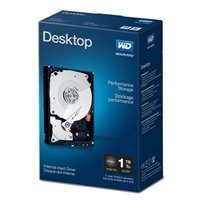
Image: Western Digital 3.5 inch internal hard drive. This image shows the top view of the hard drive, highlighting its form factor and typical appearance before installation.
- കണക്റ്റിംഗ് കേബിളുകൾ:
- Connect one end of a SATA data cable to the smaller port on the back of the hard drive. Connect the other end to an available SATA port on your computer's motherboard.
- Connect a SATA power cable from your computer's power supply unit (PSU) to the larger port on the back of the hard drive.
- Initial Software Setup:
- Close your computer case, plug in the power cord, and power on your computer.
- Upon booting, access your operating system's Disk Management utility (e.g., Windows Disk Management, macOS Disk Utility, or Linux `fdisk`/`GParted`).
- Locate the newly installed hard drive. It may appear as 'unallocated space'.
- Initialize the disk (if prompted), create one or more partitions, and format them with a suitable file system (e.g., NTFS for Windows, HFS+ or APFS for macOS, Ext4 for Linux).
- Once formatted, the drive will be ready for use.
Operating the Hard Drive
Once installed and formatted, your Western Digital hard drive functions as a standard storage device. You can use it to store operating systems, applications, documents, media files, and other data. Data transfer speeds will depend on your system's SATA controller and overall system performance.
മെയിൻ്റനൻസ്
To ensure the longevity and reliability of your hard drive and the safety of your data:
- പതിവ് ഡാറ്റ ബാക്കപ്പ്: Periodically back up critical data to another storage device or cloud service. No storage device is infallible.
- Monitor SMART Status: Utilize disk utility software to monitor the drive's Self-Monitoring, Analysis, and Reporting Technology (SMART) status. This can provide early warnings of potential drive failures.
- Maintain System Cooling: Ensure your computer's cooling system is functioning correctly to prevent the hard drive from operating at excessively high temperatures.
- ഡീഫ്രാഗ്മെന്റേഷൻ (HDD-കൾക്ക്): For optimal performance on Windows systems using NTFS, consider defragmenting the drive periodically. Modern operating systems often handle this automatically.
ട്രബിൾഷൂട്ടിംഗ്
If you encounter issues with your hard drive, consider the following:
- ഡ്രൈവ് കണ്ടെത്തിയില്ല:
- Verify that both the SATA data and power cables are securely connected to the drive and the motherboard/PSU.
- Check your computer's BIOS/UEFI settings to ensure the SATA port is enabled and the drive is recognized.
- Try connecting the drive to a different SATA port or using different cables.
- മന്ദഗതിയിലുള്ള പ്രകടനം:
- Check for excessive background processes or other system bottlenecks.
- ഡ്രൈവ് ഏതാണ്ട് നിറഞ്ഞിട്ടില്ലെന്ന് ഉറപ്പാക്കുക.
- Run a disk defragmenter (if applicable for your OS and file സിസ്റ്റം).
- Check the drive's SMART status for potential issues.
- അസാധാരണമായ ശബ്ദങ്ങൾ (ക്ലിക്ക് ചെയ്യൽ, പൊടിക്കൽ):
- These sounds can indicate a mechanical failure. Immediately back up any critical data if possible.
- Discontinue use and consider professional data recovery services if data is critical.
സ്പെസിഫിക്കേഷനുകൾ
| ഫീച്ചർ | സ്പെസിഫിക്കേഷൻ |
|---|---|
| ബ്രാൻഡ് | വെസ്റ്റേൺ ഡിജിറ്റൽ |
| മോഡൽ നമ്പർ | FBA_WDBSLA0010HNC-N |
| ഡിജിറ്റൽ സ്റ്റോറേജ് കപ്പാസിറ്റി | 1 ടി.ബി |
| ഹാർഡ് ഡിസ്ക് ഇന്റർഫേസ് | സീരിയൽ ATA |
| കണക്റ്റിവിറ്റി ടെക്നോളജി | SATA |
| ഹാർഡ് ഡിസ്ക് ഫോം ഫാക്ടർ | 3.5 ഇഞ്ച് |
| ഹാർഡ് ഡിസ്ക് വിവരണം | മെക്കാനിക്കൽ ഹാർഡ് ഡിസ്ക് |
| അനുയോജ്യമായ ഉപകരണങ്ങൾ | ഡെസ്ക്ടോപ്പ് |
| ഇൻസ്റ്റലേഷൻ തരം | ആന്തരിക ഹാർഡ് ഡ്രൈവ് |
| ഹാർഡ് ഡിസ്ക് റൊട്ടേഷണൽ സ്പീഡ് | 7200 ആർപിഎം |
| ഡാറ്റ കൈമാറ്റ നിരക്ക് | 6000 Megabytes Per Second (SATA 6.0 Gb/s) |
| ഫോം ഫാക്ടർ | 3.5-ഇഞ്ച് |
| യു.പി.സി | 718037822501 |
വാറൻ്റി വിവരങ്ങൾ
Western Digital products are covered by a limited warranty. The specific terms and duration of your warranty may vary by region and product. For detailed warranty information, including terms, conditions, and how to make a claim, please visit the official Western Digital webസൈറ്റ്.
Optional data recovery plans may be available for purchase separately to provide additional protection for your data. These plans are not part of the standard product warranty and offer specialized services in case of data loss.
പിന്തുണ
For technical assistance, product registration, or to access additional resources, please visit the official Western Digital support webസൈറ്റ്:
You may find FAQs, driver downloads, and contact information for customer service on their support portal.
Ask a question about this manual
Ask about setup, troubleshooting, compatibility, parts, safety, or missing instructions. Manuals+ will review the question and use this page’s manual context to help answer it.