
ആമുഖം
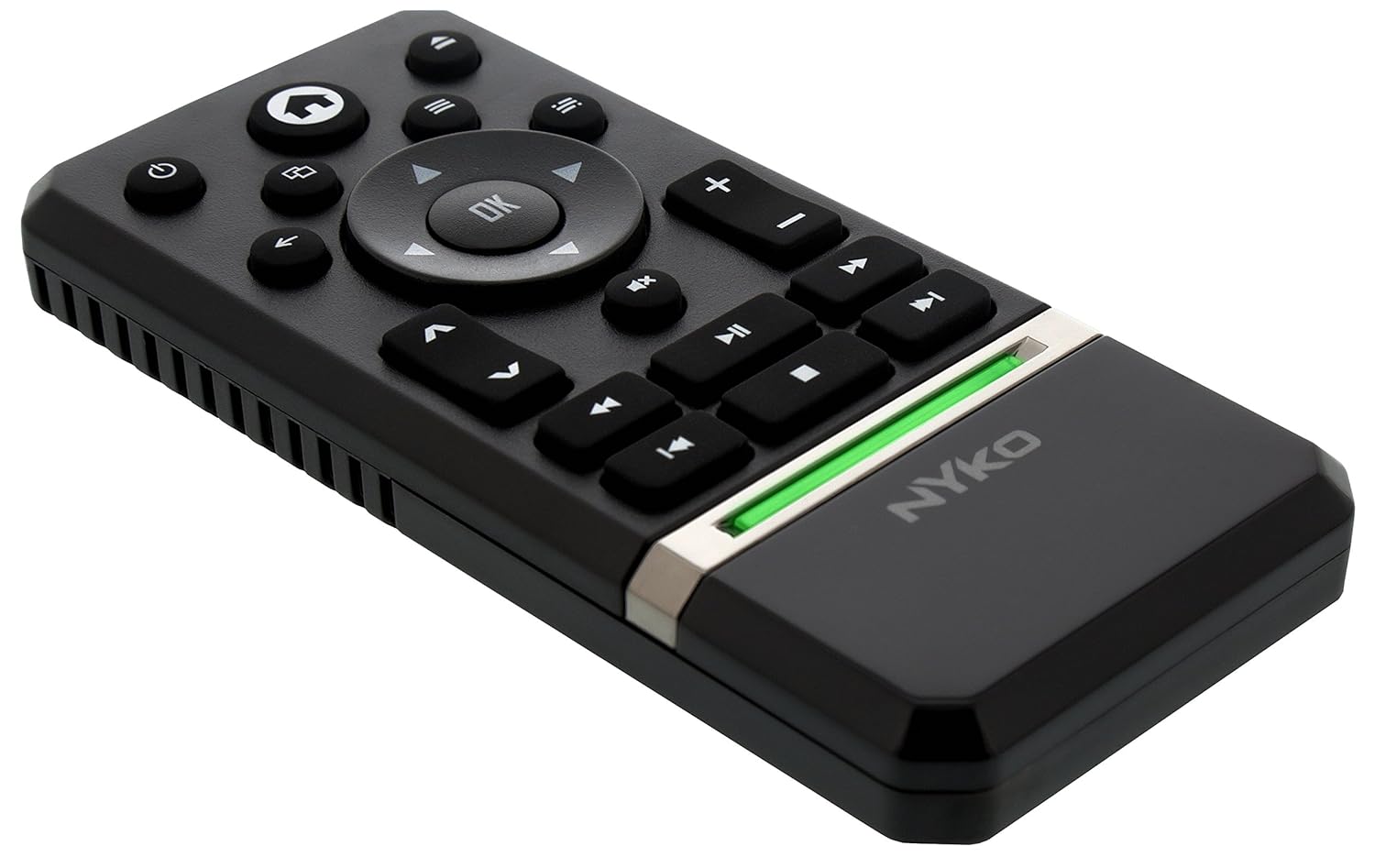
The Nyko Media Remote for Xbox One provides convenient control over your Xbox One console and various media applications. This remote simplifies navigation and playback of streaming content and physical media, offering dedicated buttons for common functions. It also features the ability to power your Xbox One on and off, and control basic functions of your television.

Image: Nyko Media Remote for Xbox One, front view.
പാക്കേജ് ഉള്ളടക്കം
- Nyko Media Remote for Xbox One (Model: 86116)
- കുറിപ്പ്: AAA ബാറ്ററികൾ ഉൾപ്പെടുത്തിയിട്ടില്ല, അവ പ്രത്യേകം വാങ്ങേണ്ടതാണ്.

Image: Nyko Media Remote for Xbox One in its retail packaging.
സജ്ജമാക്കുക
1. ബാറ്ററി ഇൻസ്റ്റാളേഷൻ
- റിമോട്ടിന്റെ പിൻഭാഗത്ത് ബാറ്ററി കമ്പാർട്ട്മെന്റ് കണ്ടെത്തുക.
- തുറക്കാൻ ബാറ്ററി കവർ താഴേക്ക് സ്ലൈഡ് ചെയ്യുക.
- കമ്പാർട്ടുമെന്റിനുള്ളിൽ സൂചിപ്പിച്ചിരിക്കുന്നതുപോലെ ശരിയായ പോളാരിറ്റി (+/-) ഉറപ്പാക്കിക്കൊണ്ട് രണ്ട് (2) AAA ബാറ്ററികൾ ഇടുക.
- ബാറ്ററി കവർ അതിന്റെ സ്ഥാനത്ത് ക്ലിക്ക് ആകുന്നതുവരെ മുകളിലേക്ക് സ്ലൈഡുചെയ്ത് മാറ്റിസ്ഥാപിക്കുക.
ചിത്രം: പിൻഭാഗം view of the remote with the battery cover removed, illustrating the AAA battery placement.
2. പ്രാരംഭ കണക്ഷൻ
The Nyko Media Remote uses infrared (IR) technology. No manual pairing is required for the Xbox One. Simply ensure a clear line of sight between the remote's IR emitter and the Xbox One's IR receiver.
For TV control functions (volume, channels, power), your TV must be configured to respond to the Xbox One's IR signals, typically through the Xbox One's OneGuide settings. The remote sends commands to the Xbox One, which then relays them to your TV via its IR blaster (if configured) or Kinect sensor.
പ്രവർത്തന നിർദ്ദേശങ്ങൾ
The Nyko Media Remote provides comprehensive control for your Xbox One and various media applications. Refer to the diagram below for button identification and their primary functions.

ചിത്രം: മുൻഭാഗം view of the Nyko Media Remote, displaying all control buttons.
ബട്ടൺ പ്രവർത്തനങ്ങൾ:
| ബട്ടൺ | ഫംഗ്ഷൻ |
|---|---|
| പവർ ബട്ടൺ (⏻) | Powers the Xbox One console on or off. |
| ഹോം ബട്ടൺ (⌂) | Returns to the Xbox One Home screen. |
| View ബട്ടൺ (🗀) | Accesses additional information or options within an app or game. |
| മെനു ബട്ടൺ (☰) | Opens context-sensitive menus or options. |
| ദിശാസൂചന പാഡ് (ഡി-പാഡ്) | Navigates through menus and content. |
| ശരി ബട്ടൺ | Confirms selections. Can also function as Play/Pause in some apps. |
| ബാക്ക് ബട്ടൺ (←Скачать по видео (എഴുത്തുകാരൻ)) | മുമ്പത്തെ സ്ക്രീനിലേക്കോ മെനുവിലേക്കോ തിരികെ പോകുന്നു. |
| OneGuide Button (📱) | Launches the Xbox OneGuide for live TV and media. |
| വോളിയം കൂട്ടുക/താഴ്ത്തുക (⏸ ⏸ മിനിമലിസ്റ്റ് / ⏷ ⏷ без) | Adjusts the television volume (requires TV setup via Xbox One). |
| നിശബ്ദ ബട്ടൺ (🔇) | Mutes or unmutes television audio. |
| ചാനൽ മുകളിലേക്കും താഴേക്കും (▲ / ▼) | Changes television channels (requires TV setup via Xbox One). |
| ഫാസ്റ്റ് റിവൈൻഡ് (⏪ ⏪ മിനിമലിസ്റ്റ്) | Rewinds media playback. |
| പ്ലേ/താൽക്കാലികമായി നിർത്തുക (⏯कालिक समान �) | മീഡിയ പ്ലേബാക്ക് പ്ലേ ചെയ്യുകയോ താൽക്കാലികമായി നിർത്തുകയോ ചെയ്യുന്നു. |
| ഫാസ്റ്റ് ഫോർവേഡ് (⏩) | Fast forwards media playback. |
| മുമ്പത്തെ ട്രാക്ക് (⏮ ⏮ по видео 🇮🇳) | നിലവിലെ ട്രാക്കിന്റെ തുടക്കത്തിലേക്കോ മുമ്പത്തെ ട്രാക്കിലേക്കോ പോകുന്നു. |
| നിർത്തുക (⏹ ⏹ മിനിസ്റ്റർ) | മീഡിയ പ്ലേബാക്ക് നിർത്തുന്നു. |
| അടുത്ത ട്രാക്ക് (⏭कालिक समाल�) | Skips to the next track or chapter. |
Media and App Control:
The remote is designed for seamless control of various Xbox One applications, including:
- OneGuide
- നെറ്റ്ഫ്ലിക്സ്
- ഹുലു പ്ലസ്
- ആമസോൺ തൽക്ഷണ വീഡിയോ
- Other streaming services and Blu-ray/DVD playback
Dedicated playback buttons (Play, Pause, Fast Forward, Rewind, Stop, Skip) provide intuitive control for movies, music, and other media.
മെയിൻ്റനൻസ്
ബാറ്ററി മാറ്റിസ്ഥാപിക്കൽ:
When the remote's performance diminishes or it stops responding, it is likely time to replace the batteries. Follow the "Battery Installation" steps in the Setup section to replace the two AAA batteries.
വൃത്തിയാക്കൽ:
To clean the remote, gently wipe it with a soft, dry cloth. Avoid using harsh chemicals, abrasive cleaners, or excessive moisture, as these can damage the remote's finish or internal components.
ട്രബിൾഷൂട്ടിംഗ്
- റിമോട്ട് പ്രതികരിക്കുന്നില്ല:
- പുതിയ AAA ബാറ്ററികൾ ശരിയായി ഇൻസ്റ്റാൾ ചെയ്തിട്ടുണ്ടെന്ന് ഉറപ്പാക്കുക.
- Verify there is a clear line of sight between the remote and the Xbox One console. Obstructions can block the infrared signal.
- Move closer to the Xbox One console. The remote has a maximum effective range of approximately 9 meters (25 feet).
- TV Control (Volume, Channel, Power) Not Working:
- Confirm that your Xbox One's OneGuide settings are properly configured for your television. The remote sends commands to the Xbox One, which then controls the TV.
- Ensure any necessary IR blasters or Kinect sensors are correctly set up and positioned.
- Intermittent Response:
- This can sometimes occur due to weak batteries or environmental interference. Replace batteries and ensure a clear line of sight.
സ്പെസിഫിക്കേഷനുകൾ
| ഫീച്ചർ | വിശദാംശങ്ങൾ |
|---|---|
| ബ്രാൻഡ് | നൈക്കോ |
| മോഡലിൻ്റെ പേര് | മീഡിയ റിമോട്ട് |
| മോഡൽ നമ്പർ | 86116 |
| കണക്റ്റിവിറ്റി ടെക്നോളജി | ഇൻഫ്രാറെഡ് (IR) |
| അനുയോജ്യമായ ഉപകരണങ്ങൾ | Xbox One, Television (via Xbox One IR blaster/Kinect) |
| ബാറ്ററി തരം | 2 x AAA ബാറ്ററികൾ (ഉൾപ്പെടുത്തിയിട്ടില്ല) |
| പരമാവധി പരിധി | 9 മീറ്റർ വരെ (25 അടി) |
| ഇനത്തിൻ്റെ ഭാരം | 0.1 പൗണ്ട് (ഏകദേശം 45 ഗ്രാം) |
| നിറം | ഇരുണ്ട ചാരനിറം |
| അധിക സവിശേഷതകൾ | Ergonomic design, dedicated media playback controls. |
വാറൻ്റിയും പിന്തുണയും
Nyko products are designed for quality and reliability. For specific warranty details, please refer to the documentation included with your purchase or visit the official Nyko website. The product includes warranty information in multiple languages.
ഉപഭോക്തൃ പിന്തുണ:
- ഇമെയിൽ: customer.support@nyko.com
- ഫോൺ: +1-888-400-6956
- ഓൺലൈൻ രജിസ്ട്രേഷൻ: www.nyko.com
- അധിക വിവരം: http://uqr.me/nykotechnologies/qr/83215

ചിത്രം: പിൻഭാഗം view of the product packaging, detailing features and customer support contact information.