
1. ആമുഖം
This manual provides detailed instructions for the installation, operation, and maintenance of your Azurewave AW-NB041 WiFi and Bluetooth PCIe Mini-Card. This highly integrated wireless local area network (WLAN) solution allows users to enjoy digital content through the latest wireless technology without the need for extra cables. It combines Bluetooth 3.0 HS class II and provides a complete 2.4GHz Bluetooth system, fully compliant with Bluetooth 3.0 HS and v2.1, supporting EDR of 2Mbps and 3Mbps for data and audio communications.
The AW-NB041H module is designed for high performance, cost-effectiveness, and low power consumption, fitting easily into a PCI Express and USB Combo Half Mini Card slot.
2. ഉൽപ്പന്ന സവിശേഷതകൾ
- Compliant with IEEE 802.11n standard for reliable wireless connectivity.
- Supports 1 (Transmit) x 1 (Receive) technology for WiFi.
- Antenna configuration: Main antenna for WiFi 1T x 1R and Bluetooth TX/RX; Auxiliary antenna for Bluetooth TX/RX and WiFi TX/RX.
- High-speed wireless connection up to 150Mbps.
- Low power consumption and high performance design.
- Enhanced wireless security features.
- Fully qualified Bluetooth v3.0+HS.
- Full-speed operation with Piconet and Scatternet support.
- Electrical compliance to USB1.1 & 2.0 through a proprietary 10-Pin Connector.
- Utilizes Direct Sequence Spread Spectrum (DSSS), Orthogonal Frequency Division Multiplexing (OFDM), BPSK, QPSK, CCK, and QAM baseband modulation technologies.
- Integrated Ralink RT3090 with CSR BC04 solution.
3 സുരക്ഷാ വിവരങ്ങൾ
- പ്രധാനപ്പെട്ടത്: The Vcc (supply voltage) for this module is 3.3V. Applying 5V is not allowed and will damage the device.
- Always handle electronic components with care to avoid electrostatic discharge (ESD). Use an anti-static wrist strap if available.
- ഇൻസ്റ്റാൾ ചെയ്യുന്നതിന് മുമ്പ് നിങ്ങളുടെ കമ്പ്യൂട്ടർ പവർ ഓഫ് ചെയ്തിട്ടുണ്ടെന്നും വാൾ ഔട്ട്ലെറ്റിൽ നിന്ന് അൺപ്ലഗ് ചെയ്തിട്ടുണ്ടെന്നും ഉറപ്പാക്കുക.
- Refer to your computer's manufacturer manual for specific instructions on opening the chassis and accessing internal components.
- മൊഡ്യൂളിനെ ഈർപ്പം, കടുത്ത താപനില എന്നിവയിൽ നിന്ന് അകറ്റി നിർത്തുക.
4. പാക്കേജ് ഉള്ളടക്കം
The package should contain the following item:
- 1 x Azurewave AW-NB041 WiFi and Bluetooth PCIe Mini-Card
Note: Drivers and installation software are typically provided by your operating system or can be downloaded from the manufacturer's webസൈറ്റ്.
5. സജ്ജീകരണവും ഇൻസ്റ്റാളേഷനും
Follow these steps to install the AW-NB041 PCIe Mini-Card into your compatible device:
- നിങ്ങളുടെ സിസ്റ്റം തയ്യാറാക്കുക: Power off your computer completely and disconnect the power cord. If it's a laptop, remove the battery.
- ഓപ്പൺ ചേസിസ്: Carefully open your computer's chassis or access panel to expose the internal components. Refer to your computer's manual for specific instructions.
- Locate PCIe Mini-Card Slot: Identify an available half-size PCIe Mini-Card slot on your motherboard.
- Install the Card: Gently insert the AW-NB041 card into the PCIe Mini-Card slot at an angle. Once seated, push down the card until it clicks into place or secure it with the retaining screw (if applicable).
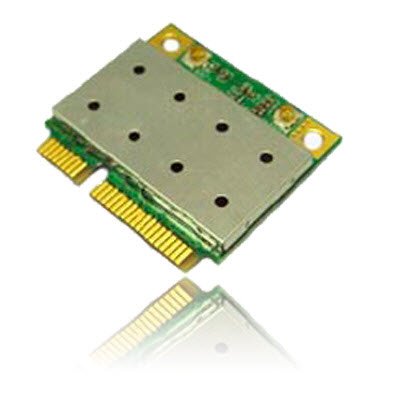
Image of the Azurewave AW-NB041 PCIe Mini-Card, showing its compact form factor and connectors.
- ആന്റിനകൾ ബന്ധിപ്പിക്കുക: If your system has internal antennas, carefully connect them to the appropriate connectors on the AW-NB041 card (Main for WiFi/BT, Aux for BT/WiFi).
- ചേസിസ് അടയ്ക്കുക: Reassemble your computer's chassis and reconnect the power cord/battery.
- ഡ്രൈവറുകൾ ഇൻസ്റ്റാൾ ചെയ്യുക: Power on your computer. Your operating system may automatically detect and install the necessary drivers. If not, download the latest drivers for the Ralink RT3090 (for WiFi) and CSR BC04 (for Bluetooth) chipsets from the Azurewave support website or your computer manufacturer's webസൈറ്റ്.
6. പ്രവർത്തന നിർദ്ദേശങ്ങൾ
6.1. ഒരു വൈഫൈ നെറ്റ്വർക്കിലേക്ക് കണക്റ്റുചെയ്യുന്നു
- Ensure the WiFi function is enabled in your operating system settings.
- Click on the WiFi icon in your system tray (Windows) or menu bar (macOS/Linux).
- ലഭ്യമായ നെറ്റ്വർക്കുകളുടെ പട്ടികയിൽ നിന്ന് നിങ്ങൾക്ക് ആവശ്യമുള്ള വൈഫൈ നെറ്റ്വർക്ക് തിരഞ്ഞെടുക്കുക.
- ആവശ്യപ്പെടുകയാണെങ്കിൽ നെറ്റ്വർക്ക് സുരക്ഷാ കീ (പാസ്വേഡ്) നൽകുക.
- Click 'Connect'. Your device should now be connected to the WiFi network.
6.2. ബ്ലൂടൂത്ത് ഉപകരണങ്ങൾ ജോടിയാക്കൽ
- നിങ്ങളുടെ ഓപ്പറേറ്റിംഗ് സിസ്റ്റം ക്രമീകരണങ്ങളിൽ ബ്ലൂടൂത്ത് പ്രവർത്തനക്ഷമമാക്കിയിട്ടുണ്ടെന്ന് ഉറപ്പാക്കുക.
- നിങ്ങളുടെ ബ്ലൂടൂത്ത് ഉപകരണം (ഉദാ: ഹെഡ്ഫോണുകൾ, മൗസ്, കീബോർഡ്) പെയറിംഗ് മോഡിലേക്ക് മാറ്റുക. നിർദ്ദിഷ്ട നിർദ്ദേശങ്ങൾക്ക് നിങ്ങളുടെ ഉപകരണത്തിന്റെ മാനുവൽ പരിശോധിക്കുക.
- On your computer, go to Bluetooth settings (e.g., 'Bluetooth & other devices' in Windows, 'Bluetooth' in macOS).
- Click 'Add Bluetooth or other device' or similar option.
- Select your Bluetooth device from the list and follow the on-screen prompts to complete the pairing process.
7. പരിപാലനം
The AW-NB041 module is designed for long-term reliability with minimal maintenance. However, consider the following general guidelines:
- വൃത്തിയായി സൂക്ഷിക്കു: Periodically clean the interior of your computer to prevent dust buildup, which can affect performance and cooling.
- ഡ്രൈവർ അപ്ഡേറ്റുകൾ: Ensure your WiFi and Bluetooth drivers are kept up-to-date. Check the Azurewave support website or your computer manufacturer's webഏറ്റവും പുതിയ പതിപ്പുകൾക്കായുള്ള സൈറ്റ്.
- പരിസ്ഥിതി വ്യവസ്ഥകൾ: Operate the device within recommended temperature and humidity ranges to ensure optimal performance and longevity.
8. പ്രശ്നപരിഹാരം
8.1. No WiFi or Bluetooth Connection
- ഭൗതിക ഇൻസ്റ്റാളേഷൻ പരിശോധിക്കുക: Ensure the card is properly seated in its slot and any antennas are securely connected.
- Verify Drivers: Confirm that the correct WiFi (Ralink RT3090) and Bluetooth (CSR BC04) drivers are installed and up-to-date in your operating system's Device Manager.
- വയർലെസ് പ്രാപ്തമാക്കുക: Make sure WiFi and Bluetooth are enabled in your operating system settings and any physical switches on your computer.
- പുനരാരംഭിക്കുക: നിങ്ങളുടെ കമ്പ്യൂട്ടർ റീബൂട്ട് ചെയ്യുക.
8.2. Slow WiFi Speed
- സിഗ്നൽ ശക്തി: Ensure you are within good range of your WiFi router.
- ഇടപെടൽ: മറ്റ് ഇലക്ട്രോണിക് ഉപകരണങ്ങളിൽ നിന്നുള്ള (ഉദാ: മൈക്രോവേവ്, കോർഡ്ലെസ് ഫോണുകൾ) ഇടപെടലുകൾ കുറയ്ക്കുക.
- റൂട്ടർ ക്രമീകരണങ്ങൾ: Check your router's settings for optimal channel selection and 802.11n mode.
- ഡ്രൈവർ അപ്ഡേറ്റ്: Update your WiFi drivers to the latest version.
8.3. ബ്ലൂടൂത്ത് ജോടിയാക്കൽ പ്രശ്നങ്ങൾ
- Device in Pairing Mode: Confirm your Bluetooth device is in discoverable/pairing mode.
- പരിധി: Ensure the Bluetooth device is close to your computer.
- Remove Existing Pairings: If the device was previously paired, remove it from your computer's Bluetooth settings and try pairing again.
- ഡ്രൈവർ അപ്ഡേറ്റ്: Update your Bluetooth drivers to the latest version.
9 സ്പെസിഫിക്കേഷനുകൾ
| ഫീച്ചർ | സ്പെസിഫിക്കേഷൻ |
|---|---|
| മോഡൽ നമ്പർ | AW-NB041 |
| നിർമ്മാതാവ് | Azurewave |
| ഫോം ഫാക്ടർ | PCIe MiniCard (HalfSize) |
| ഹാർഡ്വെയർ ഇന്റർഫേസ് | PCI-Express, USB (via 10-Pin Connector) |
| അനുയോജ്യമായ ഉപകരണങ്ങൾ | Desktop (with compatible PCIe Mini-Card slot) |
| വൈഫൈ സ്റ്റാൻഡേർഡ് | IEEE 802.11b/g/n |
| ബ്ലൂടൂത്ത് സ്റ്റാൻഡേർഡ് | Bluetooth v3.0+HS, v2.1+EDR |
| Data Transfer Rate (WiFi) | 150 Mbps വരെ |
| Data Transfer Rate (Bluetooth) | 2Mbps (EDR), 3Mbps (EDR) |
| ചിപ്സെറ്റ് | Ralink RT3090 (WiFi), CSR BC04 (Bluetooth) |
| Antenna Support | 1T1R (WiFi), TX/RX (Bluetooth) |
| സപ്ലൈ വോളിയംtage (Vcc) | 3.3 വി (Do not use 5V) |
10. വാറൻ്റിയും പിന്തുണയും
For warranty information and technical support, please refer to the documentation provided with your purchase or visit the official Azurewave webസൈറ്റ്. സഹായത്തിനായി നിങ്ങൾക്ക് വിൽപ്പനക്കാരനെ നേരിട്ട് ബന്ധപ്പെടാനും കഴിയും.
Please have your product model number (AW-NB041) and purchase details ready when contacting support.


