
OWC OWCTB2DOCK12P
OWC Thunderbolt 2 Dock User Manual
Model: OWCTB2DOCK12P
ആമുഖം
The OWC Thunderbolt 2 Dock is a versatile connectivity solution designed to expand the port options of your computer. It provides a wide array of ports including USB 3.0, Thunderbolt 2, FireWire 800, HDMI, Gigabit Ethernet, and audio input/output, streamlining your workspace by connecting all your peripherals through a single Thunderbolt cable.
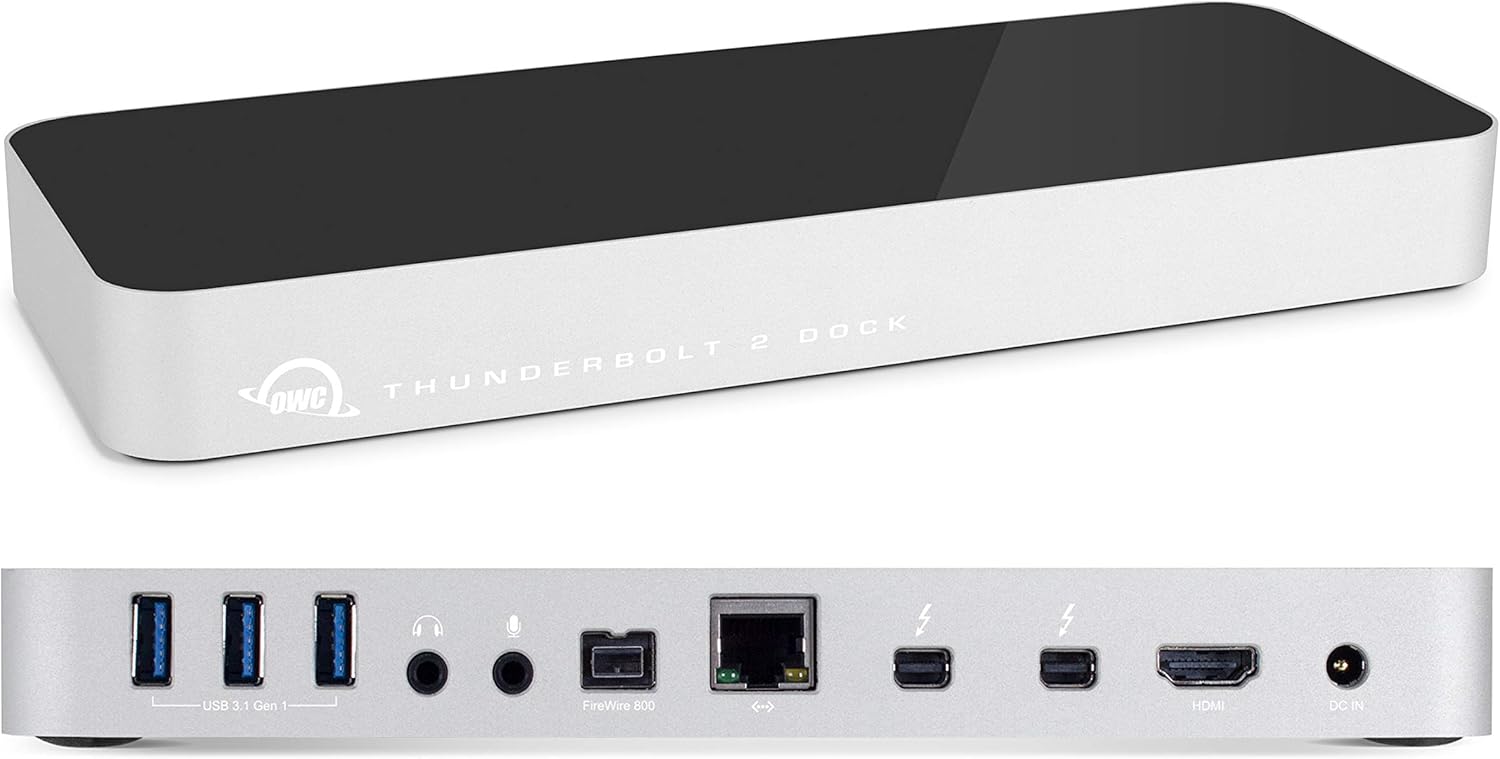
Figure 1: OWC Thunderbolt 2 Dock - Top and Rear View
പ്രധാന സവിശേഷതകൾ
- 5 USB 3.0 Ports (3 Standard & Two 1.5A High-Powered)
- 2 Thunderbolt Ports
- 3.5mm Mono Audio Input
- 3.5എംഎം സ്റ്റീരിയോ ഓഡിയോ ഔട്ട്പുട്ട്
- 1 FireWire 800 Port
- ഗിഗാബിറ്റ് ഇഥർനെറ്റ് പോർട്ട്
- HDMI Port for display connectivity
സജ്ജീകരണ ഗൈഡ്
പാക്കേജ് ഉള്ളടക്കം
- OWC തണ്ടർബോൾട്ട് 2 ഡോക്ക്
- പവർ അഡാപ്റ്റർ
- പവർ കേബിൾ
ഡോക്ക് ബന്ധിപ്പിക്കുന്നു
Follow these steps to connect your OWC Thunderbolt 2 Dock and begin using it:
- പവർ ബന്ധിപ്പിക്കുക: Plug the power adapter into the DC IN port on the rear of the dock and then into a wall outlet. The power LED on the front of the dock will illuminate, indicating it is ready for use.
- പെരിഫറലുകൾ ബന്ധിപ്പിക്കുക: Connect your USB devices (keyboard, mouse, external drives) to the USB 3.0 ports. Connect audio devices to the 3.5mm audio input/output jacks. If you have a FireWire 800 device, connect it to the FireWire 800 port. Connect your network cable to the Gigabit Ethernet port.
- ഡിസ്പ്ലേകൾ ബന്ധിപ്പിക്കുക: Connect your primary display to the HDMI port. If you are using a Thunderbolt display or daisy-chaining another Thunderbolt device, connect it to one of the Thunderbolt 2 ports.
- കമ്പ്യൂട്ടറുമായി ബന്ധിപ്പിക്കുക: Use a Thunderbolt cable (not included) to connect one of the Thunderbolt 2 ports on the dock to a Thunderbolt port on your computer.

Figure 2: Rear Ports of OWC Thunderbolt 2 Dock

Figure 3: Side Ports of OWC Thunderbolt 2 Dock
ഡ്രൈവർ ഇൻസ്റ്റാളേഷൻ
For optimal performance and compatibility, especially with certain devices like iPads for charging, ensure your computer's operating system is up to date. OWC may provide specific drivers or firmware updates on their official support website. Check their website for the latest downloads relevant to your operating system.
ഡോക്ക് പ്രവർത്തിപ്പിക്കുന്നു
പൊതുവായ ഉപയോഗം
Once connected, the OWC Thunderbolt 2 Dock acts as a central hub for all your connected devices. Your computer will automatically recognize the peripherals connected to the dock. You can connect and disconnect USB devices while the dock is powered on (hot-plugging).
കണക്ഷനുകൾ പ്രദർശിപ്പിക്കുക
The dock supports one HDMI display directly. For dual display setups, one display must be connected via HDMI and the second via a Thunderbolt port (using a Mini DisplayPort compatible cable or adapter), or by daisy-chaining another Thunderbolt display. Ensure your computer's graphics card supports the desired display configuration.
പരിപാലനവും പരിചരണവും
- വൃത്തിയാക്കൽ: ഡോക്കിന്റെ പുറംഭാഗം വൃത്തിയാക്കാൻ മൃദുവായതും ഉണങ്ങിയതും ലിന്റ് രഹിതവുമായ തുണി ഉപയോഗിക്കുക. അബ്രസിവ് ക്ലീനറുകൾ, ലായകങ്ങൾ, എയറോസോൾ സ്പ്രേകൾ എന്നിവ ഒഴിവാക്കുക.
- പരിസ്ഥിതി: നല്ല വായുസഞ്ചാരമുള്ള സ്ഥലത്ത് ഡോക്ക് പ്രവർത്തിപ്പിക്കുക. തീവ്രമായ താപനില, ഈർപ്പം, നേരിട്ടുള്ള സൂര്യപ്രകാശം എന്നിവയ്ക്ക് വിധേയമാകുന്നത് ഒഴിവാക്കുക.
- കേബിൾ മാനേജുമെന്റ്: Ensure all cables are neatly organized and not under strain to prevent damage to the ports or cables.
- പവർ സൈക്കിൾ: If you experience minor issues, try disconnecting the power adapter from the dock for 10-15 seconds, then reconnecting it.
ട്രബിൾഷൂട്ടിംഗ്
If you encounter issues with your OWC Thunderbolt 2 Dock, refer to the following common problems and solutions:
- No Power / Dock Not Turning On:
- Ensure the power adapter is securely connected to both the dock and a working power outlet.
- മറ്റൊരു ഉപകരണം പ്ലഗ് ഇൻ ചെയ്ത് പവർ ഔട്ട്ലെറ്റ് പ്രവർത്തനക്ഷമമാണോ എന്ന് പരിശോധിക്കുക.
- Connected Devices Not Recognized:
- Verify that the Thunderbolt cable is securely connected between the dock and your computer.
- Try connecting the problematic device directly to your computer to confirm it is working.
- Restart your computer and power cycle the dock.
- Ensure your computer's operating system and Thunderbolt drivers are up to date.
- ഡിസ്പ്ലേ പ്രശ്നങ്ങൾ (സിഗ്നൽ ഇല്ല, മിന്നിമറയുന്നു):
- Check all display cables (HDMI, Mini DisplayPort) for secure connections.
- Ensure your display is set to the correct input source.
- Try a different display cable or port on the dock/computer if available.
- Adjust display settings on your computer (resolution, refresh rate).
- ഇടയ്ക്കിടെയുള്ള വിച്ഛേദങ്ങൾ:
- Ensure the Thunderbolt cable is of high quality and securely connected.
- Avoid placing the dock in areas with poor ventilation, as overheating can cause instability.
- Reduce the number of high-power devices connected simultaneously if experiencing issues.
സാങ്കേതിക സവിശേഷതകൾ
| ഫീച്ചർ | സ്പെസിഫിക്കേഷൻ |
|---|---|
| ബ്രാൻഡ് | OWC |
| മോഡൽ നമ്പർ | OWCTB2DOCK12P |
| ഓപ്പറേറ്റിംഗ് സിസ്റ്റം അനുയോജ്യത | വിൻഡോസ് 10, മാകോസ് |
| ഇനത്തിൻ്റെ ഭാരം | 2.6 പൗണ്ട് |
| ഉൽപ്പന്ന അളവുകൾ (LxWxH) | 12.6 x 5.3 x 3.7 ഇഞ്ച് |
| നിറം | വെള്ള, കറുപ്പ് |
| വാല്യംtage | 12 വോൾട്ട് |
| ഹാർഡ്വെയർ ഇന്റർഫേസ് | FireWire 800, USB 3.0 |
| പ്രത്യേക ഫീച്ചർ | പോർട്ടബിൾ |
| അനുയോജ്യമായ ഉപകരണങ്ങൾ | USB C (with adapter), Mac |
വാറൻ്റിയും പിന്തുണയും
OWC products are designed for reliability and performance. For specific warranty details, please refer to the warranty information included with your product packaging or visit the official OWC webസൈറ്റ്.
For additional support, including FAQs, drivers, and contact information, please visit the OWC support page. You can also refer to the official user guide PDF for more detailed instructions:
Ask a question about this manual
Ask about setup, troubleshooting, compatibility, parts, safety, or missing instructions. Manuals+ will review the question and use this page’s manual context to help answer it.