
1. ആമുഖം
The SainSmart MetaPhix M2 Graphing Calculator is a versatile tool designed for students, educators, and professionals in various fields including mathematics, science, and engineering. It supports a wide range of calculations from basic arithmetic to advanced graphing functions, making it suitable for courses such as Pre-Algebra, Algebra I & II, Geometry, Trigonometry, Calculus, AP Calculus, AP Statistics, Biology, Chemistry, Physics, Finance, and Business.
This manual provides detailed instructions for setting up, operating, and maintaining your MetaPhix M2 calculator, ensuring you can utilize its full potential. The calculator features a solid cover to protect its keys and screen during transport and storage.

Figure 1: SainSmart MetaPhix M2 Graphing Calculator
2. സജ്ജീകരണം
2.1. ബാറ്ററി ഇൻസ്റ്റാളേഷൻ
The MetaPhix M2 calculator requires batteries for operation (not included). To install or replace batteries:
- കാൽക്കുലേറ്റർ ഓഫ് ചെയ്യുക.
- കാൽക്കുലേറ്ററിന്റെ പിൻഭാഗത്ത് ബാറ്ററി കമ്പാർട്ട്മെന്റ് കവർ കണ്ടെത്തുക.
- കവർ നീക്കുക.
- കമ്പാർട്ടുമെന്റിനുള്ളിൽ സൂചിപ്പിച്ചിരിക്കുന്നതുപോലെ ശരിയായ പോളാരിറ്റി (+/-) ഉറപ്പാക്കിക്കൊണ്ട് പുതിയ ബാറ്ററികൾ ഇടുക.
- ബാറ്ററി കമ്പാർട്ട്മെൻ്റ് കവർ മാറ്റിസ്ഥാപിക്കുക.

Figure 2: Back of the calculator with battery compartment
2.2. പവർ ഓൺ/ഓഫ്
- കാൽക്കുലേറ്റർ ഓണാക്കാൻ, ON ബട്ടൺ.
- To turn off the calculator, press SHIFT പിന്നെ ഓഫ് (usually located above the ON button).
- The calculator features an auto power-off function to conserve battery life after a period of inactivity.
3. പ്രവർത്തന നിർദ്ദേശങ്ങൾ
3.1. Keypad Layout
The MetaPhix M2 keypad is organized into several functional areas:
- ഡിസ്പ്ലേ സ്ക്രീൻ: Shows input, results, and graphs. Features a 64 x 32 pixel resolution LCD for incredible readability.
- പ്രവർത്തന കീകൾ: കീകൾ പോലുള്ളവ SHIFT, ആൽഫ, ഒപ്പം മോഡ് to access secondary functions and change calculator modes.
- നാവിഗേഷൻ പാഡ്: Arrow keys for moving the cursor on the display.
- സംഖ്യാ കീപാഡ്: Standard digits 0-9 and decimal point.
- Arithmetic Operators: Addition, subtraction, multiplication, division.
- ശാസ്ത്രീയ പ്രവർത്തനങ്ങൾ: Trigonometric (sin, cos, tan), logarithmic (log, ln), exponential, power functions.
- Graphing Keys: Dedicated keys for drawing graphs and adjusting settings.
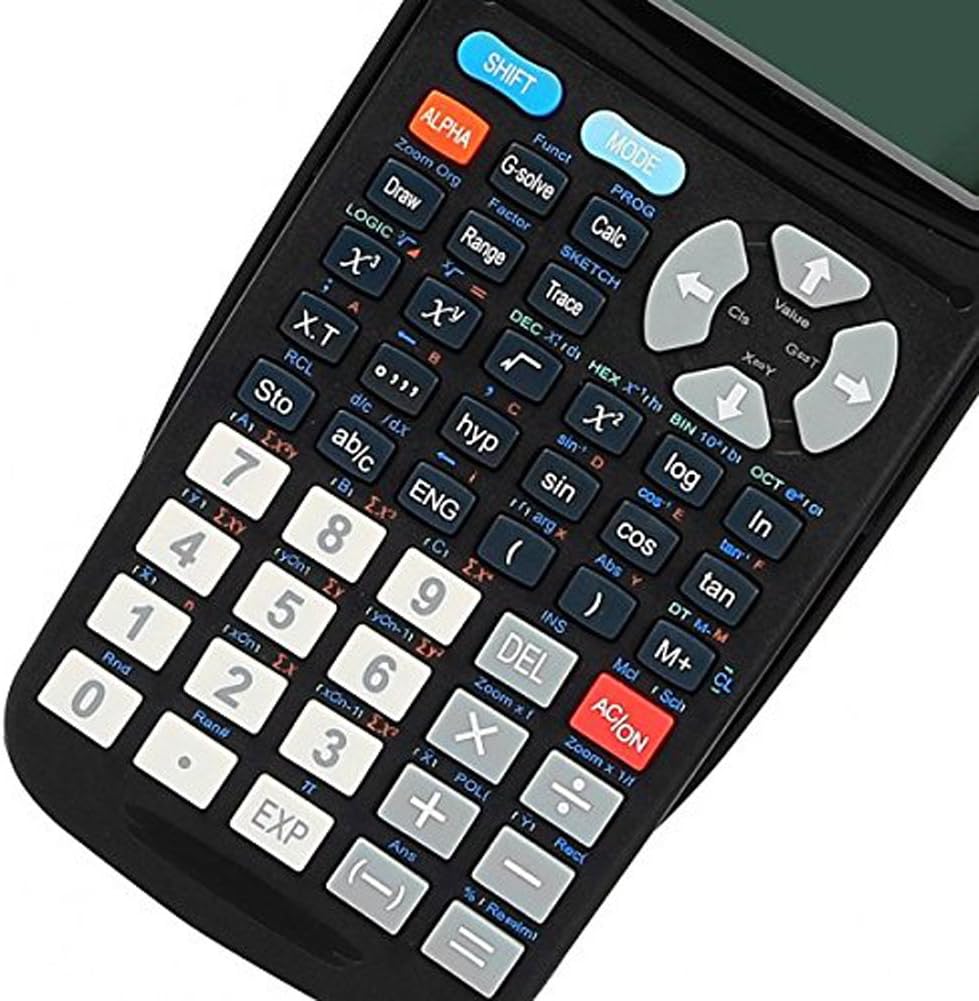
ചിത്രം 3: വിശദമായി view of the calculator keypad
3.2. Basic Calculations
To perform basic arithmetic:
- ആദ്യത്തെ നമ്പർ നൽകുക.
- Press the desired operator (+, -, ×, ÷).
- രണ്ടാമത്തെ നമ്പർ നൽകുക.
- അമർത്തുക = ഫലം പ്രദർശിപ്പിക്കാൻ.
3.3. Understanding Display Indicators
The calculator's display shows various indicators to inform you about its current state or active functions:
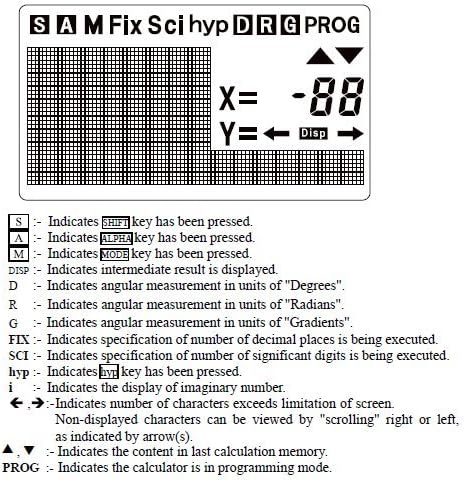
Figure 4: Display Indicators
- S: സൂചിപ്പിക്കുന്നു SHIFT കീ അമർത്തി.
- A: സൂചിപ്പിക്കുന്നു ആൽഫ കീ അമർത്തി.
- M: സൂചിപ്പിക്കുന്നു മോഡ് കീ അമർത്തി.
- വിതരണം: Indicates an intermediate result is displayed.
- D: Indicates angular measurement in units of "Degrees".
- R: Indicates angular measurement in units of "Radians".
- G: Indicates angular measurement in units of "Gradients".
- പരിഹരിക്കുക: Indicates specification of number of decimal places is being executed.
- SCI: Indicates specification of number of significant digits is being executed.
- hyp: സൂചിപ്പിക്കുന്നു ഹൈപ്പ് കീ അമർത്തി.
- i: Indicates the display of an imaginary number.
- ←, →: Indicates number of characters exceeds screen limitation; content can be viewസ്ക്രോളിംഗ് വഴി ed.
- ▲, ▼: Indicates the content in the last calculation memory.
- പ്രോഗ്രാം: Indicates the calculator is in programming mode.
3.4. Graphing Functions
The MetaPhix M2 can generate various graphs. Ensure the calculator is in the appropriate mode (e.g., COMP mode for general calculations before graphing). The calculator features a great graphical user interface (GUI) for parametric graphing.
Example 1: Plotting a Sine Curve and y = 1/x Graph
To sketch a sine curve or a y = 1/x graph:
- Ensure the calculator is in COMP mode.
- അമർത്തുക [ഷിഫ്റ്റ്] പിന്നെ [FUNC] to open the function menu.
- Select the desired function slot (e.g., "Y1").
- For a sine curve, enter "sin" (e.g., by pressing the പാപം കീ).
- For y = 1/x, enter "x-1" (e.g., by pressing [ഷിഫ്റ്റ്] പിന്നെ [x-1]).
- അമർത്തുക [DRAW] to sketch the graph.
Note: The variable "x" is often implied for built-in graph functions or when using specific function keys.
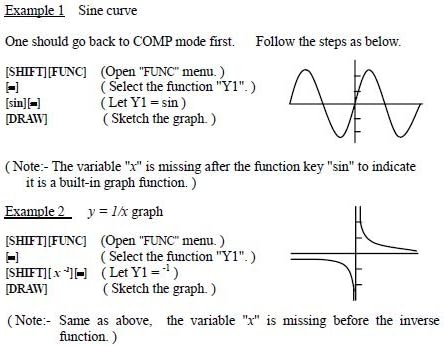
Figure 5: Sine curve and y=1/x graph exampലെസ്
4. വിപുലമായ പ്രവർത്തനങ്ങൾ
The MetaPhix M2 calculator offers a comprehensive suite of advanced functions, supporting a deeper understanding of mathematics:
- Generation of Parametric Graphs
- Complex, Continuous & Statistical Calculation
- Regression & Integration Capability
- Logarithmic & Exponential Functions
- Answer Storage
- Scientific Calculation
- Formula Storage in Memory
- Multistatement Input
- Zooming Functions for Graphs
- Replay & Trace Functions for Graphs
- Factor & Expand Algebraic Logic & Trigonometric Expressions
- Basic arithmetic operations using binary, octal, decimal, and hexadecimal values.
5. പരിപാലനം
- വൃത്തിയാക്കൽ: Use a soft, dry cloth to clean the calculator's exterior. Do not use abrasive cleaners or solvents.
- സംഭരണം: Store the calculator in a cool, dry place away from direct sunlight and extreme temperatures. Always use the protective cover when not in use.
- ബാറ്ററി മാറ്റിസ്ഥാപിക്കൽ: Replace batteries promptly when the low battery indicator appears or when the display becomes dim. Remove batteries if the calculator will not be used for an extended period to prevent leakage.
6. പ്രശ്നപരിഹാരം
- കാൽക്കുലേറ്റർ ഓണാകുന്നില്ല:
- ശരിയായ പോളാരിറ്റിയോടെ ബാറ്ററികൾ ശരിയായി ഇൻസ്റ്റാൾ ചെയ്തിട്ടുണ്ടെന്ന് ഉറപ്പാക്കുക.
- പഴയതോ കാലഹരണപ്പെട്ടതോ ആയ ബാറ്ററികൾ പുതിയവ ഉപയോഗിച്ച് മാറ്റിസ്ഥാപിക്കുക.
- ഡിസ്പ്ലേ മങ്ങിയതോ ശൂന്യമോ ആണ്:
- ബാറ്ററികൾ കുറവായിരിക്കാം; അവ മാറ്റി സ്ഥാപിക്കുക.
- Adjust display contrast if available (refer to specific key combinations in the full manual).
- തെറ്റായ കണക്കുകൂട്ടൽ ഫലങ്ങൾ:
- Check the current mode (e.g., Degree/Radian for trigonometric functions).
- Verify input values and formula syntax.
- Clear memory or reset the calculator if necessary (consult the full manual for reset procedures).
- Graphing issues:
- Ensure the calculator is in graphing mode.
- Check the function input for errors.
- ക്രമീകരിക്കുക viewing window settings (Xmin, Xmax, Ymin, Ymax) to ensure the graph is within visible range.
For more detailed troubleshooting or persistent issues, please refer to the comprehensive manual available online or contact SainSmart customer support.
7 സ്പെസിഫിക്കേഷനുകൾ
- ബ്രാൻഡ്: സെയ്ൻസ്മാർട്ട്
- മോഡൽ: MetaPhix M2
- കാൽക്കുലേറ്റർ തരം: Business, Engineering/Scientific, Graphing
- ഊർജ്ജ സ്രോതസ്സ്: ബാറ്ററി പവർ
- ഡിസ്പ്ലേ തരം: LCD (64 x 32 pixel resolution)
- മെമ്മറി: Built-in memory for storage and analysis
- UPC: 811820022215
8. വാറൻ്റിയും പിന്തുണയും
The SainSmart MetaPhix M2 Graphing Calculator comes with a 1 വർഷത്തെ വാറൻ്റി from the date of purchase. This warranty covers manufacturing defects and ensures technical support from SainSmart.
For technical assistance, warranty claims, or further inquiries, please contact SainSmart customer support through their official webസൈറ്റ് അല്ലെങ്കിൽ നിങ്ങളുടെ ഉൽപ്പന്ന പാക്കേജിംഗിനൊപ്പം നൽകിയിരിക്കുന്ന ബന്ധപ്പെടാനുള്ള വിവരങ്ങൾ.
A detailed instruction manual is also available for download from the manufacturer's website for in-depth guidance on all functions and features.