
ആമുഖം
വാങ്ങിയതിന് നന്ദി.asing the DIAFIELD 1byone Ultra-Thin Wireless Keyboard. This manual provides detailed instructions on how to set up, operate, and maintain your new keyboard. Please read this manual thoroughly before use to ensure optimal performance and longevity of your device.
ഉൽപ്പന്നം കഴിഞ്ഞുview
The DIAFIELD 1byone Ultra-Thin Wireless Keyboard is designed for versatility and convenience, featuring a compact design, a multi-function touchpad, and broad compatibility.

Figure 1: DIAFIELD 1byone Wireless Keyboard
പ്രധാന സവിശേഷതകൾ:
- Ultra Portability: Designed for use anywhere, anytime, with your smartphone, tablet, or Smart TV. Its compact design ensures easy transport and quick setup.
- ഇന്റഗ്രേറ്റഡ് ടച്ച്പാഡ്: Features an ultra-thin touchpad that functions as a mouse, supporting various pre-set gestures for convenient navigation. The touchpad can also be disabled if not needed.
- ഈടുനിൽക്കുന്ന ബാറ്ററി ലൈഫ്: Equipped with a 500 mAh built-in battery, providing up to 4 months of standby time or 90 hours of continuous use on a single charge.
- Spanish QWERTY Layout: Specifically designed for Spanish speakers, including common Spanish symbols and the 'Ñ' key. Ensure your system's keyboard language is set to Spanish for proper functionality.
- ബ്ലൂടൂത്ത് 3.0 കണക്റ്റിവിറ്റി: Ensures fast and stable connections with tablets and other devices, providing synchronous input without delay. Setup is quick and easy.

Figure 2: Touchpad and Function Keys

Figure 3: Type-C Charging and Battery Life
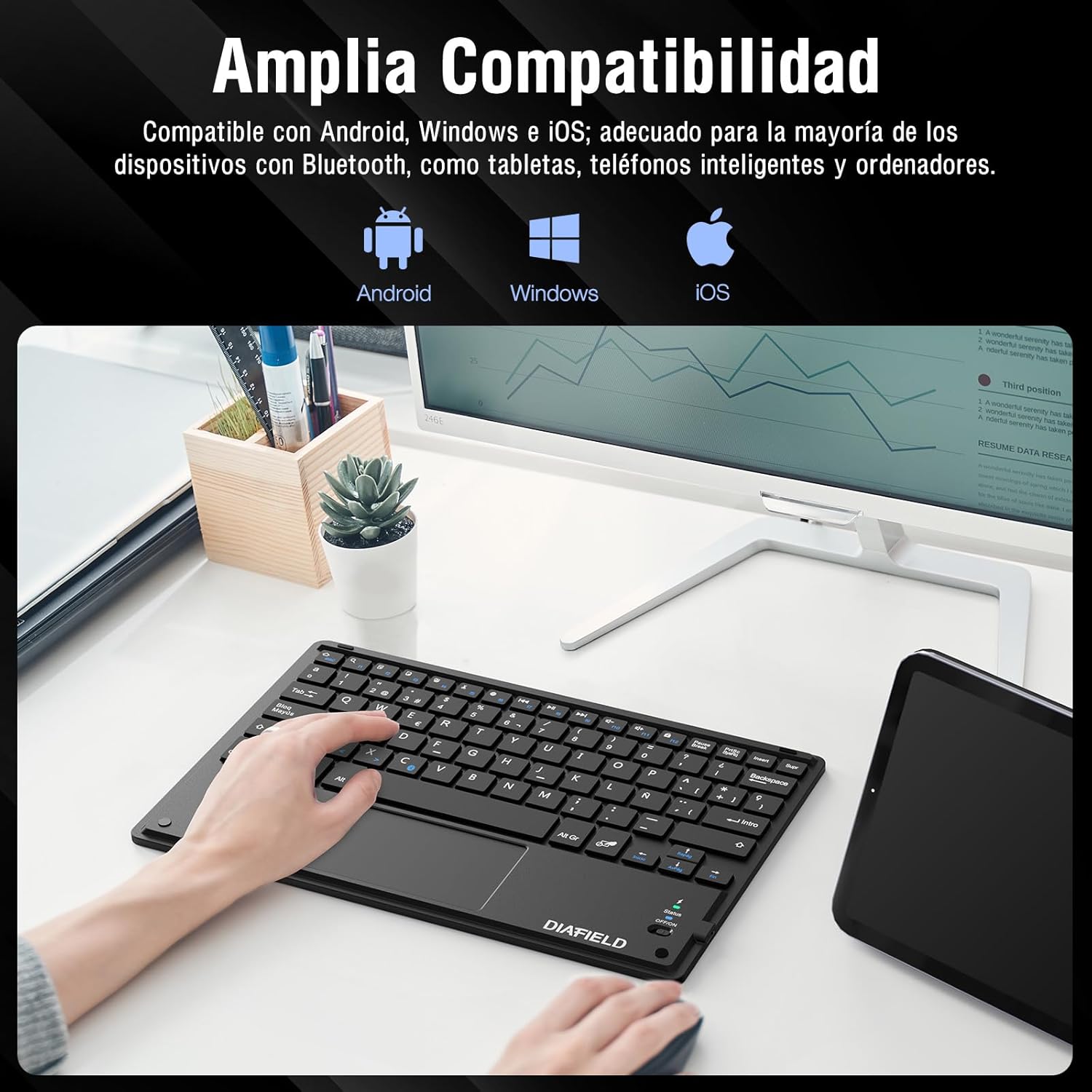
ചിത്രം 4: വിശാലമായ ഉപകരണ അനുയോജ്യത

Figure 5: Scissor-Type Key Mechanism

ചിത്രം 6: ഒതുക്കമുള്ളതും ഭാരം കുറഞ്ഞതുമായ ഡിസൈൻ

Figure 7: Multi-touch Gestures

Figure 8: Keyboard in Use with Tablet
സജ്ജീകരണ ഗൈഡ്
1. കീബോർഡ് ചാർജ് ചെയ്യുന്നു
Before first use, ensure the keyboard is fully charged. Connect the provided USB-C cable to the keyboard's charging port and the other end to a USB power source (e.g., computer, wall adapter). The charging indicator light will show the charging status.
- Charging time: Less than 4 hours.
- ബാറ്ററി ശേഷി: 500 mAh.

Figure 9: Charging the Keyboard
2. ബ്ലൂടൂത്ത് ജോടിയാക്കൽ
Follow these simple steps to pair your keyboard with your device:
- Turn on the keyboard by sliding the power switch to the "ON" position. The status indicator light will illuminate.
- Activate Bluetooth on your device (tablet, smartphone, computer, Smart TV).
- On your device, search for available Bluetooth devices. The keyboard will appear as "DIAFIELD KEYBOARD" or similar.
- Select the keyboard from the list to initiate pairing. Your device may prompt you to enter a pairing code displayed on the screen. Type this code on the keyboard and press Enter.
- Once paired, the status indicator light on the keyboard will turn off or change color, indicating a successful connection.
The keyboard supports quick connection and pairing with iOS, Android, and Windows systems.

Figure 10: Bluetooth Pairing on a Smartphone
പ്രവർത്തന നിർദ്ദേശങ്ങൾ
1. Using the Touchpad
The integrated touchpad supports various multi-touch gestures to enhance your productivity:
- ഇടത് ക്ലിക്ക്: Single tap with one finger.
- വലത് ക്ലിക്കിൽ: Tap with two fingers.
- സൂം ഇൻ/ഔട്ട്: രണ്ട് വിരലുകൾ ഉപയോഗിച്ച് അകത്തേക്കോ പുറത്തേക്കോ പിഞ്ച് ചെയ്യുക.
- Scroll/Explore: Drag two fingers up or down, or left or right.
- വിൻഡോകൾ മാറുക: Swipe three fingers horizontally.
- Open Task Manager (Windows): Swipe three fingers upwards.
Figure 11: Touchpad Multi-touch Gestures
2. ഫംഗ്ഷൻ കീകൾ
The top row of keys (F1-F12) includes multimedia and shortcut functions. To use these functions, press the Fn ആവശ്യമുള്ള ഫംഗ്ഷൻ കീയ്ക്കൊപ്പം ഒരേസമയം കീ അമർത്തുക.
| കീ കോമ്പിനേഷൻ | ഫംഗ്ഷൻ |
|---|---|
| Fn + Esc | വീട് |
| Fn + F1 | തിരയൽ |
| Fn + F2 | പകർത്തുക |
| Fn + F3 | മുറിക്കുക |
| Fn + F4 | ഒട്ടിക്കുക |
| Fn + F5 | വോളിയം ഡൗൺ |
| Fn + F6 | വോളിയം കൂട്ടുക |
| Fn + F7 | മുമ്പത്തെ ട്രാക്ക് |
| Fn + F8 | പ്ലേ/താൽക്കാലികമായി നിർത്തുക |
| Fn + F9 | അടുത്ത ട്രാക്ക് |
| Fn + F10 | നിശബ്ദമാക്കുക |
| Fn + F11 | എല്ലാം തിരഞ്ഞെടുക്കുക |
| Fn + F12 | സ്ക്രീൻ ലോക്ക് |

Figure 12: Keyboard Function Keys
മെയിൻ്റനൻസ്
Proper maintenance will extend the life of your keyboard:
- വൃത്തിയാക്കൽ: കീബോർഡ് പ്രതലം വൃത്തിയാക്കാൻ മൃദുവായതും ഉണങ്ങിയതും ലിന്റ് രഹിതവുമായ ഒരു തുണി ഉപയോഗിക്കുക. കഠിനമായ അഴുക്കിന്, ചെറുതായി dampവെള്ളം അല്ലെങ്കിൽ നേരിയ ക്ലീനിംഗ് ലായനി ഉപയോഗിച്ച് തുണി തുടയ്ക്കുക. അമിതമായ ഈർപ്പം ഒഴിവാക്കുക.
- സംഭരണം: നേരിട്ടുള്ള സൂര്യപ്രകാശവും കടുത്ത താപനിലയും ഏൽക്കാത്ത തണുത്തതും വരണ്ടതുമായ സ്ഥലത്ത് കീബോർഡ് സൂക്ഷിക്കുക.
- ബാറ്ററി കെയർ: To preserve battery life, avoid fully discharging the keyboard frequently. If storing for a long period, charge it to about 50% and recharge every few months.
- ദ്രാവകങ്ങൾ ഒഴിവാക്കുക: Keep the keyboard away from liquids to prevent damage to internal components.
ട്രബിൾഷൂട്ടിംഗ്
പൊതുവായ പ്രശ്നങ്ങളും പരിഹാരങ്ങളും:
- കീബോർഡ് ബ്ലൂടൂത്ത് വഴി ബന്ധിപ്പിക്കുന്നില്ല:
- കീബോർഡ് ചാർജ്ജ് ചെയ്തിട്ടുണ്ടെന്നും ഓണാക്കിയിട്ടുണ്ടെന്നും ഉറപ്പാക്കുക.
- നിങ്ങളുടെ ഉപകരണത്തിൽ ബ്ലൂടൂത്ത് പ്രവർത്തനക്ഷമമാക്കിയിട്ടുണ്ടെന്ന് ഉറപ്പാക്കുക.
- നിങ്ങളുടെ ഉപകരണത്തിന്റെ ബ്ലൂടൂത്ത് ക്രമീകരണങ്ങളിൽ നിന്ന് കീബോർഡ് ജോടി വിച്ഛേദിച്ച് വീണ്ടും ജോടിയാക്കാൻ ശ്രമിക്കുക.
- Restart both the keyboard (turn off/on) and your device.
- Characters typed do not match the keys (e.g., @ instead of "):
This often happens when the keyboard layout setting on your device does not match the physical layout of the keyboard (Spanish QWERTY). You need to change your device's keyboard input language to Spanish.
For Android devices, follow these general steps (may vary slightly by device model):
- പോകുക ക്രമീകരണങ്ങൾ.
- നാവിഗേറ്റ് ചെയ്യുക ജനറൽ മാനേജ്മെന്റ് (or System).
- തിരഞ്ഞെടുക്കുക ഭാഷയും ഇൻപുട്ടും.
- Under "Physical keyboard" or "Keyboards," find your connected keyboard (e.g., "DIAFIELD KEYBOARD").
- Tap on the keyboard name and then select കീബോർഡ് ലേഔട്ടുകൾ സജ്ജീകരിക്കുക or Configure keyboard layouts.
- Ensure "Spanish (ES)" is selected or enabled. You might need to disable other languages.
- Alternatively, you can often switch layouts by pressing Ctrl + Spacebar കീബോർഡിൽ.

Figure 13: Resolving Keyboard Layout Mismatch
- ടച്ച്പാഡ് പ്രതികരിക്കുന്നില്ല:
- Ensure the touchpad is not accidentally disabled (check for a function key combination that toggles the touchpad).
- ടച്ച്പാഡ് ഉപരിതലം വൃത്തിയാക്കുക.
- Reconnect the keyboard via Bluetooth.
സ്പെസിഫിക്കേഷനുകൾ
| ഫീച്ചർ | വിശദാംശങ്ങൾ |
|---|---|
| ബ്രാൻഡ് | 1 BY ONE |
| നിർമ്മാതാവ് | ഡയഫീൽഡ് |
| മോഡൽ നമ്പർ | O0000-0713 |
| ഉൽപ്പന്ന അളവുകൾ | 25.8 x 17.2 x 0.4 സെ.മീ |
| ഭാരം | 259 ഗ്രാം |
| നിറം | കറുപ്പ് |
| പവർ ഉറവിടം | ബാറ്ററി |
| ബാറ്ററി തരം | സംയോജിത ലിഥിയം ബാറ്ററി |
| ബാറ്ററി വോളിയംtage | 4.2 വോൾട്ട് |
| ബാറ്ററികളുടെ എണ്ണം | 1 |
| ഹാർഡ്വെയർ പ്ലാറ്റ്ഫോം | Computer, Laptop, Smartphone, Tablet, Television |
| ഓപ്പറേറ്റിംഗ് സിസ്റ്റം അനുയോജ്യത | iOS, Android, Windows |
| കണക്റ്റിവിറ്റി ടെക്നോളജി | ബ്ലൂടൂത്ത് 3.0 |
| കീബോർഡ് വിവരണം | മൾട്ടിമീഡിയ |
| ശുപാർശ ചെയ്യുന്ന ഉപയോഗങ്ങൾ | പ്രതിദിന ഉപയോഗം |
| പ്രത്യേക ഫീച്ചർ | ട്രാക്ക്പാഡ് |
| കീകളുടെ എണ്ണം | 81 |
| Keyboard Backlight Color | ഏക നിറം |
| ആദ്യം ലഭ്യമായ തീയതി | ഓഗസ്റ്റ് 24, 2015 |
വാറൻ്റിയും പിന്തുണയും
For warranty information and technical support, please refer to the contact details provided with your product packaging or visit the official 1 BY ONE webസൈറ്റ്. ഏതെങ്കിലും വാറന്റി ക്ലെയിമുകൾക്ക് വാങ്ങിയതിന്റെ തെളിവായി നിങ്ങളുടെ വാങ്ങൽ രസീത് സൂക്ഷിക്കുക.
If you encounter any issues not covered in this manual, please contact customer support for assistance.