
1. ആമുഖം
This manual provides essential information for the safe and efficient use of your InFocus IF195a Touch Pad. Please read this manual thoroughly before operating the device and retain it for future reference.
2 സുരക്ഷാ വിവരങ്ങൾ
- ഉപകരണത്തെ തീവ്രമായ താപനിലയിലോ, നേരിട്ടുള്ള സൂര്യപ്രകാശത്തിലോ, ഉയർന്ന ആർദ്രതയിലോ തുറന്നുകാട്ടരുത്.
- ശക്തമായ ആഘാതങ്ങൾക്ക് ഉപകരണം ഇടുകയോ ഇടുകയോ ചെയ്യുന്നത് ഒഴിവാക്കുക.
- Use only the charger provided or approved by InFocus.
- ഉപകരണം സ്വയം ഡിസ്അസംബ്ലിംഗ് ചെയ്യാനോ നന്നാക്കാനോ ശ്രമിക്കരുത്. എല്ലാ സേവനങ്ങളും യോഗ്യതയുള്ള ഉദ്യോഗസ്ഥരെ ഏൽപ്പിക്കുക.
- ഉപകരണം വെള്ളത്തിൽ നിന്നും മറ്റ് ദ്രാവകങ്ങളിൽ നിന്നും അകറ്റി നിർത്തുക.
- പ്രാദേശിക നിയന്ത്രണങ്ങൾ അനുസരിച്ച് ഉപകരണവും അതിന്റെ ബാറ്ററിയും ഉത്തരവാദിത്തത്തോടെ നിർമാർജനം ചെയ്യുക.
3. ഉൽപ്പന്നം കഴിഞ്ഞുview
The InFocus IF195a is a 20-inch Android-powered touch pad designed for interactive use. Familiarize yourself with its components.
3.1 ഫ്രണ്ട് View

ചിത്രം 1: ഫ്രണ്ട് view of the InFocus IF195a Touch Pad. This image shows the large 20-inch display with the Android operating system interface, including various app icons and the Google search bar. The device features a sleek bezel around the screen.
- ഡിസ്പ്ലേ: 20-inch multi-touch screen.
- മുൻ ക്യാമറ: Located at the top center bezel.
- മൈക്രോഫോൺ: വോയ്സ് ഇൻപുട്ടിനായി സംയോജിപ്പിച്ചിരിക്കുന്നു.
3.2 വശം View തുറമുഖങ്ങളും
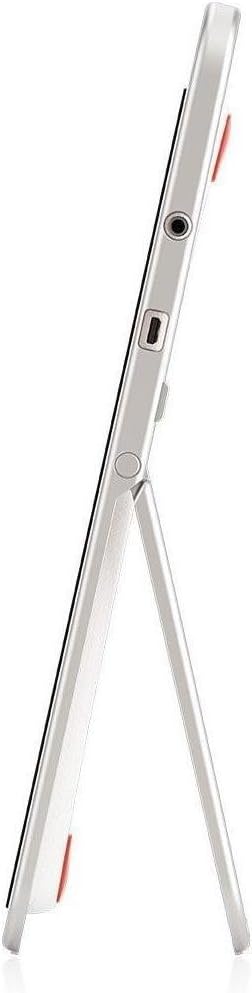
ചിത്രം 2: വശം view of the InFocus IF195a Touch Pad. This image highlights the device's slim profile and the integrated kickstand, which allows for upright positioning. Visible ports include a headphone jack and a USB port.
- പവർ ബട്ടൺ: Used to turn the device on/off or put it to sleep.
- വോളിയം ബട്ടണുകൾ: ഉപകരണത്തിന്റെ ഓഡിയോ ഔട്ട്പുട്ട് ക്രമീകരിക്കുക.
- ഹെഡ്ഫോൺ ജാക്ക് (3.5 മിമി): ബാഹ്യ ഓഡിയോ ഉപകരണങ്ങൾ ബന്ധിപ്പിക്കുന്നതിന്.
- മൈക്രോ-യുഎസ്ബി പോർട്ട്: ചാർജിംഗിനും ഡാറ്റ കൈമാറ്റത്തിനും.
- സംയോജിത കിക്ക്സ്റ്റാൻഡ്: Allows the device to stand upright.
4. സജ്ജീകരണം
4.1 അൺബോക്സിംഗും പ്രാരംഭ ചാർജും
- Carefully remove the InFocus IF195a Touch Pad and all accessories from the packaging.
- Connect the provided power adapter to the Micro-USB port on the device and plug it into a power outlet. Allow the device to charge fully before first use. The charging indicator will typically show a full battery when complete.
4.2 പവർ ഓൺ/ഓഫ്
- പവർ ഓണാക്കാൻ: Press and hold the Power button until the InFocus logo appears on the screen.
- പവർ ഓഫ് ചെയ്യാൻ: പവർ-ഓഫ് മെനു ദൃശ്യമാകുന്നതുവരെ പവർ ബട്ടൺ അമർത്തിപ്പിടിക്കുക. "പവർ ഓഫ്" തിരഞ്ഞെടുത്ത് സ്ഥിരീകരിക്കുക.
- ഉറങ്ങാൻ/ഉണരാൻ: ഉപകരണം സ്ലീപ്പ് മോഡിലേക്ക് മാറ്റാനോ ഉണർത്താനോ പവർ ബട്ടൺ അൽപ്പനേരം അമർത്തുക.
4.3 പ്രാരംഭ സജ്ജീകരണ വിസാർഡ്
ആദ്യമായി പവർ-ഓൺ ചെയ്യുമ്പോൾ, ഉപകരണം നിങ്ങളെ ഒരു പ്രാരംഭ സജ്ജീകരണ പ്രക്രിയയിലൂടെ നയിക്കും:
- ഭാഷ തിരഞ്ഞെടുക്കൽ: നിങ്ങൾ തിരഞ്ഞെടുത്ത ഭാഷ തിരഞ്ഞെടുക്കുക.
- Wi-Fi കണക്ഷൻ: Select your Wi-Fi network from the list and enter the password. A stable internet connection is required for many features.
- Google അക്കൗണ്ട്: Sign in with an existing Google account or create a new one. This is necessary to download apps from the Google Play Store and access Google services.
- തീയതിയും സമയവും: Set the correct date and time or allow the device to set it automatically via the network.
- സ്വകാര്യതാ ക്രമീകരണങ്ങൾ: Review ഇഷ്ടാനുസരണം സ്വകാര്യതാ ക്രമീകരണങ്ങൾ ക്രമീകരിക്കുക.
5. ഉപകരണം പ്രവർത്തിപ്പിക്കുന്നു
5.1 സ്പർശന ആംഗ്യങ്ങൾ
- ടാപ്പ് ചെയ്യുക: ഒരു ഇനം തിരഞ്ഞെടുക്കാനോ ഒരു ആപ്ലിക്കേഷൻ തുറക്കാനോ സ്ക്രീനിൽ ഒരിക്കൽ സ്പർശിക്കുക.
- സ്പർശിച്ച് പിടിക്കുക: Press and hold an item to access contextual menus or drag items.
- സ്വൈപ്പ്: ലിസ്റ്റുകളിലൂടെ സ്ക്രോൾ ചെയ്യുന്നതിനോ ഹോം സ്ക്രീനുകൾക്കിടയിൽ മാറുന്നതിനോ സ്ക്രീനിലുടനീളം നിങ്ങളുടെ വിരൽ വലിച്ചിടുക.
- പിഞ്ച്-ടു-സൂം: Use two fingers to zoom in or out on images, maps, or web പേജുകൾ.
5.2 ഹോം സ്ക്രീനും നാവിഗേഷനും
- ഹോം ബട്ടണ്: Returns you to the main home screen.
- ബാക്ക് ബട്ടൺ: Returns to the previous screen or closes the current application.
- സമീപകാല ആപ്പ് ബട്ടൺ: Displays a list of recently used applications for quick switching.
- അറിയിപ്പ് പാനൽ: അറിയിപ്പുകളും ദ്രുത ക്രമീകരണങ്ങളും ആക്സസ് ചെയ്യാൻ സ്ക്രീനിന്റെ മുകളിൽ നിന്ന് താഴേക്ക് സ്വൈപ്പ് ചെയ്യുക.
5.3 ആപ്ലിക്കേഷനുകൾ ഇൻസ്റ്റാൾ ചെയ്യുകയും കൈകാര്യം ചെയ്യുകയും ചെയ്യുക
- ഗൂഗിൾ പ്ലേ സ്റ്റോർ: Open the "Play Store" app to browse and download applications. A Google account is required.
- ആപ്പുകൾ ഇൻസ്റ്റാൾ ചെയ്യുന്നു: Select an app and tap "Install." Follow on-screen prompts for permissions.
- ആപ്പുകൾ അൺഇൻസ്റ്റാൾ ചെയ്യുന്നു: പോകുക ക്രമീകരണങ്ങൾ > ആപ്പുകൾ, select the desired app, and tap "Uninstall." Alternatively, touch and hold an app icon on the home screen and drag it to the "Uninstall" option (if available).
5.4 ബാഹ്യ ഉപകരണങ്ങളിലേക്ക് ബന്ധിപ്പിക്കുന്നു
- ഹെഡ്ഫോണുകൾ: ഹെഡ്ഫോൺ ജാക്കിലേക്ക് 3.5mm ഹെഡ്ഫോണുകൾ പ്ലഗ് ചെയ്യുക.
- USB ഉപകരണങ്ങൾ: Connect compatible USB devices (e.g., flash drives, keyboards) to the Micro-USB port using an appropriate adapter if necessary. The device supports USB On-The-Go (OTG).
6. പരിപാലനം
6.1 ഉപകരണം വൃത്തിയാക്കുന്നു
- ഉപകരണത്തിൻ്റെ സ്ക്രീനും ബോഡിയും വൃത്തിയാക്കാൻ മൃദുവായ ലിൻ്റ് രഹിത തുണി ഉപയോഗിക്കുക.
- കഠിനമായ അടയാളങ്ങൾക്ക്, ചെറുതായി dampവെള്ളം ഉപയോഗിച്ച് തുണി അല്ലെങ്കിൽ ഇലക്ട്രോണിക് ഉപകരണങ്ങൾക്കായി പ്രത്യേകം രൂപകൽപ്പന ചെയ്ത ഒരു സ്ക്രീൻ ക്ലീനർ.
- കഠിനമായ രാസവസ്തുക്കൾ, അബ്രസീവ് ക്ലീനറുകൾ, അല്ലെങ്കിൽ എയറോസോൾ സ്പ്രേകൾ എന്നിവ ഉപയോഗിക്കുന്നത് ഒഴിവാക്കുക.
6.2 ബാറ്ററി കെയർ
- ബാറ്ററി ലൈഫ് വർദ്ധിപ്പിക്കാൻ, ബാറ്ററി ഇടയ്ക്കിടെ പൂർണ്ണമായും ഡിസ്ചാർജ് ചെയ്യുന്നത് ഒഴിവാക്കുക.
- Do not leave the device connected to the charger for extended periods after it is fully charged.
- ദീർഘനേരം ഉപയോഗിച്ചില്ലെങ്കിൽ, ബാറ്ററി ഏകദേശം 50% ചാർജ്ജ് ചെയ്ത്, തണുത്തതും വരണ്ടതുമായ സ്ഥലത്ത് ഉപകരണം സൂക്ഷിക്കുക.
6.3 സോഫ്റ്റ്വെയർ അപ്ഡേറ്റുകൾ
ഒപ്റ്റിമൽ പ്രകടനവും സുരക്ഷയും ഉറപ്പാക്കാൻ ഇടയ്ക്കിടെ സോഫ്റ്റ്വെയർ അപ്ഡേറ്റുകൾക്കായി പരിശോധിക്കുക. പോകുക ക്രമീകരണങ്ങൾ > ടാബ്ലെറ്റിനെക്കുറിച്ച് > സിസ്റ്റം അപ്ഡേറ്റുകൾ to check for and install available updates. Ensure your device is connected to Wi-Fi and has sufficient battery charge before starting an update.
7. പ്രശ്നപരിഹാരം
| പ്രശ്നം | സാധ്യമായ പരിഹാരം |
|---|---|
| Device will not power on. | Ensure the device is charged. Connect the charger and wait a few minutes before attempting to power on again. If unresponsive, perform a hard reset by holding the power button for 10-15 seconds. |
| വൈഫൈ കണക്ഷൻ പ്രശ്നങ്ങൾ. | ക്രമീകരണങ്ങളിൽ വൈഫൈ പ്രവർത്തനക്ഷമമാക്കിയിട്ടുണ്ടോയെന്ന് പരിശോധിക്കുക. നിങ്ങളുടെ വൈഫൈ റൂട്ടർ പുനരാരംഭിക്കുക. നെറ്റ്വർക്ക് മറന്ന് വീണ്ടും കണക്റ്റുചെയ്യുക. നിങ്ങൾ വൈഫൈ സിഗ്നലിന്റെ പരിധിയിലാണെന്ന് ഉറപ്പാക്കുക. |
| Applications are crashing or freezing. | Close and restart the application. Clear the app's cache (ക്രമീകരണങ്ങൾ > ആപ്പുകൾ > [ആപ്പ് നാമം] > സംഭരണം > കാഷെ മായ്ക്കുക). If the problem persists, uninstall and reinstall the app. |
| സ്ക്രീൻ പ്രതികരിക്കുന്നില്ല. | Restart the device. Ensure the screen is clean and free of debris. If the issue continues, contact support. |
| മന്ദഗതിയിലുള്ള പ്രകടനം. | Close unnecessary background applications. Clear cache for frequently used apps. Check available storage (ക്രമീകരണങ്ങൾ > സംഭരണം) and free up space if needed. Consider a factory reset as a last resort. |
7.1 ഫാക്ടറി റീസെറ്റ്
ഒരു ഫാക്ടറി റീസെറ്റ് നിങ്ങളുടെ ഉപകരണത്തിലെ എല്ലാ ഡാറ്റയും മായ്ക്കുകയും അതിന്റെ യഥാർത്ഥ ഫാക്ടറി ക്രമീകരണങ്ങളിലേക്ക് പുനഃസ്ഥാപിക്കുകയും ചെയ്യും. തുടരുന്നതിന് മുമ്പ് എല്ലാ പ്രധാനപ്പെട്ട ഡാറ്റയും ബാക്കപ്പ് ചെയ്യുക.
- പോകുക ക്രമീകരണങ്ങൾ > ബാക്കപ്പ് & റീസെറ്റ് > ഫാക്ടറി ഡാറ്റ റീസെറ്റ്.
- Read the warning message carefully.
- Tap "Reset tablet" and then "Erase everything" to confirm.
- ഉപകരണം പുനരാരംഭിക്കുകയും റീസെറ്റ് പ്രക്രിയ ആരംഭിക്കുകയും ചെയ്യും.
8 സാങ്കേതിക സവിശേഷതകൾ
| ഫീച്ചർ | സ്പെസിഫിക്കേഷൻ |
|---|---|
| മോഡൽ | IF195a |
| ബ്രാൻഡ് | ഇൻഫോക്കസ് |
| ഡിസ്പ്ലേ വലിപ്പം | 20 ഇഞ്ച് |
| പരമാവധി മിഴിവ് | 1600 x 900 |
| പ്രോസസ്സർ | ARM Cortex-A15 Quad-Core 1.8 GHz |
| റാം ശേഷി | 2 ജിബി |
| സംഭരണ ശേഷി | 16 ജിബി |
| ഓപ്പറേറ്റിംഗ് സിസ്റ്റം | Android 4.4 KitKat |
| പിൻ ക്യാമറ റെസല്യൂഷൻ | 5 എം.പി |
| അളവുകൾ (L x W x H) | 61.6 x 47 x 8.6 സെ.മീ |
| ഭാരം | 3.7 കി.ഗ്രാം |
| നിറം | ചാരനിറം |
9. വാറൻ്റിയും പിന്തുണയും
For warranty information, please refer to the warranty card included with your product or visit the official InFocus website. For technical support, product registration, or service inquiries, please contact InFocus customer service through their official channels.
Please note that warranty terms may vary by region and retailer. Keep your proof of purchase for warranty claims.