
1. ആമുഖം
This manual provides essential instructions for the safe and effective operation, setup, and maintenance of your PowerVision PowerEgg Drone (Model PEG10). The PowerEgg is an aerial camera drone featuring a unique egg-shaped design for portability, equipped with a 360 panoramic 4K HD camera and a 3-axis gimbal for stable video capture. It supports control via a standard remote controller and a gesture-based Maestro controller.
2. ബോക്സിൽ എന്താണുള്ളത്?
Carefully unpack your PowerEgg Drone and verify that all components are present:
- PowerEgg Aircraft
- Drone Stand
- ബേസ് സ്റ്റേഷൻ
- സ്റ്റാൻഡേർഡ് റിമോട്ട് കൺട്രോൾ
- Maestro Gesture Controller
- ചാർജർ
- സ്മാർട്ട് ബാറ്ററി
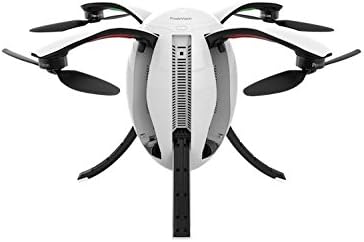
Image: PowerEgg Drone, Base Station, Standard Remote Control, and Maestro Gesture Controller.
3. സജ്ജീകരണം
3.1 ബാറ്ററി ചാർജ് ചെയ്യുന്നു
Before first use, fully charge the smart battery using the provided charger. Connect the charger to a power outlet and then to the smart battery. The charging indicator lights will show the charging status.

Image: PowerVision charger with various cables for charging components.
3.2 Unfolding the PowerEgg
The PowerEgg is designed to fold into an egg shape for transport. To prepare for flight:
- Gently pull the top and bottom sections of the egg to extend the arms.
- Unfold the propellers on each arm.
- Extend the landing gear from the bottom of the drone.

Image: PowerEgg Drone in its compact, folded egg configuration.

Image: PowerEgg Drone fully unfolded, ready for flight, showing propellers and landing gear.
3.3 അപ്ലിക്കേഷൻ ഇൻസ്റ്റാളുചെയ്യുന്നു
Download the official PowerVision flight application from your device's app store (iOS or Android). This app is required for advanced flight modes and camera control.
4. പ്രവർത്തന നിർദ്ദേശങ്ങൾ
4.1 പവർ ഓൺ/ഓഫ്
To power on the drone, press and hold the power button on the smart battery until the indicator lights illuminate. Repeat this process for the remote controller and Maestro controller. To power off, press and hold the power button until the lights turn off.
4.2 Using the Standard Remote Controller
The standard remote controller provides precise control over the drone's flight and camera functions. Refer to the controller diagram for button assignments.

Image: The standard remote controller for the PowerEgg Drone.
4.3 Using the Maestro Gesture Controller
The Maestro controller allows for intuitive gesture-based flight control. Your arm movements are interpreted in real-time to direct the drone's position in the sky.

Image: The Maestro gesture controller, designed for intuitive drone control.
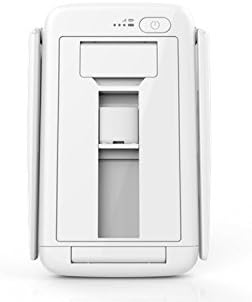
Image: A hand demonstrating the use of the Maestro controller to direct the PowerEgg Drone.
4.4 ഫ്ലൈറ്റ് മോഡുകൾ
The PowerEgg supports various autonomous flight modes accessible through the mobile application. These modes assist in capturing specific shots while the user focuses on camera operation. Consult the app's guide for detailed information on each mode.
4.5 ക്യാമറ പ്രവർത്തനം
The integrated 4K HD camera with a 3-axis gimbal provides stabilized and smooth video footage. Control camera tilt, pan, and recording functions via the remote controller or the mobile app.

ചിത്രം: ക്ലോസ്-അപ്പ് view of the PowerEgg Drone's 4K camera and its 3-axis gimbal for stabilization.
5. പരിപാലനം
5.1 ബാറ്ററി കെയർ
To prolong the life of your Lithium Ion smart battery:
- ബാറ്ററി പൂർണ്ണമായി ഡിസ്ചാർജ് ചെയ്യുന്നത് ഒഴിവാക്കുക.
- Store batteries at approximately 50% charge if not used for extended periods.
- Charge in a well-ventilated area and avoid extreme temperatures.
5.2 വൃത്തിയാക്കൽ
Regularly clean the drone's body, propellers, and camera lens. Use a soft, dry cloth for the body and a lens-cleaning cloth for the camera. Avoid using harsh chemicals or abrasive materials.
5.3 പ്രൊപ്പല്ലർ പരിശോധന
Before each flight, inspect propellers for any cracks, bends, or damage. Replace damaged propellers immediately to ensure safe flight.
6. പ്രശ്നപരിഹാരം
6.1 ഡ്രോൺ പവർ ഓൺ ആകുന്നില്ല
- Ensure the smart battery is fully charged.
- Verify the battery is correctly inserted into the drone.
- Press and hold the power button for the specified duration.
6.2 Loss of Connection
- Ensure the remote controller and drone are within the operational range (up to 5 kilometers).
- മറ്റ് വയർലെസ് ഉപകരണങ്ങളിൽ നിന്നുള്ള സാധ്യതയുള്ള ഇടപെടലുകൾ പരിശോധിക്കുക.
- Restart both the drone and the controller.
6.3 മോശം വീഡിയോ നിലവാരം
- ക്യാമറ ലെൻസ് വൃത്തിയാക്കുക.
- Ensure the 3-axis gimbal is functioning correctly and not obstructed.
- Check recording settings in the mobile application (e.g., resolution, frame rate).
7 സ്പെസിഫിക്കേഷനുകൾ
| ബ്രാൻഡ് | പവർവിഷൻ |
| മോഡൽ നമ്പർ | PEG10 |
| ഉൽപ്പന്ന അളവുകൾ | 6.9 x 6.9 x 10.7 ഇഞ്ച് |
| ഇനത്തിൻ്റെ ഭാരം | 4.6 പൗണ്ട് |
| വീഡിയോ ക്യാപ്ചർ റെസല്യൂഷൻ | 4K HD |
| വീഡിയോ ക്യാപ്ചർ ഫോർമാറ്റ് | MP4 |
| ഒപ്റ്റിക്കൽ സെൻസർ ടെക്നോളജി | CMOS |
| പരമാവധി പരിധി | 5 കിലോമീറ്റർ (3.1 മൈൽ) |
| ബാറ്ററി തരം | ലിഥിയം അയോൺ (1 ഉൾപ്പെടുത്തിയിരിക്കുന്നു) |
| നിയന്ത്രണ തരം | Remote Control, Maestro Gesture Control |
| നൈപുണ്യ നില | Beginner, Professional |
| യു.പി.സി | 852123007028 |
8. വാറൻ്റിയും പിന്തുണയും
8.1 വാറൻ്റി വിവരങ്ങൾ
For detailed warranty information regarding your PowerVision PowerEgg Drone, please refer to the official PowerVision website or the warranty card included with your product packaging. Warranty terms and conditions may vary by region.
8.2 ഉപഭോക്തൃ പിന്തുണ
If you encounter any issues or require further assistance, please visit the official PowerVision support website for FAQs, software updates, and contact information. You can typically find support resources at www.powervision.me (or similar official domain).