
ആമുഖം
This manual provides essential information for the proper setup, operation, maintenance, and troubleshooting of your QUMOX Wired USB Gamepad (Model L220U). Please read this manual thoroughly before using the product to ensure optimal performance and longevity.
ഉൽപ്പന്നം കഴിഞ്ഞുview
The QUMOX Wired USB Gamepad is designed for use with PC and laptop systems, offering a familiar control layout for a wide range of gaming experiences. It features a wired USB connection for reliable performance.

ചിത്രം: മുൻഭാഗം view of the QUMOX Wired USB Gamepad, showing the dual analog sticks, D-pad, action buttons (numbered 1-4), and central Select, Analog, and Start buttons.
കൺട്രോളർ ഘടകങ്ങൾ
- ഡ്യുവൽ അനലോഗ് സ്റ്റിക്കുകൾ: For precise 360-degree movement control.
- ദിശാസൂചന പാഡ് (ഡി-പാഡ്): ദിശാ ഇൻപുട്ടിനായി.
- ആക്ഷൻ ബട്ടണുകൾ (1, 2, 3, 4): ഗെയിമിനുള്ളിലെ പ്രവർത്തനങ്ങൾക്ക്.
- ഷോൾഡർ ബട്ടണുകൾ (L1, L2, R1, R2): Located on the top edge of the controller.
- ബട്ടൺ തിരഞ്ഞെടുക്കുക: സാധാരണയായി മെനു നാവിഗേഷൻ അല്ലെങ്കിൽ നിർദ്ദിഷ്ട ഗെയിം ഫംഗ്ഷനുകൾക്കായി ഉപയോഗിക്കുന്നു.
- ആരംഭ ബട്ടൺ: Typically used to pause games or confirm selections.
- Analog Button: Activates/deactivates analog stick functionality.
- യൂഎസ്ബി കേബിൾ: For connecting the gamepad to your computer.
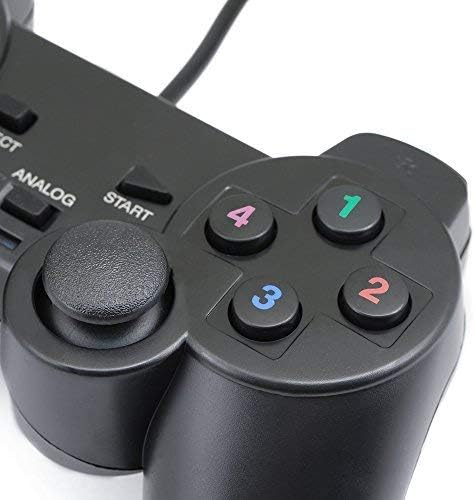
ചിത്രം: ക്ലോസ്-അപ്പ് view of the right side of the QUMOX Gamepad, highlighting the numbered action buttons and the right analog stick.
സജ്ജമാക്കുക
- ഗെയിംപാഡ് ബന്ധിപ്പിക്കുക: Insert the USB connector of the QUMOX Gamepad into an available USB port on your PC or laptop.
- ഡ്രൈവർ ഇൻസ്റ്റാളേഷൻ: Your operating system (e.g., Windows) should automatically detect and install the necessary drivers. This process may take a few moments. In some cases, for optimal compatibility with certain games, you may need to install third-party drivers such as x360ce or similar gamepad emulation software. Refer to the specific game's requirements or online resources for guidance if automatic detection fails or performance is not as expected.
- സ്ഥിരീകരണം: After installation, you can verify the gamepad's functionality through your operating system's game controller settings. For Windows, navigate to Control Panel > Devices and Printers, right-click on the gamepad icon, and select "Game controller settings" to test button and axis inputs.

ചിത്രം: വശം view of the QUMOX Wired USB Gamepad, showing the attached USB cable extending from the top of the controller.
പ്രവർത്തന നിർദ്ദേശങ്ങൾ
- അടിസ്ഥാന നിയന്ത്രണം: Use the D-pad or left analog stick for movement, and the action buttons (1, 2, 3, 4) for primary in-game actions.
- അനലോഗ് മോഡ്: അമർത്തുക അനലോഗ് button located in the center of the controller to activate or deactivate the analog sticks. When active, the analog sticks provide variable input, suitable for games requiring precise movement or camera control. Some games may require the Analog mode to be enabled for the joysticks to function correctly.
- തോളിൽ ബട്ടണുകൾ: L1, L2, R1, and R2 buttons are typically used for secondary actions, triggers, or camera adjustments depending on the game.
- ഗെയിം അനുയോജ്യത: The gamepad is designed to be compatible with a wide range of PC games that support standard USB game controllers. For specific game settings, refer to the game's control options menu.
മെയിൻ്റനൻസ്
- വൃത്തിയാക്കൽ: ഗെയിംപാഡിന്റെ ഉപരിതലം വൃത്തിയാക്കാൻ മൃദുവായതും ഉണങ്ങിയതുമായ തുണി ഉപയോഗിക്കുക. കഠിനമായ അഴുക്കിന്, അല്പം ഡി.amp cloth can be used, but ensure no moisture enters the controller. Do not use harsh chemicals or abrasive cleaners.
- സംഭരണം: നേരിട്ടുള്ള സൂര്യപ്രകാശത്തിൽ നിന്നും കടുത്ത താപനിലയിൽ നിന്നും അകന്ന്, തണുത്തതും വരണ്ടതുമായ സ്ഥലത്ത് ഗെയിംപാഡ് സൂക്ഷിക്കുക. കേബിൾ കേടുവരാതിരിക്കാൻ വളരെ ഇറുകിയ രീതിയിൽ പൊതിയുന്നത് ഒഴിവാക്കുക.
- കൈകാര്യം ചെയ്യൽ: Handle the gamepad with care. Avoid dropping it or subjecting it to strong impacts, as this can damage internal components.
ട്രബിൾഷൂട്ടിംഗ്
- Issue: Gamepad not recognized by PC.
- Ensure the USB cable is securely plugged into both the gamepad and the computer.
- നിങ്ങളുടെ കമ്പ്യൂട്ടറിൽ മറ്റൊരു USB പോർട്ട് പരീക്ഷിക്കുക.
- നിങ്ങളുടെ കമ്പ്യൂട്ടർ പുനരാരംഭിക്കുക.
- Check Device Manager (Windows) to see if the device is listed, and if there are any driver issues. You may need to manually update or reinstall drivers.
- Consider installing generic gamepad drivers or emulation software (e.g., x360ce) if the issue persists, as some systems or games may require them.
- Issue: Analog sticks or certain buttons are not responding correctly.
- ഉറപ്പാക്കുക അനലോഗ് button is pressed to activate analog stick functionality if required by your game.
- Calibrate the gamepad through your operating system's game controller settings.
- Test the gamepad with different games or a gamepad testing utility to determine if the issue is game-specific or hardware-related.
- Check for any physical obstructions or debris around the buttons or sticks.
- Issue: Input lag or slow response time.
- Ensure your computer meets the minimum system requirements for the game you are playing.
- സിസ്റ്റം റിസോഴ്സുകൾ ശൂന്യമാക്കാൻ അനാവശ്യമായ പശ്ചാത്തല ആപ്ലിക്കേഷനുകൾ അടയ്ക്കുക.
- Try connecting the gamepad to a different USB port, preferably a USB 2.0 or 3.0 port directly on the motherboard (for desktops).
സ്പെസിഫിക്കേഷനുകൾ
| മോഡൽ നമ്പർ | L220U |
| കണക്റ്റിവിറ്റി | വയർഡ് യുഎസ്ബി |
| ഉൽപ്പന്ന അളവുകൾ | 15 x 9 x 5.5 സെ.മീ |
| ഭാരം | 99.79 ഗ്രാം |
| അനുയോജ്യത | PC, Laptop (Windows OS recommended) |
വാറൻ്റിയും പിന്തുണയും
QUMOX products are manufactured to high-quality standards. For information regarding warranty coverage, technical support, or service, please refer to the documentation included with your purchase or visit the official QUMOX webസൈറ്റ്. വാറന്റി ക്ലെയിമുകൾക്കായി നിങ്ങളുടെ വാങ്ങലിന്റെ തെളിവ് സൂക്ഷിക്കുക.