
Zidoo V5
ZIDOO V5 Wireless Keyboard Air Mouse User Manual
മോഡൽ: V5
ആമുഖം
This manual provides detailed instructions for the ZIDOO V5 Wireless Keyboard Air Mouse. It covers setup, operation, maintenance, and troubleshooting to ensure optimal performance and user experience. The ZIDOO V5 combines a wireless keyboard, air mouse, and voice input functionality, designed for use with various devices including Google Android TV/Box, IPTV, HTPC, Windows, Mac OS, and Xbox.
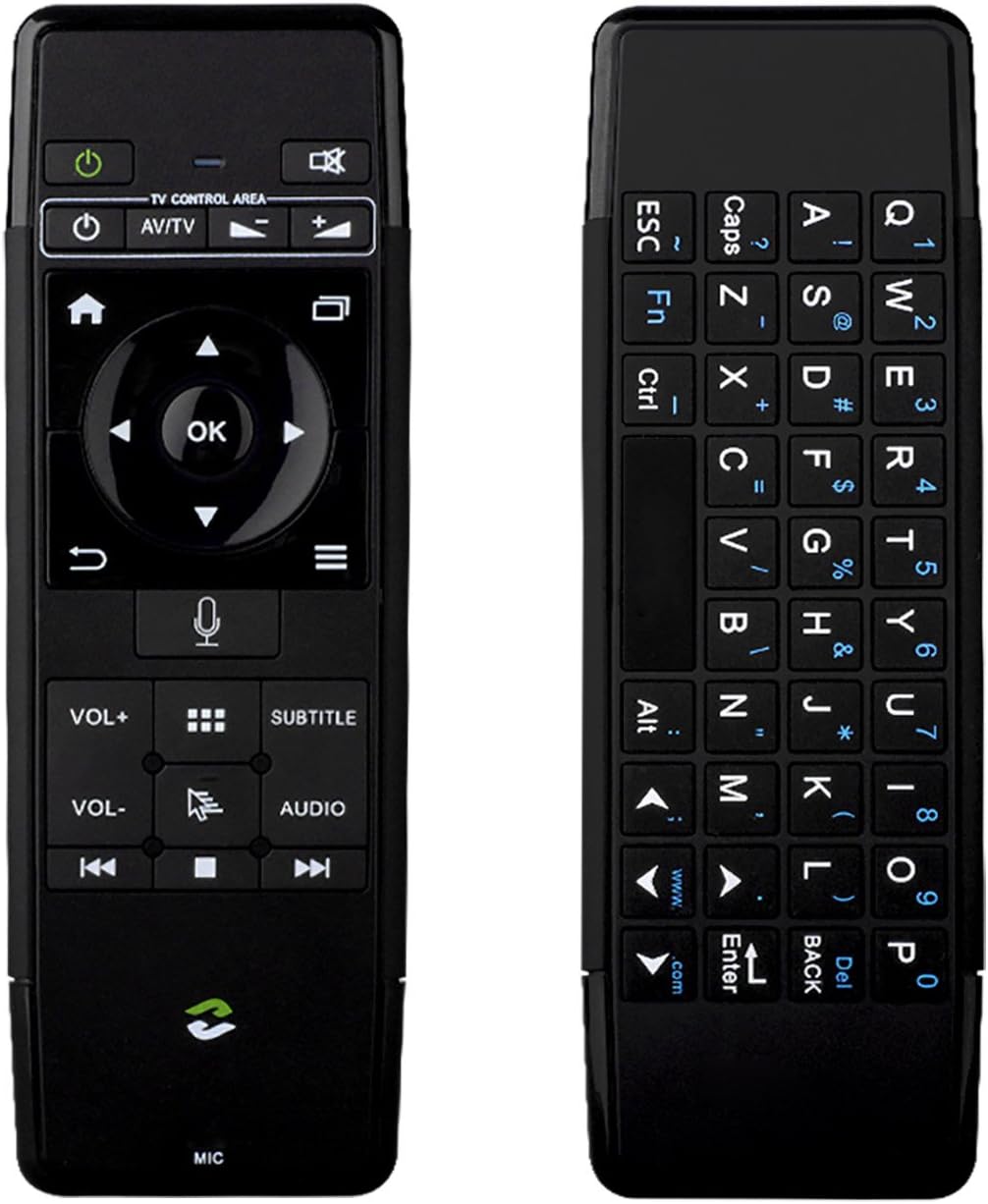
ചിത്രം: മുന്നിലും പിന്നിലും view of the ZIDOO V5 Wireless Keyboard Air Mouse, showcasing its dual-sided design with a remote control layout on one side and a QWERTY keyboard on the other.
1. സജ്ജീകരണം
1.1 പാക്കേജ് ഉള്ളടക്കം
- ZIDOO V5 Wireless Keyboard Air Mouse
- USB റിസീവർ
- യുഎസ്ബി ചാർജിംഗ് കേബിൾ
- ഉപയോക്തൃ മാനുവൽ (ഈ പ്രമാണം)
1.2 ഉപകരണം ചാർജ് ചെയ്യുന്നു
The ZIDOO V5 has a built-in rechargeable battery. Before first use, fully charge the device.
- Connect the small end of the USB charging cable to the micro-USB port on the ZIDOO V5.
- Connect the standard USB end of the cable to a USB power adapter (not included) or a powered USB port on your computer or device.
- ചാർജ് ചെയ്യുമ്പോൾ ഉപകരണത്തിലെ ഇൻഡിക്കേറ്റർ ലൈറ്റ് പ്രകാശിക്കുകയും പൂർണ്ണമായി ചാർജ് ചെയ്യുമ്പോൾ ഓഫാകുകയും ചെയ്യും.

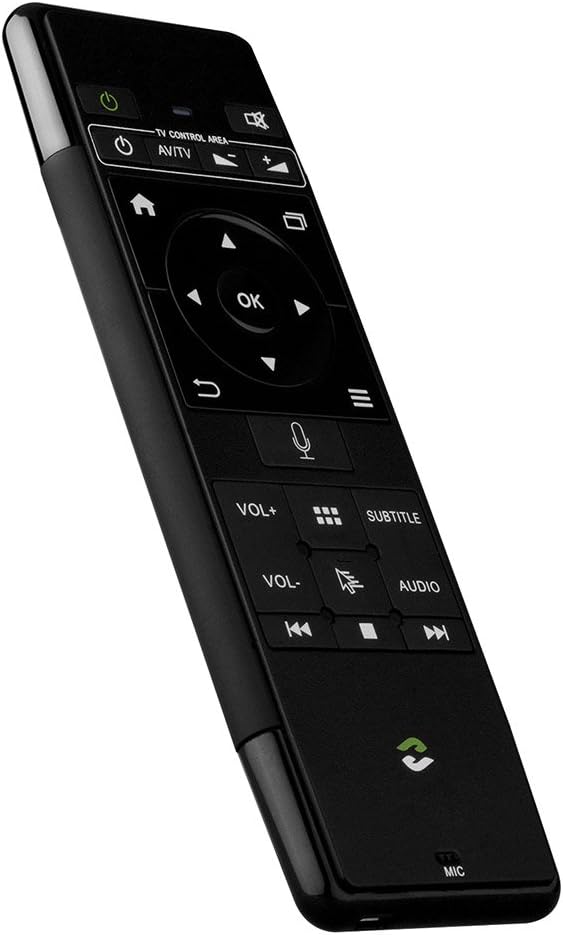
ചിത്രം: വശം view of the ZIDOO V5 Wireless Keyboard Air Mouse, highlighting the micro-USB charging port located on the top edge.
1.3 USB റിസീവർ ബന്ധിപ്പിക്കുന്നു
The ZIDOO V5 connects wirelessly via a 2.4G USB receiver.
- Locate the USB receiver, typically stored within the battery compartment or a dedicated slot on the device.
- Plug the USB receiver into an available USB port on your target device (e.g., Android TV box, HTPC, computer).
- The device should automatically recognize the receiver and install necessary drivers. No manual pairing is usually required.
2. പ്രവർത്തന നിർദ്ദേശങ്ങൾ
2.1 പവർ ഓൺ/ഓഫ്
അമർത്തുക പവർ സ്വിച്ച് button (usually located at the top left of the remote side) to turn the device on or off.
2.2 Remote Control Side Functions

ചിത്രം: വിശദമായത് view of the ZIDOO V5 remote control side, with labels for each button's function, including Power Switch, Muting, TV Control Area, Home, APP Switch, Direction Key, OK, Enter, Return, Menu, Voice Input, Volume Up/Down, APP Management, Subtitle, Cursor Switch, Audio Track, Previous, Stop, and Next.
- വൈദ്യുതി സ്വിച്ച്: ഉപകരണം ഓണാക്കുകയോ ഓഫാക്കുകയോ ചെയ്യുന്നു.
- നിശബ്ദമാക്കൽ: ഓഡിയോ മ്യൂട്ട് ചെയ്യുകയോ അൺമ്യൂട്ട് ചെയ്യുകയോ ചെയ്യുന്നു.
- TV Control Area: Dedicated buttons for basic TV functions (e.g., input, power for TV).
- വീട്: Returns to the main screen or home interface.
- APP Switch: Switches between applications.
- Direction Key (Up, Down, Left, Right): മെനുകളിലൂടെയും ഓപ്ഷനുകളിലൂടെയും നാവിഗേറ്റ് ചെയ്യുന്നു.
- ശരി: തിരഞ്ഞെടുക്കലുകൾ സ്ഥിരീകരിക്കുന്നു.
- നൽകുക: ഇൻപുട്ട് അല്ലെങ്കിൽ തിരഞ്ഞെടുപ്പ് സ്ഥിരീകരിക്കുന്നു.
- മടക്കം: മുമ്പത്തെ സ്ക്രീനിലേക്കോ മെനുവിലേക്കോ തിരികെ പോകുന്നു.
- മെനു: സന്ദർഭ-സെൻസിറ്റീവ് മെനുകൾ തുറക്കുന്നു.
- വോയിസ് ഇൻപുട്ട്: Activates voice command or search (requires compatible software/device).
- VOL+ / VOL-: വോളിയം കൂട്ടുകയോ കുറയ്ക്കുകയോ ക്രമീകരിക്കുന്നു.
- APP Management: Accesses application management settings.
- ഉപശീർഷകം: Toggles or selects subtitle options.
- Cursor Switch: Toggles between air mouse mode and D-pad navigation.
- ഓഡിയോ ട്രാക്ക്: Selects different audio tracks.
- Previous / Stop / Next: മീഡിയ പ്ലേബാക്ക് നിയന്ത്രണങ്ങൾ.
2.3 Air Mouse Function
The ZIDOO V5 features a 3-Gyro + 3-Gsensor for precise air mouse control.
- To activate the air mouse, ensure the cursor switch is enabled.
- Hold the device in your hand and move your wrist to control the on-screen cursor.
- അമർത്തുക OK ക്ലിക്ക് ചെയ്യാനുള്ള ബട്ടൺ.
- To recalibrate the air mouse, place the device on a flat surface for a few seconds until the cursor stabilizes.
2.4 Keyboard Side Functions
ചിത്രം: ക്ലോസ്-അപ്പ് view of the ZIDOO V5 keyboard side, displaying a full QWERTY layout with alphanumeric keys, function keys (Fn, Ctrl, Alt), and special characters.
The reverse side of the ZIDOO V5 features a full QWERTY keyboard for easy text input.
- ടൈപ്പിംഗ്: Use the keys as you would a standard keyboard.
- ഫംഗ്ഷൻ (Fn) കീ: അമർത്തിപ്പിടിക്കുക Fn key to access secondary functions printed in blue on certain keys (e.g., numbers, symbols).
- വലിയക്ഷരം: Toggles uppercase and lowercase letters.
- തിരികെ: Acts as a backspace key.
- നൽകുക: Confirms text input.
2.5 Voice Input
The ZIDOO V5 supports voice input functionality.
- Ensure your connected device supports voice input and has the necessary applications installed (e.g., Google Assistant, voice search).
- അമർത്തുക വോയ്സ് ഇൻപുട്ട് button (microphone icon) on the remote control side.
- Speak clearly into the microphone located at the bottom of the device.
- സംസാരിച്ചു കഴിയുമ്പോൾ ബട്ടൺ വിടുക.
3. പരിപാലനം
3.1 വൃത്തിയാക്കൽ
- ഉപകരണത്തിൻ്റെ ഉപരിതലം വൃത്തിയാക്കാൻ മൃദുവായതും ഉണങ്ങിയതുമായ തുണി ഉപയോഗിക്കുക.
- Do not use liquid cleaners, aerosols, or abrasive materials, as these may damage the device.
3.2 സംഭരണം
- നേരിട്ടുള്ള സൂര്യപ്രകാശത്തിൽ നിന്നും കടുത്ത താപനിലയിൽ നിന്നും മാറി തണുത്തതും വരണ്ടതുമായ സ്ഥലത്ത് ഉപകരണം സൂക്ഷിക്കുക.
- ദീർഘനേരം സൂക്ഷിക്കുകയാണെങ്കിൽ, ബാറ്ററിയുടെ ആയുസ്സ് വർദ്ധിപ്പിക്കുന്നതിന് ബാറ്ററി ഭാഗികമായി (ഏകദേശം 50%) ചാർജ്ജ് ചെയ്തിട്ടുണ്ടെന്ന് ഉറപ്പാക്കുക.
3.3 ബാറ്ററി കെയർ
- ബാറ്ററി ഇടയ്ക്കിടെ പൂർണ്ണമായും ഡിസ്ചാർജ് ചെയ്യുന്നത് ഒഴിവാക്കുക.
- ബാറ്ററിയുടെ ആരോഗ്യം നിലനിർത്താൻ, സ്ഥിരമായി ഉപയോഗത്തിലല്ലെങ്കിൽ പോലും, ഉപകരണം പതിവായി ചാർജ് ചെയ്യുക.
4. പ്രശ്നപരിഹാരം
| പ്രശ്നം | സാധ്യമായ കാരണം | പരിഹാരം |
|---|---|---|
| ഉപകരണം പ്രതികരിക്കുന്നില്ല | Low battery; USB receiver not connected; Device turned off; Out of range. | Charge the device; Ensure USB receiver is securely plugged in; Turn on the device; Move closer to the receiver (within 10 meters). |
| Air mouse cursor erratic or not moving | Needs calibration; Interference; Air mouse mode disabled. | Place the device on a flat surface for a few seconds to recalibrate; Ensure no strong electromagnetic interference; Press the Cursor Switch button to enable air mouse mode. |
| Voice input not working | Device/application does not support voice input; Microphone blocked; Software issue. | Verify host device/application compatibility; Ensure microphone is clear; Restart the host device. |
| Keyboard input incorrect | Caps Lock enabled; Fn key usage; Language settings. | Check Caps Lock status; Ensure correct use of Fn key for secondary characters; Verify language settings on the host device. |
5 സ്പെസിഫിക്കേഷനുകൾ
- ബ്രാൻഡ്: സിദൂ
- മോഡൽ: V5 (zidooV517420)
- കണക്റ്റിവിറ്റി: 2.4G Wireless (Radio Frequency)
- സെൻസറുകൾ: 3-Gyro + 3-Gsensor
- ഫീച്ചറുകൾ: Wireless Keyboard, Air Mouse, Voice Input, Rechargeable Battery
- അനുയോജ്യമായ ഓപ്പറേറ്റിംഗ് സിസ്റ്റങ്ങൾ: Android, Mac OS, Windows
- അനുയോജ്യമായ ഉപകരണങ്ങൾ: Google Android TV/Box, IPTV, HTPC, Windows PCs, Mac OS devices, Xbox
- ഊർജ്ജ സ്രോതസ്സ്: ബിൽറ്റ്-ഇൻ റീചാർജ് ചെയ്യാവുന്ന ബാറ്ററി
- അളവുകൾ: ഏകദേശം 21.2 x 11.4 x 1.8 സെ.മീ
- ഭാരം: ഏകദേശം 200 ഗ്രാം
6. വാറൻ്റി വിവരങ്ങൾ
Specific warranty details for the ZIDOO V5 Wireless Keyboard Air Mouse may vary by region and retailer. Please refer to the warranty card included with your purchase or contact your point of sale for detailed information regarding warranty coverage and terms.
7. പിന്തുണ
For technical support or further assistance, please visit the official Zidoo website or contact their customer service department. Contact information can typically be found on the product packaging or the Zidoo official webസൈറ്റ്.
കുറിപ്പ്: ഉൽപ്പന്ന സവിശേഷതകളും സവിശേഷതകളും മുൻകൂർ അറിയിപ്പ് കൂടാതെ മാറ്റത്തിന് വിധേയമാണ്.
Ask a question about this manual
Ask about setup, troubleshooting, compatibility, parts, safety, or missing instructions. Manuals+ will review the question and use this page’s manual context to help answer it.