
1. ആമുഖം
This manual provides essential information for the safe and efficient operation of your Xerox AltaLink C8030 Multifunction Printer. Please read these instructions carefully before using the device and retain them for future reference. This device integrates printing, scanning, copying, and faxing capabilities to support various office tasks.
2 സുരക്ഷാ വിവരങ്ങൾ
Always follow basic safety precautions to reduce the risk of fire, electric shock, and injury. Ensure the device is connected to a grounded power outlet. Do not block ventilation openings. Keep the device away from water and excessive humidity. Refer to the safety labels on the product for specific warnings.
3. ഉൽപ്പന്നം കഴിഞ്ഞുview
The Xerox AltaLink C8030 is a color multifunction printer designed for high-volume office environments. It features a 10-inch touchscreen for intuitive navigation and control. Key capabilities include:
- Print Speed: Up to 30 pages per minute (ppm) for both color and monochrome.
- Copy Resolution: 600 x 600 DPI.
- Memory: 8 GB RAM, 1 GB RAM, 250 GB HDD.
- Connectivity: NFC, Wireless, USB.
- Paper Supply: Multiple trays including 2 x 520-sheet trays, a 2,000-sheet high-capacity tandem tray, and a 100-sheet bypass tray.
- Features: Single Pass DADF, Data Security, Job Accounting, PostScript Kit, Network Scanning, Server Fax, iFax, Standard Output Tray, Office Finisher LX.
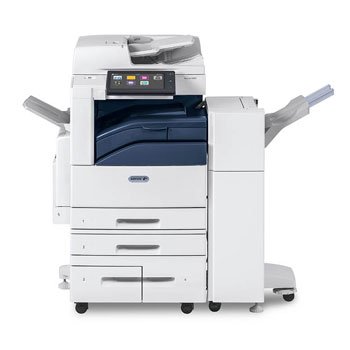
ചിത്രം: മുൻഭാഗം view of the Xerox AltaLink C8030 multifunction printer, showing its various paper trays and the integrated touchscreen control panel.
4. സജ്ജീകരണം
4.1 അൺപാക്കിംഗും പ്ലേസ്മെന്റും
- പ്രിന്റർ അതിന്റെ പാക്കേജിംഗിൽ നിന്ന് ശ്രദ്ധാപൂർവ്വം നീക്കം ചെയ്യുക.
- പ്രിന്റർ മതിയായ വായുസഞ്ചാരമുള്ള ഒരു സ്ഥിരതയുള്ള, നിരപ്പായ പ്രതലത്തിൽ സ്ഥാപിക്കുക.
- Ensure sufficient space around the printer for maintenance and paper loading.
4.2 പവർ കണക്ഷൻ
- പവർ കോർഡ് പ്രിന്ററുമായി ബന്ധിപ്പിക്കുക, തുടർന്ന് ഗ്രൗണ്ടഡ് ഇലക്ട്രിക്കൽ ഔട്ട്ലെറ്റുമായി ബന്ധിപ്പിക്കുക.
- ഉപകരണം ഓണാക്കാൻ പവർ ബട്ടൺ അമർത്തുക.
4.3 പേപ്പർ ലോഡിംഗ്
- Open the desired paper tray (e.g., Tray 1, Tray 2, or Bypass Tray).
- പേപ്പർ വലുപ്പത്തിന് അനുയോജ്യമായ രീതിയിൽ പേപ്പർ ഗൈഡുകൾ ക്രമീകരിക്കുക.
- പേപ്പർ സ്റ്റാക്ക് ലോഡ് ചെയ്യുക, അത് പരമാവധി ഫിൽ ലൈൻ കവിയുന്നില്ലെന്ന് ഉറപ്പാക്കുക.
- പേപ്പർ ട്രേ സുരക്ഷിതമായി അടയ്ക്കുക.
4.4 നെറ്റ്വർക്കും യുഎസ്ബി കണക്ഷനും
- നെറ്റ്വർക്ക്: Connect an Ethernet cable to the printer's network port and to your network router/switch. Configure network settings via the touchscreen if necessary.
- വയർലെസ്: Access the network settings on the touchscreen, select your Wi-Fi network, and enter the password.
- USB: Connect a USB cable from your computer to the printer's USB port for direct connection.
5. പ്രവർത്തന നിർദ്ദേശങ്ങൾ
5.1 അച്ചടി
- From your computer or mobile device, open the document you wish to print.
- ആപ്ലിക്കേഷന്റെ മെനുവിൽ നിന്ന് 'പ്രിന്റ്' തിരഞ്ഞെടുക്കുക.
- Choose the Xerox AltaLink C8030 as your printer.
- Adjust print settings (e.g., number of copies, color/monochrome, paper size) as needed.
- 'പ്രിന്റ്' ക്ലിക്ക് ചെയ്യുക.
5.2 സ്കാനിംഗ്
- Place your document face-down on the scanner glass or face-up in the Automatic Document Feeder (ADF).
- On the printer's touchscreen, select the 'Scan' function.
- Choose your scan destination (e.g., email, network folder, USB drive).
- Configure scan settings (e.g., resolution, file format, color mode).
- Press 'Start' to begin scanning.
5.3 പകർത്തൽ
- നിങ്ങളുടെ ഡോക്യുമെന്റ് സ്കാനർ ഗ്ലാസിലോ ADF-ലോ വയ്ക്കുക.
- On the touchscreen, select the 'Copy' function.
- Enter the desired number of copies.
- Adjust copy settings (e.g., enlargement/reduction, 2-sided, color/monochrome).
- Press 'Start' to begin copying.
5.4 ഫാക്സിംഗ്
- നിങ്ങളുടെ ഡോക്യുമെന്റ് സ്കാനർ ഗ്ലാസിലോ ADF-ലോ വയ്ക്കുക.
- ടച്ച്സ്ക്രീനിൽ, 'ഫാക്സ്' ഫംഗ്ഷൻ തിരഞ്ഞെടുക്കുക.
- സ്വീകർത്താവിന്റെ ഫാക്സ് നമ്പർ നൽകുക.
- Configure fax settings (e.g., resolution, delayed send).
- Press 'Start' to send the fax.
6. പരിപാലനം
6.1 ടോണർ കാട്രിഡ്ജുകൾ മാറ്റിസ്ഥാപിക്കൽ
- പ്രിന്ററിന്റെ മുൻ കവർ തുറക്കുക.
- ഒഴിഞ്ഞ ടോണർ കാട്രിഡ്ജ് തിരിച്ചറിയുക.
- Grasp the handle and pull the cartridge out.
- Unpack the new toner cartridge and shake it gently.
- പുതിയ കാട്രിഡ്ജ് അതിന്റെ സ്ഥാനത്ത് ക്ലിക്ക് ചെയ്യുന്നതുവരെ തിരുകുക.
- മുൻ കവർ അടയ്ക്കുക.
6.2 സ്കാനർ ഗ്ലാസ് വൃത്തിയാക്കൽ
- പ്രിന്റർ ഓഫാക്കി പവർ കോർഡ് അൺപ്ലഗ് ചെയ്യുക.
- സ്കാനർ കവർ തുറക്കുക.
- Wipe the scanner glass with a soft, lint-free cloth dampened with a mild glass cleaner.
- Ensure the glass is dry before closing the cover and restoring power.
7. പ്രശ്നപരിഹാരം
7.1 പേപ്പർ ജാം
- പേപ്പർ ജാം കണ്ടെത്തി മായ്ക്കാൻ സ്ക്രീനിലെ നിർദ്ദേശങ്ങൾ പാലിക്കുക.
- Open all accessible covers and trays to check for jammed paper.
- Gently pull the paper in the direction of the paper path.
7.2 പ്രിന്റ് ഗുണനിലവാര പ്രശ്നങ്ങൾ
- Check toner levels and replace cartridges if low.
- പ്രിന്ററിന്റെ മെയിന്റനൻസ് മെനുവിൽ നിന്ന് ഒരു പ്രിന്റ് ഹെഡ് ക്ലീനിംഗ് അല്ലെങ്കിൽ കാലിബ്രേഷൻ നടത്തുക.
- നിങ്ങളുടെ പ്രിന്റ് ജോലിക്ക് ഉചിതമായ പേപ്പർ തരങ്ങൾ ഉപയോഗിക്കുന്നുണ്ടെന്ന് ഉറപ്പാക്കുക.
7.3 കണക്റ്റിവിറ്റി പ്രശ്നങ്ങൾ
- Verify all cables (Ethernet, USB) are securely connected.
- For wireless connections, check Wi-Fi signal strength and network settings.
- Restart the printer, router, and computer/device.
8 സ്പെസിഫിക്കേഷനുകൾ
| ഫീച്ചർ | സ്പെസിഫിക്കേഷൻ |
|---|---|
| ബ്രാൻഡ് | സെറോക്സ് |
| മോഡലിൻ്റെ പേര് | AltaLink C8030 |
| പ്രിൻ്റിംഗ് ടെക്നോളജി | ലേസർ |
| പ്രിൻ്റർ ഔട്ട്പുട്ട് | നിറം |
| പരമാവധി പ്രിന്റ് വേഗത (മോണോക്രോം) | 30 പി.പി.എം |
| പരമാവധി പകർത്തൽ വേഗത (കറുപ്പും വെളുപ്പും) | 30 പി.പി.എം |
| കണക്റ്റിവിറ്റി ടെക്നോളജി | NFC, Wireless |
| ഇനത്തിൻ്റെ ഭാരം | 349 പൗണ്ട് |
| നിയന്ത്രണ രീതി | റിമോട്ട്, ടച്ച് |
| അനുയോജ്യമായ ഉപകരണങ്ങൾ | PC |
| ജിടിഐഎൻ / യുപിസി | 095205880151 |
9. വാറൻ്റിയും പിന്തുണയും
For warranty information, please refer to the documentation included with your product or visit the official Xerox website. For technical support, driver downloads, or service requests, please contact Xerox customer support through their official channels. Keep your product's serial number and purchase date readily available when contacting support.
ഓൺലൈൻ ഉറവിടങ്ങൾ: സിറോക്സ് ഒഫീഷ്യൽ Webസൈറ്റ്