
1. ആമുഖം
This manual provides detailed instructions for the installation, configuration, and operation of your Multilaser RE058 150Mbps Wireless Router. Please read this manual carefully before using the device to ensure proper setup and optimal performance. This router offers wireless connectivity at 150Mbps, features a detachable antenna, and includes four LAN ports for wired connections.
2. പാക്കേജ് ഉള്ളടക്കം
നിങ്ങളുടെ പാക്കേജിൽ എല്ലാ ഇനങ്ങളും ഉണ്ടെന്ന് ഉറപ്പാക്കുക:
- 1x Multilaser RE058 150Mbps Wireless Router
- 1x Power Adapter (Bivolt)
- 1x RJ45 ഇതർനെറ്റ് കേബിൾ
- 1x Detachable Antenna (5 dBi)
- 1x ദ്രുത ഇൻസ്റ്റാളേഷൻ ഗൈഡ്
3. ഉൽപ്പന്നം കഴിഞ്ഞുview
റൂട്ടറിന്റെ പോർട്ടുകളും സൂചകങ്ങളും ഉപയോഗിച്ച് സ്വയം പരിചയപ്പെടുക.
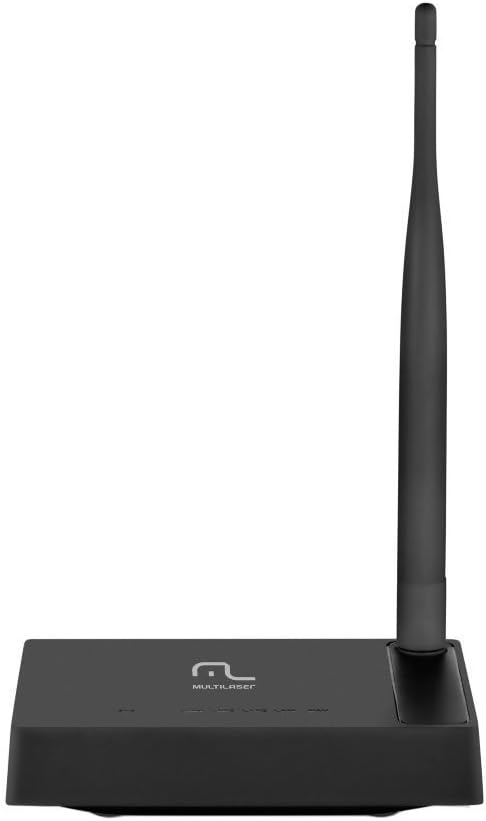
ചിത്രം 3.1: പിൻഭാഗം view of the Multilaser RE058 router, highlighting the WAN port (blue), four LAN ports (yellow/orange), and the power input. The detachable antenna is connected on the left side.
3.1. ഫ്രണ്ട് പാനൽ സൂചകങ്ങൾ
- PWR: പവർ ഇൻഡിക്കേറ്റർ. ഉപകരണം ഓണാക്കുമ്പോൾ പ്രകാശിക്കുന്നു.
- വാൻ: Wide Area Network indicator. Lit when connected to the internet. Blinks during data transmission.
- LAN1-LAN4: Local Area Network indicators. Lit when a device is connected to the corresponding LAN port. Blinks during data transmission.
3.2. പിൻ പാനൽ പോർട്ടുകൾ
- WAN പോർട്ട് (നീല): നിങ്ങളുടെ മോഡം അല്ലെങ്കിൽ ഇന്റർനെറ്റ് സേവന ദാതാവിന്റെ നെറ്റ്വർക്കിലേക്ക് കണക്റ്റുചെയ്യുന്നു.
- LAN പോർട്ടുകൾ (1-4): Connects to wired devices such as computers, gaming consoles, or smart TVs.
- പവർ ഇൻപുട്ട്: നൽകിയിരിക്കുന്ന പവർ അഡാപ്റ്ററിലേക്ക് ബന്ധിപ്പിക്കുന്നു.
- ആൻ്റിന കണക്റ്റർ: For attaching the detachable antenna.
- റീസെറ്റ് ബട്ടൺ: Used to restore factory default settings. Press and hold for approximately 5-10 seconds while the router is powered on.
4. സജ്ജീകരണം
Follow these steps to set up your Multilaser RE058 router:
- ആന്റിന ബന്ധിപ്പിക്കുക: Screw the detachable antenna clockwise onto the antenna connector at the back of the router until it is secure.
- മോഡമിലേക്ക് കണക്റ്റുചെയ്യുക: Use the provided RJ45 Ethernet cable to connect your modem's LAN port to the blue WAN port റൂട്ടറിൽ.
- പവർ ഓൺ: Connect the power adapter to the router's power input and then plug the adapter into an electrical outlet. The PWR indicator should light up.
- Connect Devices (Optional Wired): For wired connections, use additional Ethernet cables to connect your computers or other devices to the yellow LAN ports (1-4) റൂട്ടറിൽ.
- ഇനിഷ്യലൈസേഷനായി കാത്തിരിക്കുക: Allow a few minutes for the router to power on and initialize. The WAN indicator should light up, indicating an internet connection.
- റൂട്ടർ ഇന്റർഫേസ് ആക്സസ് ചെയ്യുക: എ തുറക്കുക web browser on a connected computer or device. In the address bar, type the router's default IP address (usually
192.168.0.1or192.168.1.1) and press Enter. Refer to the Quick Installation Guide for the exact default IP and login credentials. - പ്രാരംഭ കോൺഫിഗറേഷൻ: Follow the on-screen instructions in the router's web interface to set up your internet connection type (DHCP, Static IP, PPPoE, etc.) and configure your wireless network (SSID and password). The router software is available in Portuguese for easier setup.
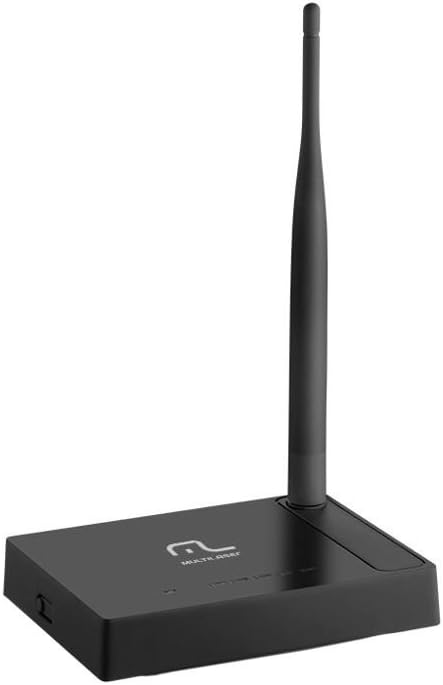
ചിത്രം 4.1: വശം view of the Multilaser RE058 router, showing the detachable antenna securely connected and standing upright.
5. പ്രവർത്തിക്കുന്നു
This section covers the basic operation and features of your router.
5.1. Wireless Network (Wi-Fi)
After initial setup, your wireless network will be active. To connect devices:
- നിങ്ങളുടെ ഉപകരണത്തിൽ (സ്മാർട്ട്ഫോൺ, ലാപ്ടോപ്പ്, ടാബ്ലെറ്റ്), ലഭ്യമായ വൈഫൈ നെറ്റ്വർക്കുകൾക്കായി തിരയുക.
- സജ്ജീകരണ സമയത്ത് നിങ്ങൾ കോൺഫിഗർ ചെയ്ത നെറ്റ്വർക്ക് നാമം (SSID) തിരഞ്ഞെടുക്കുക.
- Enter the Wi-Fi password (security key) when prompted.
5.2 വയർഡ് നെറ്റ്വർക്ക്
Devices connected to the LAN ports will automatically obtain an IP address from the router and gain internet access (if the WAN connection is active).
5.3. റിപ്പീറ്റർ ഫംഗ്ഷൻ
The Multilaser RE058 can function as a wireless repeater to extend the range of an existing Wi-Fi signal. This mode needs to be configured via the router's web interface. Consult the full user manual or the router's online help for detailed steps on configuring repeater mode.
5.4. വിപുലമായ സവിശേഷതകൾ
റൂട്ടറിന്റെ web interface provides access to advanced settings, including:
- WAN തരം: DHCP, Static IP, PPPoE, L2TP, PPTP, Dual Access, WISP.
- Virtual Servers, Port Triggering, UPnP, DMZ: For advanced network configurations and port forwarding.
- പ്രവേശന നിയന്ത്രണം: IP/MAC/Domain Filtering to manage network access.
- VPN പാസ്-ത്രൂ: PPTP, L2TP, IPSec for VPN connections.
- Dynamic DNS, Static Routing, WOL (Wake-on-LAN): Additional network utilities.
- ഫേംവെയർ അപ്ഡേറ്റ്: Keep your router's software up-to-date for improved performance and security.
6. പരിപാലനം
To ensure the longevity and optimal performance of your router:
- റൂട്ടർ തണുത്തതും വരണ്ടതുമായ സ്ഥലത്ത് സൂക്ഷിക്കുക, നേരിട്ടുള്ള സൂര്യപ്രകാശത്തിൽ നിന്നും താപ സ്രോതസ്സുകളിൽ നിന്നും അകറ്റി നിർത്തുക.
- ഉപകരണത്തിന് ചുറ്റും ശരിയായ വായുസഞ്ചാരം ഉറപ്പാക്കുക.
- മൃദുവായതും ഉണങ്ങിയതുമായ തുണി ഉപയോഗിച്ച് പുറംഭാഗം വൃത്തിയാക്കുക. ലിക്വിഡ് ക്ലീനറുകൾ ഉപയോഗിക്കരുത്.
- Regularly check for and install firmware updates from the Multilaser webസുരക്ഷയും സവിശേഷതകളും മെച്ചപ്പെടുത്തുന്നതിനുള്ള സൈറ്റ്.
- Periodically restart the router (unplug and replug the power adapter) to refresh its connection and clear temporary issues.
7. പ്രശ്നപരിഹാരം
നിങ്ങൾക്ക് പ്രശ്നങ്ങൾ നേരിടുകയാണെങ്കിൽ, ഈ പൊതുവായ പരിഹാരങ്ങൾ പരീക്ഷിക്കുക:
7.1. ഇന്റർനെറ്റ് ആക്സസ് ഇല്ല
- Check all cable connections (WAN, LAN, Power). Ensure they are securely plugged in.
- നിങ്ങളുടെ മോഡം ശരിയായി പ്രവർത്തിക്കുന്നുണ്ടെന്നും സജീവ ഇന്റർനെറ്റ് കണക്ഷൻ ഉണ്ടെന്നും ഉറപ്പാക്കുക.
- Restart both your modem and router. Unplug their power adapters, wait 30 seconds, then plug the modem back in. Once the modem is fully online, plug the router back in.
- റൂട്ടറിലേക്ക് ലോഗിൻ ചെയ്യുക web interface and check the WAN status. Ensure your internet connection type (DHCP, PPPoE, etc.) is correctly configured.
7.2. വൈഫൈയിലേക്ക് കണക്റ്റുചെയ്യാൻ കഴിയില്ല
- Ensure the router is powered on and the wireless indicator is active.
- നിങ്ങൾ ശരിയായ വൈഫൈ നെറ്റ്വർക്ക് (SSID) തിരഞ്ഞെടുക്കുന്നുണ്ടെന്നും ശരിയായ പാസ്വേഡ് നൽകുന്നുണ്ടെന്നും ഉറപ്പാക്കുക.
- Move closer to the router to rule out range issues.
- റൂട്ടർ പുനരാരംഭിക്കാൻ ശ്രമിക്കുക.
7.3. കുറഞ്ഞ ഇന്റർനെറ്റ് വേഗത
- Ensure your router is placed in a central location, away from obstructions and interference sources (e.g., microwaves, cordless phones).
- Check if multiple devices are heavily using the network.
- നിങ്ങളുടെ റൂട്ടറിന്റെ ഫേംവെയർ അപ്ഡേറ്റ് ചെയ്യുക.
- Contact your Internet Service Provider (ISP) to check your internet line speed.
7.4. Forgot Router Login Password
If you forget the router's login password, you can perform a factory reset. Locate the Reset button on the rear panel. With the router powered on, use a paperclip or similar pointed object to press and hold the Reset button for approximately 5-10 seconds until the indicators flash. The router will restart with factory default settings, and you can then log in using the default credentials (usually found on a sticker on the router or in the Quick Installation Guide).
8 സ്പെസിഫിക്കേഷനുകൾ
| ഫീച്ചർ | വിശദാംശങ്ങൾ |
|---|---|
| ബ്രാൻഡ് | മൾട്ടിലേസർ |
| മോഡൽ | RE058 |
| വയർലെസ് മാനദണ്ഡങ്ങൾ | IEEE 802.11b, IEEE 802.11g, IEEE 802.11n |
| ഫ്രീക്വൻസി ബാൻഡ് | 2.4 - 2.4835 GHz (Single-Band) |
| ഡാറ്റ കൈമാറ്റ നിരക്ക് | 150 Mbps വരെ |
| ആൻ്റിന | 1x Detachable, 5 dBi |
| ഇഥർനെറ്റ് പോർട്ടുകൾ | 1x 10/100Mbps Auto MDI/MDIX RJ45 WAN Port, 4x 10/100Mbps Auto MDI/MDIX RJ45 LAN Ports |
| വൈദ്യുതി വിതരണം | DC 9V/500mA (Output), Bivolt input |
| ട്രാൻസ്മിഷൻ പവർ | 20dBm (MAX) |
| അനുയോജ്യമായ ഉപകരണങ്ങൾ | Notebook, Smartphone, Tablet |
| സോഫ്റ്റ്വെയർ സവിശേഷതകൾ | DHCP, Static IP, PPPoE, L2TP, PPTP, Dual Access, WISP, Virtual Servers, Port Triggering, UPnP, DMZ, FTP Private Port, Access Control (IP/MAC/Domain Filtering), VPN Pass-through, Dynamic DNS, Static Routing, WOL, Backup & Restore, Firmware Update. |
9. വാറൻ്റിയും പിന്തുണയും
This Multilaser RE058 Wireless Router comes with a 7 വർഷത്തെ വാറൻ്റി നിർമ്മാതാവ് നൽകിയതാണ്. വാറന്റി ക്ലെയിമുകൾക്കായി നിങ്ങളുടെ വാങ്ങിയതിന്റെ തെളിവ് സൂക്ഷിക്കുക.
For technical support, troubleshooting assistance, or warranty inquiries, please contact Multilaser customer service. Refer to the official Multilaser website or the Quick Installation Guide for up-to-date contact information.