
1. ആമുഖം
The SUNMI L2 SmartOrder is a rugged industrial terminal designed for various business applications requiring mobility and data capture. It features an Android 7.1 operating system, a 5-inch display, and an integrated 1D/2D Zebra scanner. This manual provides essential information for the proper setup, operation, and maintenance of your device.
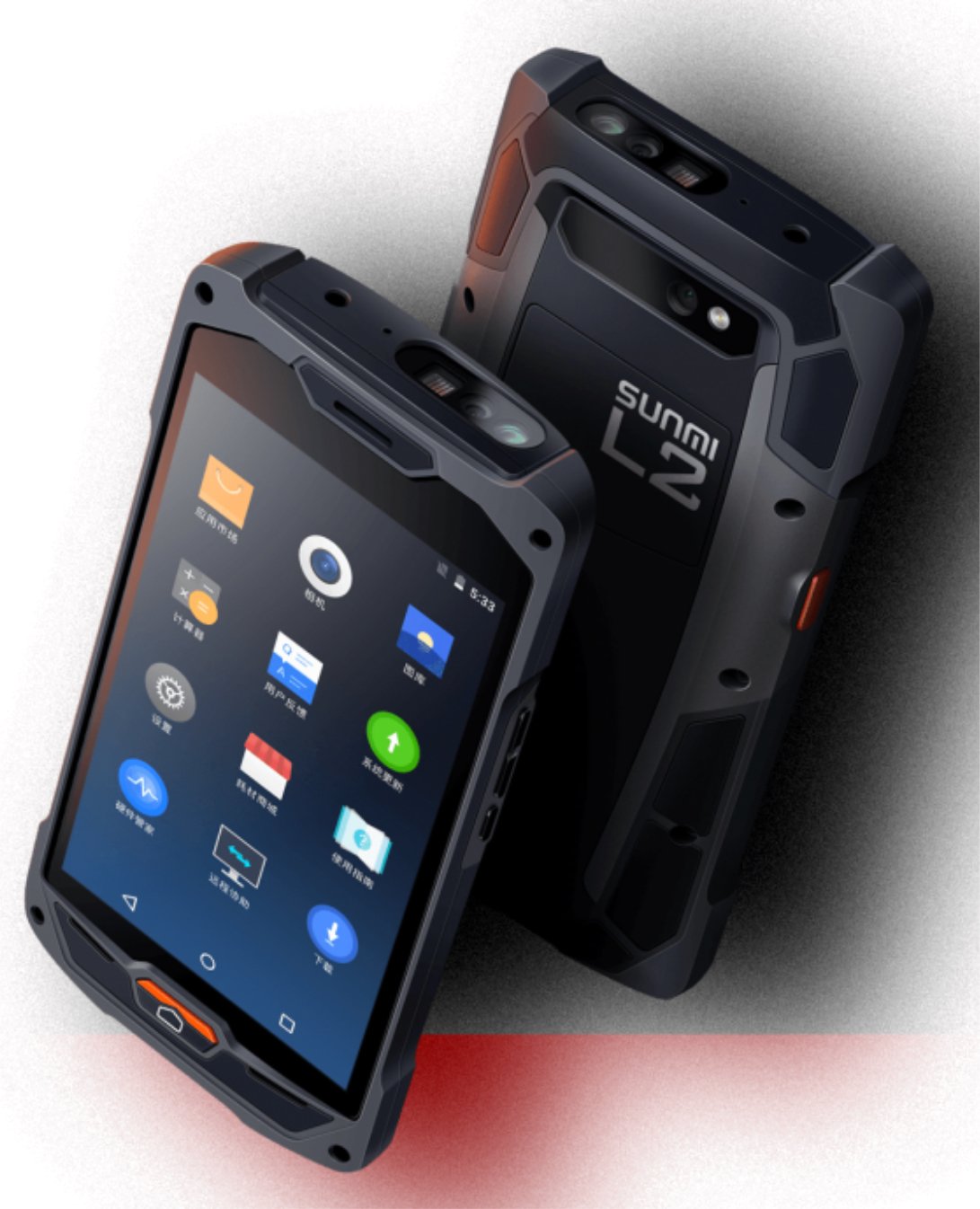
ചിത്രം 1: മുന്നിലും പിന്നിലും view of the Sunmi L2 SmartOrder industrial terminal.
2 സുരക്ഷാ വിവരങ്ങൾ
പരിക്കുകളോ കേടുപാടുകളോ തടയാൻ ഉപകരണം ഉപയോഗിക്കുന്നതിന് മുമ്പ് എല്ലാ സുരക്ഷാ നിർദ്ദേശങ്ങളും വായിക്കുക. ഭാവിയിലെ റഫറൻസിനായി ഈ മാനുവൽ സൂക്ഷിക്കുക.
- ഉപകരണത്തെ തീവ്രമായ താപനിലയിലോ, നേരിട്ടുള്ള സൂര്യപ്രകാശത്തിലോ, ഉയർന്ന ആർദ്രതയിലോ തുറന്നുകാട്ടരുത്.
- Use only SUNMI-approved accessories and power adapters.
- പരുക്കൻ രൂപകൽപ്പന ഉണ്ടായിരുന്നിട്ടും, ഉപകരണം താഴെയിടുകയോ ഗുരുതരമായ ആഘാതത്തിന് വിധേയമാക്കുകയോ ചെയ്യുന്നത് ഒഴിവാക്കുക.
- ഉപകരണം സ്വയം വേർപെടുത്താനോ നന്നാക്കാനോ ശ്രമിക്കരുത്. യോഗ്യതയുള്ള സേവന ഉദ്യോഗസ്ഥരെ ബന്ധപ്പെടുക.
- ഉപകരണം മെഡിക്കൽ ഉപകരണങ്ങളിൽ നിന്ന് അകറ്റി നിർത്തുക, കാരണം അത് അവയുടെ പ്രവർത്തനത്തെ തടസ്സപ്പെടുത്തിയേക്കാം.
3. ഡിവൈസ് ഓവർview
The SUNMI L2 SmartOrder is designed for durability and functionality. Key features include:
- 5 ഇഞ്ച് ഡിസ്പ്ലേ: High-resolution touchscreen for clear visibility.
- 1D/2D Zebra Scanner: Integrated for efficient barcode and QR code scanning.
- യുഎസ്ബി-സി പോർട്ട്: ചാർജിംഗിനും ഡാറ്റ കൈമാറ്റത്തിനും.
- സിം കാർഡ് സ്ലോട്ട്: For cellular network connectivity.
- ടിഎഫ് കാർഡ് സ്ലോട്ട്: വികസിപ്പിക്കാവുന്ന സംഭരണത്തിനായി.
- PSAM Card Slot (Optional): For enhanced security in professional applications.
- NFC Induction Area: For near-field communication.

ചിത്രം 2: പിൻഭാഗം view showing SIM card slot, TF card slot, PSAM card slot, and NFC induction area.

Figure 3: Three different scanner options for the Sunmi L2: Zebra Code Scanner, Standard Code Scanner, and without scanner.
4. സജ്ജീകരണം
4.1. ബാറ്ററി ഇൻസ്റ്റാളേഷനും ചാർജിംഗും
The device is equipped with a 5000mAh high-volume battery. Ensure the battery is fully charged before initial use.
- Connect the provided USB-C cable to the USB-C port on the device.
- Connect the other end of the USB-C cable to a compatible power adapter and plug it into a power outlet.
- The charging indicator will illuminate. Allow the device to charge completely before disconnecting.

Figure 4: Illustration of the 5000mAh high-volume battery with Quick Charge technology.
4.2. സിം, ടിഎഫ് കാർഡ് ഇൻസ്റ്റാളേഷൻ
To install SIM or TF cards:
- Locate the card slot cover on the rear of the device (refer to Figure 2).
- കവർ ശ്രദ്ധാപൂർവ്വം തുറക്കുക.
- Insert the SIM card into the designated SIM card slot with the gold contacts facing down.
- Insert the TF card (microSD) into the TF card slot if additional storage is required.
- Close the card slot cover securely to maintain the device's IP67 rating.
4.3. പ്രാരംഭ പവർ ഓൺ
After charging, press and hold the power button located on the side of the device until the screen illuminates and the SUNMI logo appears. The device will boot into the Android 7.1 operating system.
5. പ്രവർത്തന നിർദ്ദേശങ്ങൾ
5.1. അടിസ്ഥാന നാവിഗേഷൻ
The SUNMI L2 operates on Android 7.1. Navigate the interface using the touchscreen. Swipe to unlock, tap icons to open applications, and use the navigation buttons (Home, Back, Recent Apps) as standard for Android devices.
5.2. Using the 1D/2D Zebra Scanner
The integrated Zebra scanner is located at the top of the device.
- നിങ്ങളുടെ ഉപകരണത്തിൽ സ്കാനിംഗ് ആപ്ലിക്കേഷൻ തുറക്കുക.
- Point the scanner window at the barcode or QR code you wish to scan.
- Press the dedicated scan button (if available on your model) or trigger the scan via the software interface.
- Ensure the barcode is well-lit and within the scanner's optimal range for accurate reading.

ചിത്രം 5: താഴെ view of the Sunmi L2, highlighting its rugged design and integrated scanner.
5.3. കണക്റ്റിവിറ്റി
ഉപകരണം വിവിധ കണക്റ്റിവിറ്റി ഓപ്ഷനുകളെ പിന്തുണയ്ക്കുന്നു:
- WLAN (വൈ-ഫൈ): Supports 2.4 GHz and 5 GHz bands. Access Wi-Fi settings from the Android system menu to connect to available networks.
- ബ്ലൂടൂത്ത് (ബിടി): Pair with other Bluetooth-enabled devices such as printers or headsets via the Bluetooth settings.
- GPRS/LTE: Utilize cellular data by inserting a SIM card and configuring network settings.
- NFC: For short-range wireless communication, typically used for contactless payments or data exchange.
6. പരിപാലനം
6.1. ഉപകരണം വൃത്തിയാക്കൽ
ഉപകരണത്തിന്റെ പ്രകടനവും രൂപഭാവവും നിലനിർത്താൻ:
- മൃദുവായ, ലിൻ്റ് രഹിത തുണി ഉപയോഗിക്കുകampവെള്ളം അല്ലെങ്കിൽ ഒരു നേരിയ സ്ക്രീൻ ക്ലീനർ ഉപയോഗിച്ച് നനച്ചു.
- Avoid using harsh chemicals, abrasive cleaners, or solvents, as these can damage the device's surface and seals.
- Ensure all port covers are securely closed before cleaning to maintain water and dust resistance.
6.2. ബാറ്ററി പരിചരണം
Proper battery care extends its lifespan:
- ബാറ്ററി ഇടയ്ക്കിടെ പൂർണ്ണമായും ഡിസ്ചാർജ് ചെയ്യുന്നത് ഒഴിവാക്കുക.
- ഉപകരണം കടുത്ത ചൂടിലോ തണുപ്പിലോ ഏൽപ്പിക്കരുത്, കാരണം ഇത് ബാറ്ററിയുടെ പ്രകടനം കുറയ്ക്കും.
- If storing the device for an extended period, charge the battery to approximately 50% and store it in a cool, dry place.
6.3. സംഭരണം
When not in use, store the SUNMI L2 in a cool, dry environment, away from direct sunlight and corrosive materials.
7. പ്രശ്നപരിഹാരം
This section addresses common issues you might encounter with your SUNMI L2 device.
- ഉപകരണം ഓണാക്കുന്നില്ല: Ensure the battery is sufficiently charged. Connect the device to a power source and attempt to power it on again.
- Scanner not working: Verify that the scanning application is active and the scanner is enabled in the device settings. Ensure the barcode is clean, undamaged, and properly illuminated.
- Connectivity issues (Wi-Fi/Cellular): Check your Wi-Fi network connection or cellular data settings. Ensure the SIM card is correctly inserted. Try restarting the device.
- ടച്ച്സ്ക്രീൻ പ്രതികരിക്കുന്നില്ല: ഉപകരണം പുനരാരംഭിക്കുക. പ്രശ്നം നിലനിൽക്കുകയാണെങ്കിൽ, പിന്തുണയെ ബന്ധപ്പെടുക.
8 സ്പെസിഫിക്കേഷനുകൾ
Key technical specifications for the SUNMI L2 SmartOrder:
| മോഡൽ നമ്പർ | Sunmi L2 Zebra T8900 |
| ഓപ്പറേറ്റിംഗ് സിസ്റ്റം | ആൻഡ്രോയിഡ് 7.1 |
| പ്രദർശിപ്പിക്കുക | 5-ഇഞ്ച് |
| സിപിയു | ക്വാഡ് കോർ |
| റാം | 2 ജിബി |
| ROM | 16 ജിബി |
| സ്കാനർ | 1D/2D Zebra Scanner |
| കണക്റ്റിവിറ്റി | USB-C, WLAN 2.4/5 GHz, Bluetooth, GPRS, LTE, NFC |
| ബാറ്ററി | 5000mAh (up to 2 days use, 30 days standby) |
| ഈട് | IP67 rated (dust-proof, water-resistant, drop-resistant) |
| പ്രവർത്തന താപനില | -20°C മുതൽ +55°C വരെ |
| ഭാരം | 349.27 ഗ്രാം |
| അനുയോജ്യമായ ഉപകരണങ്ങൾ | Desktop computer, Laptop, POS, Smartphone, Tablet |

Figure 6: Sunmi L2 device partially submerged in water, demonstrating its IP67 dust-proof and water-resistant capabilities.
9. വാറൻ്റിയും പിന്തുണയും
For detailed warranty information, technical support, or service inquiries, please refer to the official SUNMI website or contact your authorized SUNMI distributor. Please retain your purchase receipt as proof of purchase for any warranty claims.