
1. ആമുഖം
The HyperDrive Tube 6-in-1 USB-C Hub is designed to expand the connectivity of your USB-C enabled device. It provides essential ports for data transfer, video output, network connection, and power delivery, enhancing your productivity and versatility.
2. ഉൽപ്പന്നം കഴിഞ്ഞുview
This 6-in-1 USB-C hub features a compact design and offers the following ports:
- 1 x HDMI പോർട്ട്: 30Hz-ൽ 4K റെസല്യൂഷൻ വരെയുള്ള വീഡിയോ ഔട്ട്പുട്ടിനെ പിന്തുണയ്ക്കുന്നു.
- 1 x Gigabit Ethernet Port: സ്ഥിരമായ ഒരു വയർഡ് നെറ്റ്വർക്ക് കണക്ഷൻ നൽകുന്നു.
- 3 x USB 3.0 ടൈപ്പ്-എ പോർട്ടുകൾ: For connecting USB peripherals and high-speed data transfer.
- 1 x USB-C Power Delivery Port: For charging your host device and data transfer.
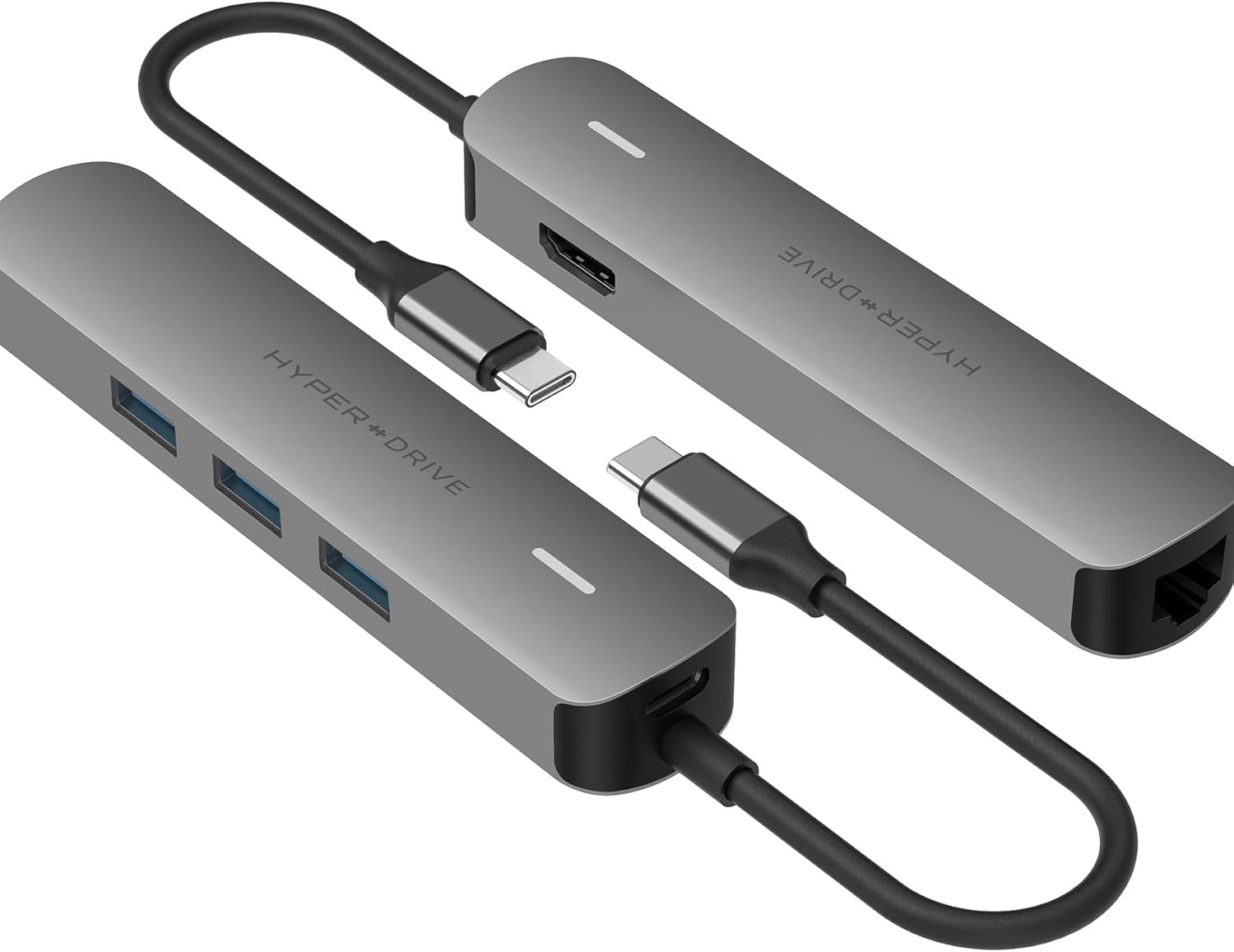
Image: The HyperDrive Tube 6-in-1 USB-C Hub, displaying its various input and output ports, including HDMI, Ethernet, and USB-A ports.
3. സജ്ജീകരണ നിർദ്ദേശങ്ങൾ
- നിങ്ങളുടെ ഉപകരണത്തിലേക്ക് ഹബ് ബന്ധിപ്പിക്കുക: Plug the integrated USB-C cable of the HyperDrive Tube hub into a compatible USB-C port on your laptop, tablet, or smartphone. Ensure the USB-C port on your host device supports DisplayPort Alternate Mode (DP Alt-Mode) for video output and Power Delivery for charging.
- പെരിഫറലുകൾ ബന്ധിപ്പിക്കുക:
- HDMI ഡിസ്പ്ലേ: Connect an HDMI cable from your monitor or TV to the hub's HDMI port.
- ഇഥർനെറ്റ് നെറ്റ്വർക്ക്: Connect an Ethernet cable from your router or modem to the hub's Gigabit Ethernet port.
- USB ഉപകരണങ്ങൾ: Plug your USB-A peripherals (e.g., mouse, keyboard, flash drive) into the USB 3.0 Type-A ports.
- പവർ അഡാപ്റ്റർ (ഓപ്ഷണൽ): If your host device requires charging, connect your device's original USB-C power adapter to the hub's USB-C Power Delivery port.
- കണക്ഷൻ സ്ഥിരീകരിക്കുക: Your operating system should automatically detect the connected devices and external display.

Image: The HyperDrive Tube 6-in-1 USB-C Hub connected to a MacBook Pro, extending its display to an external monitor and providing additional USB ports for peripherals.
4. പ്രവർത്തന നിർദ്ദേശങ്ങൾ
Once connected, the HyperDrive Tube hub operates automatically. Here are specific functions:
- HDMI വീഡിയോ ഔട്ട്പുട്ട്: The HDMI port supports resolutions up to 4K (3840x2160) at 30Hz. For optimal display settings, adjust your computer's display preferences. Note that 30Hz refresh rate is suitable for general use and coding, but may not be ideal for fast-paced gaming or video editing requiring higher refresh rates.
- USB 3.0 ഡാറ്റ ട്രാൻസ്ഫർ: The three USB 3.0 Type-A ports provide high-speed data transfer for external hard drives, flash drives, and other USB peripherals. These ports are not designed to support Apple SuperDrive or charge iPads.
- ഗിഗാബൈറ്റ് ഇഥർനെറ്റ്: Enjoy a stable and fast wired internet connection. The hub automatically configures the network connection upon plugging in the Ethernet cable.
- USB-C പവർ ഡെലിവറി: If your host device supports USB-C Power Delivery, connect your original power adapter to the hub's USB-C port to charge your device while using the hub's other functions.

ചിത്രം: ഒരു ക്ലോസ്-അപ്പ് view of the HyperDrive Tube 6-in-1 USB-C Hub connected to a MacBook, demonstrating simultaneous use of the Ethernet port and multiple USB devices.
5. പരിപാലനം
To ensure the longevity and optimal performance of your HyperDrive Tube hub, follow these maintenance guidelines:
- വൃത്തിയാക്കൽ: Use a soft, dry cloth to wipe the exterior of the hub. Avoid using liquid cleaners or abrasive materials.
- സംഭരണം: Store the hub in a cool, dry place away from direct sunlight and extreme temperatures when not in use.
- കൈകാര്യം ചെയ്യൽ: ഹബ് താഴെയിടുകയോ ശക്തമായ ആഘാതങ്ങൾക്ക് വിധേയമാക്കുകയോ ചെയ്യുന്നത് ഒഴിവാക്കുക. സംയോജിത USB-C കേബിൾ അമിതമായി വളയ്ക്കുകയോ വളച്ചൊടിക്കുകയോ ചെയ്യരുത്.
- വെൻ്റിലേഷൻ: Ensure the hub has adequate ventilation during operation, especially when multiple devices are connected, as it may generate heat.
6. പ്രശ്നപരിഹാരം
If you encounter issues with your HyperDrive Tube hub, refer to the following common solutions:
- ഡിസ്പ്ലേ ഔട്ട്പുട്ട് ഇല്ല:
- നിങ്ങളുടെ ഹോസ്റ്റ് ഉപകരണത്തിന്റെ USB-C പോർട്ട് DisplayPort Alternate Mode പിന്തുണയ്ക്കുന്നുണ്ടെന്ന് ഉറപ്പാക്കുക.
- Check the HDMI cable connection between the hub and the monitor.
- Verify your monitor's input source is set correctly to HDMI.
- Try connecting the hub to a different USB-C port on your device, if available.
- തിരിച്ചറിയാത്ത USB ഉപകരണങ്ങൾ:
- USB ഉപകരണം ഹബ്ബിൽ ശരിയായി പ്ലഗ് ചെയ്തിട്ടുണ്ടെന്ന് ഉറപ്പാക്കുക.
- Try connecting the USB device directly to your computer to confirm it functions independently.
- Some high-power USB devices may require external power or a powered USB hub.
- Slow Charging / No Charging via Hub:
- Ensure your original power adapter is connected to the hub's USB-C Power Delivery port.
- Verify that your host device's USB-C port supports Power Delivery.
- Note that connecting multiple power-hungry peripherals to the hub can reduce the power available for charging the host device.
- Hub Gets Warm During Use:
It is normal for the hub to become warm during operation, especially when multiple ports are in use or when charging a device. This is due to power conversion and data processing. If the hub becomes excessively hot, disconnect it and allow it to cool down.
- നെറ്റ്വർക്ക് കണക്ഷൻ പ്രശ്നങ്ങൾ:
- ഹബ്ബിലേക്കും നിങ്ങളുടെ റൂട്ടറിലേക്കും/മോഡത്തിലേക്കുമുള്ള ഇതർനെറ്റ് കേബിൾ കണക്ഷൻ പരിശോധിക്കുക.
- Ensure your network settings on your computer are configured for a wired connection.
- Try restarting your router/modem and your host device.
7 സ്പെസിഫിക്കേഷനുകൾ
| മോഡൽ നമ്പർ | HD233B-GRAY |
| ഉൽപ്പന്ന അളവുകൾ | 4.74 x 1 x 0.65 ഇഞ്ച് |
| ഇനത്തിൻ്റെ ഭാരം | 2.08 ഔൺസ് |
| ഹാർഡ്വെയർ ഇന്റർഫേസ് | Ethernet, HDMI, USB 3.0 Type-A (x3), USB Type-C (Power Delivery) |
| HDMI റെസല്യൂഷൻ | 30Hz-ൽ 4K (3840x2160) വരെ |
| അനുയോജ്യമായ ഉപകരണങ്ങൾ | MacBook Pro 2016 or Later, MacBook Air 2018 or Later, MacBook 2015, 2016; iPad Pro 2018 or later, iPad Air 2020 or later; Chrome OS laptop with Thunderbolt 4, USB4, USB 3.0 or later Type C with DP Alt-Mode; Windows OS laptop with Thunderbolt 4, USB4, USB 3.0 or later Type C with DP Alt-Mode; Any other device with USB-C* (*Requires DisplayPort over USB-C + charge + data; USB-A ports will not support Apple SuperDrive or charge iPads.) |
| പ്രത്യേക ഫീച്ചർ | പോർട്ടബിൾ |
| നിർമ്മാതാവ് | ഹൈപ്പർ |
8. വാറൻ്റിയും പിന്തുണയും
For warranty information or technical support, please visit the official Hyper webസൈറ്റിൽ ബന്ധപ്പെടുക അല്ലെങ്കിൽ അവരുടെ ഉപഭോക്തൃ സേവനവുമായി ബന്ധപ്പെടുക. വാറന്റി ക്ലെയിമുകൾക്കായി നിങ്ങളുടെ വാങ്ങൽ രസീത് സൂക്ഷിക്കുക.
Hyper Official Webസൈറ്റ്: www.ഹൈപ്പർ.കോം