
1. ആമുഖം
This manual provides instructions for the OWC Drive Dock USB-C Dual Drive Bay Solution. This device offers high-performance, swappable access to multiple 3.5-inch and 2.5-inch SATA drives simultaneously via USB-C connectivity. It is compatible with both Mac and PC systems, providing a flexible solution for data management, backup, and creative workflows.
2. പാക്കേജ് ഉള്ളടക്കം
നിങ്ങളുടെ പാക്കേജിൽ എല്ലാ ഇനങ്ങളും ഉണ്ടെന്ന് ഉറപ്പാക്കുക:
- OWC Drive Dock Dual Bay Solution
- USB 3.1 Gen 2 (Type-C to Type-C) cable
- USB 3.1 Gen 1 (Type-C to Type-A) cable
- പവർ കേബിൾ
3. സജ്ജീകരണ നിർദ്ദേശങ്ങൾ
3.1. പവർ ബന്ധിപ്പിക്കുക
Connect the included power cable to the OWC Drive Dock's AC input port and then to a standard power outlet. The device features an internal power supply.
3.2. കമ്പ്യൂട്ടറുമായി ബന്ധിപ്പിക്കുക
Use either the provided USB 3.1 Gen 2 (Type-C to Type-C) cable or the USB 3.1 Gen 1 (Type-C to Type-A) cable to connect the Drive Dock to an available USB port on your computer. For optimal performance, use a USB 3.1 Gen 2 compatible port.
ചിത്രം: പിൻഭാഗം view of the OWC Drive Dock with power and USB cables connected.
3.3. Insert Drives
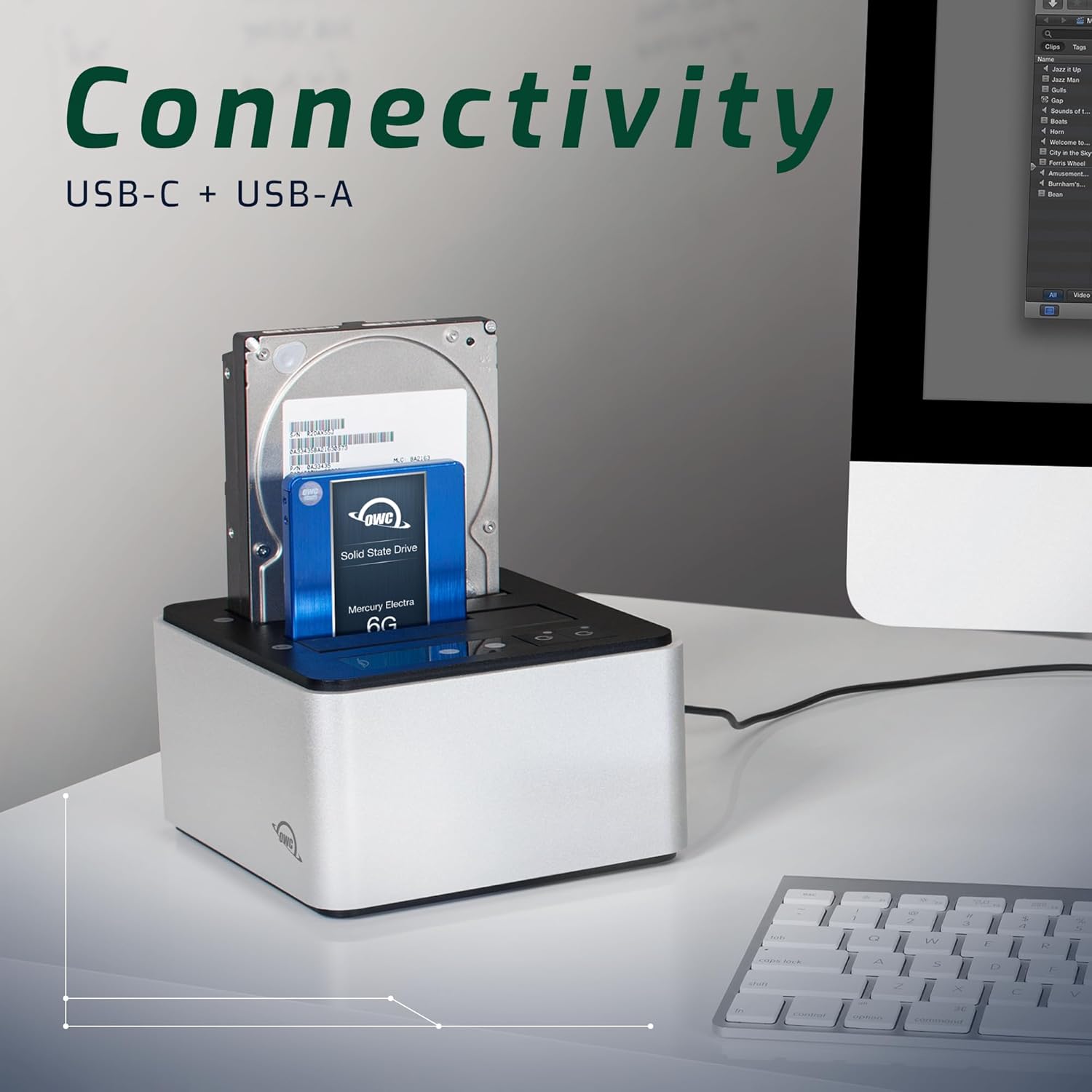
Carefully insert one or two 3.5-inch or 2.5-inch SATA hard drives or SSDs into the drive bays. Ensure the drives are seated firmly into the SATA connectors at the bottom of each bay.
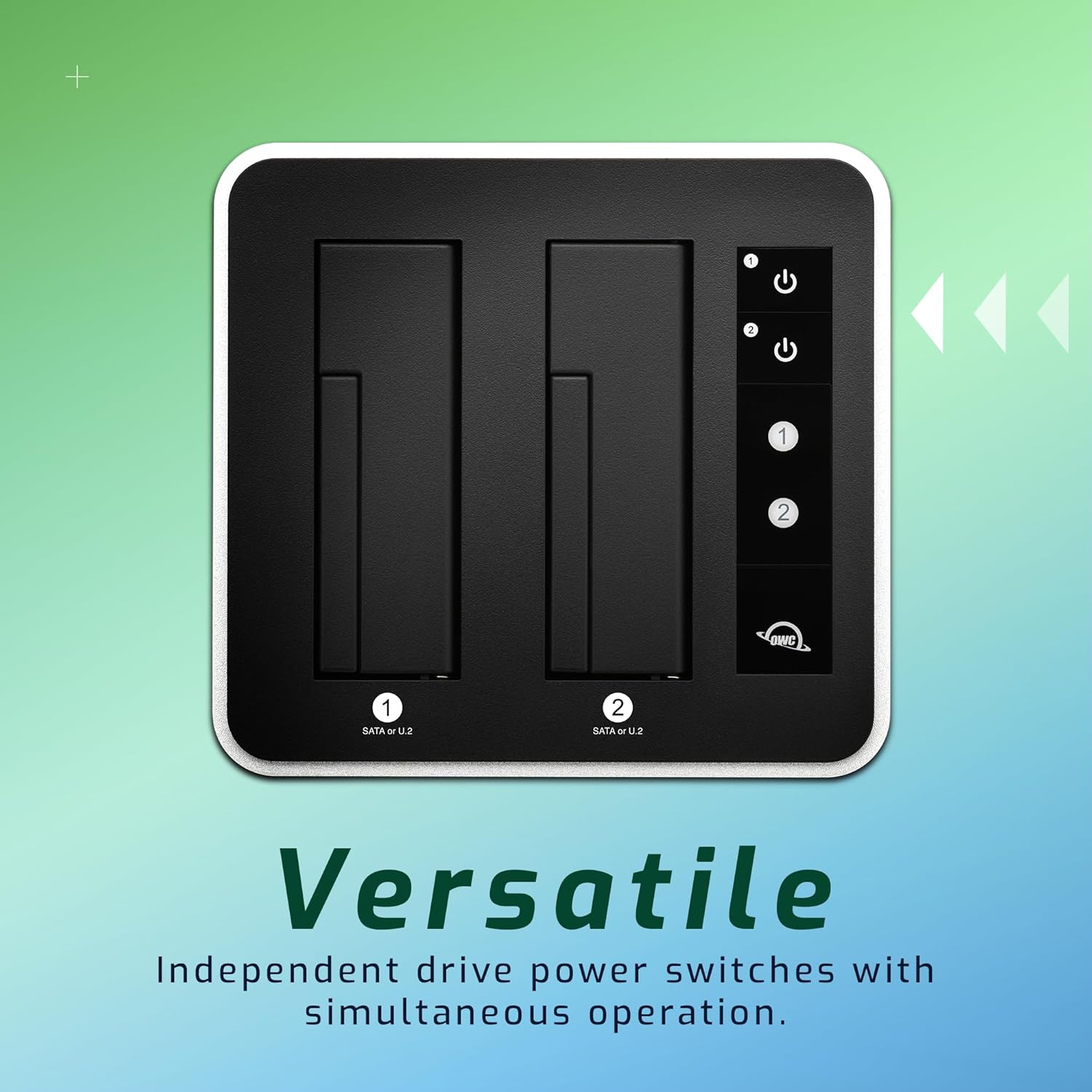
Image: OWC Drive Dock with a 3.5-inch hard drive and a 2.5-inch SSD inserted.
4. പ്രവർത്തന നിർദ്ദേശങ്ങൾ
4.1. Powering On/Off Drives
Each drive bay on the OWC Drive Dock has an independent power switch. Press the power button corresponding to the bay you wish to activate. The LED indicator next to the button will illuminate to show the drive is powered on. To power off a drive, press its corresponding power button again.

ചിത്രം: മുകളിൽ view of the OWC Drive Dock highlighting independent drive power switches.
4.2. Simultaneous Operation
The OWC Drive Dock supports simultaneous operation of both drives. You can access, read, and write to both drives at the same time without performance degradation, provided your computer's USB port and system resources are adequate.
4.3. Hot Swapping
Drives can be hot-swapped. To safely remove a drive, first ensure all data transfer operations are complete and unmount the drive from your operating system (e.g., Eject on Mac, Safely Remove Hardware on Windows). Then, power off the individual drive bay using its dedicated power switch before physically removing the drive from the dock.
5. പരിപാലനം
5.1. വൃത്തിയാക്കൽ
Wipe the exterior of the Drive Dock with a soft, dry, lint-free cloth. Avoid using harsh chemicals, solvents, or abrasive materials, as these may damage the finish.
5.2. വെൻ്റിലേഷൻ
Ensure the Drive Dock is placed in a well-ventilated area to prevent overheating, especially during extended periods of use or when operating with multiple high-performance drives. Do not block the ventilation openings.
6. പ്രശ്നപരിഹാരം
6.1. ഡ്രൈവ് കണ്ടെത്തിയില്ല
- Verify the power cable is securely connected to both the Drive Dock and a functional power outlet.
- Ensure the USB cable is firmly connected to both the Drive Dock and your computer's USB port.
- Confirm the individual drive bay's power switch is in the "on" position.
- Try inserting the drive into the other bay to rule out an issue with a specific bay.
- Test with a different USB cable or a different USB port on your computer.
- Check your computer's Disk Management (Windows) or Disk Utility (Mac) to see if the drive is recognized but unformatted or uninitialized. If so, you may need to format the drive.
6.2. മന്ദഗതിയിലുള്ള ട്രാൻസ്ഫർ വേഗത
- Ensure you are using a USB 3.1 Gen 2 compatible port on your computer for optimal performance (up to 522MB/s).
- Verify the USB cable used is rated for USB 3.1 Gen 2 speeds. Using a lower-spec cable will limit performance.
- Performance can vary based on the specific drives used, the computer's system resources, and the type of data being transferred.
- പശ്ചാത്തലത്തിൽ പ്രവർത്തിക്കുന്ന, സിസ്റ്റം റിസോഴ്സുകൾ ഉപയോഗിക്കുന്ന ഏതെങ്കിലും അനാവശ്യ ആപ്ലിക്കേഷനുകൾ അടയ്ക്കുക.
7 സ്പെസിഫിക്കേഷനുകൾ

ചിത്രം: വിശദമായ ഉൽപ്പന്ന സ്പെസിഫിക്കേഷൻ പട്ടിക.
| ഫീച്ചർ | വിശദാംശങ്ങൾ |
|---|---|
| മോഡൽ | OWCTCDRVDCK |
| ഹാർഡ്വെയർ ഇന്റർഫേസ് | USB 3.1 Gen 2 (USB-C) |
| പിന്തുണയ്ക്കുന്ന ഡ്രൈവുകൾ | 2.5" and 3.5" SATA 6Gb/s drives |
| കണക്റ്റിവിറ്റി | (1) USB 3.1 Gen 2 Type-C port |
| പരമാവധി ട്രാൻസ്ഫർ വേഗത | Up to 522 MB/s (Compressible Data) |
| ഓപ്പറേറ്റിംഗ് സിസ്റ്റം അനുയോജ്യത | OS X 10.6.8 or later, Windows 7 SP1 or later |
| അളവുകൾ (H x W x L) | 85 mm (3.3 ഇഞ്ച്) x 160 mm (6.3 in) x 150 mm (5.9 in) |
| Weight (Without Drives) | 2.20 പൗണ്ട് (1.000 കി.ഗ്രാം) |
| വൈദ്യുതി വിതരണം | Internal UL-listed universal auto-switching (AC input: 100-240V, 50/60Hz; DC output: 12V, 4A) |
| എൻക്ലോഷർ മെറ്റീരിയൽ | അലുമിനിയം |
8. വാറൻ്റിയും പിന്തുണയും
8.1. വാറൻ്റി വിവരങ്ങൾ
This OWC Drive Dock includes a 2-Year OWC Limited Warranty. For detailed warranty terms and conditions, including coverage and claim procedures, please refer to the official OWC webസൈറ്റ് അല്ലെങ്കിൽ നിങ്ങളുടെ വാങ്ങലിൽ ഉൾപ്പെടുത്തിയിരിക്കുന്ന വാറന്റി ഡോക്യുമെന്റേഷൻ.
8.2. ഉപഭോക്തൃ പിന്തുണ
For technical assistance, troubleshooting, or further inquiries regarding your OWC Drive Dock, please visit the official OWC support website or contact their customer service department. Contact information can typically be found on the OWC webസൈറ്റ്.