
1. ആമുഖം
This manual provides essential instructions for the safe and effective use of your SecuX W10 Crypto-Asset Hardware Wallet. The SecuX W10 is designed to securely store your digital assets, offering robust protection against various threats. Please read this manual thoroughly before operating the device and retain it for future reference.

Image 1.1: SecuX W10 Crypto-Asset Hardware Wallet.
2 സുരക്ഷാ വിവരങ്ങൾ
- Keep Private Keys Secure: Your private keys are stored on a military-grade, tamper-resistant secure element chip within the device. Never share your private keys or recovery phrase with anyone.
- Tamper-Proof Packaging: Inspect the device packaging for any signs of tampering before opening. If the packaging appears compromised, do not use the device and contact customer support immediately.
- Recovery Phrase: The 24-word recovery phrase is crucial for restoring your assets if the device is lost, stolen, or damaged. Store it in a secure, offline location, away from the device. Do not store it digitally.
- ഫേംവെയർ അപ്ഡേറ്റുകൾ: Only perform firmware updates through official SecuX channels to maintain device security and functionality.
- ശാരീരിക സുരക്ഷ: Keep the device in a safe place to prevent physical damage or unauthorized access.
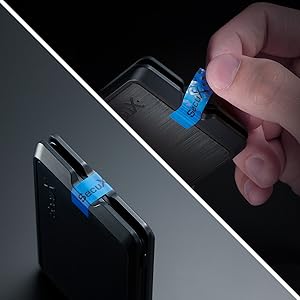
Image 2.1: Tamper-proof seal on device packaging. Always check for this seal upon receipt.
3. പാക്കേജ് ഉള്ളടക്കം
പാക്കേജ് തുറക്കുമ്പോൾ എല്ലാ ഇനങ്ങളും നിലവിലുണ്ടെന്നും നല്ല നിലയിലാണെന്നും ഉറപ്പാക്കുക:
- SecuX W10 ഹാർഡ്വെയർ വാലറ്റ്
- USB Cable (for connection and charging)
- വീണ്ടെടുക്കൽ സീഡ് ഫ്രേസ് കാർഡുകൾ
- ദ്രുത ആരംഭ ഗൈഡ്
4. ഉൽപ്പന്നം കഴിഞ്ഞുview
The SecuX W10 is a compact and secure hardware wallet featuring a large touchscreen for intuitive interaction.
പ്രധാന സവിശേഷതകൾ:
- Military-Grade Secure Element: Protects your private keys and PIN.
- 2.8" Color Touch Screen: For easy navigation and transaction verification.
- ഓൺ-സ്ക്രീൻ കീബോർഡ്: Facilitates PIN entry and passphrase management.
- ക്രോസ്-പ്ലാറ്റ്ഫോം അനുയോജ്യത: Works with Windows, macOS, Chrome OS, and Linux computers.
- Extensive Cryptocurrency Support: Supports Bitcoin, Ethereum, Ripple, Litecoin, Bitcoin Cash, ERC-20 tokens, and many more.
- USB കണക്റ്റിവിറ്റി: Connects via USB for power and data transfer.
ഉപകരണ ഘടകങ്ങൾ:
- ടച്ച് സ്ക്രീൻ ഡിസ്പ്ലേ: Main interface for all operations.
- പവർ/ഫംഗ്ഷൻ ബട്ടൺ: Located on the side, used to power on/off and confirm actions.
- മൈക്രോ-യുഎസ്ബി പോർട്ട്: For connecting to a computer and charging.

Image 4.1: SecuX W10 privacy protection features.

Image 4.2: SecuX W10 connected to a laptop via USB cable.
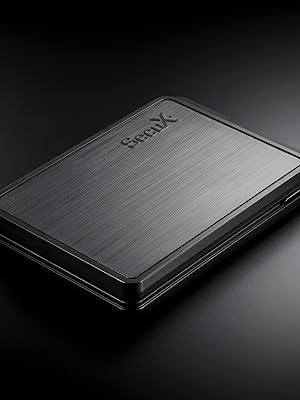
ചിത്രം 4.3: ക്ലോസ്-അപ്പ് view of the SecuX W10 device.
5. സജ്ജീകരണം
Follow these steps for initial device setup:
- ഉപകരണം ചാർജ് ചെയ്യുക: Connect the SecuX W10 to a power source using the provided USB cable. Ensure it is fully charged before proceeding.
- പവർ ഓൺ: Press and hold the Power/Function button until the screen illuminates.
- പ്രാരംഭ കോൺഫിഗറേഷൻ: Follow the on-screen prompts to select your language and set up a PIN. Use the touch screen keyboard for input.
- Generate Recovery Phrase: The device will guide you through generating a 24-word recovery phrase. Write this down accurately on the provided recovery cards and store them securely offline. Do not take photos or store it digitally.
- Verify Recovery Phrase: The device will ask you to verify a few words from your recovery phrase to ensure you have recorded it correctly.
- കമ്പ്യൂട്ടറുമായി ബന്ധിപ്പിക്കുക: Connect the SecuX W10 to your computer via the USB cable.
- Install SecuX Wallet Application: Download and install the official SecuX Wallet application from the SecuX webനിങ്ങളുടെ കമ്പ്യൂട്ടറിലേക്ക് സൈറ്റ്.
- ഉപകരണം ജോടിയാക്കുക: Follow the instructions in the SecuX Wallet application to pair your W10 device.
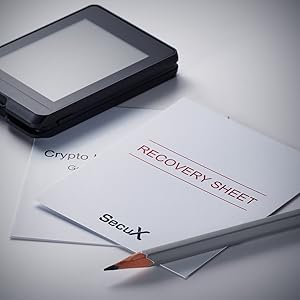
ചിത്രം 5.1: ഉദാample of recovery phrase cards. Store these securely.
6. പ്രവർത്തന നിർദ്ദേശങ്ങൾ
This section covers common operations with your SecuX W10 wallet.
6.1. Managing Cryptocurrencies
- Adding Accounts: In the SecuX Wallet application, select the cryptocurrency you wish to add and follow the prompts to create a new account.
- Receiving Assets: To receive cryptocurrency, select the desired account in the SecuX Wallet application. The application will display your public address. Verify this address on your W10 device's screen before sharing it.
- Sending Assets:
- In the SecuX Wallet application, select the account from which you want to send assets.
- Enter the recipient's address and the amount.
- Review the transaction details on both the computer screen and your W10 device.
- Confirm the transaction on your W10 device using the touch screen.

Image 6.1: SecuX W10 displaying an account portfolio with various cryptocurrencies.

Image 6.2: Visual representation of supported coins and tokens.
6.2. സുരക്ഷാ സവിശേഷതകൾ
- പിൻ പരിരക്ഷ: Your device is protected by a PIN. Ensure you choose a strong, unique PIN and keep it confidential.
- On-Screen Verification: All transaction details are displayed on the device's screen for verification, protecting against malware that might attempt to alter transaction details on your computer.
- Hidden Wallet (Optional): The SecuX W10 supports a hidden wallet feature using a passphrase. This adds an extra layer of plausible deniability. Refer to the advanced settings in the SecuX Wallet application for setup.
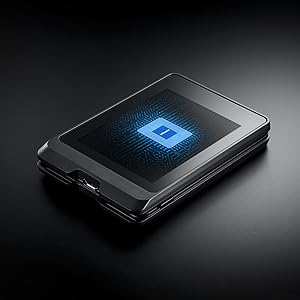
Image 6.3: The Infineon Security Chip, a military-grade secure element, embedded in the SecuX W10.
7. പരിപാലനം
- വൃത്തിയാക്കൽ: Use a soft, dry cloth to clean the device. Avoid abrasive materials or harsh chemicals.
- സംഭരണം: ഉപകരണം തണുത്തതും വരണ്ടതുമായ സ്ഥലത്ത് സൂക്ഷിക്കുക, നേരിട്ടുള്ള സൂര്യപ്രകാശത്തിൽ നിന്നും തീവ്രമായ താപനിലയിൽ നിന്നും അകറ്റി നിർത്തുക.
- ഫേംവെയർ അപ്ഡേറ്റുകൾ: Regularly check for and install official firmware updates to ensure optimal security and access to new features. The update process is designed to be streamlined.
8. പ്രശ്നപരിഹാരം
| ഇഷ്യൂ | സാധ്യമായ കാരണം | പരിഹാരം |
|---|---|---|
| ഉപകരണം ഓണാക്കുന്നില്ല. | Low battery or faulty cable. | Charge the device using the provided USB cable. Try a different USB port or cable. |
| കമ്പ്യൂട്ടറുമായി ബന്ധിപ്പിക്കാൻ കഴിയില്ല. | Driver issue, cable problem, or software not running. | Ensure the SecuX Wallet application is running. Try a different USB port or cable. Reinstall device drivers if necessary. |
| Transaction not confirming. | Insufficient network fees, network congestion, or incorrect details. | Verify transaction details on the device. Check network status and adjust fees if needed. Ensure sufficient funds. |
| Forgotten PIN. | PIN lost or forgotten. | If you forget your PIN, you will need to reset the device and recover your assets using your 24-word recovery phrase. |
കൂടുതൽ സഹായത്തിന്, കാണുക പിന്തുണ വിഭാഗം.
9 സ്പെസിഫിക്കേഷനുകൾ
| ഫീച്ചർ | വിശദാംശങ്ങൾ |
|---|---|
| മോഡലിൻ്റെ പേര് | W10 |
| ബ്രാൻഡ് | SecuX |
| മെമ്മറി സ്റ്റോറേജ് കപ്പാസിറ്റി | 64 ജിബി |
| ഹാർഡ്വെയർ ഇന്റർഫേസ് | USB |
| പ്രത്യേക ഫീച്ചർ | ടച്ച് സ്ക്രീൻ |
| കണക്റ്റിവിറ്റി ടെക്നോളജി | USB |
| ഫ്ലാഷ് മെമ്മറി തരം | USB_Micro-B |
| അനുയോജ്യമായ ഉപകരണങ്ങൾ | ലാപ്ടോപ്പ് |
| നിറം | കറുപ്പ് |
| ഇനത്തിൻ്റെ അളവുകൾ (D x W x H) | 0.51"D x 3.5"W x 0.51"H |
| ഇനത്തിൻ്റെ ഭാരം | 1.7 ഔൺസ് |
10. വാറൻ്റി
The SecuX W10 Hardware Wallet comes with a 1 വർഷത്തെ നിർമ്മാതാവിൻ്റെ വാറൻ്റി. This warranty covers defects in materials and workmanship under normal use. For warranty claims or detailed terms and conditions, please contact SecuX customer support.
11. പിന്തുണ
For technical assistance, product inquiries, or support, please use the following resources:
- ഉദ്യോഗസ്ഥൻ Webസൈറ്റ്: സന്ദർശിക്കുക SecuX official webസൈറ്റ് for FAQs, firmware updates, and detailed product information.
- ഇമെയിൽ പിന്തുണ: Contact SecuX support via email at support@secuxtech.com.
- ഓൺലൈൻ ഉറവിടങ്ങൾ: The SecuX website provides a comprehensive list of supported coins and tokens, along with guides for various operations.

Image 11.1: SecuX Official Logo.