
1. ആമുഖം
Thank you for choosing the Targus W620 Wireless Optical Mouse. This manual provides detailed instructions for setting up, operating, and maintaining your mouse to ensure optimal performance and longevity. The Targus W620 offers reliable 2.4 GHz wireless connectivity, a precise 1600 DPI optical sensor, and a compact design suitable for both office and mobile use.
2. പാക്കേജ് ഉള്ളടക്കം
പാക്കേജിൽ ഇനിപ്പറയുന്ന ഇനങ്ങൾ ഉണ്ടോ എന്ന് പരിശോധിക്കുക:
- Targus W620 Wireless Optical Mouse
- USB റിസീവർ
- 2 x AAA ബാറ്ററികൾ
3. ഉൽപ്പന്നം കഴിഞ്ഞുview
Familiarize yourself with the components of your Targus W620 Wireless Optical Mouse.
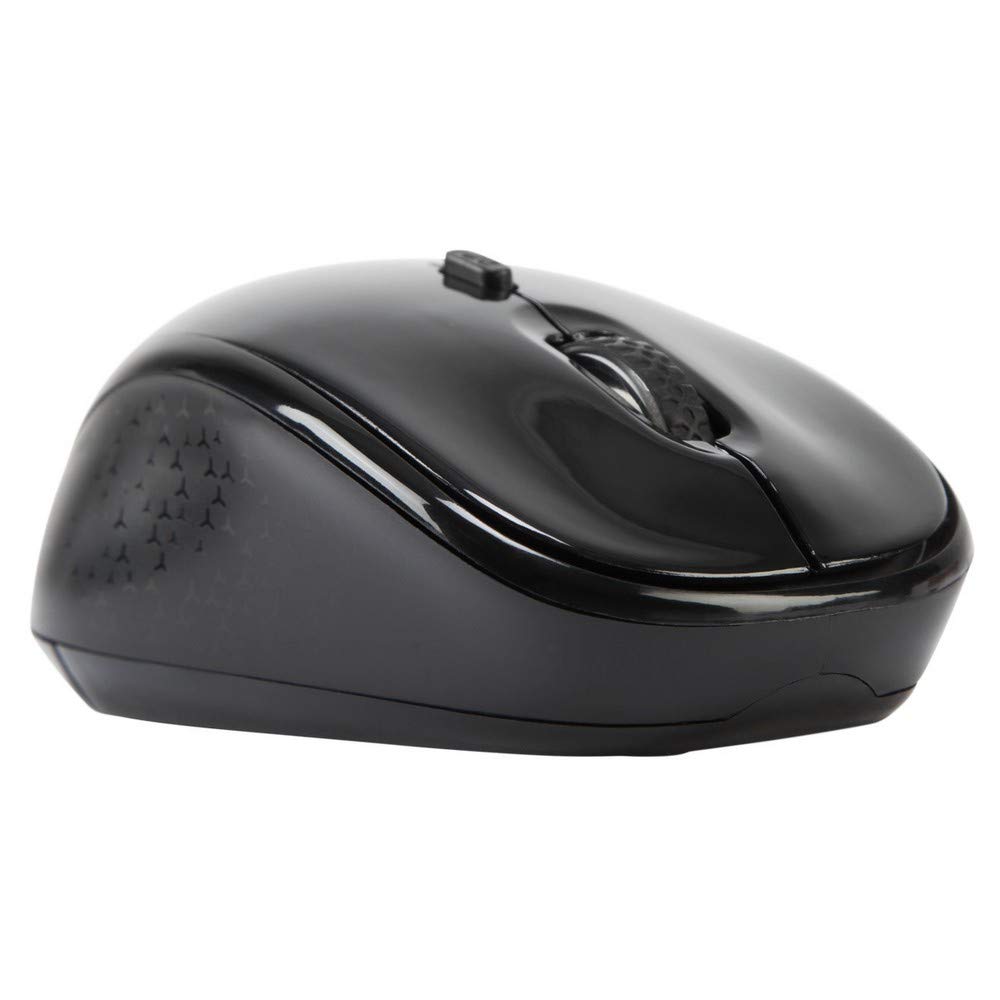
ചിത്രം 3.1: മുകളിൽ view of the Targus W620 Wireless Optical Mouse. This image displays the primary buttons and scroll wheel.
- ഇടത് ക്ലിക്ക് ബട്ടൺ: സ്റ്റാൻഡേർഡ് പ്രൈമറി ക്ലിക്ക് ഫംഗ്ഷൻ.
- റൈറ്റ് ക്ലിക്ക് ബട്ടൺ: സ്റ്റാൻഡേർഡ് സെക്കൻഡറി ക്ലിക്ക് ഫംഗ്ഷൻ.
- സ്ക്രോൾ വീൽ: ലംബ സ്ക്രോളിംഗിനും മധ്യ-ക്ലിക്ക് പ്രവർത്തനത്തിനും.
- DPI ബട്ടൺ: മൗസ് സെൻസിറ്റിവിറ്റി (DPI) ക്രമീകരിക്കുന്നു.
- ഒപ്റ്റിക്കൽ സെൻസർ: Located on the bottom, detects mouse movement.
- ബാറ്ററി കമ്പാർട്ട്മെൻ്റ്: Located on the bottom, holds two AAA batteries.
- യുഎസ്ബി റിസീവർ സംഭരണം: A dedicated slot on the bottom for storing the USB receiver when not in use.

ചിത്രം 3.2: താഴെ view of the mouse, highlighting the battery compartment and optical sensor.
4. സജ്ജീകരണ നിർദ്ദേശങ്ങൾ
Follow these steps to set up your Targus W620 Wireless Optical Mouse:
- ബാറ്ററികൾ ഇൻസ്റ്റാൾ ചെയ്യുക:
- മൗസിന്റെ അടിയിൽ ബാറ്ററി കമ്പാർട്ട്മെന്റ് കവർ കണ്ടെത്തുക.
- കവർ തുറക്കുക.
- രണ്ട് AAA ബാറ്ററികൾ ഇടുക, ശരിയായ പോളാരിറ്റി (+/-) ഉറപ്പാക്കുക.
- ബാറ്ററി കമ്പാർട്ട്മെൻ്റ് കവർ സുരക്ഷിതമായി അടയ്ക്കുക.
- USB റിസീവർ ബന്ധിപ്പിക്കുക:
- The USB receiver is typically stored in a slot on the bottom of the mouse for transport. Gently remove it.
- നിങ്ങളുടെ കമ്പ്യൂട്ടറിൽ ലഭ്യമായ USB പോർട്ടിലേക്ക് USB റിസീവർ പ്ലഗ് ചെയ്യുക.

ചിത്രം 4.1: The mouse with its USB receiver, ready for connection.
- പവർ ഓൺ:
- There is no explicit power switch on this model; the mouse activates upon movement and connection.
- നിങ്ങളുടെ കമ്പ്യൂട്ടർ ആവശ്യമായ ഡ്രൈവറുകൾ സ്വയമേവ കണ്ടെത്തി ഇൻസ്റ്റാൾ ചെയ്യണം. ഇതിന് കുറച്ച് നിമിഷങ്ങൾ എടുത്തേക്കാം.
- Once drivers are installed, the mouse is ready for use.
5. പ്രവർത്തന നിർദ്ദേശങ്ങൾ
The Targus W620 Wireless Optical Mouse is designed for intuitive use. Here are its primary functions:
- അടിസ്ഥാന നാവിഗേഷൻ: നിങ്ങളുടെ സ്ക്രീനിലെ കഴ്സർ നിയന്ത്രിക്കാൻ മൗസ് ഒരു പരന്ന പ്രതലത്തിൽ നീക്കുക.
- ഇടത് ക്ലിക്ക്: ഇനങ്ങൾ തിരഞ്ഞെടുക്കുന്നതിനും തുറക്കുന്നതിനും ഉപയോഗിക്കുക files, അല്ലെങ്കിൽ ഫംഗ്ഷനുകൾ സജീവമാക്കുന്നു.
- വലത് ക്ലിക്കിൽ: Use for accessing context menus or secondary functions.
- സ്ക്രോൾ വീൽ: Rotate the wheel to scroll vertically through documents and web pages. Press the scroll wheel for a middle-click function, often used for opening links in new tabs or auto-scrolling.
- DPI ക്രമീകരണം: Press the DPI button (located behind the scroll wheel) to cycle through the available DPI settings (800, 1200, 1600 DPI). This changes the sensitivity of the mouse cursor. A higher DPI means the cursor moves further with less physical mouse movement.
6. പരിപാലനം
ശരിയായ അറ്റകുറ്റപ്പണികൾ നിങ്ങളുടെ മൗസിന്റെ ദീർഘായുസ്സും പ്രകടനവും ഉറപ്പാക്കുന്നു.
- വൃത്തിയാക്കൽ: Use a soft, dry, lint-free cloth to clean the exterior of the mouse. For stubborn dirt, slightly dampതുണിയിൽ വെള്ളം ഒഴിക്കുക. കഠിനമായ രാസവസ്തുക്കളോ അബ്രസീവ് ക്ലീനറുകളോ ഉപയോഗിക്കുന്നത് ഒഴിവാക്കുക.
- ഒപ്റ്റിക്കൽ സെൻസർ: കൃത്യമായ ട്രാക്കിംഗ് ഉറപ്പാക്കാൻ മൗസിന്റെ അടിയിലുള്ള ഒപ്റ്റിക്കൽ സെൻസർ ഏരിയ വൃത്തിയുള്ളതും പൊടിയോ അവശിഷ്ടങ്ങളോ ഇല്ലാതെ സൂക്ഷിക്കുക.
- ബാറ്ററി മാറ്റിസ്ഥാപിക്കൽ: When the mouse performance degrades or stops responding, it is likely time to replace the batteries. Follow the steps in Section 4.1 to replace the two AAA batteries.
- സംഭരണം: When transporting or storing the mouse, always place the USB receiver back into its dedicated storage slot on the bottom of the mouse to prevent loss.
7. പ്രശ്നപരിഹാരം
If you encounter issues with your Targus W620 mouse, try the following solutions:
| പ്രശ്നം | സാധ്യമായ പരിഹാരം |
|---|---|
| Mouse not responding or cursor not moving. |
|
| കഴ്സറിന്റെ ചലനം ക്രമരഹിതമോ ചാഞ്ചാട്ടമോ ആണ്. |
|
| DPI button not changing sensitivity. |
|
| വയർലെസ് കണക്ഷൻ പ്രശ്നങ്ങൾ. |
|
8 സ്പെസിഫിക്കേഷനുകൾ
| ബ്രാൻഡ് | ടാർഗസ് |
| മോഡൽ നമ്പർ | AMW620AP |
| കണക്റ്റിവിറ്റി ടെക്നോളജി | 2.4 GHz Wireless (Radio Frequency) |
| മൂവ്മെന്റ് ഡിറ്റക്ഷൻ ടെക്നോളജി | Optical (BlueTrace Technology) |
| ഡിപിഐ ലെവലുകൾ | 800 / 1200 / 1600 DPI (ക്രമീകരിക്കാവുന്നത്) |
| ബട്ടണുകളുടെ എണ്ണം | 4 (ഇടത്, വലത്, സ്ക്രോൾ വീൽ, DPI) |
| കൈ ഓറിയൻ്റേഷൻ | Right (Comfortable for ambidextrous use) |
| പവർ ഉറവിടം | 2 x AAA ബാറ്ററികൾ (ഉൾപ്പെടുത്തിയിരിക്കുന്നു) |
| ഇനത്തിൻ്റെ ഭാരം | 26 ഗ്രാം |
| ഓപ്പറേറ്റിംഗ് സിസ്റ്റം അനുയോജ്യത | Linux, Windows XP (Compatible with modern Windows and macOS) |
| ഹാർഡ്വെയർ പ്ലാറ്റ്ഫോം | മാക്, പിസി |
| നിറം | കറുപ്പ് |
9. വാറൻ്റിയും പിന്തുണയും
വാറൻ്റി വിവരങ്ങൾ: The Targus W620 Wireless Optical Mouse comes with a 3 വർഷത്തെ നിർമ്മാതാവിന്റെ വാറന്റി വാങ്ങിയ തീയതി മുതൽ. സാധാരണ ഉപയോഗത്തിലുള്ള മെറ്റീരിയലുകളിലെയും ജോലികളിലെയും വൈകല്യങ്ങൾ ഈ വാറന്റി ഉൾക്കൊള്ളുന്നു. വാറന്റി ക്ലെയിമുകൾക്കായി നിങ്ങളുടെ വാങ്ങിയതിന്റെ തെളിവ് സൂക്ഷിക്കുക.
ഉപഭോക്തൃ പിന്തുണ: For technical assistance, troubleshooting beyond this manual, or warranty inquiries, please visit the official Targus website or contact their customer support service. Refer to the contact information provided with your product packaging or on the Targus official webസൈറ്റ്.