
ആമുഖം
This manual provides essential information for setting up, operating, maintaining, and troubleshooting your VAIO SX12 laptop. Please read this manual thoroughly to ensure proper use and to maximize the performance and longevity of your device.

ചിത്രം 1: മുൻഭാഗം view of the VAIO SX12 laptop with the screen open.
സജ്ജമാക്കുക
1 അൺപാക്കിംഗും പ്രാരംഭ പരിശോധനയും
പാക്കേജിംഗിൽ നിന്ന് എല്ലാ ഘടകങ്ങളും ശ്രദ്ധാപൂർവ്വം നീക്കം ചെയ്യുക. 'ബോക്സിൽ എന്താണുള്ളത്' എന്ന വിഭാഗത്തിൽ ലിസ്റ്റ് ചെയ്തിരിക്കുന്ന എല്ലാ ഇനങ്ങളും നിലവിലുണ്ടെന്നും കേടുപാടുകൾ സംഭവിച്ചിട്ടില്ലെന്നും ഉറപ്പാക്കുക. ഏതെങ്കിലും ഇനങ്ങൾ നഷ്ടപ്പെട്ടിട്ടുണ്ടെങ്കിലോ കേടുപാടുകൾ സംഭവിച്ചിട്ടുണ്ടെങ്കിലോ, ഉപഭോക്തൃ പിന്തുണയുമായി ബന്ധപ്പെടുക.
- VAIO SX12 Laptop
- എസി അഡാപ്റ്റർ
- ക്ലീനിംഗ് തുണി
2. എസി അഡാപ്റ്റർ ബന്ധിപ്പിക്കുന്നു
Connect the AC adapter to the power input port on the laptop and then plug the adapter into a wall outlet. The battery will begin charging automatically.
3. പ്രാരംഭ പവർ ഓൺ
Press the power button located on the top right of the keyboard. The laptop will boot up and guide you through the initial Windows 10 Pro setup process.
പ്രവർത്തിക്കുന്നു
1. കീബോർഡും ടച്ച്പാഡും
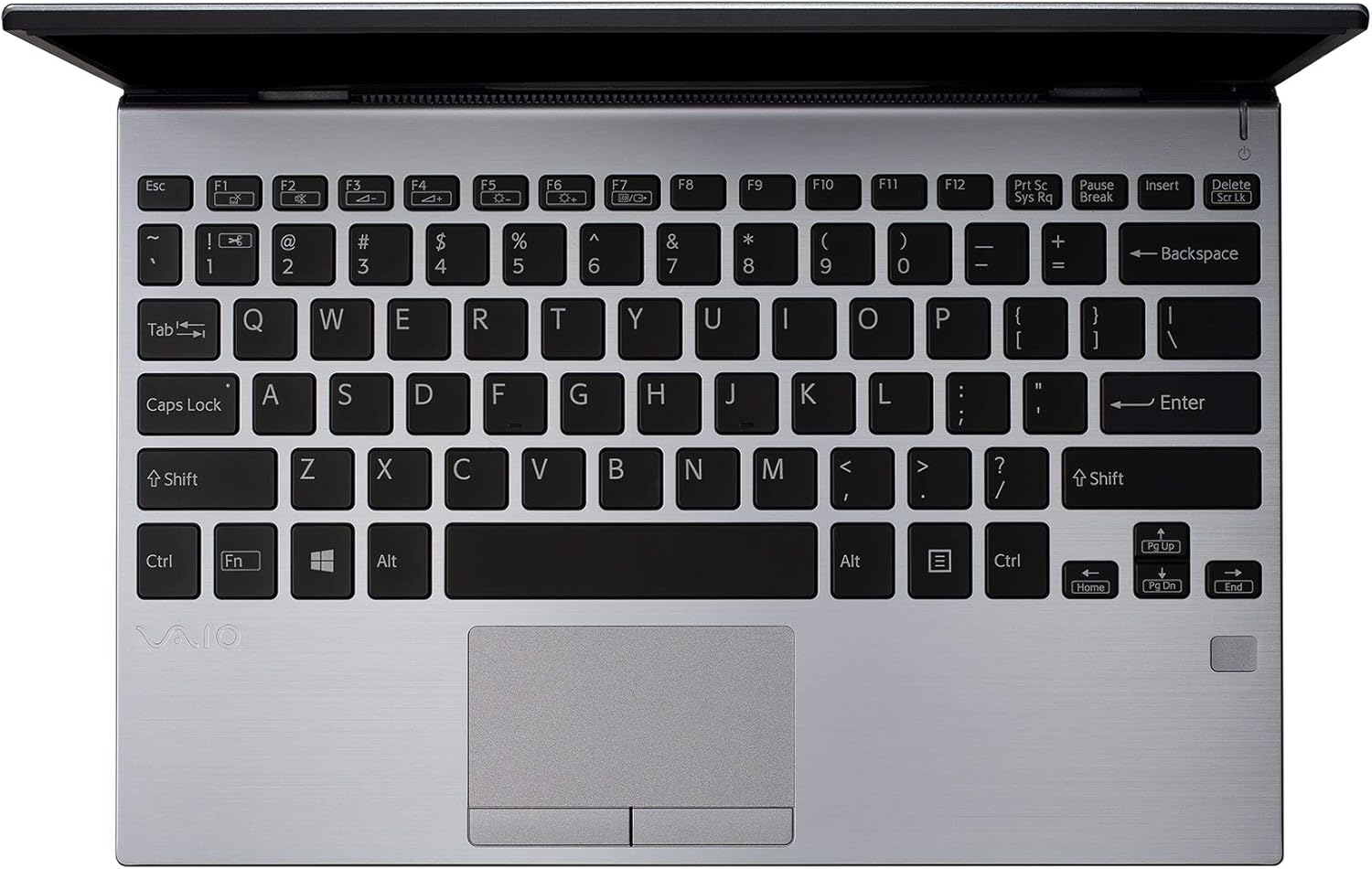
ചിത്രം 2: മുകളിൽ നിന്ന് താഴേക്ക് view of the VAIO SX12 keyboard and touchpad.
The VAIO SX12 features a full-sized keyboard and a precision touchpad. Familiarize yourself with the function keys (F1-F12) which control various system settings such as screen brightness, volume, and wireless connectivity.
- പ്രവർത്തന കീകൾ: Use the 'Fn' key in combination with F1-F12 for secondary functions.
- ടച്ച്പാഡ്: Supports multi-touch gestures for scrolling, zooming, and navigating.
2. പെരിഫറലുകൾ ബന്ധിപ്പിക്കുന്നു
The VAIO SX12 offers a variety of ports for connecting external devices.

ചിത്രം 3: ഇടതുവശം view of the VAIO SX12, showing the power input, USB ports, HDMI, Ethernet, and VGA ports.

ചിത്രം 4: വലതുവശം view of the VAIO SX12, showing the SD card slot, USB ports, and audio jack.
- USB പോർട്ടുകൾ: Connect USB devices such as external drives, keyboards, or mice.
- എച്ച്ഡിഎംഐ പോർട്ട്: ഒരു ബാഹ്യ ഡിസ്പ്ലേയിലേക്കോ പ്രൊജക്ടറിലേക്കോ കണക്റ്റുചെയ്യുക.
- VGA പോർട്ട്: Connect to older external displays or projectors.
- ഇഥർനെറ്റ് പോർട്ട്: വയർഡ് നെറ്റ്വർക്കിലേക്ക് കണക്റ്റുചെയ്യുക.
- SD കാർഡ് സ്ലോട്ട്: Insert an SD card for data transfer.
- ഓഡിയോ ജാക്ക്: ഹെഡ്ഫോണുകളോ ബാഹ്യ സ്പീക്കറുകളോ ബന്ധിപ്പിക്കുക.
മെയിൻ്റനൻസ്
1. ലാപ്ടോപ്പ് വൃത്തിയാക്കൽ
- Use the provided cleaning cloth or a soft, lint-free cloth to wipe the screen and exterior surfaces.
- കഠിനമായ രാസവസ്തുക്കളോ, അബ്രസീവ് ക്ലീനറുകളോ, ലായകങ്ങളോ ഉപയോഗിക്കരുത്.
- വൃത്തിയാക്കുന്നതിനുമുമ്പ് ലാപ്ടോപ്പ് പവർ ഓഫ് ചെയ്തിട്ടുണ്ടെന്നും പ്ലഗ് ഊരിവെച്ചിട്ടുണ്ടെന്നും ഉറപ്പാക്കുക.
2. ബാറ്ററി പരിചരണം
- ബാറ്ററി ലൈഫ് വർദ്ധിപ്പിക്കാൻ, ബാറ്ററി ഇടയ്ക്കിടെ പൂർണ്ണമായും ഡിസ്ചാർജ് ചെയ്യുന്നത് ഒഴിവാക്കുക.
- ലാപ്ടോപ്പ് ദീർഘനേരം ഉപയോഗിച്ചിട്ടില്ലെങ്കിൽ തണുത്തതും വരണ്ടതുമായ സ്ഥലത്ത് സൂക്ഷിക്കുക.
- The battery is internal and not user-replaceable. Contact authorized service for battery replacement.
3. സോഫ്റ്റ്വെയർ അപ്ഡേറ്റുകൾ
ഒപ്റ്റിമൽ പ്രകടനവും സുരക്ഷയും ഉറപ്പാക്കാൻ ഓപ്പറേറ്റിംഗ് സിസ്റ്റത്തിന്റെയും ഡ്രൈവർ അപ്ഡേറ്റുകളുടെയും ലഭ്യത പതിവായി പരിശോധിച്ച് ഇൻസ്റ്റാൾ ചെയ്യുക.
ട്രബിൾഷൂട്ടിംഗ്
1. ലാപ്ടോപ്പ് ഓണാകുന്നില്ല
- ലാപ്ടോപ്പിലേക്കും പ്രവർത്തിക്കുന്ന പവർ ഔട്ട്ലെറ്റിലേക്കും എസി അഡാപ്റ്റർ സുരക്ഷിതമായി ബന്ധിപ്പിച്ചിട്ടുണ്ടെന്ന് ഉറപ്പാക്കുക.
- മറ്റൊരു ഉപകരണം പ്ലഗ് ഇൻ ചെയ്ത് പവർ ഔട്ട്ലെറ്റ് പ്രവർത്തനക്ഷമമാണെന്ന് ഉറപ്പാക്കുക.
- ബാറ്ററി പൂർണ്ണമായും തീർന്നാൽ, പവർ ഓൺ ചെയ്യാൻ ശ്രമിക്കുന്നതിന് മുമ്പ് കുറഞ്ഞത് 30 മിനിറ്റെങ്കിലും ചാർജ് ചെയ്യാൻ അനുവദിക്കുക.
2. ഡിസ്പ്ലേ പ്രശ്നങ്ങൾ
- If the screen is blank, try adjusting the brightness using the function keys.
- If an external monitor is connected, ensure the display output is correctly configured (e.g., duplicate, extend).
- ലാപ്ടോപ്പ് പുനരാരംഭിക്കുക.
3. Peripheral Not Recognized
- Ensure the peripheral is properly connected to the correct port.
- Try connecting the peripheral to a different port or another computer to rule out device malfunction.
- ഡ്രൈവർ പ്രശ്നങ്ങൾക്കായി വിൻഡോസിലെ ഉപകരണ മാനേജർ പരിശോധിക്കുക.
സ്പെസിഫിക്കേഷനുകൾ
| ഫീച്ചർ | സ്പെസിഫിക്കേഷൻ |
|---|---|
| മോഡലിൻ്റെ പേര് | VAIO SX12 |
| ഇനം മോഡൽ നമ്പർ | VJS121C11L |
| പ്രോസസ്സർ | Intel Core i5-8265U (3.9 GHz max) |
| റാം | 8 GB LPDDR3 |
| ഹാർഡ് ഡ്രൈവ് | 512 GB PCIe SSD |
| ഓപ്പറേറ്റിംഗ് സിസ്റ്റം | വിൻഡോസ് 10 പ്രോ |
| സ്ക്രീൻ വലിപ്പം | 12.5 ഇഞ്ച് |
| സ്ക്രീൻ റെസല്യൂഷൻ | 1920 x 1080 പിക്സലുകൾ (ഫുൾ എച്ച്ഡി) |
| ഗ്രാഫിക്സ് കാർഡ് | ഇന്റഗ്രേറ്റഡ് ഇന്റൽ ഗ്രാഫിക്സ് |
| വയർലെസ് കണക്റ്റിവിറ്റി | 802.11a/b/g/n/ac, ബ്ലൂടൂത്ത് |
| USB 3.0 പോർട്ടുകൾ | 4 |
| ഇനത്തിൻ്റെ ഭാരം | 1.97 പൗണ്ട് |
| ഉൽപ്പന്ന അളവുകൾ | 11.3 x 8 x 0.62 ഇഞ്ച് |
| നിറം | വെള്ളി |
| ബാറ്ററികൾ | 1 ലിഥിയം അയോൺ ബാറ്ററി (ഉൾപ്പെടുത്തിയിരിക്കുന്നു) |
വാറൻ്റിയും പിന്തുണയും
For warranty information and technical support, please refer to the documentation included with your product or visit the official VAIO support webവാറന്റി ക്ലെയിമുകൾക്കുള്ള വാങ്ങലിന്റെ തെളിവായി നിങ്ങളുടെ വാങ്ങൽ രസീത് സൂക്ഷിക്കുക.