
ആമുഖം
This manual provides essential information for the proper setup, operation, and maintenance of your Philips 346B1C Curved Monitor. This 34-inch WQHD (3440 x 1440) display features a 100 Hz refresh rate, 5ms response time, and a curved VA panel for an immersive viewing experience. Key features include USB-C docking, MultiView functionality, FreeSync technology, LowBlue Mode, and FlickerFree technology for enhanced user comfort and productivity.

ചിത്രം: മുൻഭാഗം view of the Philips 346B1C curved monitor, showcasing its ultrawide display and key features like WQHD, USB-C Docking, and MultiView.
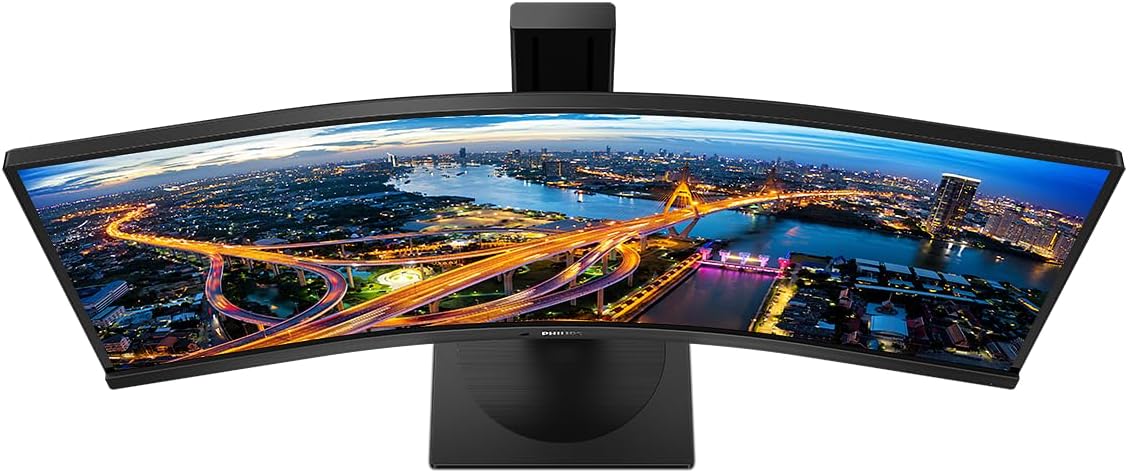
ചിത്രം: മുകളിൽ നിന്ന് താഴേക്ക് view of the Philips 346B1C curved monitor, emphasizing the curvature of the screen.
ബോക്സിൽ എന്താണുള്ളത്
സജ്ജീകരണവുമായി മുന്നോട്ടുപോകുന്നതിനുമുമ്പ് എല്ലാ ഘടകങ്ങളും നിലവിലുണ്ടെന്ന് ഉറപ്പാക്കുക.
- Philips 346B1C Curved Monitor
- മോണിറ്റർ സ്റ്റാൻഡ് (ബേസും കഴുത്തും)
- പവർ കേബിൾ
- HDMI കേബിൾ
- ഡിസ്പ്ലേ പോർട്ട് കേബിൾ
- USB-C മുതൽ USB-C കേബിൾ വരെ
- USB-A to USB-B Cable (Upstream)
- Documentation (Quick Start Guide, User Manual CD)
സജ്ജീകരണ നിർദ്ദേശങ്ങൾ
1. സ്റ്റാൻഡ് അസംബ്ലിംഗ്
- പോറലുകൾ ഉണ്ടാകാതിരിക്കാൻ മോണിറ്റർ മൃദുവായതും വൃത്തിയുള്ളതുമായ ഒരു പ്രതലത്തിൽ മുഖം താഴേക്ക് വയ്ക്കുക.
- സ്റ്റാൻഡ് നെക്ക് മോണിറ്റർ പാനലിൽ ഘടിപ്പിക്കുക. അത് സുരക്ഷിതമായി സ്ഥലത്ത് ക്ലിക്കു ചെയ്യുന്നുണ്ടെന്ന് ഉറപ്പാക്കുക അല്ലെങ്കിൽ സ്ക്രൂകൾ നൽകിയിട്ടുണ്ടെങ്കിൽ അത് ഉപയോഗിച്ച് ഉറപ്പിച്ചിട്ടുണ്ടെന്ന് ഉറപ്പാക്കുക.
- സ്റ്റാൻഡ് ബേസ് സ്റ്റാൻഡ് നെക്കിൽ ഘടിപ്പിക്കുക. ബേസിന്റെ അടിയിൽ നിന്ന് തമ്പ് സ്ക്രൂ അല്ലെങ്കിൽ സ്ക്രൂകൾ മുറുക്കുക.

ചിത്രം: പിൻഭാഗം view of the Philips 346B1C monitor, showing the stand attachment point and VESA mounting holes.
2. നിങ്ങളുടെ കമ്പ്യൂട്ടറുമായി ബന്ധിപ്പിക്കുന്നു
Connect the monitor to your computer using one of the following methods:
- HDMI കണക്ഷൻ: HDMI കേബിളിന്റെ ഒരു അറ്റം മോണിറ്ററിന്റെ HDMI പോർട്ടിലേക്കും മറ്റേ അറ്റം നിങ്ങളുടെ കമ്പ്യൂട്ടറിന്റെ HDMI ഔട്ട്പുട്ടിലേക്കും ബന്ധിപ്പിക്കുക.
- ഡിസ്പ്ലേ പോർട്ട് കണക്ഷൻ: Connect one end of the DisplayPort cable to the monitor's DisplayPort and the other end to your computer's DisplayPort output.
- USB-C കണക്ഷൻ: Connect one end of the USB-C cable to the monitor's USB-C port and the other end to your computer's USB-C port. This connection supports video, data, and power delivery (up to 90W) to your laptop.
For USB hub functionality, connect the USB-A to USB-B upstream cable from your computer to the monitor's USB-B upstream port.
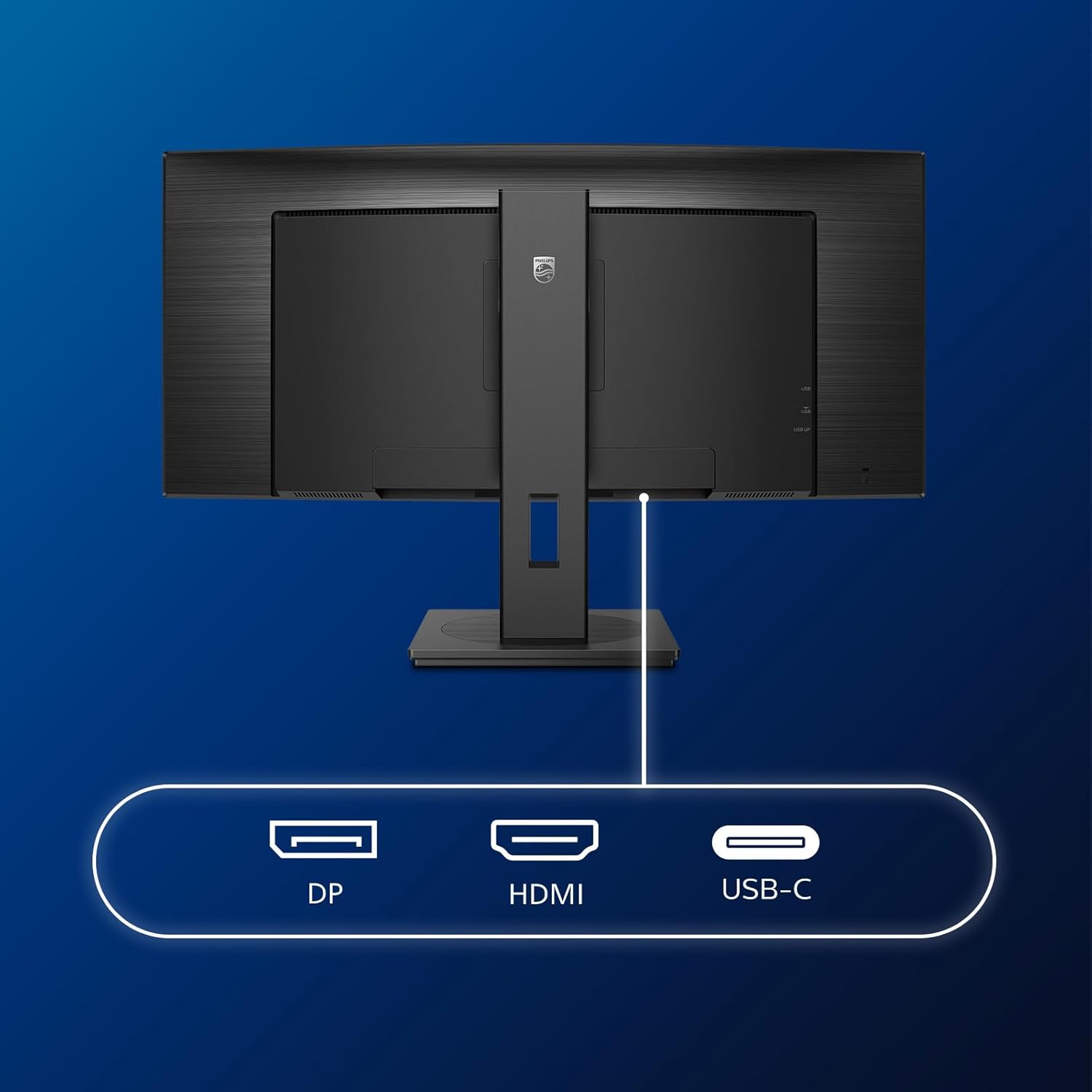
ചിത്രം: വിശദമായത് view of the monitor's input ports, including DisplayPort (DP), HDMI, and USB-C, for connecting to various devices.
3. പവർ കണക്ഷൻ
പവർ കേബിൾ മോണിറ്ററിന്റെ പവർ ഇൻപുട്ടിലേക്കും പിന്നീട് ഒരു ഗ്രൗണ്ടഡ് ഇലക്ട്രിക്കൽ ഔട്ട്ലെറ്റിലേക്കും ബന്ധിപ്പിക്കുക.
4. പ്രാരംഭ പവർ ഓൺ
Press the power button located on the monitor to turn it on. The monitor should automatically detect the input signal. If not, use the On-Screen Display (OSD) menu to select the correct input source.
പ്രവർത്തന നിർദ്ദേശങ്ങൾ
ഓൺ-സ്ക്രീൻ ഡിസ്പ്ലേ (OSD) മെനു
The OSD menu allows you to adjust various monitor settings. Use the joystick control located on the back or bottom of the monitor to navigate the menu.
- തെളിച്ചം/തീവ്രത: ഡിസ്പ്ലേയുടെ മൊത്തത്തിലുള്ള പ്രകാശവും കോൺട്രാസ്റ്റും ക്രമീകരിക്കുക.
- വർണ്ണ ക്രമീകരണങ്ങൾ: വർണ്ണ താപനില, ഗാമ, കളർ സ്പേസ് എന്നിവ സൂക്ഷ്മമായി ക്രമീകരിക്കുക.
- ഇൻപുട്ട് തിരഞ്ഞെടുക്കുക: HDMI, DisplayPort, USB-C ഇൻപുട്ടുകൾക്കിടയിൽ സ്വമേധയാ മാറുക.
- ഓഡിയോ: Adjust volume or mute the built-in speakers.
- ചിത്ര മോഡ്: Select from preset picture modes (e.g., Standard, Gaming, Text).
മൾട്ടിView പ്രവർത്തനക്ഷമത
മൾട്ടിView feature allows you to connect and view content from two different sources simultaneously on the screen. Access this feature through the OSD menu to select Picture-by-Picture (PbP) or Picture-in-Picture (PiP) modes and configure input sources.
USB-C ഡോക്കിംഗ്
When connected via USB-C, the monitor acts as a docking station, providing video, data transfer through its integrated USB hub, and power delivery to charge your connected laptop (up to 90W).
SmartErgoBase and Adjustability
The monitor's SmartErgoBase allows for ergonomic adjustments including height, swivel, and tilt to optimize your viewആശ്വാസം.

Image: Illustrations demonstrating the monitor's adjustable features, including height adjustment, tilt, and swivel capabilities for ergonomic positioning.
ഐ കംഫർട്ട് ഫീച്ചറുകൾ
- ലോബ്ലൂ മോഡ്: Reduces harmful shortwave blue light emissions to prevent eye strain. Activate this mode via the OSD menu.
- FlickerFree Technology: Regulates brightness and reduces flicker for more comfortable viewing. This feature is always active.
- PowerSensor & LightSensor: These sensors automatically adjust monitor brightness based on ambient light conditions and user presence, saving energy and reducing eye strain.
മെയിൻ്റനൻസ്
മോണിറ്റർ വൃത്തിയാക്കൽ
- വൃത്തിയാക്കുന്നതിന് മുമ്പ് എപ്പോഴും മോണിറ്റർ അൺപ്ലഗ് ചെയ്യുക.
- നനവില്ലാത്തതും ലിനില്ലാത്തതുമായ തുണി ചെറുതായി ഉപയോഗിക്കുകampവെള്ളം അല്ലെങ്കിൽ നേരിയതും, ഉരച്ചിലുകളില്ലാത്തതുമായ സ്ക്രീൻ ക്ലീനർ ഉപയോഗിച്ച് തുടയ്ക്കുക.
- Do not use alcohol, solvents, or ammonia-based cleaners, as these can damage the screen surface.
- പൊടിയും പാടുകളും നീക്കം ചെയ്യാൻ സ്ക്രീൻ സൌമ്യമായി തുടയ്ക്കുക.
- മോണിറ്റർ വൃത്തിയാക്കുക casinമൃദുവായതും ഉണങ്ങിയതുമായ തുണി ഉപയോഗിച്ച് ഗ്രാം.
ജനറൽ കെയർ
- മോണിറ്ററിലോ അതിന്റെ കേബിളുകളിലോ ഭാരമുള്ള വസ്തുക്കൾ വയ്ക്കുന്നത് ഒഴിവാക്കുക.
- മോണിറ്ററിനെ നേരിട്ടുള്ള സൂര്യപ്രകാശം, അമിത ചൂട്, അല്ലെങ്കിൽ അതിശൈത്യം എന്നിവ ഏൽപ്പിക്കരുത്.
- മോണിറ്ററിന് ചുറ്റും ശരിയായ വെൻ്റിലേഷൻ ഉറപ്പാക്കുക.
ട്രബിൾഷൂട്ടിംഗ്
നിങ്ങളുടെ മോണിറ്ററിൽ പ്രശ്നങ്ങൾ നേരിടുകയാണെങ്കിൽ, ഇനിപ്പറയുന്ന പൊതുവായ ട്രബിൾഷൂട്ടിംഗ് ഘട്ടങ്ങൾ പരിശോധിക്കുക:
| പ്രശ്നം | സാധ്യമായ കാരണം | പരിഹാരം |
|---|---|---|
| സ്ക്രീനിൽ ചിത്രമൊന്നുമില്ല | പവർ കേബിൾ വിച്ഛേദിച്ചു; വീഡിയോ കേബിൾ വിച്ഛേദിച്ചു; തെറ്റായ ഇൻപുട്ട് ഉറവിടം തിരഞ്ഞെടുത്തു. | Ensure power cable is securely connected; Check video cable connections (HDMI, DP, USB-C); Select correct input source via OSD menu. |
| ചിത്രം മങ്ങിയതോ വളച്ചൊടിച്ചതോ ആണ് | തെറ്റായ റെസല്യൂഷൻ; ഗ്രാഫിക്സ് ഡ്രൈവർ പ്രശ്നം. | ഡിസ്പ്ലേ റെസല്യൂഷൻ 3440 x 1440 ആയി സജ്ജമാക്കുക; ഗ്രാഫിക്സ് കാർഡ് ഡ്രൈവറുകൾ അപ്ഡേറ്റ് ചെയ്യുക. |
| സ്പീക്കറുകളിൽ നിന്ന് ശബ്ദമില്ല | Volume muted or too low; Incorrect audio output selected on computer. | OSD വഴി മോണിറ്റർ വോളിയം ക്രമീകരിക്കുക; കമ്പ്യൂട്ടറിന്റെ ഓഡിയോ ഔട്ട്പുട്ട് ക്രമീകരണങ്ങൾ പരിശോധിക്കുക. |
| USB പോർട്ടുകൾ പ്രവർത്തിക്കുന്നില്ല | USB അപ്സ്ട്രീം കേബിൾ ബന്ധിപ്പിച്ചിട്ടില്ല. | Ensure the USB-A to USB-B upstream cable is connected from the monitor to your computer. |
For further assistance, please refer to the support section or contact Philips customer service.
സ്പെസിഫിക്കേഷനുകൾ
| ഫീച്ചർ | വിശദാംശങ്ങൾ |
|---|---|
| ബ്രാൻഡ് | ഫിലിപ്സ് |
| മോഡൽ നമ്പർ | 346B1C |
| സ്ക്രീൻ വലിപ്പം | 34 ഇഞ്ച് (86 സെ.മീ) |
| റെസലൂഷൻ | 3440 x 1440 (WQHD) |
| വീക്ഷണാനുപാതം | 21:9 |
| സ്ക്രീൻ ഉപരിതലം | വളഞ്ഞ VA പാനൽ |
| പുതുക്കിയ നിരക്ക് | 100 Hz |
| പ്രതികരണ സമയം | 5 Milliseconds (GtG) |
| കോൺട്രാസ്റ്റ് റേഷ്യോ | 3000:1 (സാധാരണ) |
| തെളിച്ചം | 300 cd/m² |
| Viewing ആംഗിൾ | 178° (H) / 178° (V) |
| കണക്റ്റിവിറ്റി | 1x HDMI 2.0, 1x DisplayPort 1.2, 1x USB-C 3.2 Gen 1 (upstream, power up to 90W), 1x USB-B (upstream), 4x USB 3.2 (downstream), RJ45 (Ethernet) |
| അഡാപ്റ്റീവ് സമന്വയം | FreeSync |
| ബിൽറ്റ്-ഇൻ സ്പീക്കറുകൾ | 2x 5W |
| വൈദ്യുതി ഉപഭോഗം | 5 Watts (Eco mode) |
| ഭാരം | 7.8 കിലോഗ്രാം (സ്റ്റാൻഡോടുകൂടി) |
വാറൻ്റിയും പിന്തുണയും
വാറൻ്റി വിവരങ്ങൾ
This Philips monitor comes with a 2 വർഷത്തെ നിർമ്മാതാവിന്റെ വാറന്റി. The specific terms and conditions of the warranty can be found in the detailed documentation provided with your product or on the official Philips support website. Your statutory rights as a consumer are not affected by this warranty.
ഉപഭോക്തൃ പിന്തുണ
For technical assistance, product inquiries, or warranty claims, please visit the official Philips support website or contact their customer service department. You may need your monitor's model number (346B1C) and serial number (found on the back of the monitor) when contacting support.
ഫിലിപ്സ് പിന്തുണ Webസൈറ്റ്: www.philips.com/support