
1. ആമുഖം
This manual provides detailed instructions for the setup, operation, and maintenance of your Vbestlife C120 USB 2.4G Wireless Air Mouse Keyboard Remote Control. Please read this manual thoroughly before using the device to ensure optimal performance and longevity.
2. ഉൽപ്പന്നം കഴിഞ്ഞുview
The Vbestlife C120 is a versatile 2.4G wireless remote control combining air mouse functionality with a full QWERTY keyboard. It is designed for seamless interaction with various devices, offering precise control and ease of use.
പ്രധാന സവിശേഷതകൾ:
- 2.4G വയർലെസ് ട്രാൻസ്മിഷൻ: Provides a stable connection via a USB receiver, ensuring easy installation.
- പൂർണ്ണ QWERTY കീബോർഡ്: Supports full keyboard input, compatible with PC and other devices.
- Optimized for Android: Remote control functions are optimized for Android systems and set-top boxes.
- Built-in 6-Axis Sensor: Features 360° free space motion recognition and detection for precise and flexible control.
- വിശാലമായ ഓപ്പറേറ്റിംഗ് സിസ്റ്റം പിന്തുണ: Compatible with OS, Android, and Linux.
- Broad Hardware Compatibility: Works with desktop computers, smart TVs, set-top boxes, network players, tablets, game consoles, and more.

Image: The Vbestlife C120 Air Mouse Remote Control, showing both the remote and the included USB receiver and charging cable.
3. സജ്ജീകരണം
- ബാറ്ററികൾ ചേർക്കുക: Open the battery compartment on the back of the remote control. Insert 2 AAA batteries (not included), ensuring correct polarity. Close the battery compartment securely.
- USB റിസീവർ ബന്ധിപ്പിക്കുക: Plug the 2.4G USB receiver into an available USB port on your target device (e.g., Smart TV, PC, Android TV Box).
- പവർ ഓൺ: The device should automatically recognize the remote control. If not, press the power button on the remote to activate it.
- ജോടിയാക്കൽ (ആവശ്യമെങ്കിൽ): In most cases, the remote will pair automatically. If pairing issues occur, ensure the receiver is properly connected and the remote has fresh batteries. Some devices may require navigating to their settings to enable USB input devices.
4. പ്രവർത്തന നിർദ്ദേശങ്ങൾ
4.1 Air Mouse Function
- Hold the remote firmly in your hand.
- Move your wrist to control the cursor on the screen. The 6-axis sensor allows for precise and fluid movement.
- Press the "OK" button to select items.
- Use the directional pad for fine adjustments or traditional navigation.

Image: A hand holding the Vbestlife C120 Air Mouse, demonstrating its ergonomic design for air mouse control.
4.2 Keyboard Function
- Flip the remote to access the full QWERTY keyboard on the reverse side.
- Type as you would on a standard keyboard.
- Special function keys (Fn, Ctrl, Alt, Shift) are available for advanced input.

Image: The reverse side of the Vbestlife C120 Air Mouse, displaying the full QWERTY keyboard layout.
4.3 അനുയോജ്യത
The Vbestlife C120 is compatible with a wide range of devices and operating systems, including:
- Operating Systems: OS, Android, Linux, Windows 7, Windows Vista.
- Devices: Desktop computers, laptops, tablets, smart TVs, set-top boxes, network players, game consoles, and projectors.
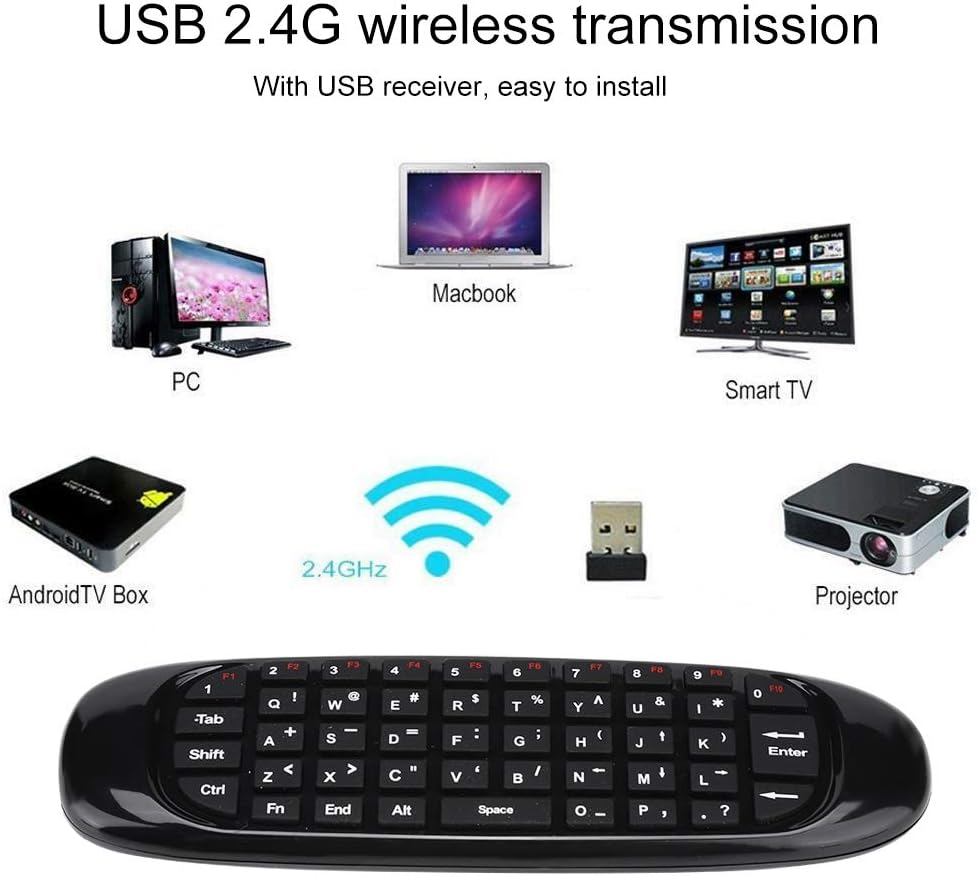
Image: A diagram illustrating the broad compatibility of the Vbestlife C120 Air Mouse with various devices like PCs, Macbooks, Smart TVs, Android TV Boxes, and Projectors.
5. പരിപാലനം
- വൃത്തിയാക്കൽ: Use a soft, dry cloth to clean the surface of the remote. Avoid using liquid cleaners or abrasive materials.
- ബാറ്ററി മാറ്റിസ്ഥാപിക്കൽ: Replace batteries when the remote's performance degrades or it stops responding. Always use new batteries of the specified type (AAA).
- സംഭരണം: Store the remote in a cool, dry place away from direct sunlight and extreme temperatures. If storing for extended periods, remove the batteries to prevent leakage.
6. പ്രശ്നപരിഹാരം
- റിമോട്ട് പ്രതികരിക്കുന്നില്ല:
- ബാറ്ററികൾ ശരിയായി ഘടിപ്പിച്ചിട്ടുണ്ടെന്നും ആവശ്യത്തിന് ചാർജ് ഉണ്ടെന്നും ഉറപ്പാക്കുക. ആവശ്യമെങ്കിൽ മാറ്റി സ്ഥാപിക്കുക.
- Verify the USB receiver is securely plugged into the device.
- USB റിസീവർ മറ്റൊരു USB പോർട്ടിലേക്ക് പ്ലഗ് ചെയ്യാൻ ശ്രമിക്കുക.
- Restart the host device (PC, TV Box, etc.).
- കഴ്സർ ചലനം ക്രമരഹിതമോ കൃത്യതയില്ലാത്തതോ ആണ്:
- Calibrate the air mouse by placing it on a flat surface for a few seconds.
- Ensure there are no obstructions between the remote and the USB receiver.
- മറ്റ് ഉപകരണങ്ങളിൽ നിന്നുള്ള ശക്തമായ വൈദ്യുതകാന്തിക ഇടപെടൽ പരിശോധിക്കുക.
- Keyboard input not working:
- Ensure the remote is flipped to the keyboard side.
- Verify the host device supports keyboard input via USB.
7 സ്പെസിഫിക്കേഷനുകൾ
| ഫീച്ചർ | വിശദാംശങ്ങൾ |
|---|---|
| ആക്സിലറേഷൻ സെൻസർ | 3-axis ST gyroscope sensor |
| ഗൈറോസ്കോപ്പ് സെൻസർ | 3-axis ST acceleration sensor |
| മെറ്റീരിയൽ | പ്ലാസ്റ്റിക് + സിലിക്കൺ |
| വയർലെസ് കമ്മ്യൂണിക്കേഷൻ | 2.4Ghz, for Nordic Soc |
| വയർലെസ് ദൂരം | 10 മീറ്റർ |
| പ്രവർത്തിക്കുന്ന കറൻ്റ് | 20mA |
| ബാറ്ററി ശേഷി | 200 mAh |
| അളവുകൾ | ഏകദേശം 15 * 4.5 * 1.3 സെ.മീ (5.91 * 1.78 * 0.51 ഇഞ്ച്) |
| നിറം | കറുപ്പ് |
| കണക്റ്റിവിറ്റി ടെക്നോളജി | USB |
| കീബോർഡ് ലേഔട്ട് | QWERTY |
| കീകളുടെ എണ്ണം | 104 |
| പവർ ഉറവിടം | Batteries (2x AAA, not included) |
| പിന്തുണയ്ക്കുന്ന OS | OS, Android, Linux, Windows 7, Windows Vista |
| അനുയോജ്യമായ ഉപകരണങ്ങൾ | Desktop PC, Laptop, Tablet, Smart TV, Set-top Box |
8. വാറൻ്റിയും പിന്തുണയും
For warranty information and technical support, please refer to the documentation provided with your purchase or contact Vbestlife customer service. Keep your purchase receipt as proof of purchase.
This product is designed for ease of use and durability. Should you encounter any issues not covered in this manual, please reach out to our support team for assistance.