
ആമുഖം
The Aquacomputer OCTO is an advanced eight-channel PWM fan controller engineered to provide precise and versatile control over your computer's cooling system. It is suitable for both water-cooled and air-cooled setups, offering robust functionality for fan speed management and integrated RGBpx lighting control. The device interfaces with the powerful aquasuite software, allowing for detailed monitoring, configuration, and automation of all connected components.
പ്രധാന സവിശേഷതകൾ
- Eight channel PWM fan controller with individual control.
- Each fan output supplies up to 25 Watt of power (max. 100 W combined).
- All fan outputs are 4-Pin PWM controlled and can be switched off completely.
- Integrated RGBpx effect controller for up to 180 addressable LEDs.
- Four dedicated temperature sensor inputs.
- Flow sensor input for liquid cooling systems.
- USB 2.0 interface for PC connection.
- Comprehensive aquasuite software for setup, monitoring, and visualization.
- aquabus interface for connection to an aquaero device.
പാക്കേജ് ഉള്ളടക്കം
- Aquacomputer OCTO controller
- One temperature sensor (approx. 70 cm length)
- One internal USB cable (approx. 100 cm length)
- Mounting material (screws, nuts, washers)

Image: The Aquacomputer OCTO controller shown with its included accessories, including the temperature sensor, USB cable, and mounting hardware.
സിസ്റ്റം ആവശ്യകതകൾ
- Operating System: Windows 10 or newer
- Available internal USB 2.0 port
സജ്ജീകരണവും ഇൻസ്റ്റാളേഷനും
ഫിസിക്കൽ ഇൻസ്റ്റലേഷൻ
- മൗണ്ടിംഗ്: Secure the OCTO controller within your PC case using the provided mounting material. Ensure it is placed in a location that allows for easy cable routing.
- ഫാൻ കണക്ഷനുകൾ: Connect your PWM fans to the eight 4-pin fan headers on the OCTO. Each header is labeled 1 through 8.
- താപനില സെൻസറുകൾ: Connect the included temperature sensor, and any additional compatible sensors, to the 2-pin temperature sensor inputs labeled 1-4.
- Flow Sensor (Optional): If using a liquid cooling system with a flow sensor, connect it to the dedicated flow input.
- RGBpx Devices (Optional): Connect RGBpx LED strips or fans with addressable LEDs to the RGBpx outputs labeled 1 and 2.
- USB കണക്ഷൻ: Connect the internal USB cable from the OCTO's USB port to an available internal USB 2.0 header on your motherboard.
- Aquabus Connection (Optional): If integrating with an Aquacomputer aquaero device, connect the aquabus cable between the two devices.

ചിത്രം: വിശദമായ ഒരു ചിത്രം view of the Aquacomputer OCTO's top surface, highlighting the eight fan headers, RGBpx ports, flow sensor input, temperature sensor inputs, aquabus, and USB connection.
Software Installation (Aquasuite)
- ഡൗൺലോഡ്: Visit the official Aquacomputer website to download the latest version of the aquasuite software.
- ഇൻസ്റ്റലേഷൻ: ഇൻസ്റ്റാളർ പ്രവർത്തിപ്പിച്ച് ഇൻസ്റ്റാളേഷൻ പൂർത്തിയാക്കാൻ ഓൺ-സ്ക്രീൻ നിർദ്ദേശങ്ങൾ പാലിക്കുക.
- സമാരംഭിക്കുക: After installation, launch the aquasuite software. The OCTO should be automatically detected.
Operation with Aquasuite Software
The aquasuite software provides a comprehensive interface for configuring, monitoring, and controlling all aspects of your OCTO fan controller.
കഴിഞ്ഞുview ഒപ്പം നിരീക്ഷണവും
The main dashboard of aquasuite provides real-time data from all connected sensors and fan outputs, allowing for quick monitoring of your system's thermal performance.

Image: A screenshot of the aquasuite software's main overview screen, displaying graphs for fan speeds, power consumption, and real-time temperature readings from various sensors.
ഫാൻ നിയന്ത്രണം
Each of the eight fan channels can be individually configured. You can set fixed PWM percentages, or create dynamic control curves based on temperature sensor inputs.

Image: A screenshot of the aquasuite software's fan control section, illustrating options for setting fan power, monitoring RPM, and configuring fan curves based on sensor data.

Image: A screenshot of the aquasuite software's fan curve editor, allowing users to precisely define fan speed responses to temperature changes by dragging points on a graph.
RGBpx Control
The OCTO features two RGBpx outputs for controlling addressable LEDs. The aquasuite software provides extensive customization options for lighting effects, colors, and patterns.

Image: A computer desk setup showcasing vibrant RGB lighting effects on the PC components and surrounding area, demonstrating the capabilities of the RGBpx controller.
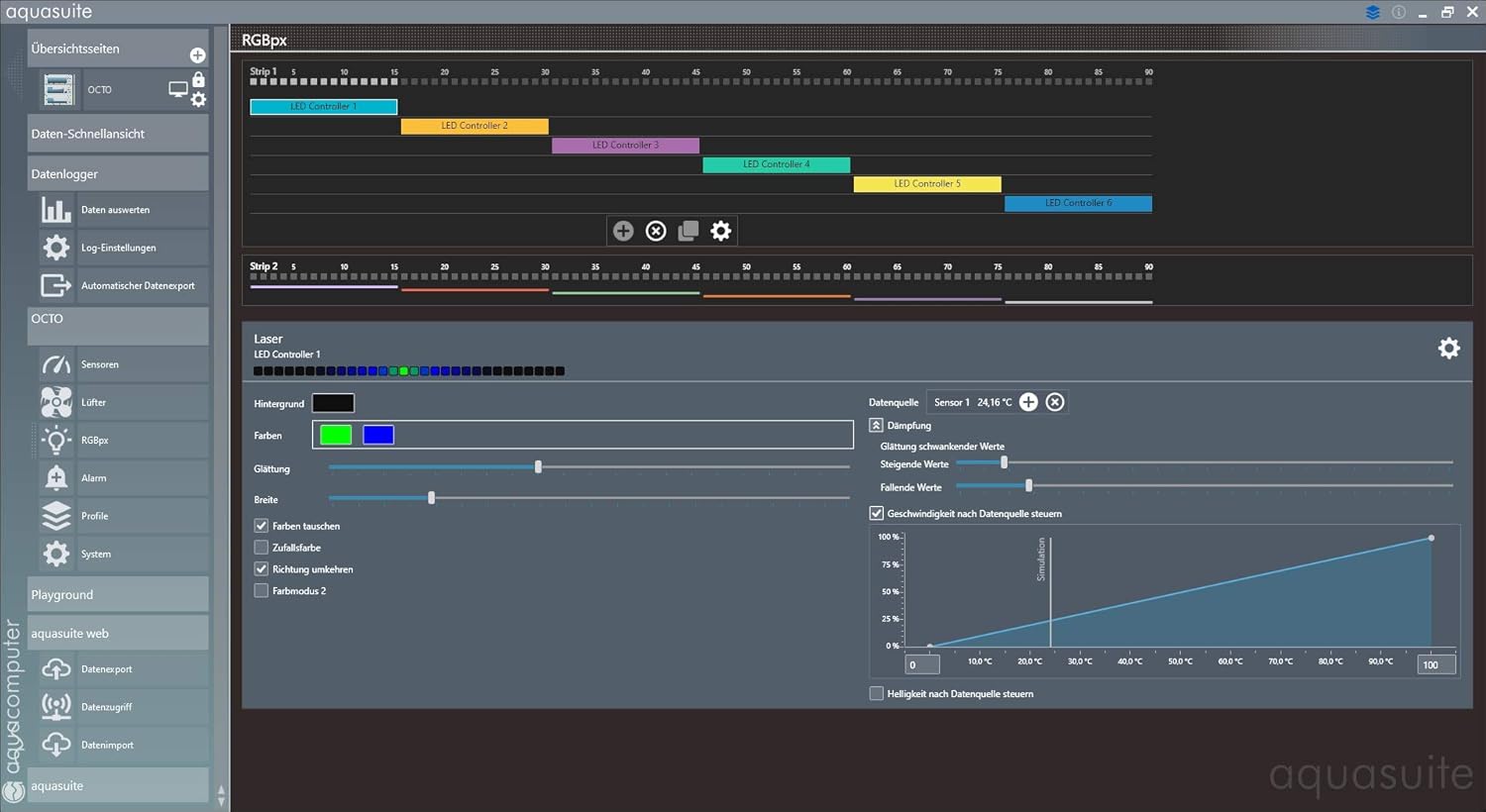
Image: A screenshot of the aquasuite software's RGBpx control interface, displaying options for selecting LED controllers, adjusting colors, brightness, and applying various lighting effects.

Image: A screenshot of the aquasuite software's RGBpx LED mode selection menu, illustrating a wide array of pre-defined lighting effects such as 'Breathing', 'Wave', and 'Flame'.
സെൻസർ മാനേജ്മെന്റ്
The OCTO supports multiple temperature sensors and a flow sensor. Aquasuite allows you to define data sources, create virtual sensors, and use these inputs for advanced control logic.

Image: A screenshot of the aquasuite software's sensor management section, showing a list of available data sources including hardware sensors and system components like CPU package temperature.

Image: A screenshot of the aquasuite software's virtual software sensors interface, displaying a flowchart-like representation of how different sensor inputs can be combined and processed to create custom data points.
പ്രൊഫfile മാനേജ്മെൻ്റ്
Create and save different profiles for various scenarios (e.g., 'Gaming', 'Office', 'Silent'). Profiles can be switched manually or automatically based on system conditions.
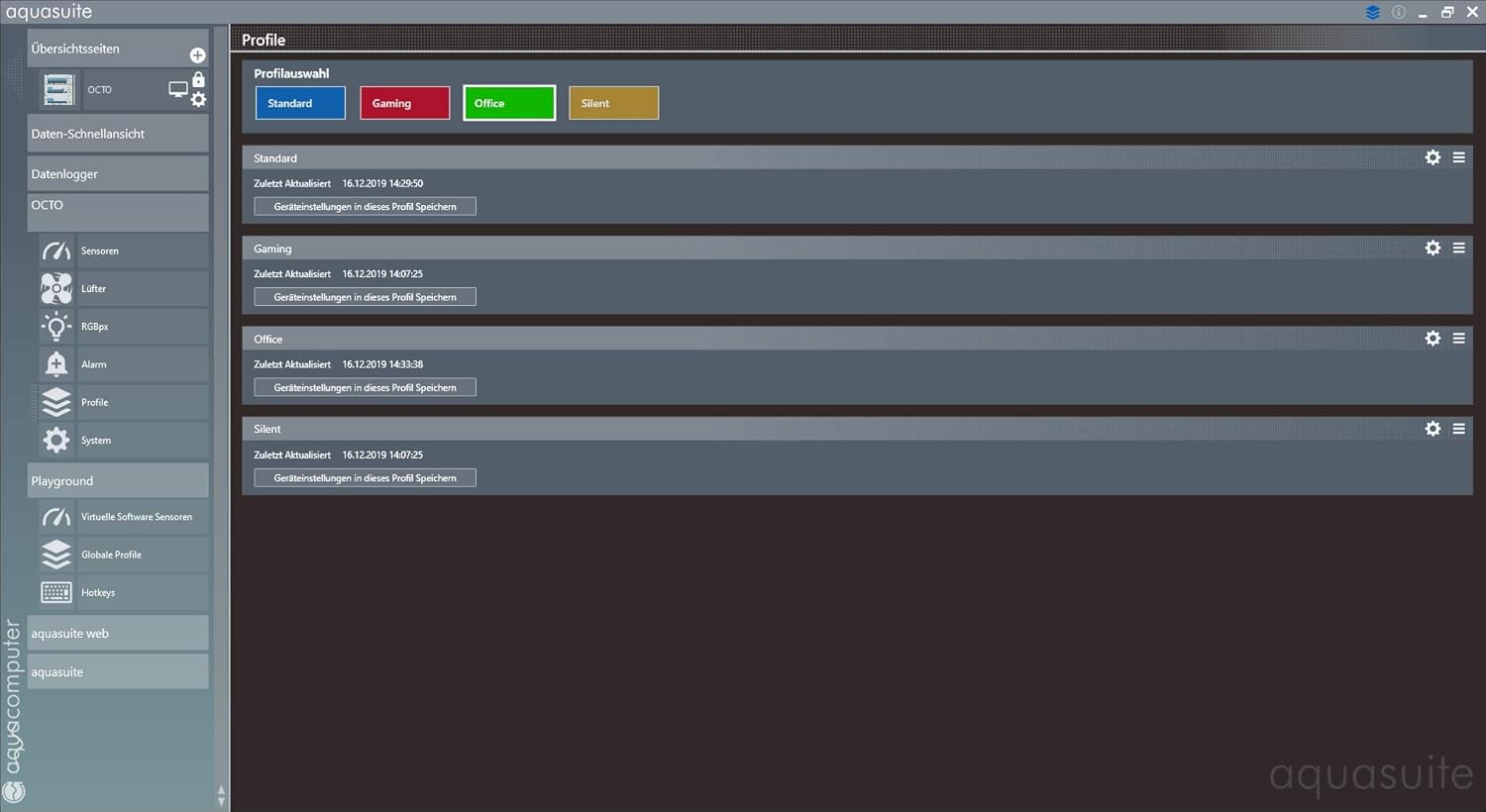
Image: A screenshot of the aquasuite software's profile management section, showing different user-defined profiles like 'Standard', 'Gaming', 'Office', and 'Silent', with options to load or save settings.

Image: A screenshot of the aquasuite software's profile automation settings, demonstrating how profiles can be automatically loaded based on conditions such as sensor readings, running applications, or scheduled times.
അലാറം ക്രമീകരണങ്ങൾ
Configure alarms to be triggered when specific sensor values exceed or fall below defined thresholds. This can help prevent damage to components by alerting you to critical conditions.

Image: A screenshot of the aquasuite software's alarm settings, showing how to set thresholds for temperature sensors and fan speeds, with visual indicators for active alarms.
മെയിൻ്റനൻസ്
- വൃത്തിയാക്കൽ: Periodically inspect the OCTO controller for dust accumulation. Use compressed air or a soft brush to gently clean the device and its connectors. Ensure the PC is powered off before cleaning.
- സോഫ്റ്റ്വെയർ അപ്ഡേറ്റുകൾ: അക്വാകമ്പ്യൂട്ടർ പതിവായി പരിശോധിക്കുക website for updates to the aquasuite software. Keeping the software updated ensures optimal performance, new features, and bug fixes.
ട്രബിൾഷൂട്ടിംഗ്
- ഉപകരണം കണ്ടെത്തിയില്ല: Ensure the internal USB cable is securely connected to both the OCTO and a functioning USB 2.0 header on your motherboard. Try a different USB header if available.
- Fans Not Spinning/Controlling: Verify that fans are correctly connected to the OCTO's 4-pin headers. Check fan power settings and curves within the aquasuite software to ensure they are configured to spin. Confirm that the total power draw of connected fans does not exceed 25W per channel or 100W combined.
- Sensor Readings Incorrect: Ensure temperature and flow sensors are properly plugged into their respective ports. Check sensor calibration and data source settings in aquasuite.
- RGBpx Lights Not Working: Confirm RGBpx devices are correctly connected to the RGBpx outputs. Check the RGBpx settings and effects within aquasuite. Ensure the total number of LEDs does not exceed 180.
- സോഫ്റ്റ്വെയർ പ്രശ്നങ്ങൾ: If aquasuite is unresponsive or behaving unexpectedly, try restarting the software or your computer. Reinstalling aquasuite may resolve persistent issues.
സാങ്കേതിക സവിശേഷതകൾ
| ഫീച്ചർ | സ്പെസിഫിക്കേഷൻ |
|---|---|
| Dimensions (without cables) | ഏകദേശം 76 x 48 x 17 മിമി (3.03 x 1.93 x 0.63 ഇഞ്ച്) |
| ഇനത്തിൻ്റെ ഭാരം | 3.2 ഔൺസ് |
| സപ്ലൈ വോളിയംtage | 5V, 12V |
| Maximum Fan Output Power (per channel) | 25 വാട്ട്സ് |
| Maximum Fan Output Power (combined) | 100 വാട്ട്സ് |
| PWM Control Signal | 0 - 100 %, resolution 0.1 % |
| RGBpx LED Outputs | 2 (for up to 180 addressable LEDs) |
| താപനില സെൻസർ ഇൻപുട്ടുകൾ | 4 |
| Flow Sensor Input | 1 |
| ഇൻ്റർഫേസ് | USB 2.0, aquabus |
| മാതൃരാജ്യം | ജർമ്മനി |
വാറൻ്റിയും പിന്തുണയും
For warranty information and technical support, please refer to the official Aquacomputer website or contact their customer service directly. Aquacomputer is known for providing detailed technical assistance and support for their products.