
1. ആമുഖം
This manual provides instructions for the KIMEX HDMI 2.0 HDCP 2.2 1x16 Splitter. This device allows a single HDMI source to be simultaneously displayed on up to sixteen HDMI-compatible monitors or projectors. It supports HDMI 2.0 and HDCP 2.2 standards, offering resolutions up to 3840x2160 at 60Hz. The splitter also features EDID management and RS232 control for enhanced flexibility in various professional audio-visual setups.
The splitter can also function as a signal regenerator, extending the reach of long HDMI cables.
2. സവിശേഷതകൾ
- HDMI 2.0, HDCP 2.2 എന്നിവ പിന്തുണയ്ക്കുന്നു.
- Distributes one HDMI input to sixteen HDMI outputs simultaneously.
- Supports video resolutions up to 4K (3840x2160) at 60Hz.
- Supports data rates up to 6Gbps per TMDS clock, totaling 600MHz.
- 8/10/12-ബിറ്റ് ആഴത്തിലുള്ള നിറം പിന്തുണയ്ക്കുന്നു.
- Integrated EDID management for optimal display compatibility.
- RS232 control port for external system integration.
3. പാക്കേജ് ഉള്ളടക്കം
പാക്കേജിൽ എല്ലാ ഇനങ്ങളും ഉണ്ടെന്ന് ദയവായി പരിശോധിക്കുക:
- KIMEX HDMI 2.0 HDCP 2.2 1x16 Splitter
- പവർ അഡാപ്റ്റർ
- ഉപയോക്തൃ മാനുവൽ
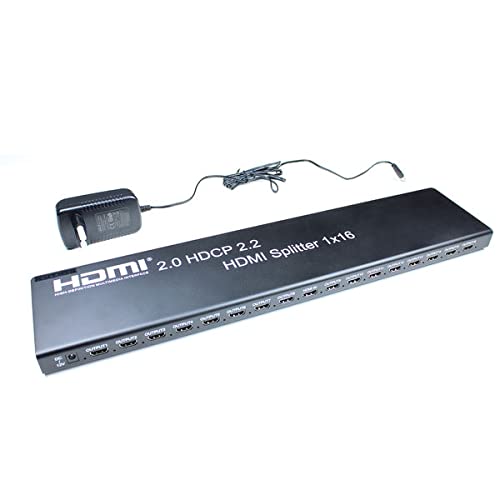
Image 3.1: KIMEX HDMI 1x16 Splitter with its power adapter.
4. സുരക്ഷാ നിർദ്ദേശങ്ങൾ
- ഈ ഉപകരണം വെള്ളത്തിലേക്കോ ഈർപ്പത്തിലേക്കോ തുറന്നുകാണിക്കരുത്.
- താപ സ്രോതസ്സുകൾക്ക് സമീപം ഉപകരണം സ്ഥാപിക്കരുത്.
- നൽകിയിരിക്കുന്ന പവർ അഡാപ്റ്റർ മാത്രം ഉപയോഗിക്കുക.
- ഉപകരണം സ്വയം തുറക്കാനോ നന്നാക്കാനോ ശ്രമിക്കരുത്. എല്ലാ സേവനങ്ങളും യോഗ്യതയുള്ള ഉദ്യോഗസ്ഥരെ ഏൽപ്പിക്കുക.
- അമിതമായി ചൂടാക്കുന്നത് തടയാൻ ഉപകരണത്തിന് ചുറ്റും ശരിയായ വായുസഞ്ചാരം ഉറപ്പാക്കുക.
5. സജ്ജീകരണം
5.1 കണക്ഷൻ ഡയഗ്രം
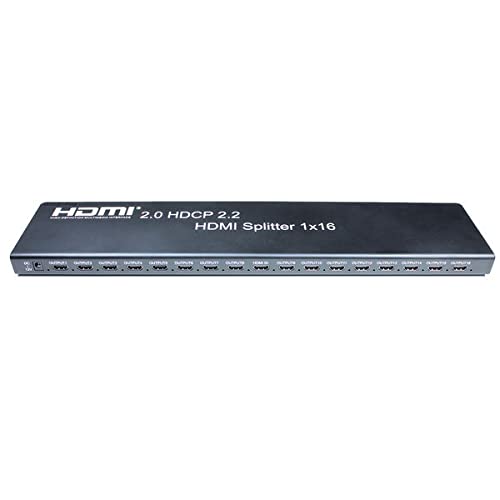
Image 5.1: Front panel of the HDMI Splitter, illustrating the input and sixteen output ports.
5.2 ഇൻസ്റ്റലേഷൻ ഘട്ടങ്ങൾ
- പവർ ഓഫ് ഡിവൈസുകൾ: Ensure all source devices (e.g., DVD player, computer) and display devices (e.g., monitors, projectors) are powered off before making connections.
- HDMI ഉറവിടം ബന്ധിപ്പിക്കുക: Connect an HDMI cable from your source device to the HDMI INPUT port on the splitter.
- HDMI ഡിസ്പ്ലേകൾ ബന്ധിപ്പിക്കുക: Connect HDMI cables from the sixteen HDMI OUTPUT ports on the splitter to your display devices.
- പവർ ബന്ധിപ്പിക്കുക: Plug the provided power adapter into the DC 5V port on the splitter, then plug the adapter into a power outlet.
- പവർ ഓൺ ഉപകരണങ്ങൾ: Power on the display devices first, then the HDMI source device.
- സിഗ്നൽ പരിശോധിക്കുക: Check that the video and audio signals are correctly displayed on all connected monitors.

ചിത്രം 5.2: ഒരു മുൻample of a multi-display setup, demonstrating the application of a video splitter.
6. പ്രവർത്തന നിർദ്ദേശങ്ങൾ
Once all connections are made and devices are powered on, the HDMI splitter will automatically detect the input signal and distribute it to all connected output displays. No additional configuration is typically required for basic operation.
6.1 EDID മാനേജ്മെന്റ്
The splitter features EDID (Extended Display Identification Data) management to ensure compatibility between the source and various displays. The device will typically read the EDID from the lowest numbered output port (Output 1) and apply it to the source. If there are compatibility issues, ensure that the primary display connected to Output 1 supports the desired resolution and features.
6.2 RS232 നിയന്ത്രണം
The RS232 port allows for external control of the splitter by a control system. This feature is typically used in professional installations for integrated system management. Refer to the RS232 command set documentation (usually provided separately or available from the manufacturer) for detailed control protocols.
7. പരിപാലനം
- മൃദുവായതും ഉണങ്ങിയതുമായ തുണി ഉപയോഗിച്ച് തുടച്ച് ഉപകരണം വൃത്തിയായി സൂക്ഷിക്കുക.
- കഠിനമായ രാസവസ്തുക്കളോ ഉരച്ചിലുകളുള്ള ക്ലീനറുകളോ ഉപയോഗിക്കുന്നത് ഒഴിവാക്കുക.
- Ensure the device is placed in a well-ventilated area to prevent dust accumulation and overheating.
- കേബിൾ കണക്ഷനുകൾ സുരക്ഷിതമാണെന്ന് ഉറപ്പാക്കാൻ പതിവായി പരിശോധിക്കുക.
8. പ്രശ്നപരിഹാരം
8.1 No Picture on Display
- പവർ പരിശോധിക്കുക: Ensure the splitter and all connected devices are powered on.
- കേബിളുകൾ പരിശോധിക്കുക: Verify that all HDMI cables are securely connected to both the splitter and the displays/source. Try replacing cables if necessary.
- Input/Output Selection: Confirm that the correct HDMI input is selected on your display devices.
- റെസല്യൂഷൻ അനുയോജ്യത: Ensure your source device's output resolution is supported by all connected displays. The splitter will attempt to match the EDID of the first connected display.
- ഉപകരണങ്ങൾ പുനരാരംഭിക്കുക: Power cycle the source, splitter, and displays in sequence (displays first, then splitter, then source).
8.2 Intermittent Signal
- കേബിൾ നിലവാരം: Use high-quality HDMI 2.0 certified cables, especially for 4K60Hz signals and longer distances.
- കേബിൾ നീളം: Excessive cable length can cause signal degradation. Consider using shorter cables or active HDMI cables if issues persist.
- വൈദ്യുതി വിതരണം: Ensure the power adapter is providing stable power to the splitter.
8.3 EDID Issues
- If a display is not showing the correct resolution or features, try connecting a display with the desired capabilities to Output 1.
- Some advanced splitters may have EDID modes; consult specific product documentation if available.
9 സ്പെസിഫിക്കേഷനുകൾ
| ഫീച്ചർ | സ്പെസിഫിക്കേഷൻ |
|---|---|
| മോഡൽ നമ്പർ | KIMEX 130-2016 |
| HDMI പതിപ്പ് | HDMI 2.0 |
| എച്ച്ഡിസിപി പതിപ്പ് | HDCP 2.2 |
| ഇൻപുട്ട് പോർട്ടുകൾ | 1 x HDMI |
| ഔട്ട്പുട്ട് പോർട്ടുകൾ | 16 x HDMI |
| പരമാവധി മിഴിവ് | 3840x2160 @ 60Hz |
| പരമാവധി ഡാറ്റ നിരക്ക് | 6Gbps per TMDS clock (600MHz total) |
| ആഴത്തിലുള്ള വർണ്ണ പിന്തുണ | 8/10/12-ബിറ്റ് |
| നിയന്ത്രണ പോർട്ട് | RS232 |
| അളവുകൾ (L x W x H) | 48 x 11 x 2.5 സെ.മീ |
| ഭാരം | 1.8 കിലോഗ്രാം |
| വൈദ്യുതി വിതരണം | DC 5V (adapter included) |
| അനുയോജ്യമായ ഉപകരണങ്ങൾ | DVD Player, Computer, etc. |
10. വാറൻ്റി വിവരങ്ങൾ
This KIMEX product is covered by a standard manufacturer's warranty. Please retain your proof of purchase for warranty claims. The availability of spare parts is typically 3 years from the date of purchase. For specific warranty terms and conditions, please refer to the documentation provided with your purchase or contact KIMEX customer support.
11. പിന്തുണ
For technical assistance, troubleshooting, or further information regarding your KIMEX HDMI Splitter, please contact KIMEX customer support. Contact details can typically be found on the official KIMEX webസൈറ്റ് അല്ലെങ്കിൽ ഉൽപ്പന്ന പാക്കേജിംഗിൽ.