
1. ആമുഖം
The OWC Mercury Elite Pro is a high-performance external hard drive enclosure designed for 3.5-inch SATA drives, offering versatile connectivity and robust data storage solutions. This manual provides essential information for setting up, operating, maintaining, and troubleshooting your device.
പ്രധാന സവിശേഷതകൾ:
- Top Tier Performance: Achieve real-world data transfer speeds of 252MB/s, ideal for professional video editing, backups, and data storage.
- ബഹുമുഖ അനുയോജ്യത: Compatible with Mac, Windows, and Linux systems, as well as PlayStation, Xbox, and Smart TVs.
- വേഗത്തിലുള്ള കണക്റ്റിവിറ്റി: Features USB 3.2 Gen 1 Type-B for up to 5Gb/s transfer speeds and supports both USB-C (Thunderbolt) and USB-A connections.
- ഫ്ലെക്സിബിൾ സെറ്റപ്പ് ഓപ്ഷനുകൾ: Position vertically using the included stand or horizontally with non-skid feet. Multiple units can be stacked for expanded storage.
2. സജ്ജീകരണം
2.1 ബോക്സിൽ എന്താണുള്ളത്
- OWC Mercury Elite Pro External Storage Solution
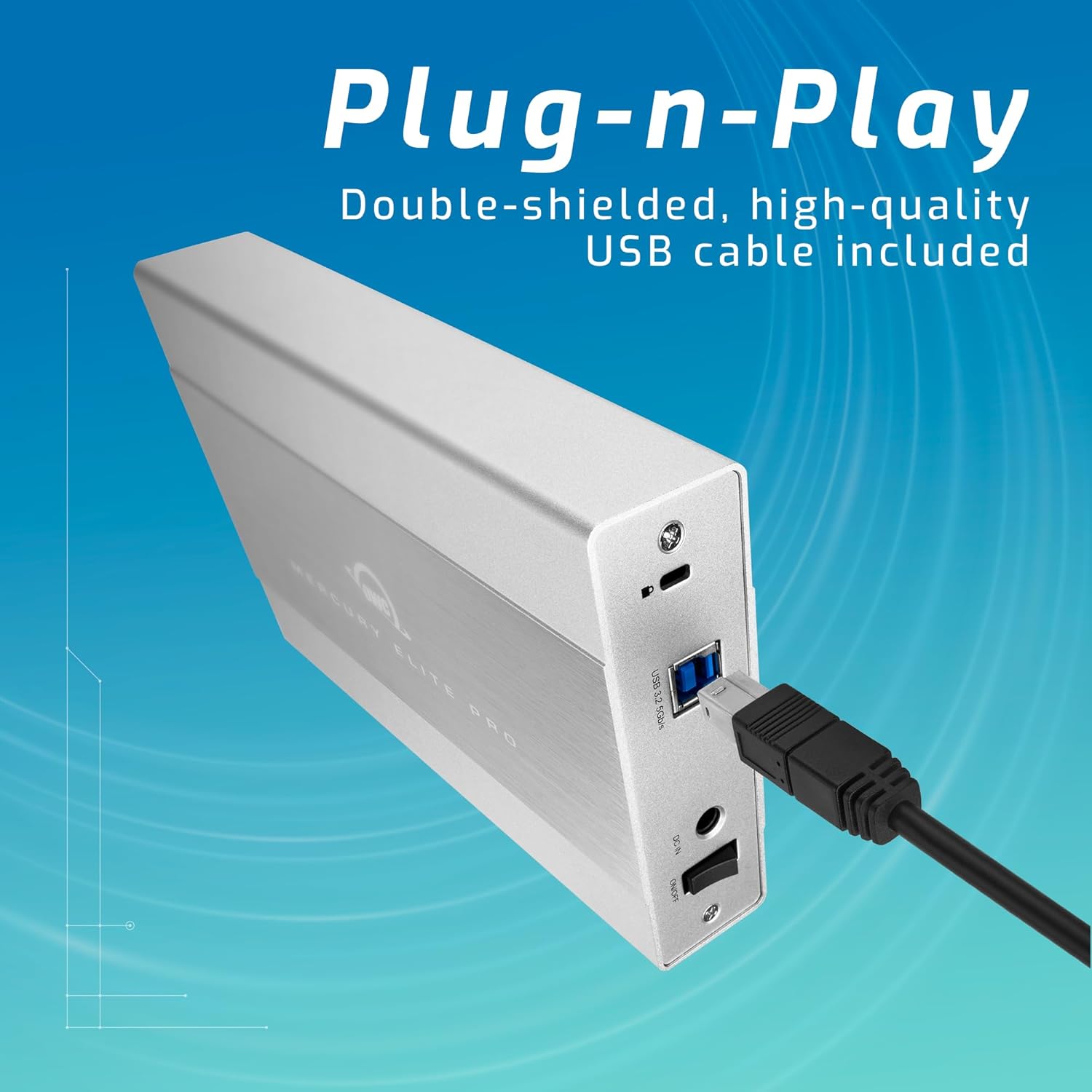
- USB 3.2 (5Gb/s) Type-B to Type-A Cable
- ബാഹ്യ വൈദ്യുതി വിതരണം
- US Power Cable
- ദ്രുത ആരംഭ ഗൈഡ്
- അസംബ്ലി മാനുവലും ഉപയോക്തൃ ഗൈഡും
- എസി അഡാപ്റ്റർ
2.2 ഡ്രൈവ് ഇൻസ്റ്റാളേഷൻ
- എൻക്ലോഷർ ഓഫ് ചെയ്തിട്ടുണ്ടെന്നും നിങ്ങളുടെ കമ്പ്യൂട്ടറിൽ നിന്ന് വിച്ഛേദിക്കപ്പെട്ടിട്ടുണ്ടെന്നും ഉറപ്പാക്കുക.
- ഉൾപ്പെടുത്തിയിരിക്കുന്നത് കാണുക അസംബ്ലി മാനുവലും ഉപയോക്തൃ ഗൈഡും for detailed instructions on opening the enclosure and securely installing your 3.5-inch SATA drive.
- Once the drive is installed, close the enclosure according to the manual.
2.3 നിങ്ങളുടെ കമ്പ്യൂട്ടറുമായി ബന്ധിപ്പിക്കുന്നു
- Connect the external power supply to the enclosure's power input and then to a power outlet.
- Connect one end of the USB 3.2 Type-B to Type-A cable to the enclosure and the other end to an available USB-A port on your computer. For USB-C/Thunderbolt connections, use an appropriate adapter or cable (not included unless specified).
- Power on the OWC Mercury Elite Pro enclosure. The device should be recognized by your operating system.
3. പ്രവർത്തിക്കുന്നു
3.1 അനുയോജ്യത
The OWC Mercury Elite Pro is compatible with a wide range of operating systems and devices:
- മാക് (മാകോസ്)
- വിൻഡോസ്
- ലിനക്സ്
- പ്ലേസ്റ്റേഷൻ (PS4, PS5)
- എക്സ്ബോക്സ്
- സ്മാർട്ട് ടിവികൾ

3.2 ഡാറ്റാ കൈമാറ്റവും പ്രകടനവും
The enclosure supports USB 3.2 Gen 1 (5Gb/s) for fast data transfer. Actual speeds may vary based on the installed drive, system configuration, and data type. It is designed to achieve real-world data transfer speeds of up to 252MB/s.
3.3 Flexible Placement
The OWC Mercury Elite Pro can be positioned either vertically using the included stand or horizontally using its non-skid feet. This allows for optimal placement in your workspace. Multiple units can be stacked for efficient use of space when expanding your storage.

4. പരിപാലനം
4.1 താപ വിസർജ്ജനം
The aluminum enclosure acts as a large heat sink, helping to keep the internal hard drive cool during operation. This passive cooling design minimizes thermal throttling and ensures stable performance.
4.2 വൃത്തിയാക്കൽ
To maintain optimal performance, periodically clean the exterior of the enclosure with a soft, dry cloth. Ensure that the ventilation areas are free from dust and debris. For internal cleaning or drive replacement, refer to the അസംബ്ലി മാനുവലും ഉപയോക്തൃ ഗൈഡും.
5. പ്രശ്നപരിഹാരം
- ഉപകരണം തിരിച്ചറിഞ്ഞിട്ടില്ല: Ensure all cables (USB and power) are securely connected. Try connecting to a different USB port or computer to rule out port-specific issues. Verify the drive is properly seated within the enclosure.
- മന്ദഗതിയിലുള്ള പ്രകടനം: Check that your computer's USB port supports USB 3.2 Gen 1 (5Gb/s) or Thunderbolt for optimal speeds. Ensure the internal hard drive is functioning correctly. Large file transfers or intensive tasks can sometimes cause temporary slowdowns.
- ഇടയ്ക്കിടെയുള്ള ബന്ധം വിച്ഛേദിക്കലുകൾ: Ensure the power adapter is providing stable power. Check the USB cable for damage and try a different cable if necessary. Ensure the enclosure is placed on a stable surface.
- Drive Noise: While the enclosure is designed for quiet operation, some mechanical hard drives may produce audible noise during activity. If the noise is excessive or unusual, consult the hard drive manufacturer's documentation.
6 സ്പെസിഫിക്കേഷനുകൾ
| ഫീച്ചർ | വിശദാംശങ്ങൾ |
|---|---|
| ബ്രാൻഡ് | OWC |
| പരമ്പര | മെർക്കുറി എലൈറ്റ് പ്രോ |
| മോഡൽ നമ്പർ | ME3NH7T02 |
| ഹാർഡ് ഡ്രൈവ് ശേഷി | 2 ടിബി മെക്കാനിക്കൽ ഹാർഡ് ഡിസ്ക് |
| ഹാർഡ് ഡ്രൈവ് ഇൻ്റർഫേസ് | സീരിയൽ എടിഎ -600 |
| കണക്റ്റിവിറ്റി ടെക്നോളജി | USB |
| യുഎസ്ബി ഇൻ്റർഫേസ് | USB 3.2 Gen 1 Type-B (5Gb/s) |
| അനുയോജ്യമായ ഉപകരണങ്ങൾ | Mac, Windows, Linux, Gaming Consoles, Smart TVs |
| ഹാർഡ്വെയർ പ്ലാറ്റ്ഫോം | മാക് |
| ഇനത്തിൻ്റെ ഭാരം | 2.97 പൗണ്ട് |
| ഉൽപ്പന്ന അളവുകൾ | 7.7 x 1.4 x 4.6 ഇഞ്ച് |
| നിറം | കറുപ്പ് |
| പ്രത്യേക ഫീച്ചർ | LED ലൈറ്റ് |
7. വാറണ്ടിയും പിന്തുണയും
The OWC Mercury Elite Pro External Storage Solution includes a 3-Year OWC Limited Warranty. For technical support, warranty claims, or additional assistance, please refer to the contact information provided in your Quick Start Guide or visit the official OWC webസൈറ്റ്.