
ആമുഖം
Thank you for choosing the Brydge Stone II USB Hub Docking Station. This device is designed to expand the connectivity of your computer, providing a single solution for connecting multiple peripherals, external displays, and network access. It is compatible with both MacOS and Windows operating systems, offering a streamlined workspace experience.
Please read this manual carefully to ensure proper setup, operation, and maintenance of your Brydge Stone II docking station.
ഉൽപ്പന്നം കഴിഞ്ഞുview
The Brydge Stone II is a versatile 7-port USB hub docking station that enhances your productivity by providing essential connectivity options. Its compact and elegant design complements any desktop environment.

ചിത്രം: മുകളിൽ നിന്ന് താഴേക്ക് view of the Brydge Stone II USB Hub Docking Station, showcasing its sleek design and port arrangement.
പ്രധാന സവിശേഷതകൾ:
- 7 തുറമുഖങ്ങൾ: Includes 2 x USB-C, 3 x USB-A, 1 x HDMI, and 1 x Ethernet.
- Single 4K Display Output: Connect an external monitor via HDMI for high-resolution visuals.
- USB-C Speeds: Utilizes USB-C technology for fast data transfer and power delivery.
- വിശാലമായ അനുയോജ്യത: Fully compatible with MacOS and Windows devices.
പോർട്ട് ലേഔട്ട്:
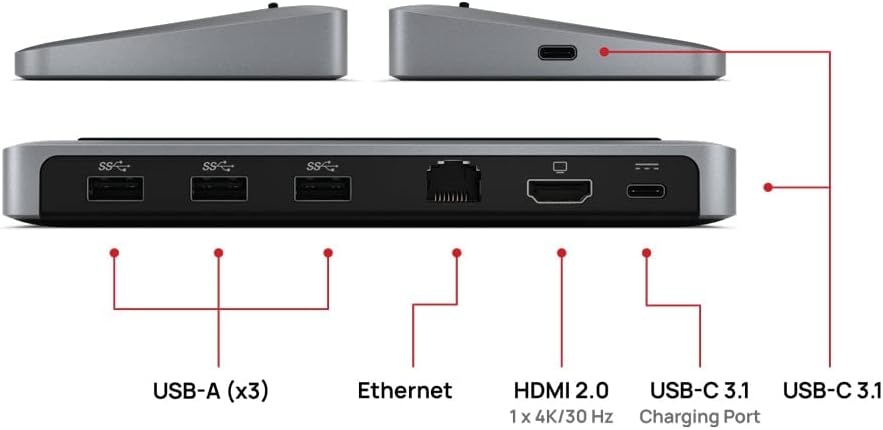
Image: Detailed diagram showing the various ports available on the Brydge Stone II docking station.
- USB-A (x3): For connecting standard USB devices such as keyboards, mice, external hard drives, and flash drives.
- ഇഥർനെറ്റ്: സ്ഥിരമായ ഒരു വയർഡ് നെറ്റ്വർക്ക് കണക്ഷൻ നൽകുന്നു.
- എച്ച്ഡിഎംഐ 2.0: Supports single 4K display output at 30Hz.
- USB-C 3.1 (Charging Port): For power delivery to your host device.
- USB-C 3.1 (Data/Host Connection): Connects to your computer for data transfer and hub functionality.
സജ്ജീകരണ നിർദ്ദേശങ്ങൾ
Follow these steps to set up your Brydge Stone II docking station:
- പവർ കണക്റ്റ് ചെയ്യുക (ഓപ്ഷണൽ പക്ഷേ ശുപാർശ ചെയ്യുന്നു): If your computer requires charging via the docking station, connect a USB-C power adapter (not included) to the USB-C Charging Port on the Brydge Stone II. The docking station supports up to 40 watts of power delivery.
- കമ്പ്യൂട്ടറുമായി ബന്ധിപ്പിക്കുക: Use the provided USB-C cable to connect the USB-C 3.1 (Data/Host Connection) port on the Brydge Stone II to an available USB-C port on your MacOS or Windows laptop.
- പെരിഫറലുകൾ ബന്ധിപ്പിക്കുക:
- HDMI ഡിസ്പ്ലേ: Connect an HDMI cable from your monitor to the HDMI 2.0 port on the docking station.
- USB ഉപകരണങ്ങൾ: Plug your USB-A devices (e.g., keyboard, mouse, external hard drive) into the three USB-A ports.
- ഇഥർനെറ്റ്: Connect an Ethernet cable from your router or modem to the Ethernet port on the docking station for a wired network connection.
- കണക്ഷനുകൾ പരിശോധിക്കുക: Ensure all cables are securely connected. Your computer should automatically detect the docking station and connected peripherals.

Image: The Brydge Stone II docking station supporting a laptop, demonstrating a typical setup.

Image: Multiple cables connected to the Brydge Stone II, showing a fully utilized hub.
Video: An official Brydge video demonstrating the Stone II docking station in use, showcasing its connectivity and how it integrates into a workspace with external monitors and peripherals.
പ്രവർത്തന നിർദ്ദേശങ്ങൾ
Once connected, the Brydge Stone II operates automatically. No additional drivers are typically required for basic functionality on supported operating systems.
- ബാഹ്യ പ്രദർശനം: Your operating system should detect the connected HDMI display. You may need to adjust display settings (resolution, orientation, extended/mirrored desktop) within your computer's display preferences. The HDMI port supports a single 4K display at 30Hz.
- USB ഉപകരണങ്ങൾ: Plug-and-play functionality for most USB devices. Ensure devices requiring significant power are connected to an external power source if the hub's power delivery is insufficient for all connected devices.
- ഇഥർനെറ്റ്: The wired network connection will typically be recognized automatically. Check your network settings if you experience connectivity issues.
- പവർ ഡെലിവറി: If a USB-C power adapter is connected to the docking station's charging port, it will pass power through to your connected laptop.
മെയിൻ്റനൻസ്
To ensure the longevity and optimal performance of your Brydge Stone II docking station, follow these maintenance guidelines:
- വൃത്തിയാക്കൽ: Use a soft, dry, lint-free cloth to clean the exterior of the docking station. Avoid using harsh chemicals, solvents, or abrasive cleaners.
- സംഭരണം: ഉപയോഗത്തിലില്ലാത്തപ്പോൾ, ഡോക്കിംഗ് സ്റ്റേഷൻ നേരിട്ട് സൂര്യപ്രകാശം ഏൽക്കാത്തതും തീവ്രമായ താപനില ഏൽക്കാത്തതുമായ ഒരു തണുത്ത വരണ്ട സ്ഥലത്ത് സൂക്ഷിക്കുക.
- കൈകാര്യം ചെയ്യൽ: ഉപകരണം ശ്രദ്ധയോടെ കൈകാര്യം ചെയ്യുക. അത് താഴെയിടുകയോ ശക്തമായ ആഘാതങ്ങൾക്ക് വിധേയമാക്കുകയോ ചെയ്യരുത്.
- കേബിൾ മാനേജുമെന്റ്: കേബിളുകൾ അമിതമായി വളയുകയോ ആയാസപ്പെടുകയോ ചെയ്യുന്നില്ലെന്ന് ഉറപ്പാക്കുക, കാരണം ഇത് കാലക്രമേണ കേടുപാടുകൾക്ക് കാരണമാകും.
ട്രബിൾഷൂട്ടിംഗ്
If you encounter issues with your Brydge Stone II, refer to the following common problems and solutions:
| പ്രശ്നം | സാധ്യമായ പരിഹാരം |
|---|---|
| No display output on external monitor. |
|
| USB devices are not recognized or not functioning. |
|
| Network connection issues via Ethernet. |
|
| Laptop is not charging via the docking station. |
|
സ്പെസിഫിക്കേഷനുകൾ
| ഫീച്ചർ | വിശദാംശങ്ങൾ |
|---|---|
| ബ്രാൻഡ് | പാലം |
| മോഡൽ നമ്പർ | BRYSTONE2 |
| നിറം | സ്പേസ് ഗ്രേ |
| ഹാർഡ്വെയർ ഇന്റർഫേസ് | Ethernet, USB-C, HDMI, USB-A |
| മൊത്തം USB പോർട്ടുകൾ | 7 (2 x യുഎസ്ബി-സി, 3 x യുഎസ്ബി-എ) |
| ആകെ HDMI പോർട്ടുകൾ | 1 |
| ഡിസ്പ്ലേ ഔട്ട്പുട്ട് | Single 4K @ 30Hz via HDMI |
| പവർ ഡെലിവറി | Up to 40 watts (via USB-C Charging Port) |
| ഇനത്തിൻ്റെ ഭാരം | 308 ഗ്രാം |
| അനുയോജ്യത | MacOS, Windows |
| യു.പി.സി | 787790155447 |
വാറൻ്റിയും പിന്തുണയും
The Brydge Stone II USB Hub Docking Station comes with a one-year limited manufacturer's warranty. സാധാരണ ഉപയോഗത്തിലുള്ള മെറ്റീരിയലുകളിലെയും ജോലികളിലെയും വൈകല്യങ്ങൾ ഈ വാറന്റി ഉൾക്കൊള്ളുന്നു.
For warranty claims, technical assistance, or any questions regarding your product, please contact Brydge customer support. Refer to the official Brydge webഏറ്റവും പുതിയ പിന്തുണാ കോൺടാക്റ്റ് വിവരങ്ങൾക്കും ഉറവിടങ്ങൾക്കുമുള്ള സൈറ്റ്.