
1. ആമുഖം
The MiraScreen G2M is a 2.4G wireless WiFi display dongle designed to mirror content from your iOS, Android, or Windows devices to a larger screen such as a TV, projector, or car display. It supports various wireless display protocols including DLNA, Miracast, and Airplay, enabling a seamless viewing experience for multimedia, presentations, and more.
2. പാക്കേജ് ഉള്ളടക്കം
- MiraScreen G2M Wireless Display Dongle
- USB WiFi Cable (for power and WiFi signal reception)
- ഉപയോക്തൃ മാനുവൽ
Note: A 5V/1A USB power adapter is required (not included) to power the device. Many TVs have a compatible USB port.
3. ഉൽപ്പന്നം കഴിഞ്ഞുview
The MiraScreen G2M dongle features a compact design with an integrated HDMI connector and a micro-USB port for power and WiFi reception. A small button on the device allows for mode switching or resetting.

ചിത്രം 3.1: Views of the MiraScreen G2M Wireless Display Dongle, showing its front, back, and the included USB WiFi cable. The dongle is black and circular with an integrated HDMI connector.
4. സജ്ജീകരണവും ഇൻസ്റ്റാളേഷനും
Follow these steps to set up your MiraScreen G2M dongle:
- ഡിസ്പ്ലേയിലേക്ക് കണക്റ്റുചെയ്യുക: Plug the MiraScreen G2M dongle directly into an available HDMI port on your TV, projector, or car display.
- പവർ ബന്ധിപ്പിക്കുക: Connect the USB WiFi cable to the micro-USB port on the dongle. Plug the other end of the USB cable into a 5V/1A USB power adapter (not included) or a USB port on your display device that provides sufficient power.
- പവർ ഓൺ: Ensure your display device is powered on and switch its input source to the HDMI port where the MiraScreen dongle is connected.
- പ്രാരംഭ സ്ക്രീൻ: The MiraScreen startup screen will appear on your display, showing instructions for connection.

ചിത്രം 4.1: An illustration demonstrating the connection of the MiraScreen G2M dongle to a display device via HDMI and power via a USB port or power adapter.
5. പ്രവർത്തന നിർദ്ദേശങ്ങൾ
The MiraScreen G2M supports various mirroring protocols. The initial screen will display instructions for connecting your device. You may need to switch modes depending on your device and desired mirroring protocol.
5.1. Connecting with iOS Devices (Airplay)
- Ensure the MiraScreen dongle is in Airplay mode (usually the default for iOS). If not, press the small button on the dongle to switch modes.
- On your iOS device (iPhone, iPad), go to ക്രമീകരണങ്ങൾ > വൈഫൈ and connect to the MiraScreen's WiFi network (SSID and password displayed on the TV screen).
- തുറക്കുക നിയന്ത്രണ കേന്ദ്രം on your iOS device and tap സ്ക്രീൻ മിററിംഗ് (or AirPlay Mirroring).
- Select the MiraScreen device from the list to begin mirroring.
- For internet access on your iOS device while mirroring, you can connect the MiraScreen dongle to your home WiFi network via its web interface (instructions usually on the initial screen).
5.2. Connecting with Android Devices (Miracast/DLNA)
- Ensure the MiraScreen dongle is in Miracast/DLNA mode. If not, press the small button on the dongle to switch modes.
- On your Android device, enable the wireless display function. This feature may be named differently depending on your device manufacturer (e.g., Smart View, Screen Cast, Wireless Display, MirrorShare, AllShare Cast, etc.). You can usually find it in ക്രമീകരണങ്ങൾ > ബന്ധിപ്പിച്ച ഉപകരണങ്ങൾ or in the quick settings panel.
- Select the MiraScreen device from the list of available devices to connect.
5.3. Connecting with Windows Devices (Miracast)
- Ensure the MiraScreen dongle is in Miracast mode.
- On your Windows 10/11 PC, press വിൻഡോസ് കീ + പി.
- തിരഞ്ഞെടുക്കുക ഒരു വയർലെസ് ഡിസ്പ്ലേയിലേക്ക് കണക്റ്റുചെയ്യുക.
- Choose the MiraScreen device from the list.
5.4. Using with Google Home/Chrome (DLNA/Cast)
The MiraScreen G2M can also be used with Google Home for casting content. This typically involves connecting the dongle to your home WiFi network first.
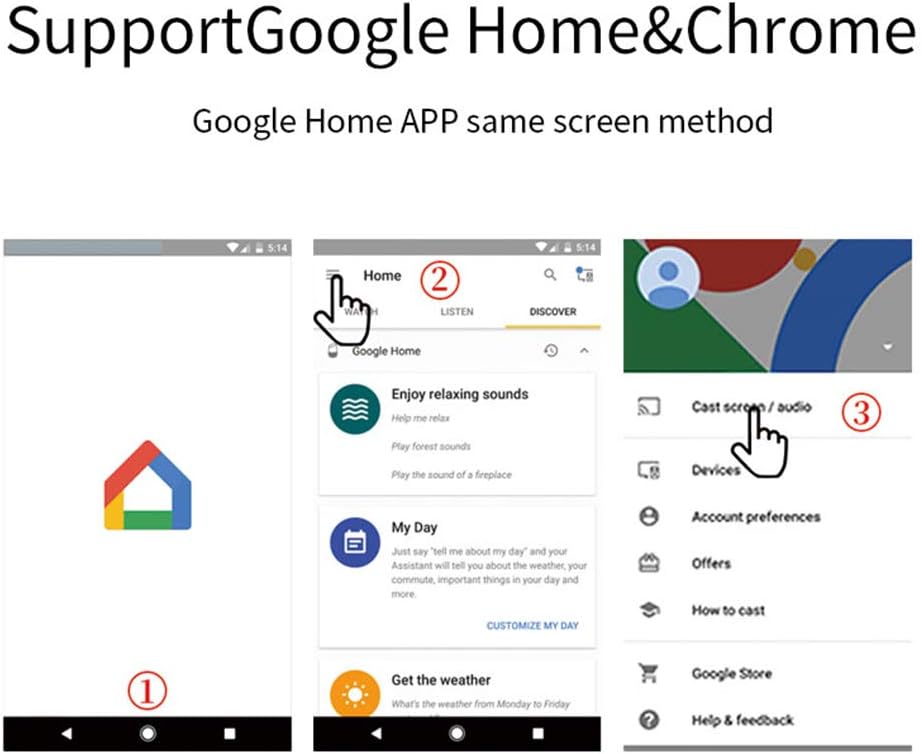
ചിത്രം 5.1: A series of mobile phone screenshots illustrating the process of casting content using the Google Home application, showing steps to access casting options.
The device supports various applications, including home theater use and annotation editing through real-time mirroring.

ചിത്രം 5.2: The MiraScreen G2M dongle connected to a display, showing a mobile phone mirroring content for a home theater experience.
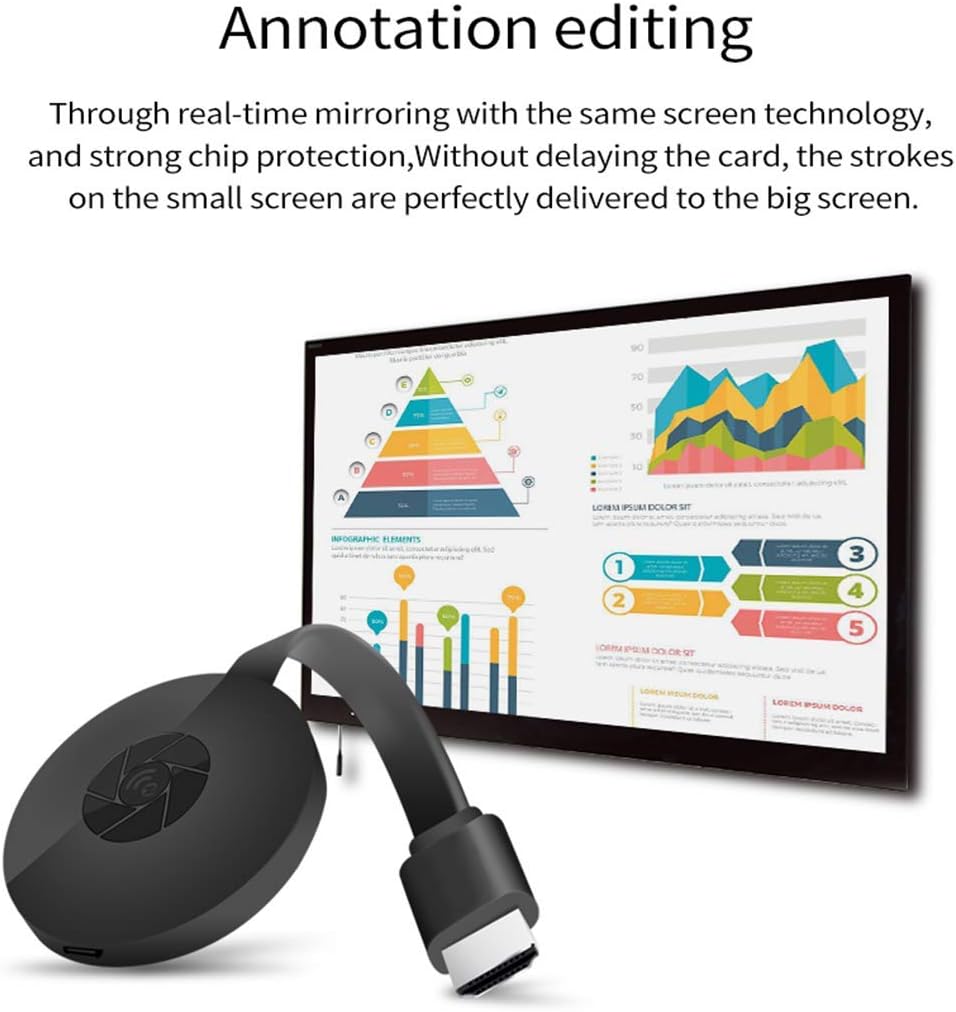
ചിത്രം 5.3: The MiraScreen G2M dongle mirroring a device screen to a larger display, demonstrating its use for real-time annotation and editing.
6. പരിപാലനം
- ഉപകരണം വരണ്ട അന്തരീക്ഷത്തിൽ സൂക്ഷിക്കുക.
- തീവ്രമായ താപനിലയിലേക്ക് ഉപകരണം തുറന്നുകാട്ടുന്നത് ഒഴിവാക്കുക.
- മൃദുവായതും ഉണങ്ങിയതുമായ തുണി ഉപയോഗിച്ച് ഉപകരണം വൃത്തിയാക്കുക. ലിക്വിഡ് ക്ലീനറുകൾ ഉപയോഗിക്കരുത്.
- ഉപകരണം സ്വയം ഡിസ്അസംബ്ലിംഗ് ചെയ്യാനോ നന്നാക്കാനോ ശ്രമിക്കരുത്.
7. പ്രശ്നപരിഹാരം
- No display on TV:
- Ensure the dongle is securely plugged into the HDMI port.
- Verify the TV input source is set to the correct HDMI port.
- Check if the dongle is receiving adequate power from the USB source. Try a different USB port or a dedicated 5V/1A power adapter.
- Cannot connect to MiraScreen WiFi:
- Ensure the dongle is powered on and displaying its initial screen.
- Restart the dongle by unplugging and re-plugging the USB power cable.
- Ensure your device's WiFi is enabled and scanning for networks.
- Screen mirroring is laggy or disconnects frequently:
- Ensure your source device is close to the MiraScreen dongle to maintain a strong WiFi signal.
- മറ്റ് വയർലെസ് ഉപകരണങ്ങളിൽ നിന്നുള്ള ഇടപെടൽ കുറയ്ക്കുക.
- Ensure the MiraScreen dongle is connected to a stable home WiFi network (if applicable for your mirroring method).
- Check for any firmware updates for the MiraScreen dongle (instructions usually available via its web ഇൻ്റർഫേസ്).
- ഓഡിയോ ഇല്ല:
- Check the volume settings on both your source device and the TV.
- Ensure the HDMI connection is secure.
- Device not found for Miracast/Airplay:
- Ensure the MiraScreen dongle is in the correct mode for your device (Airplay for iOS, Miracast for Android/Windows). Press the button on the dongle to switch modes.
- Restart both your source device and the MiraScreen dongle.
8 സ്പെസിഫിക്കേഷനുകൾ
| മോഡലിൻ്റെ പേര് | G2M |
| ബ്രാൻഡ് | മിറാസ്ക്രീൻ |
| കണക്റ്റിവിറ്റി ടെക്നോളജി | Wi-Fi (2.4G) |
| കണക്റ്റർ തരം | HDMI |
| റെസലൂഷൻ | 1080p വരെ |
| പിന്തുണയ്ക്കുന്ന ഓപ്പറേറ്റിംഗ് സിസ്റ്റങ്ങൾ | iOS, Android, Windows |
| പിന്തുണയ്ക്കുന്ന പ്രോട്ടോക്കോളുകൾ | DLNA, Miracast, Airplay |
| നിറം | കറുപ്പ് |
| ഇനത്തിൻ്റെ ഭാരം | 2.89 ഔൺസ് (ഏകദേശം 82 ഗ്രാം) |
| പാക്കേജ് അളവുകൾ | 8.7 x 3.11 x 0.94 ഇഞ്ച് |
9. വാറൻ്റിയും പിന്തുണയും
For warranty information and technical support, please refer to the official MiraScreen webസൈറ്റിൽ ബന്ധപ്പെടുക അല്ലെങ്കിൽ അവരുടെ ഉപഭോക്തൃ സേവനവുമായി നേരിട്ട് ബന്ധപ്പെടുക. വാറന്റി ക്ലെയിമുകൾക്കായി നിങ്ങളുടെ വാങ്ങൽ രസീത് സൂക്ഷിക്കുക.
Official MiraScreen Store: MiraScreen Store on Amazon