
1. ആമുഖം
This manual provides essential information for the installation, operation, and maintenance of your ZOTAC Gaming GeForce RTX 3070 Twin Edge OC graphics card. This card is built on the NVIDIA Ampere architecture, featuring 2nd Gen Ray Tracing Cores, 3rd Gen Tensor Cores, and GDDR6 memory for high-fidelity gaming performance.
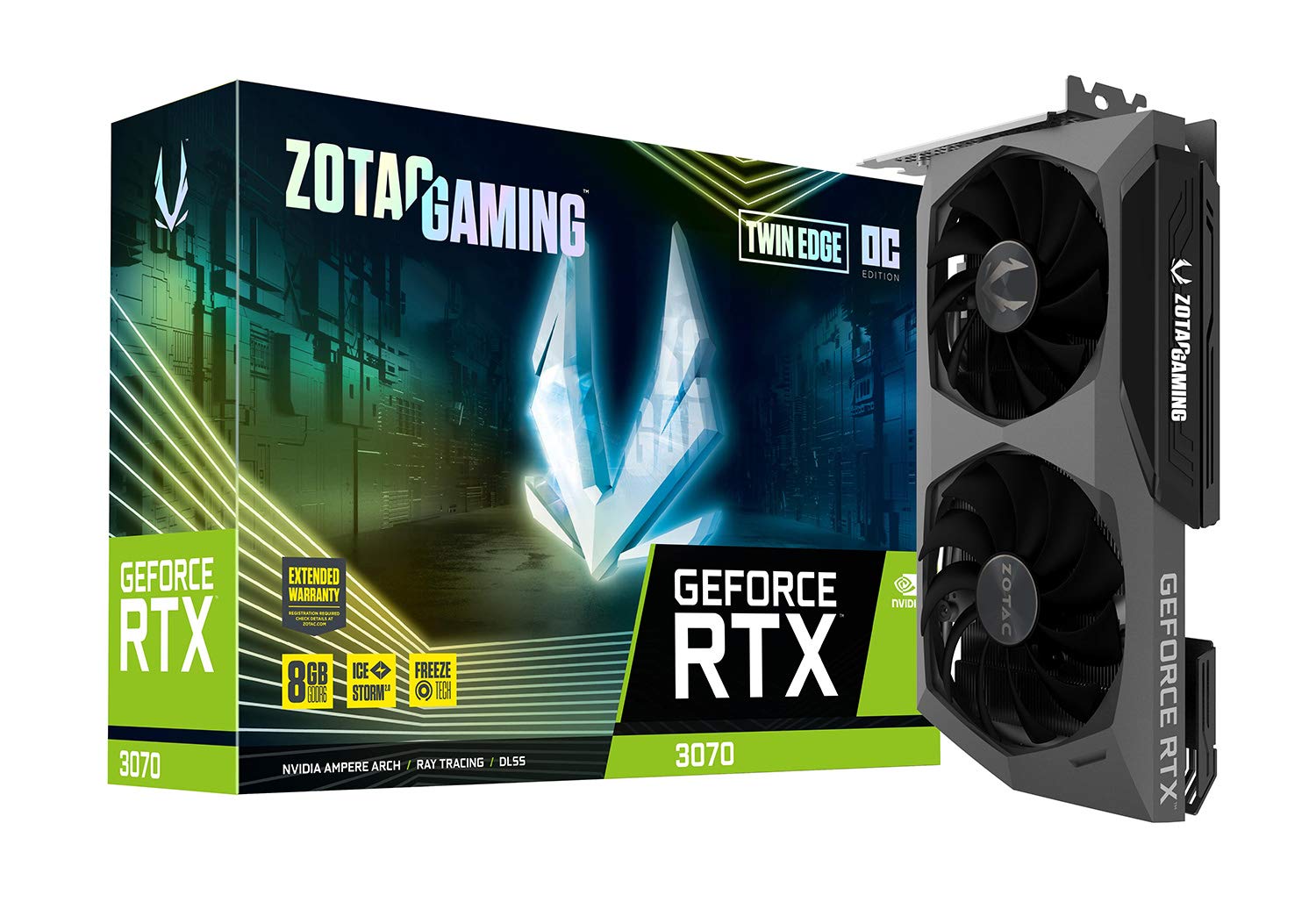
ചിത്രം: മുൻഭാഗം view of the ZOTAC Gaming GeForce RTX 3070 Twin Edge OC graphics card.
2. ബോക്സിൽ എന്താണുള്ളത്?
നിങ്ങളുടെ ഉൽപ്പന്ന പാക്കേജിൽ ഇനിപ്പറയുന്ന എല്ലാ ഇനങ്ങളും ഉൾപ്പെടുത്തിയിട്ടുണ്ടെന്ന് ഉറപ്പാക്കുക:
- ZOTAC GAMING GeForce RTX 3070 Twin Edge OC graphics card
- 2x Dual 6-pin to 8-pin adapter
- User Manual (Quick Installation Guide)

Image: Quick Installation Guide and two 6-pin to 8-pin power adapters included with the graphics card.
3 സ്പെസിഫിക്കേഷനുകൾ
| ഫീച്ചർ | സ്പെസിഫിക്കേഷൻ |
|---|---|
| ഗ്രാഫിക്സ് കോപ്രൊസസർ | NVIDIA GeForce RTX 3070 |
| ബ്രാൻഡ് | ZOTAC |
| ഗ്രാഫിക്സ് റാം വലുപ്പം | 8 ജിബി |
| വീഡിയോ ഔട്ട്പുട്ട് ഇൻ്റർഫേസ് | 3 x DisplayPort 1.4a, 1 x HDMI 2.1 |
| ഗ്രാഫിക്സ് റാം തരം | GDDR6 |
| അനുയോജ്യമായ ഉപകരണങ്ങൾ | ഡെസ്ക്ടോപ്പ് പിസി |
| ഗ്രാഫിക്സ് കാർഡ് ഇൻ്റർഫേസ് | പിസിഐ-എക്സ്പ്രസ് 4.0 x16 |
| Boost Clock Speed | 1755 MHz |
| Maximum Digital Resolution | 7680 x 4320 @ 60Hz |
| ഇനത്തിൻ്റെ അളവുകൾ (L x W) | 9.1"L x 5.6"W (231.9mm x 141.3mm) |
| മോഡൽ നമ്പർ | ZT-A30700H-10P |
| ഇനത്തിൻ്റെ ഭാരം | 998 ഗ്രാം |
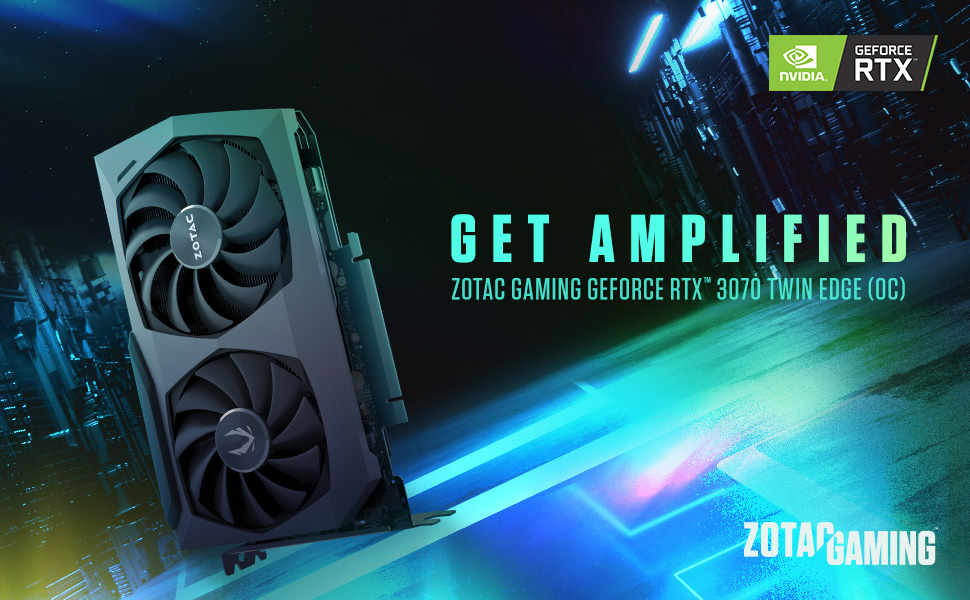
Image: Detailed dimensions and output port configuration (3x DisplayPort 1.4a, 1x HDMI 2.1) of the graphics card.
4. ഇൻസ്റ്റലേഷൻ
- നിങ്ങളുടെ സിസ്റ്റം തയ്യാറാക്കുക: നിങ്ങളുടെ കമ്പ്യൂട്ടർ ഓഫ് ചെയ്ത് എല്ലാ കേബിളുകളും വിച്ഛേദിക്കുക. കമ്പ്യൂട്ടർ കേസ് തുറക്കുക.
- PCIe സ്ലോട്ട് കണ്ടെത്തുക: Identify an available PCI Express 4.0 x16 slot on your motherboard. Remove any expansion slot covers if necessary.
- ഗ്രാഫിക്സ് കാർഡ് ചേർക്കുക: ഗ്രാഫിക്സ് കാർഡ് PCIe സ്ലോട്ടുമായി ശ്രദ്ധാപൂർവ്വം വിന്യസിക്കുക, സുരക്ഷിതമായി ഇരിക്കുന്നതുവരെ ദൃഢമായി അമർത്തുക. റിട്ടൻഷൻ ക്ലിപ്പ് സ്ഥലത്ത് ഉറപ്പിച്ചിട്ടുണ്ടെന്ന് ഉറപ്പാക്കുക.
- സെക്യൂർ കാർഡ്: Fasten the graphics card to the computer case using the screw or latch mechanism provided by your case.
- പവർ ബന്ധിപ്പിക്കുക: This graphics card requires two 8-pin PCIe power connectors. Connect the power cables from your power supply unit (PSU) to the corresponding ports on the graphics card. Ensure your PSU can provide sufficient power (minimum 650W recommended). If your PSU only has 6-pin connectors, use the included 6-pin to 8-pin adapters.
- Close Case and Connect Cables: Close your computer case, reconnect all external cables (monitor, power, peripherals), and power on your system.

ചിത്രം: വശം view illustrating the location of the dual 8-pin PCIe power input on the graphics card.
5. പ്രവർത്തന നിർദ്ദേശങ്ങൾ
5.1 ഡ്രൈവർ ഇൻസ്റ്റലേഷൻ
After physical installation, you must install the latest NVIDIA graphics drivers. Visit the official NVIDIA webസൈറ്റ് (www.nvidia.com/drivers) to download the appropriate drivers for your GeForce RTX 3070 card and operating system. Follow the on-screen instructions for installation.
5.2 ഡിസ്പ്ലേ കണക്ഷൻ
Connect your monitor(s) to the graphics card using DisplayPort or HDMI cables. This card supports up to four displays simultaneously. Ensure you use Ultra High Speed HDMI cables for 8K/60FPS or 4K/120FPS resolutions.

Image: Rear panel of the graphics card with three DisplayPort and one HDMI output.
5.3 ZOTAC FireStorm Utility
The ZOTAC FireStorm Utility software allows you to monitor your graphics card's performance, adjust fan speeds, and customize LED lighting. Download the utility from the official ZOTAC webസൈറ്റ് (www.zotac.com/support).
6. Cooling Features
The ZOTAC Gaming GeForce RTX 3070 Twin Edge OC features the IceStorm 2.0 Advanced Cooling system for optimal thermal management.
- IceStorm 2.0 Advanced Cooling: A refined cooling system designed for wider coverage, keeping the GPU cooler and maintaining performance. It includes a wide array aluminum heatsink with up to five copper heat pipes and 11-blade fans for increased airflow.
- FREEZE Fan Stop: This feature automatically stops the fans when the GPU is idle, providing quieter operation and reducing wear on the fan system.
- Active Fan Control: Users can adjust fan rotations independently using the ZOTAC GAMING FireStorm software, allowing for precise airflow control where and when it is needed.

ചിത്രം: പൊട്ടിത്തെറിച്ചു view of the IceStorm 2.0 cooling system, highlighting the metal backplate, heatsink, and fan design.
Image: Representation of Active Fan Control, demonstrating independent fan speed adjustments.
7. പരിപാലനം
To ensure optimal performance and longevity of your graphics card, regular maintenance is recommended:
- പൊടി നീക്കം: Periodically clean dust from the fans and heatsink using compressed air. Ensure the system is powered off before cleaning.
- എയർ ഫ്ലോ: Maintain good airflow within your computer case by ensuring proper cable management and clear ventilation paths.
- ഡ്രൈവർ അപ്ഡേറ്റുകൾ: നിങ്ങളുടെ ഗ്രാഫിക്സ് ഡ്രൈവറുകൾ NVIDIA യിൽ നിന്നുള്ള ഏറ്റവും പുതിയ പതിപ്പിലേക്ക് അപ്ഡേറ്റ് ചെയ്ത് സൂക്ഷിക്കുക. webപ്രകടന മെച്ചപ്പെടുത്തലുകൾക്കും ബഗ് പരിഹാരങ്ങൾക്കുമുള്ള സൈറ്റ്.
8. പ്രശ്നപരിഹാരം
നിങ്ങളുടെ ഗ്രാഫിക്സ് കാർഡിൽ പ്രശ്നങ്ങൾ നേരിടുകയാണെങ്കിൽ, ഇനിപ്പറയുന്ന പൊതുവായ ട്രബിൾഷൂട്ടിംഗ് ഘട്ടങ്ങൾ പരിഗണിക്കുക:
- ഡിസ്പ്ലേ ഔട്ട്പുട്ട് ഇല്ല:
- Ensure the monitor cables are securely connected to the graphics card.
- പിസിഐഇ സ്ലോട്ടിൽ ഗ്രാഫിക്സ് കാർഡ് പൂർണ്ണമായും സ്ഥാപിച്ചിട്ടുണ്ടോയെന്ന് പരിശോധിക്കുക.
- Check that all required PCIe power connectors are properly attached.
- സാധ്യമെങ്കിൽ മറ്റൊരു ഡിസ്പ്ലേ കേബിൾ അല്ലെങ്കിൽ മോണിറ്റർ ഉപയോഗിച്ച് പരീക്ഷിക്കുക.
- സിസ്റ്റം അസ്ഥിരത/ക്രാഷുകൾ:
- Ensure your Power Supply Unit (PSU) meets the minimum wattage requirement (650W recommended) and can deliver stable power through separate PCIe power cables, not just daisy-chained connectors from a single PSU output.
- നിങ്ങളുടെ ഗ്രാഫിക്സ് ഡ്രൈവറുകൾ ഏറ്റവും പുതിയ പതിപ്പിലേക്ക് അപ്ഡേറ്റ് ചെയ്യുക.
- Monitor GPU temperatures using the FireStorm Utility to check for overheating.
- ഡ്രൈവർ പ്രശ്നങ്ങൾ:
- Perform a clean installation of the graphics drivers. Uninstall existing drivers before installing new ones.
For further assistance, refer to the ZOTAC support page.
9. വാറൻ്റിയും പിന്തുണയും
Your ZOTAC Gaming GeForce RTX 3070 Twin Edge OC graphics card comes with a 2 വർഷത്തെ നിർമ്മാതാവിന്റെ വാറന്റിവാറന്റി ക്ലെയിമുകൾക്കായി നിങ്ങളുടെ വാങ്ങിയതിന്റെ തെളിവ് സൂക്ഷിക്കുക.
For customer service, technical support, or general inquiries, please visit the dedicated ZOTAC support page:
അധിക സവിശേഷതകൾ
- White LED Logo Lighting: The card features a white LED illuminated ZOTAC GAMING logo, which can be customized via the FireStorm Utility.
- Metal Backplate: A durable metal backplate provides structural protection for the PCB and enhances the overall aesthetic design of the card.
Image: The graphics card showcasing its white LED logo lighting.
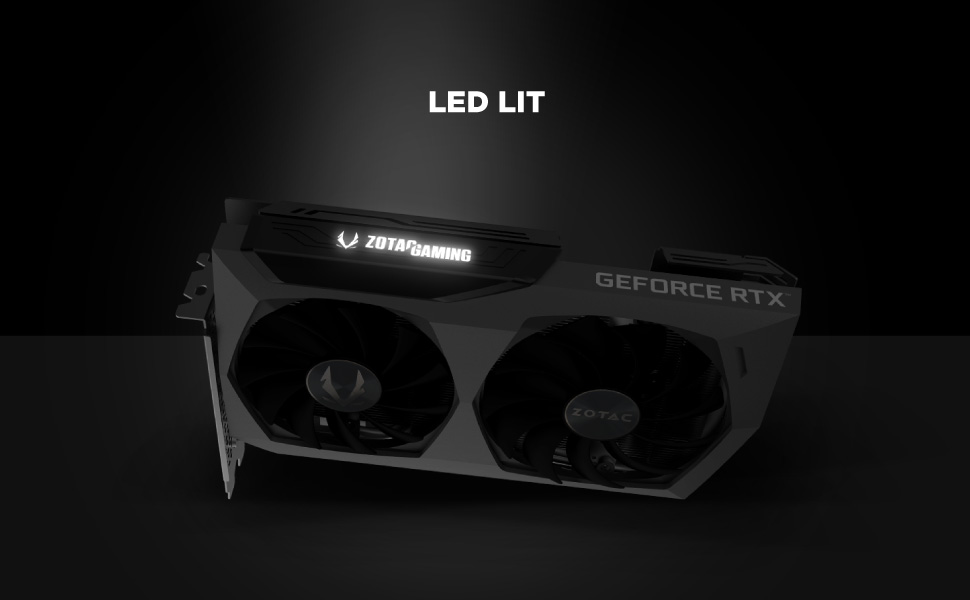
Image: The metal backplate component of the graphics card, providing protection and structural integrity.