
ടോപ്ട്രോ TR82
TOPTRO TR82 WiFi Projector User Manual
മോഡൽ: TR82
1. ആമുഖം
വാങ്ങിയതിന് നന്ദി.asing the TOPTRO TR82 WiFi Projector. This manual provides essential information for setting up, operating, and maintaining your projector. Please read it thoroughly before use to ensure optimal performance and safety.
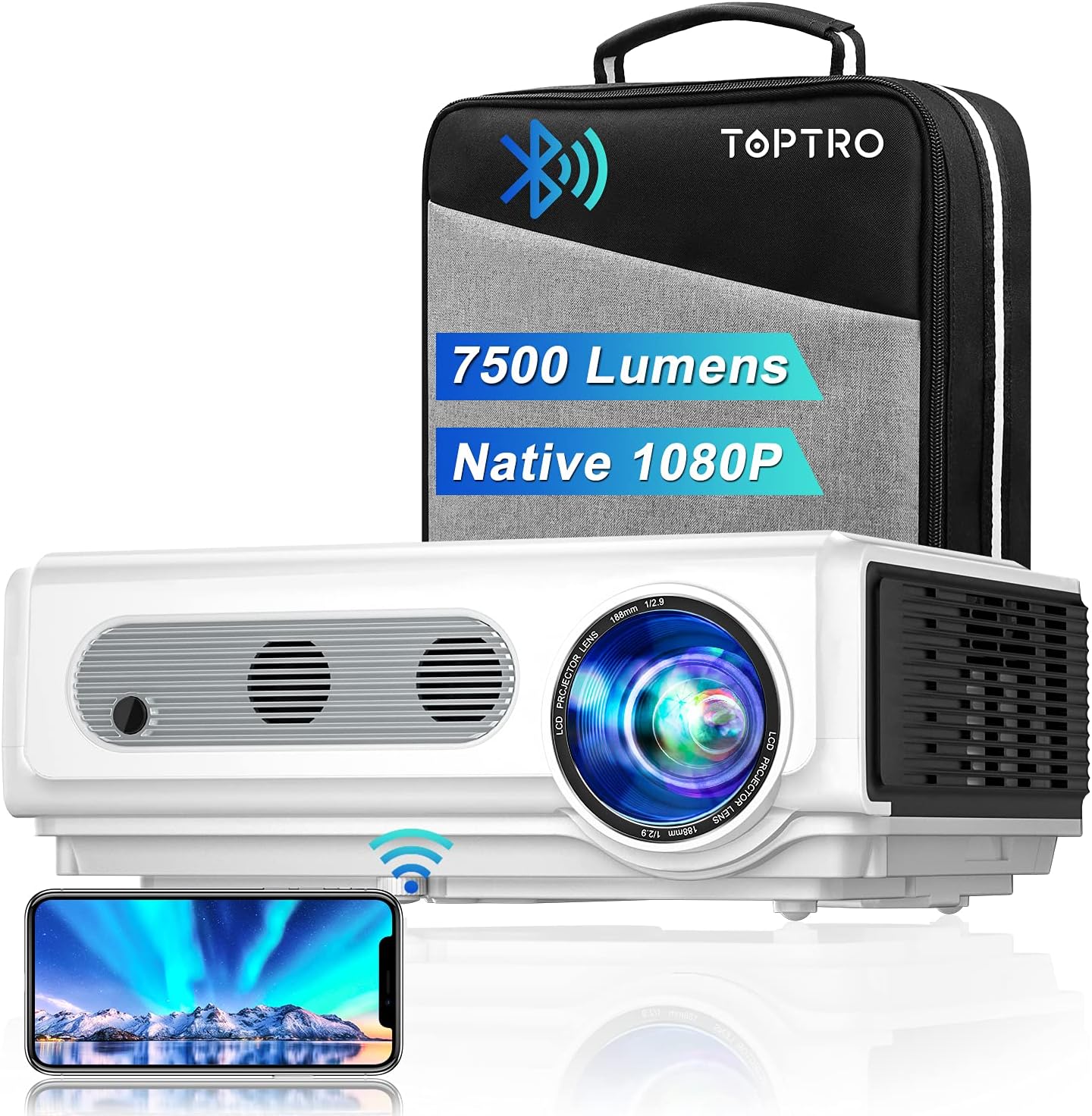
Image: The TOPTRO TR82 projector, its included carrying case, and a smartphone wirelessly connected, demonstrating screen mirroring capabilities. The image highlights the projector's 7500 lumens and Native 1080P resolution.
2 സുരക്ഷാ വിവരങ്ങൾ
തീപിടുത്തമോ വൈദ്യുതാഘാതമോ ഒഴിവാക്കാൻ, ഈ ഉപകരണം മഴയിലോ ഈർപ്പത്തിലോ ഏൽക്കരുത്. സി തുറക്കരുത്asing. യോഗ്യതയുള്ള ഉദ്യോഗസ്ഥർക്ക് മാത്രം സേവനം റഫർ ചെയ്യുക.
- വെന്റിലേഷൻ തുറക്കൽ തടയരുത്.
- നിർമ്മാതാവ് വ്യക്തമാക്കിയ അറ്റാച്ച്മെൻ്റുകൾ/ആക്സസറികൾ മാത്രം ഉപയോഗിക്കുക.
- ഇടിമിന്നൽ ഉണ്ടാകുമ്പോഴോ ദീർഘനേരം ഉപയോഗിക്കാതിരിക്കുമ്പോഴോ പ്രൊജക്ടർ പ്ലഗ് ഊരിവയ്ക്കുക.
- l ചെയ്യുമ്പോൾ പ്രൊജക്ടർ ലെൻസിലേക്ക് നേരിട്ട് കണ്ണുകൾ പതിക്കുന്നത് ഒഴിവാക്കുക.amp ഓണാണ്.
- അമിതമായി ചൂടാക്കുന്നത് തടയാൻ ശരിയായ വായുസഞ്ചാരം ഉറപ്പാക്കുക.
3. പാക്കേജ് ഉള്ളടക്കം
അൺപാക്ക് ചെയ്യുമ്പോൾ എല്ലാ ഇനങ്ങളും അവിടെയുണ്ടെന്ന് ദയവായി പരിശോധിക്കുക:
- TOPTRO TR82 പ്രൊജക്ടർ
- പവർ കേബിൾ
- HDMI കേബിൾ
- എവി കേബിൾ
- വിദൂര നിയന്ത്രണം (ബാറ്ററികൾ ഉൾപ്പെടുത്തിയിട്ടില്ല)
- ലെൻസ് ക്യാപ്
- ഉപയോക്തൃ മാനുവൽ
- ചുമക്കുന്ന കേസ്
4. ഉൽപ്പന്നം കഴിഞ്ഞുview
Familiarize yourself with the various parts and interfaces of your TOPTRO TR82 projector.
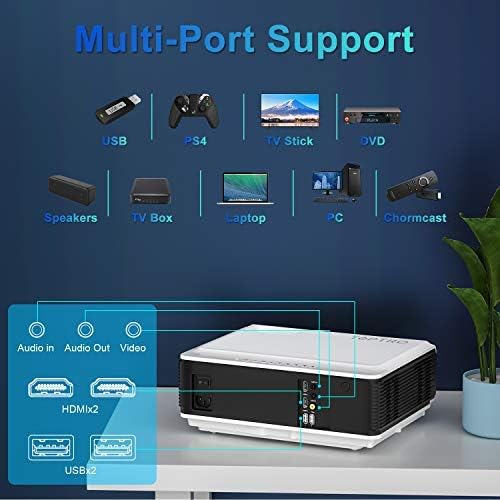
Image: An illustration of the TOPTRO TR82 projector's rear panel, highlighting its multi-port support including Audio In, Audio Out, Video, two HDMI ports, and two USB ports. Various compatible devices like USB drives, PS4, TV Stick, DVD players, speakers, TV boxes, laptops, PCs, and Chromecast are shown connected.
ഫ്രണ്ട് View:
- ലെൻസ്
- ഫോക്കസ് റിംഗ്
- കീസ്റ്റോൺ കറക്ഷൻ റിംഗ്
പിൻഭാഗം View (Ports):
- HDMI 1 പോർട്ട്
- HDMI 2 പോർട്ട്
- USB 1 പോർട്ട്
- USB 2 പോർട്ട്
- എവി പോർട്ട്
- ഓഡിയോ ഔട്ട് (3.5mm)
- പവർ ഇൻപുട്ട്
മികച്ച പാനൽ:
- പവർ ബട്ടൺ
- നാവിഗേഷൻ ബട്ടണുകൾ (മുകളിലേക്ക്, താഴേക്ക്, ഇടത്, വലത്, ശരി)
- മെനു ബട്ടൺ
- റിട്ടേൺ ബട്ടൺ
- ഉറവിട ബട്ടൺ
5. സജ്ജീകരണം
5.1 പ്ലേസ്മെൻ്റ്
Place the projector on a stable, flat surface or mount it to the ceiling. Ensure there is adequate space around the projector for ventilation. The projection distance and screen size can vary; refer to the specifications for recommended ranges.
5.2 പവർ കണക്ഷൻ
- പ്രൊജക്ടറിന്റെ പവർ ഇൻപുട്ട് പോർട്ടിലേക്ക് പവർ കേബിൾ ബന്ധിപ്പിക്കുക.
- പവർ കേബിളിൻ്റെ മറ്റേ അറ്റം പവർ ഔട്ട്ലെറ്റിലേക്ക് പ്ലഗ് ചെയ്യുക.
- പ്രൊജക്ടറിലെ പവർ ഇൻഡിക്കേറ്റർ ലൈറ്റ് പ്രകാശിക്കും.
5.3 ഫോക്കസും കീസ്റ്റോൺ തിരുത്തലും
- പ്രൊജക്ടർ ഓണാക്കുക.
- ക്രമീകരിക്കുക ഫോക്കസ് റിംഗ് until the projected image is clear and sharp.
- ക്രമീകരിക്കുക കീസ്റ്റോൺ കറക്ഷൻ റിംഗ് to correct any trapezoidal distortion, ensuring the image is rectangular.
5.4 ഉപകരണങ്ങൾ ബന്ധിപ്പിക്കുന്നു
The TOPTRO TR82 supports various input sources:
- എച്ച്ഡിഎംഐ: Connect Blu-ray players, game consoles (PS4), TV sticks, laptops, or other HDMI-enabled devices using an HDMI cable.
- USB: Insert USB flash drives to play media fileനേരിട്ട്.
- ഓഫ്: Use the provided AV cable to connect older devices like DVD players.
- ഓഡിയോ Outട്ട്: Connect external speakers or headphones via the 3.5mm audio jack for enhanced sound.
5.5 Wireless Connection (WiFi)
The TR82 projector supports wireless screen mirroring from your phone, tablet, or laptop.
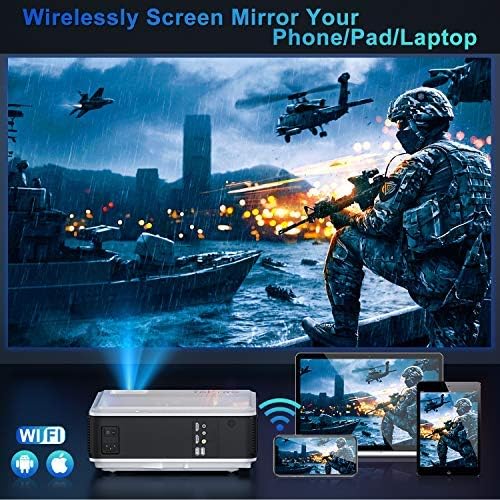
Image: A visual representation of wireless screen mirroring, showing a TOPTRO TR82 projector wirelessly connected to a smartphone, tablet, and laptop, projecting content onto a large screen. WiFi and Apple/Android logos are visible.
- Go to the projector's main menu and select the "WiFi" or "Screen Mirroring" option.
- Connect the projector to your home WiFi network.
- On your mobile device (iOS/Android) or laptop, enable screen mirroring (e.g., AirPlay for iOS, Miracast for Android/Windows).
- ലഭ്യമായ ഉപകരണങ്ങളുടെ പട്ടികയിൽ നിന്ന് പ്രൊജക്ടർ തിരഞ്ഞെടുക്കുക.
- Note: Due to HDCP copyright protection, some streaming apps like Netflix or Prime Video may not allow direct screen mirroring. You can mirror photos, videos, and other non-HDCP content. For protected content, use a TV stick or other HDMI-connected device.
5.6 ബ്ലൂടൂത്ത് ഓഡിയോ കണക്ഷൻ
Connect the projector to external Bluetooth speakers or headphones for a better audio experience.

Image: A TOPTRO TR82 projector projecting an image onto a large screen, with sound waves emanating towards two external Bluetooth speakers, illustrating how to achieve louder and better sound quality.
- Ensure your Bluetooth speaker/headphone is in pairing mode.
- പ്രൊജക്ടറിൽ, ബ്ലൂടൂത്ത് ക്രമീകരണങ്ങളിലേക്ക് നാവിഗേറ്റ് ചെയ്യുക.
- Scan for available Bluetooth devices.
- ജോടിയാക്കാൻ ലിസ്റ്റിൽ നിന്ന് നിങ്ങളുടെ ഉപകരണം തിരഞ്ഞെടുക്കുക.
- Note: This Bluetooth function is for audio output only and cannot connect to phones/pads as an input source.
6. പ്രവർത്തന നിർദ്ദേശങ്ങൾ
6.1 പവർ ഓൺ/ഓഫ്
- To power on: Press the Power button on the projector or remote control.
- To power off: Press the Power button again. Confirm shutdown if prompted.
6.2 മെനു നാവിഗേഷൻ
Use the navigation buttons (Up, Down, Left, Right) on the projector or remote to move through menu options. Press "OK" to confirm a selection. Press "Return" to go back to the previous menu.
6.3 ഇൻപുട്ട് ഉറവിട തിരഞ്ഞെടുപ്പ്
Press the "Source" button on the projector or remote control to cycle through available input sources (HDMI1, HDMI2, USB1, USB2, AV, Screen Mirroring).
6.4 YouTube Integration
The TOPTRO TR82 features built-in YouTube access for direct video streaming.

Image: The TOPTRO TR82 projector displaying the YouTube interface on a large screen, indicating that users can watch videos directly after connecting to WiFi.
- Ensure the projector is connected to WiFi (refer to Section 5.5).
- From the main menu, select the "YouTube" application.
- Browse or search for videos directly on the projector.
6.5 X/Y Zoom Function
The zoom function allows you to adjust the screen size from 100% down to 75% without moving the projector, which is particularly useful for ceiling-mounted installations or when fine-tuning the image size.
- Access the "Picture Settings" or "Display Settings" menu.
- Locate the "Zoom" or "X/Y Zoom" option.
- ശതമാനം ക്രമീകരിക്കുകtage to resize the image as needed.
7. പരിപാലനം
7.1 ലെൻസ് വൃത്തിയാക്കൽ
ഒപ്റ്റിക്കൽ ലെൻസുകൾക്കായി പ്രത്യേകം രൂപകൽപ്പന ചെയ്ത മൃദുവായ, ലിന്റ് രഹിത തുണി ഉപയോഗിക്കുക. ലെൻസിൽ പോറൽ വീഴ്ത്താൻ സാധ്യതയുള്ള അബ്രസീവുകൾ ഉള്ള ക്ലീനറുകളോ തുണികളോ ഉപയോഗിക്കരുത്.
7.2 പൊടി നീക്കം ചെയ്യൽ
The TOPTRO TR82 features a convenient removable dust filter on the side and a removable cover on the bottom for easy cleaning.
- Locate the removable dust filter on the side of the projector. Gently pull it out.
- Clean the filter using a soft brush or compressed air.
- For internal dust, remove the bottom cover and use compressed air to blow away dust from the internal components, especially around the optical engine.
- Reinsert the filter and replace the cover securely.
- Regular cleaning helps maintain image quality and extends the projector's lifespan.
7.3 സംഭരണം
When not in use for extended periods, store the projector in its carrying case in a cool, dry, and dust-free environment.
8. പ്രശ്നപരിഹാരം
| പ്രശ്നം | സാധ്യമായ കാരണം | പരിഹാരം |
|---|---|---|
| ചിത്രമൊന്നും പ്രദർശിപ്പിച്ചിട്ടില്ല | Power cable not connected; Incorrect input source; Device not powered on. | Check power connection; Select correct input source; Ensure connected device is on. |
| ചിത്രം മങ്ങുന്നു | Focus not adjusted; Keystone not adjusted. | Adjust the Focus Ring; Adjust the Keystone Correction Ring. |
| ശബ്ദമില്ല | Volume too low; Muted; Incorrect audio output; Bluetooth not connected. | Increase volume; Unmute; Check audio output settings; Reconnect Bluetooth device. |
| വൈഫൈ/ബ്ലൂടൂത്ത് കണക്ഷൻ പ്രശ്നങ്ങൾ | Out of range; Interference; Incorrect password; Device not in pairing mode. | Move closer to router/device; Reduce interference; Re-enter password; Ensure device is in pairing mode. |
| ചില ആപ്പുകളിൽ സ്ക്രീൻ മിററിംഗ് പ്രവർത്തിക്കുന്നില്ല | HDCP copyright protection. | Use an HDMI-connected device (e.g., TV stick) for protected content. |
9 സ്പെസിഫിക്കേഷനുകൾ
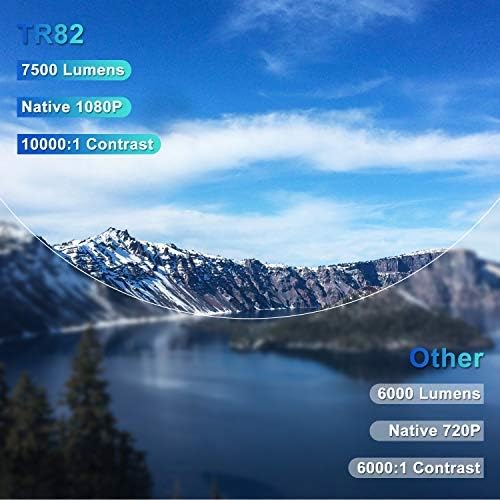
Image: A comparison graphic highlighting the TOPTRO TR82's superior specifications: 7500 Lumens, Native 1080P resolution, and 10000:1 Contrast Ratio, compared to typical "Other" projectors with lower specs.
| ഫീച്ചർ | വിശദാംശങ്ങൾ |
|---|---|
| ബ്രാൻഡ് | ടോപ്ട്രോ |
| മോഡൽ | TR82 |
| നേറ്റീവ് റെസല്യൂഷൻ | 1920 x 1080P |
| പിന്തുണയുള്ള റെസല്യൂഷൻ | 4K വരെ |
| തെളിച്ചം | 7500 ല്യൂമെൻസ് |
| കോൺട്രാസ്റ്റ് റേഷ്യോ | 10000:1 |
| ഡിസ്പ്ലേ തരം | എൽസിഡി |
| കണക്റ്റിവിറ്റി ടെക്നോളജി | USB, HDMI, AV, Bluetooth, Wi-Fi |
| ബ്ലൂടൂത്ത് പതിപ്പ് | 5.0 (Output only) |
| പ്രത്യേക സവിശേഷതകൾ | Built-In Speaker, Built-In Wi-Fi, X/Y Zoom Function, Removable Dust Filter, Integrated YouTube |
| അനുയോജ്യമായ ഉപകരണങ്ങൾ | Television, USB, Phone, TV Stick, PC, DVD, PS4 |
| മൗണ്ടിംഗ് തരം | Ceiling Mount, Tabletop |
| ഉൽപ്പന്ന അളവുകൾ | 30.5 x 22.5 x 11.5 സെ.മീ |
| ഇനത്തിൻ്റെ ഭാരം | 3.98 കി.ഗ്രാം |
| മോഡൽ വർഷം | 2021 |
10. വാറൻ്റിയും പിന്തുണയും
TOPTRO provides a standard warranty for the TR82 projector. Please refer to the warranty card included in your package for specific terms and conditions. For technical support, troubleshooting assistance, or warranty claims, please contact TOPTRO customer service through the following channels:
- Visit the official TOPTRO webപതിവുചോദ്യങ്ങൾക്കും പിന്തുണാ ഉറവിടങ്ങൾക്കുമുള്ള സൈറ്റ്.
- Contact TOPTRO customer support via email or phone (contact details typically found on the warranty card or official webസൈറ്റ്).
- For purchases made on Amazon, you may also contact the seller directly through your Amazon order history.
Ask a question about this manual
Ask about setup, troubleshooting, compatibility, parts, safety, or missing instructions. Manuals+ will review the question and use this page’s manual context to help answer it.