
1. ആമുഖം
The OWC Mercury Elite Pro is an external storage solution designed for reliable data storage and backup. This device features an 8TB 7200 RPM hard drive with USB 3.2 5Gb/s connectivity, offering compatibility with various operating systems and devices. This manual provides essential information for setting up, operating, maintaining, and troubleshooting your device.
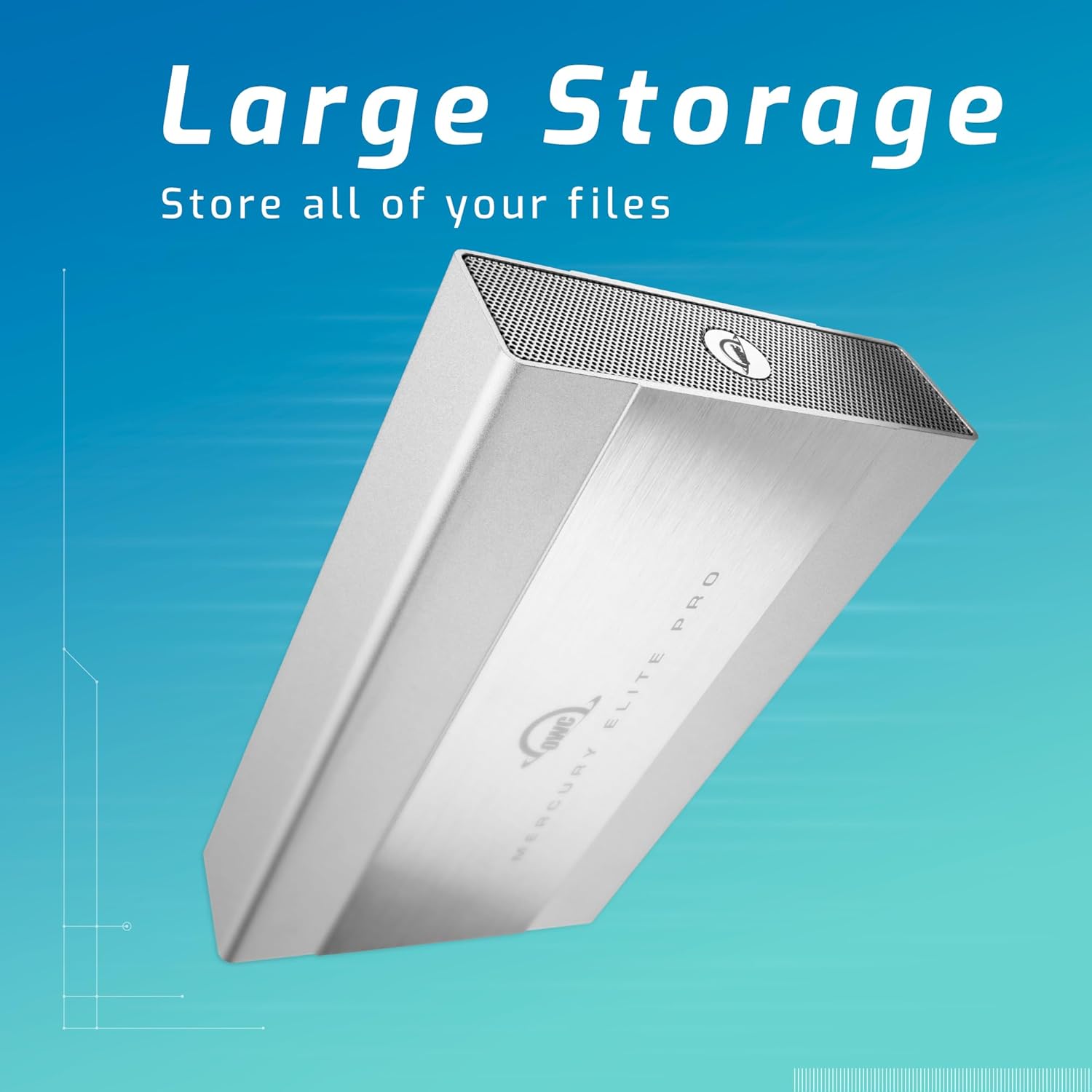
Image 1.1: The OWC Mercury Elite Pro external hard drive, highlighting its large storage capacity for all your files.
2. ബോക്സിൽ എന്താണുള്ളത്?
പാക്കേജിംഗിൽ എല്ലാ ഘടകങ്ങളും ഉണ്ടെന്ന് ഉറപ്പാക്കുക:
- OWC Mercury Elite Pro 8TB External Hard Drive
- High-quality double-shielded USB Type A-B connecting cable
- ലംബ ഓറിയന്റേഷൻ സ്റ്റാൻഡ്
- സ്കിഡ് അല്ലാത്ത റബ്ബർ പാദങ്ങൾ
- പവർ അഡാപ്റ്റർ
3. സജ്ജീകരണ നിർദ്ദേശങ്ങൾ
3.1 ശാരീരിക ബന്ധം
- Connect the power adapter to the OWC Mercury Elite Pro and then to a power outlet.
- Connect one end of the included USB Type A-B cable to the USB 3.2 port on the OWC Mercury Elite Pro.
- Connect the other end of the USB Type A-B cable to an available USB port on your computer (Mac, Windows, or Linux).
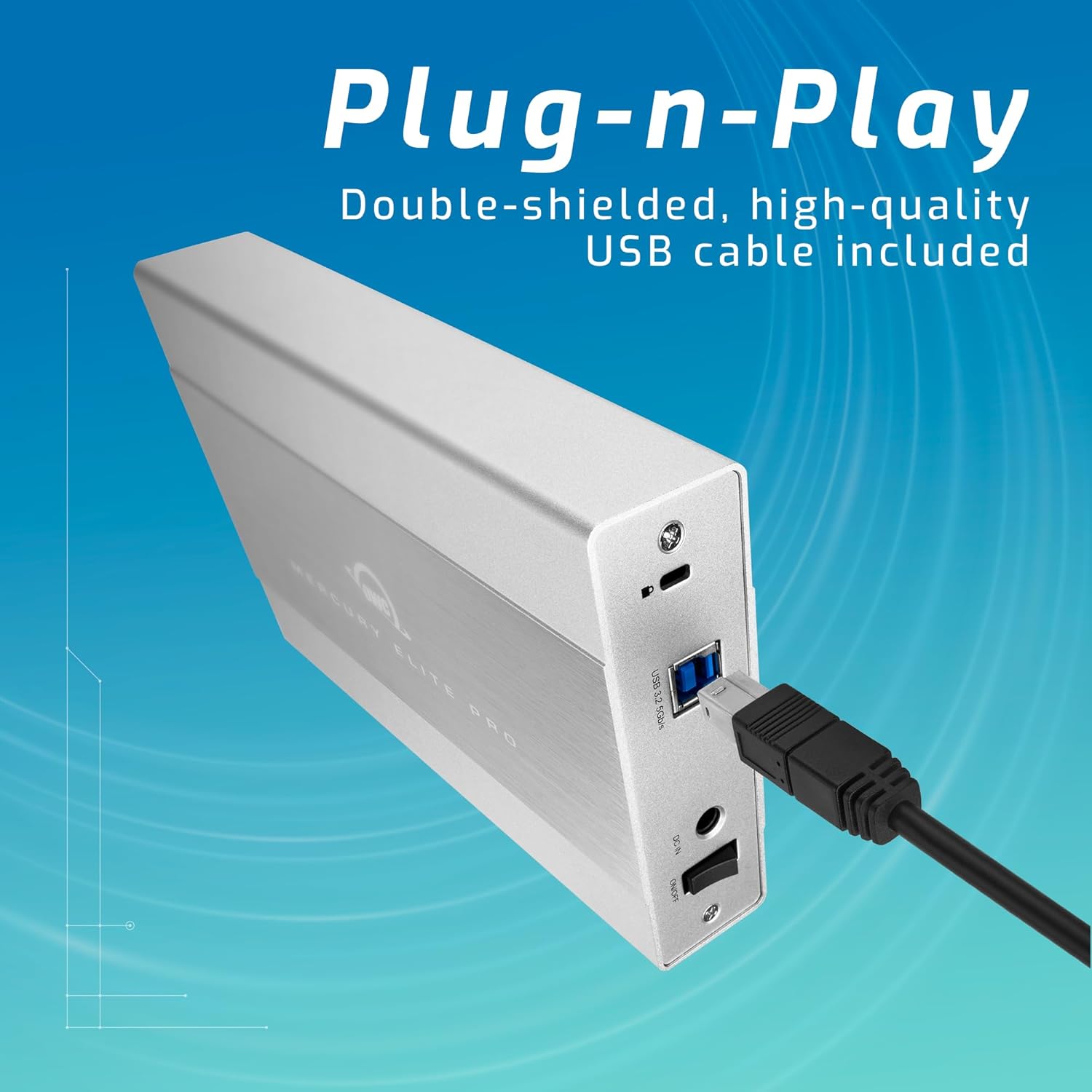
Image 3.1: The rear panel of the OWC Mercury Elite Pro, illustrating the simple plug-and-play connection of the USB cable.
3.2 Placement and Orientation
The OWC Mercury Elite Pro can be used in both vertical and horizontal orientations. For vertical use, attach the provided vertical stand and ensure the non-skid rubber feet are properly positioned for stability. Ensure adequate ventilation around the device to prevent overheating.

Image 3.2: Two OWC Mercury Elite Pro units, displayed in both vertical and horizontal positions, emphasizing flexible and space-efficient placement.
3.3 പ്രാരംഭ ഫോർമാറ്റിംഗ് (ആവശ്യമെങ്കിൽ)
The drive may come pre-formatted for general compatibility. However, for optimal performance and specific operating system features (e.g., Apple Time Machine or Windows File History), you may need to reformat the drive. Consult your operating system's documentation for instructions on disk formatting. Ensure all important data is backed up before reformatting.
4. പ്രവർത്തന നിർദ്ദേശങ്ങൾ
4.1 പവർ ഓൺ/ഓഫ്
Once connected to power and your computer, the device will typically power on automatically. To safely power off the device, first eject or unmount the drive from your operating system, then disconnect the power adapter.
4.2 ഡാറ്റ കൈമാറ്റം
After the drive is recognized by your computer, you can drag and drop fileഡ്രൈവിലേക്കും പുറത്തേക്കും ഡ്രൈവിലേക്ക് കണക്റ്റുചെയ്യുക, അല്ലെങ്കിൽ നിങ്ങളുടെ ഓപ്പറേറ്റിംഗ് സിസ്റ്റത്തിന്റെ ഉപയോഗിക്കുക file management tools to copy, move, and delete data. The USB 3.2 5Gb/s interface provides fast data transfer speeds.
4.3 Backup Solutions
The OWC Mercury Elite Pro is compatible with popular backup software:
- Apple Time Machine: For macOS users, the drive can be designated as a Time Machine backup disk. Follow the on-screen prompts when connecting the drive or configure it through System Settings/Preferences.
- വിൻഡോസ് File ചരിത്രം: For Windows users, the drive can be used with File History for automatic backups. Access File History settings through the Control Panel or Settings app.
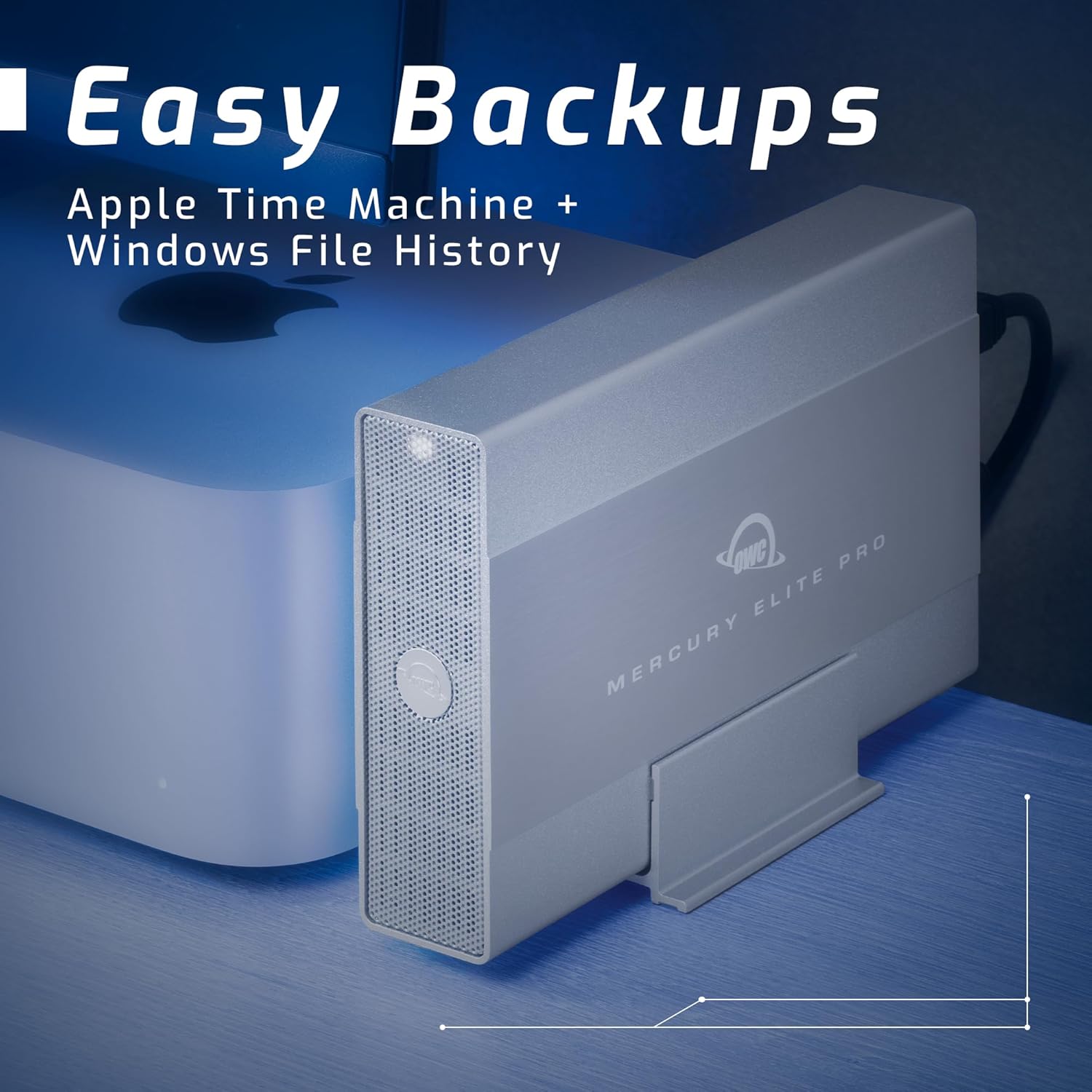
Image 4.1: The OWC Mercury Elite Pro positioned next to a computer, demonstrating its readiness for easy backups using Apple Time Machine and Windows File ചരിത്രം.
4.4 ഉപകരണ അനുയോജ്യത
This storage solution is designed for broad compatibility:
- മാക് കമ്പ്യൂട്ടറുകൾ
- വിൻഡോസ് പിസികൾ
- ലിനക്സ് സിസ്റ്റങ്ങൾ
- പ്ലേസ്റ്റേഷൻ 4 (PS4) കൺസോളുകൾ
- എക്സ്ബോക്സ് കൺസോളുകൾ
- സ്മാർട്ട് ടിവികൾ
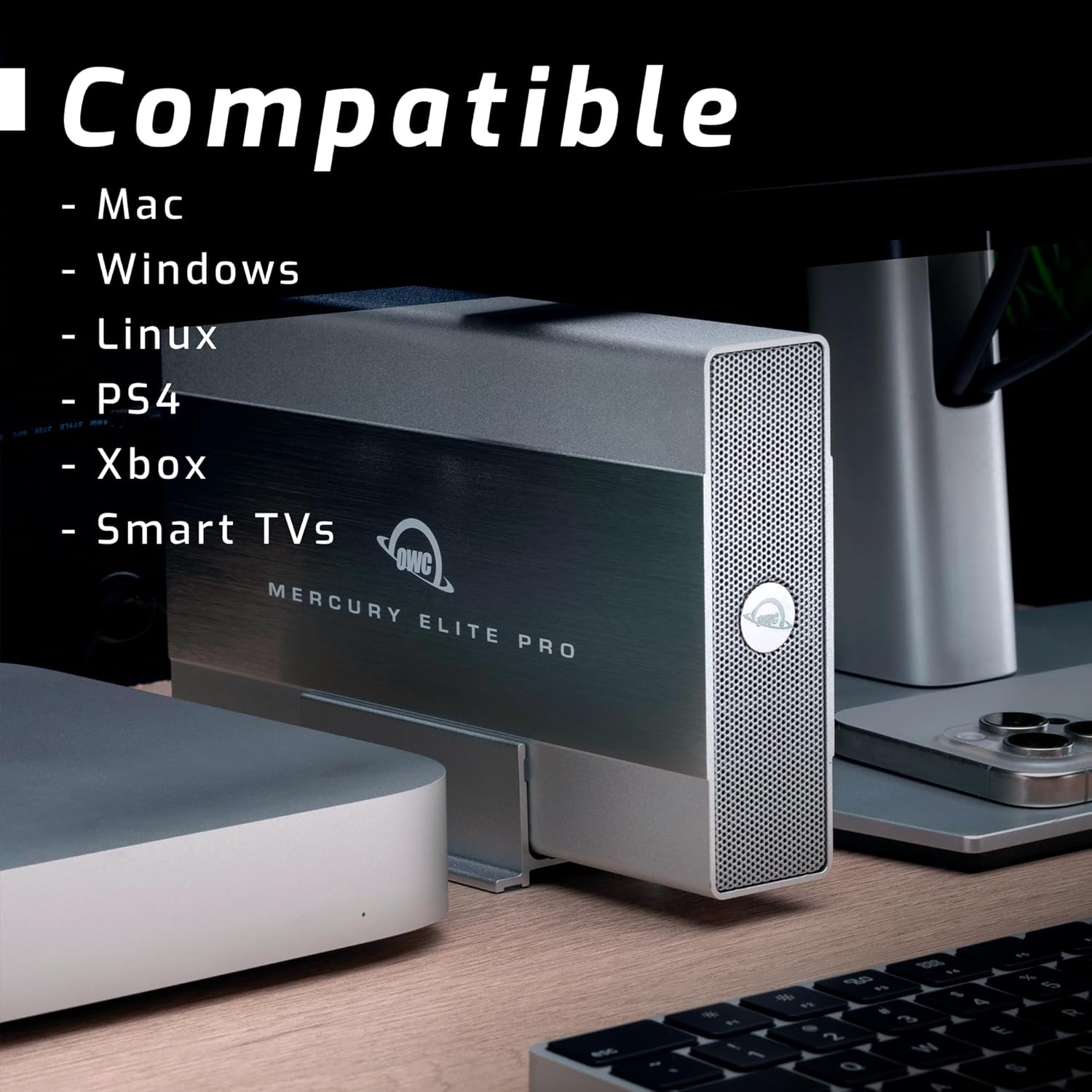
Image 4.2: The OWC Mercury Elite Pro shown in a setup with multiple devices, emphasizing its compatibility with Mac, Windows, Linux, PS4, Xbox, and Smart TVs.
5. പരിപാലനം
Proper maintenance ensures the longevity and performance of your OWC Mercury Elite Pro:
- വൃത്തിയാക്കൽ: ഉപകരണത്തിന്റെ പുറംഭാഗം വൃത്തിയാക്കാൻ മൃദുവായതും ഉണങ്ങിയതുമായ തുണി ഉപയോഗിക്കുക. ദ്രാവക ക്ലീനറുകളോ ഉരച്ചിലുകളുള്ള വസ്തുക്കളോ ഒഴിവാക്കുക.
- വെൻ്റിലേഷൻ: Ensure the device is placed in an area with good airflow to prevent heat buildup. Do not block ventilation openings.
- ശാരീരിക സംരക്ഷണം: While the unit features built-in shock isolation, avoid dropping or subjecting the drive to excessive physical shock.
- പതിവ് ബാക്കപ്പുകൾ: Periodically back up critical data from the Mercury Elite Pro to another storage device to protect against data loss.
- സുരക്ഷിതമായ എജക്ഷൻ: Always safely eject or unmount the drive from your operating system before disconnecting it or powering it off.
6. പ്രശ്നപരിഹാരം
If you encounter issues with your OWC Mercury Elite Pro, consider the following:
6.1 ഡ്രൈവ് തിരിച്ചറിഞ്ഞിട്ടില്ല
- കണക്ഷനുകൾ പരിശോധിക്കുക: Ensure the power adapter is securely connected to both the drive and a working power outlet. Verify the USB cable is firmly connected to both the drive and your computer.
- വ്യത്യസ്ത പോർട്ടുകൾ/കേബിളുകൾ പരീക്ഷിക്കുക: Test with a different USB port on your computer and, if available, a different USB cable.
- പവർ സൈക്കിൾ: Disconnect the power and USB cables, wait 10 seconds, then reconnect them.
- Check Disk Management (Windows) / Disk Utility (Mac): Open your operating system's disk management tool to see if the drive is detected but uninitialized or unformatted.
6.2 മന്ദഗതിയിലുള്ള പ്രകടനം
- USB Port Speed: Ensure the drive is connected to a USB 3.0/3.1/3.2 port on your computer for optimal speeds. Connecting to a USB 2.0 port will result in slower performance.
- കേബിൾ നിലവാരം: Use the high-quality double-shielded USB cable provided.
- Drive Activity: High background activity on the drive or computer can affect performance.
6.3 Drive Making Unusual Noises
While some operational noise is normal for mechanical hard drives, excessive clicking, grinding, or loud whirring may indicate a potential issue. Back up your data immediately and contact OWC support.
7 സ്പെസിഫിക്കേഷനുകൾ
| ഫീച്ചർ | വിശദാംശങ്ങൾ |
|---|---|
| ഡിജിറ്റൽ സ്റ്റോറേജ് കപ്പാസിറ്റി | 8 ടി.ബി |
| ഹാർഡ് ഡിസ്ക് ഇന്റർഫേസ് | സീരിയൽ ATA |
| കണക്റ്റിവിറ്റി ടെക്നോളജി | USB (USB 3.2 5Gb/s) |
| ബ്രാൻഡ് | OWC |
| പ്രത്യേക ഫീച്ചർ | Shock Isolation |
| ഹാർഡ് ഡിസ്ക് ഫോം ഫാക്ടർ | 3.5 ഇഞ്ച് |
| ഹാർഡ് ഡിസ്ക് വിവരണം | മെക്കാനിക്കൽ ഹാർഡ് ഡിസ്ക് |
| അനുയോജ്യമായ ഉപകരണങ്ങൾ | Mac, Windows, Linux, PS4, Xbox, Smart TVs |
| ഇൻസ്റ്റലേഷൻ തരം | ബാഹ്യ ഹാർഡ് ഡ്രൈവ് |
| നിറം | Multicolor (typically silver/grey enclosure) |
| ഹാർഡ് ഡിസ്ക് റൊട്ടേഷണൽ സ്പീഡ് | 7200 ആർപിഎം |
| ഡാറ്റ കൈമാറ്റ നിരക്ക് | സെക്കൻഡിൽ 252 മെഗാബൈറ്റുകൾ വരെ |
| മോഡൽ നമ്പർ | OWCME3NH7T08 |
| യു.പി.സി | 810586034692 |
8. വാറൻ്റിയും പിന്തുണയും
8.1 വാറൻ്റി വിവരങ്ങൾ
The OWC Mercury Elite Pro comes with an up to 3-Year Limited Warranty, which includes 1 Year Level 1 data recovery services. Please retain your proof of purchase for warranty claims.
8.2 ഉപഭോക്തൃ പിന്തുണ
For technical assistance, troubleshooting, or warranty inquiries, OWC provides lifetime US-based live support. You can find contact information and additional resources on the official OWC webസൈറ്റ്: