
ആമുഖം
This user manual provides detailed instructions for the EWIN Bluetooth 5.1 Keyboard and Mouse Combo, Model T09. This versatile set is designed for seamless connectivity across multiple devices and operating systems, enhancing your productivity and convenience.
എന്താണ് ഉൾപ്പെടുത്തിയിരിക്കുന്നത്
- 1x Bluetooth 5.1 Keyboard
- 1x Bluetooth 3.0 Mouse
- 1x Tablet and Cellphone Stand
- 1x Use Manual (this document)
സജ്ജമാക്കുക
ബാറ്ററി ഇൻസ്റ്റാളേഷൻ
Both the keyboard and mouse require AAA batteries (not included).
- For the keyboard, locate the battery compartment on the underside and insert two AAA batteries, observing polarity.
- For the mouse, locate the battery compartment on the underside and insert two AAA batteries, observing polarity.
Connecting the Devices via Bluetooth
Follow these steps to connect your EWIN keyboard and mouse to your device:
- Ensure both the keyboard and mouse have fresh batteries installed.
- Slide the ON/OFF switch on both the keyboard and mouse to the "ON" position. For the mouse, a red battery indication light will blink once to indicate it has entered pairing status.
- On your laptop, tablet, or mobile phone, enable Bluetooth.
- ഇതിനായി തിരയുക available Bluetooth devices. For the keyboard, select "Bluetooth 5.1 Keyboard". For the mouse, find "BT3.0 Mouse" or "BT5.2 Mouse" and pair.
- Once paired, the red battery indication light on the mouse will remain on.
 Image: The EWIN Bluetooth 5.1 Keyboard and Mouse Combo, showcasing the compact black keyboard and the ergonomic black mouse.
 Image: The EWIN keyboard and mouse positioned next to a laptop, tablet, and smartphone, demonstrating its multi-device compatibility.
Important Note for iOS Users (iOS 13 and above)
Before using the touchpad functionality with iOS 13 or above, please ensure the following settings are configured:
- പോകുക ക്രമീകരണങ്ങൾ.
- തിരഞ്ഞെടുക്കുക പ്രവേശനക്ഷമത.
- ടാപ്പ് ചെയ്യുക സ്പർശിക്കുക.
- പ്രവർത്തനക്ഷമമാക്കുക അസിസ്റ്റീവ് ടച്ച്.
പ്രവർത്തന നിർദ്ദേശങ്ങൾ
Switching Between Multiple Devices
The EWIN keyboard allows for fast and stable switching among up to 3 paired devices without interference or the need to repeat the pairing process. Refer to the keyboard's function keys for device switching (e.g., Fn + 1, Fn + 2, Fn + 3).
വിശാലമായ അനുയോജ്യത
The keyboard is compatible with four major operating systems:
- iOS: Including iPad 10.2-inch / Air / iPad Pro / iPad 9.7-inch / iPad Mini / iPhone.
- ആൻഡ്രോയിഡ്: Such as Samsung Galaxy Tab, Google Nexus, and other Android tablets/smartphones.
- മാക് ഒഎസ്: Compatible with MacBook and other Mac OS devices.
- വിൻഡോസ്: Compatible with Windows XP/Vista/7/8/10 PCs and laptops.
The Bluetooth 5.1 mouse is compatible with Windows 8/10, MacOSX 10.10 or later, and iOS 13.1 or later/Android 5.0 or later.
 Image: Diagram illustrating the EWIN keyboard's compatibility with Android, iOS, Mac OS, and Windows operating systems.
ഒപ്റ്റിമൈസ് ചെയ്ത മൾട്ടിമീഡിയ കീകൾ
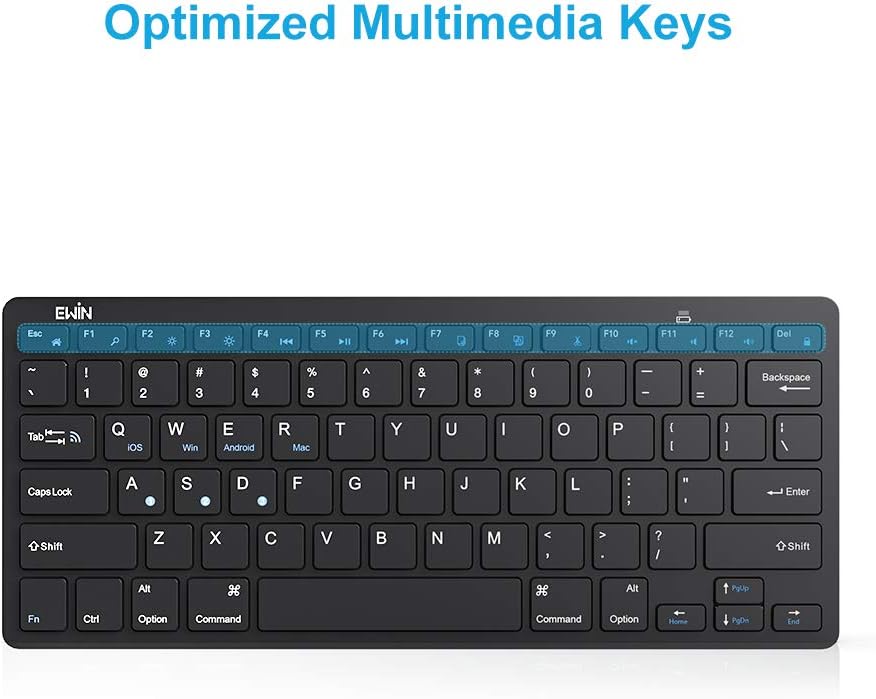
The QWERTY layout keyboard features 13 hot keys specifically customized for various devices, providing quick access to functions such as volume control, music playback, screen brightness, and more.
 ചിത്രം: ക്ലോസ്-അപ്പ് view of the EWIN keyboard, highlighting the row of optimized multimedia function keys (F1-F12) at the top.
Scissor Switch Keycaps
The keyboard utilizes scissor switch keycaps, which contribute to a quieter typing experience and require minimal force to press, resulting in a comfortable and responsive typing feeling.
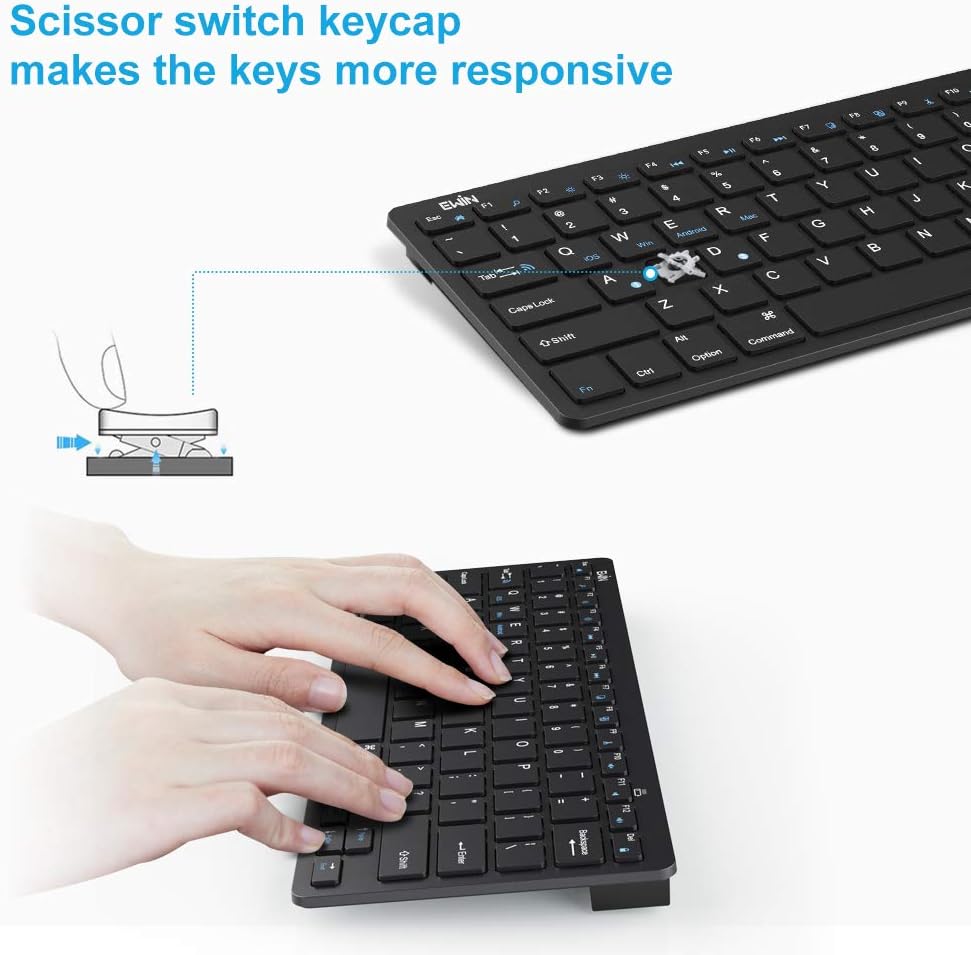 ചിത്രം: പൊട്ടിത്തെറിച്ച ഒരു view diagram illustrating the internal mechanism of a scissor switch keycap, showing its stable and responsive design.
Ergonomic Mouse Design
The included Bluetooth mouse features an ergonomic design for comfortable use over extended periods.
 ചിത്രം: സൈഡ് പ്രോfile view of the EWIN ergonomic mouse, highlighting its contoured shape designed for comfortable grip.
Tablet and Cellphone Stand
The included stand is designed to hold smartphones and tablets ranging from 4 to 11 inches, providing a stable viewing angle for your device while using the keyboard and mouse.
 Image: The included stand holding both a tablet and a smartphone, demonstrating its versatility for various device sizes.
മെയിൻ്റനൻസ്
വൃത്തിയാക്കൽ
To clean your keyboard and mouse, gently wipe the surfaces with a soft, damp cloth. Avoid using harsh chemicals or abrasive materials. Ensure devices are powered off before cleaning.
ബാറ്ററി മാറ്റിസ്ഥാപിക്കൽ
When the battery indicator light on the mouse signals low power, or if the keyboard's performance degrades, replace the AAA batteries in both devices following the installation steps outlined in the "Setup" section.
ട്രബിൾഷൂട്ടിംഗ്
- ഉപകരണം കണക്റ്റുചെയ്യുന്നില്ല:
- നിങ്ങളുടെ ഹോസ്റ്റ് ഉപകരണത്തിൽ ബ്ലൂടൂത്ത് പ്രവർത്തനക്ഷമമാക്കിയിട്ടുണ്ടെന്ന് ഉറപ്പാക്കുക.
- Make sure the keyboard and mouse are powered on and within range (up to 33 feet).
- ബാറ്ററി ലെവലുകൾ പരിശോധിച്ച് ആവശ്യമെങ്കിൽ മാറ്റിസ്ഥാപിക്കുക.
- Remove previous pairings from your device's Bluetooth settings and attempt to re-pair.
- Restart your host device and try connecting again.
- Mouse losing connection randomly:
- This can sometimes occur due to inactivity or low battery. Ensure batteries are fresh.
- Try turning the mouse off and on again.
- സമീപത്ത് ശക്തമായ വയർലെസ് ഇടപെടലുകൾ ഇല്ലെന്ന് ഉറപ്പാക്കുക.
- Keyboard keys not responding or incorrect characters:
- Verify the keyboard is paired correctly.
- Check the language and keyboard layout settings on your host device.
- For iOS devices, ensure "Assistive Touch" is enabled as described in the Setup section.
If problems persist after following these steps, please contact EWIN customer support for further assistance.
സ്പെസിഫിക്കേഷനുകൾ
| ബ്രാൻഡ് | Ewin |
| മോഡൽ | T09 |
| ബ്ലൂടൂത്ത് പതിപ്പ് | Bluetooth 5.1 (Keyboard), Bluetooth 3.0/5.2 (Mouse) |
| അളവുകൾ (കീബോർഡ്) | 11.2 X 4.7 X 0.2 inches (28.45 x 11.94 x 0.51 cm) |
| ഭാരം (കീബോർഡ്) | 0.65 പൗണ്ട് (454 ഗ്രാം) |
| കീകൾ | 78 keys (QWERTY layout with 13 hot keys) |
| പ്രവർത്തന ശ്രേണി | 33 അടി വരെ |
| പിന്തുണയ്ക്കുന്ന ഓപ്പറേറ്റിംഗ് സിസ്റ്റങ്ങൾ | iOS, Android, Mac OS, Windows |
| പവർ ഉറവിടം | AAA ബാറ്ററികൾ (ഉൾപ്പെടുത്തിയിട്ടില്ല) |
വാറൻ്റിയും പിന്തുണയും
EWIN products are designed for reliability and performance. For information regarding warranty coverage, please refer to the warranty card included with your purchase or visit the official EWIN webസൈറ്റ്.
For technical support, troubleshooting assistance, or any inquiries about your EWIN Bluetooth Keyboard and Mouse Combo, please contact EWIN customer service. Contact details can typically be found on the product packaging or the official EWIN support page.
We are committed to providing excellent customer satisfaction and are here to assist you with any issues you may encounter.