
1. ആമുഖം
This manual provides instructions for the VENTION 3.5mm Audio Splitter, Model BBUBY. This device allows you to connect headphones, a microphone, or speakers to a single 3.5mm audio jack on compatible devices such as PCs, laptops, and gaming consoles. It supports both OMTP and CTIA standards for broad compatibility.

Figure 1: VENTION 3.5mm Audio Splitter. This image shows the splitter cable with its single female 3.5mm input and two male 3.5mm output jacks, one for audio and one for microphone.
2. സജ്ജീകരണം
To set up your VENTION 3.5mm Audio Splitter, follow these steps:
- തുറമുഖങ്ങൾ തിരിച്ചറിയുക: Locate the headphone (audio output) and microphone (audio input) ports on your computer or device. These are typically color-coded (green for audio, pink for microphone) or marked with corresponding icons.
- Connect Splitter to Device: Plug the two male 3.5mm jacks of the VENTION splitter into the respective audio output and microphone input ports on your computer. The jack with the headphone icon connects to the audio output, and the jack with the microphone icon connects to the microphone input.
- Connect Headset/Speakers: Plug your headset, headphones, or speakers into the single female 3.5mm jack of the VENTION splitter.
- അനുയോജ്യത പരിശോധിക്കുക: The splitter is compatible with both OMTP and CTIA standard devices. Ensure your headset or speakers are properly connected.

Figure 2: Headset Splitter Cable Connection. This image illustrates connecting a headset to a laptop using the splitter, showing separate icons for control, listening, and call functions.

Figure 3: Computer Voice Input. This diagram details how to connect the splitter's male jacks to a computer's headset and microphone interfaces, and then connect a headset with a 3.5mm plug to the splitter's female end.
Video 1: VENTION Headphone Audio Splitter Demonstration. This video demonstrates the physical connection process of the VENTION audio splitter to a computer and a headset, showing its use for gaming and phone calls.
3. പ്രവർത്തന നിർദ്ദേശങ്ങൾ
Once connected, the VENTION 3.5mm Audio Splitter allows for simultaneous audio output and microphone input through a single headset or speaker system.
- ഓഡിയോ ഔട്ട്പുട്ട്: Sound from your computer will be directed to the connected headphones or speakers.
- മൈക്രോഫോൺ ഇൻപുട്ട്: The microphone on your connected headset will function as the audio input for your computer, enabling voice communication in applications, games, or calls.
- ഫോൺ കോൾ പ്രവർത്തനം: The splitter supports phone call functions when used with compatible headsets and devices.
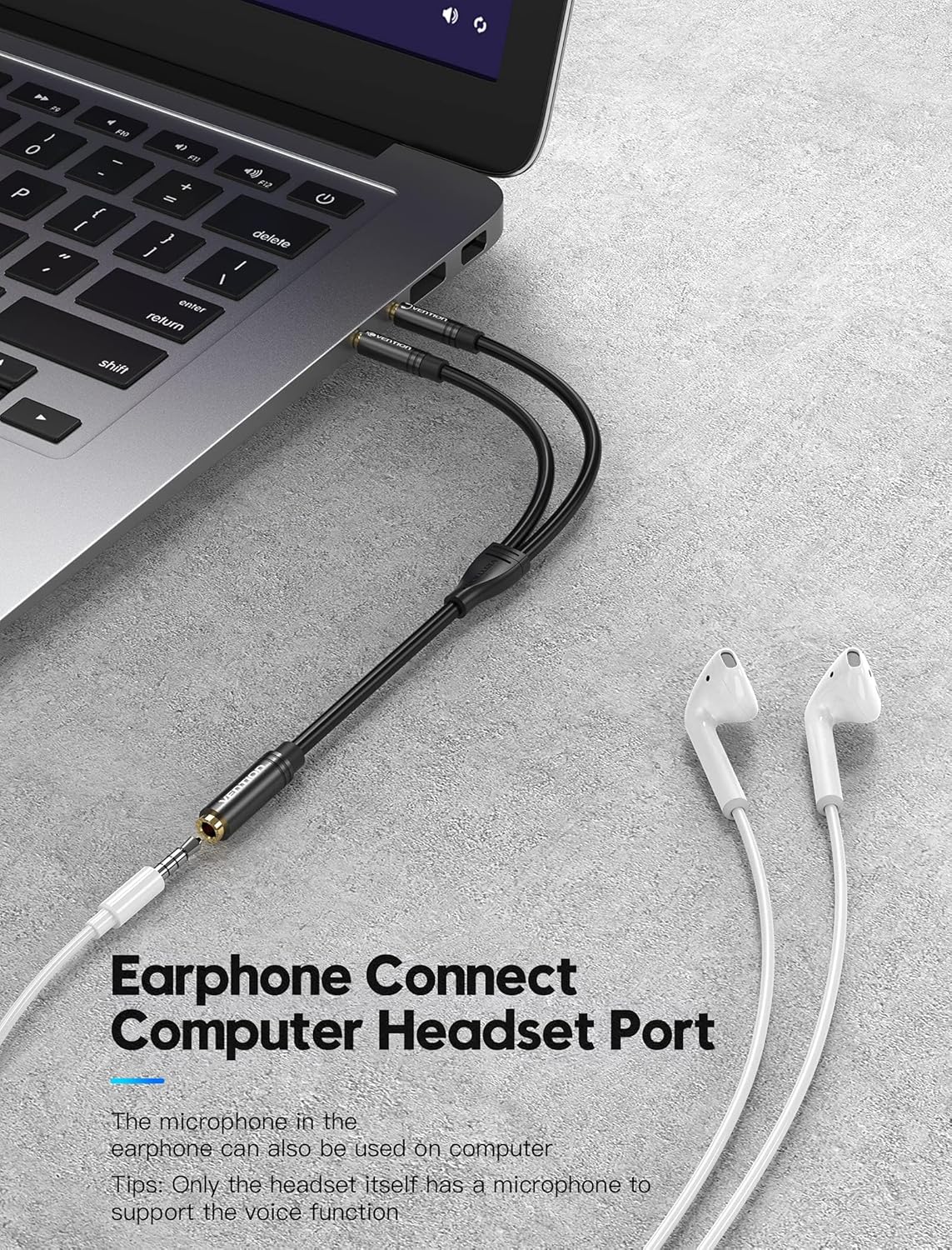
Figure 4: Earphone Connection to Computer. This image shows a user connecting earphones to a laptop's headset port using the VENTION audio splitter, highlighting its use for voice functions.
4. പരിപാലനം
To ensure the longevity and optimal performance of your VENTION 3.5mm Audio Splitter:
- വൃത്തിയാക്കൽ: Use a soft, dry cloth to gently wipe the cable and connectors. Avoid using liquid cleaners or abrasive materials.
- സംഭരണം: Store the splitter in a cool, dry place away from direct sunlight and extreme temperatures.
- കൈകാര്യം ചെയ്യൽ: Avoid excessive bending, twisting, or pulling of the cable, especially near the connectors, to prevent internal damage.
5. പ്രശ്നപരിഹാരം
- ഓഡിയോ ഔട്ട്പുട്ട് ഇല്ല:
- എല്ലാ കണക്ഷനുകളും സുരക്ഷിതമാണെന്ന് ഉറപ്പാക്കുക.
- Check your computer's audio settings to ensure the correct output device is selected and volume is not muted.
- Test your headphones/speakers directly with the computer to rule out issues with the audio device itself.
- മൈക്രോഫോൺ പ്രവർത്തിക്കുന്നില്ല:
- പ്രധാന കുറിപ്പ്: Microphone function may not work with Apple headphones and certain Beat headphones due to proprietary wiring configurations.
- Verify that the microphone jack of the splitter is correctly plugged into the microphone input port of your computer.
- ശരിയായ ഇൻപുട്ട് ഉപകരണം തിരഞ്ഞെടുത്തിട്ടുണ്ടെന്നും മൈക്രോഫോൺ വോളിയം നിശബ്ദമാക്കിയിട്ടില്ലെന്നും ഉറപ്പാക്കാൻ നിങ്ങളുടെ കമ്പ്യൂട്ടറിന്റെ ശബ്ദ ക്രമീകരണങ്ങൾ പരിശോധിക്കുക.
- Test your microphone directly with a compatible device if possible.
- മോശം ഓഡിയോ നിലവാരം:
- Ensure all connections are fully inserted.
- Check for any damage to the cable or connectors.
- വൈദ്യുതകാന്തിക ഇടപെടലിന്റെ ഉറവിടങ്ങൾക്ക് സമീപം കേബിൾ സ്ഥാപിക്കുന്നത് ഒഴിവാക്കുക.
6 സ്പെസിഫിക്കേഷനുകൾ
| ഫീച്ചർ | വിശദാംശങ്ങൾ |
|---|---|
| ബ്രാൻഡ് | വെൻഷൻ |
| മോഡൽ നമ്പർ | BBUBY |
| കണക്റ്റർ തരം | Auxiliary (3.5mm Male to 3.5mm Female) |
| കേബിൾ നീളം | 30 സെ.മീ (ഏകദേശം 11.8 ഇഞ്ച്) |
| അനുയോജ്യത | OMTP and CTIA Standard |
| ഇനത്തിൻ്റെ ഭാരം | 0.317 ഔൺസ് |
| പാക്കേജ് അളവുകൾ | 5.28 x 3.78 x 0.55 ഇഞ്ച് |
| മെറ്റീരിയൽ | Enameled copper conductor, TPE jacket, Aluminum alloy shell, Gold-plated interface |
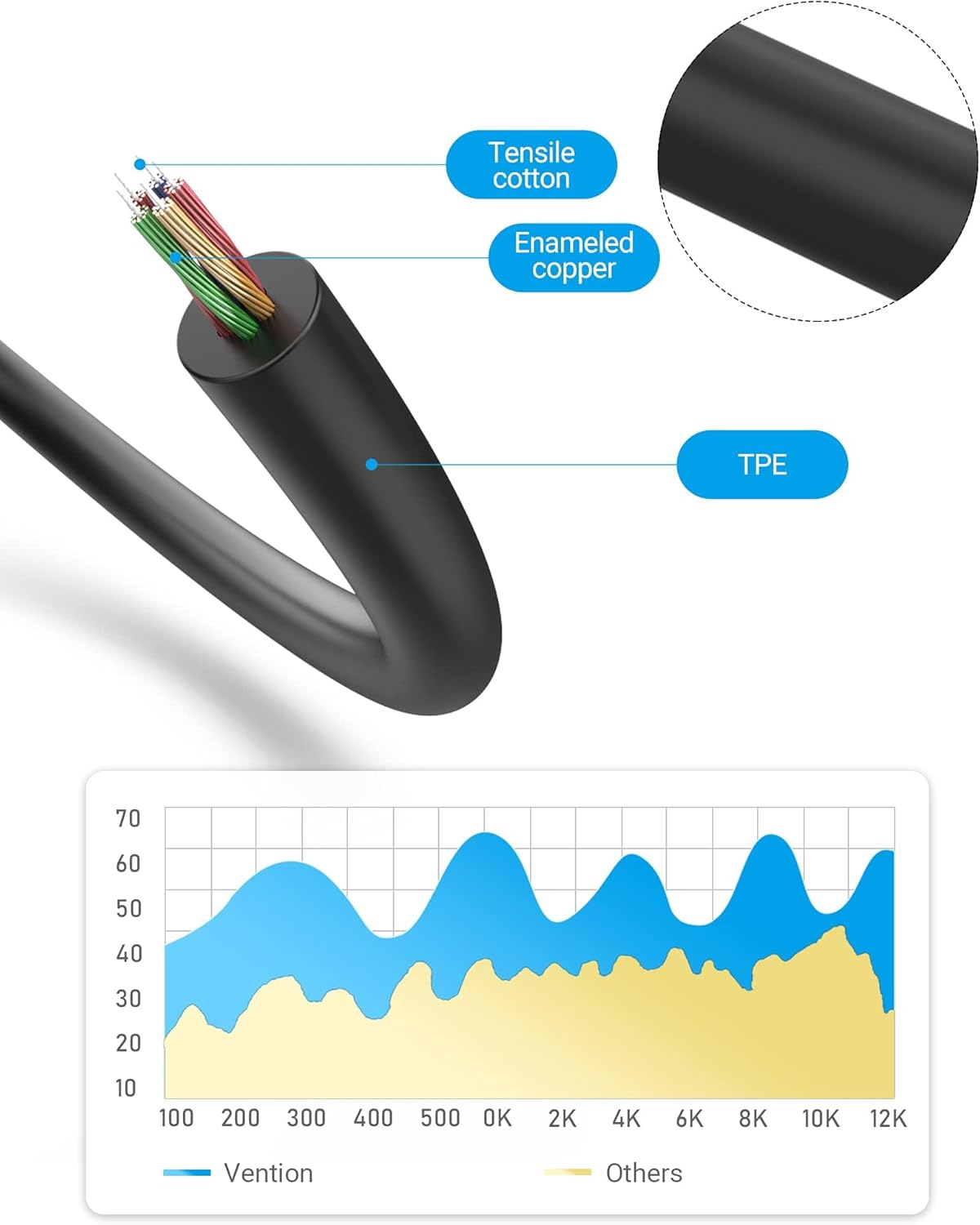
Figure 5: Cable Construction. This diagram illustrates the internal components of the cable, including tensile cotton, enameled copper, and the TPE outer jacket, contributing to its durability and performance.

Figure 6: Compatible Devices. This image displays examples of devices compatible with the splitter, including PCs, laptops (male connectors), and headsets, earphones, and speakers (female connector).
7. വാറൻ്റിയും പിന്തുണയും
For specific warranty information, please refer to the documentation provided at the time of purchase or contact your retailer. For product support, please visit the official VENTION store or webസൈറ്റ്.
Official VENTION Store: https://www.amazon.com/stores/Vention/page/A27ACE64-6255-49B7-855D-EE0B34D11C9A