
OverTop xCc1030540
OverTop Aigo EROS Q MP3 Music Player User Manual
Model: xCc1030540
1. ആമുഖം
This manual provides detailed instructions for the safe and efficient use of your OverTop Aigo EROS Q MP3 Music Player. Please read this manual thoroughly before operating the device and retain it for future reference.
2. പാക്കേജ് ഉള്ളടക്കം
പാക്കേജിൽ എല്ലാ ഇനങ്ങളും ഉണ്ടെന്ന് ഉറപ്പാക്കുക:
- 1 x OverTop Aigo EROS Q MP3 Music Player
- 1 x USB കേബിൾ
- 1 x ഉപയോക്തൃ മാനുവൽ (ഈ പ്രമാണം)
- 1 x 16GB TF കാർഡ് (മുൻകൂട്ടി ഇൻസ്റ്റാൾ ചെയ്തതോ പ്രത്യേകം ഉൾപ്പെടുത്തിയതോ)
3. ഉൽപ്പന്നം കഴിഞ്ഞുview
Familiarize yourself with the components and controls of your Aigo EROS Q MP3 player.

ചിത്രം 3.1: മുൻഭാഗം View. This image shows the front of the Aigo EROS Q MP3 player, featuring its 2-inch TFT display, circular navigation pad, and playback control buttons. The screen displays a music note icon, indicating its primary function.
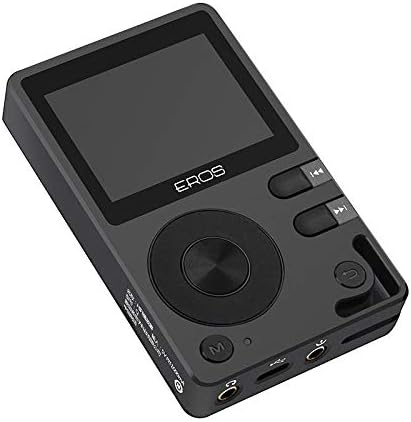
ചിത്രം 3.2: കോണാകൃതിയിലുള്ളത് View നിയന്ത്രണങ്ങൾക്കൊപ്പം. An angled perspective of the player, highlighting the screen, the prominent circular navigation pad, and the adjacent control buttons for play/pause, skip tracks, and menu access. The overall design is sleek and compact.

Figure 3.3: Bottom Ports. ഇത് view displays the bottom edge of the device, clearly showing the 3.5mm headphone jack, the micro USB charging/data port, and the 3.5mm line out port. These ports are essential for audio output and connectivity.

Figure 3.4: Side Buttons. ഒരു സൈഡ് പ്രോfile of the MP3 player, illustrating the placement of the volume control buttons (up/down) and potentially the power button. These buttons allow for quick adjustments during playback.

Figure 3.5: MicroSD Card Slot. മറ്റൊരു ആംഗിൾ view, emphasizing the microSD card slot located on the side of the device. This slot allows for memory expansion up to 128GB, crucial for storing a large music library.

ചിത്രം 3.6: പിൻഭാഗം View. The back of the Aigo EROS Q MP3 player, featuring a minimalist design with a subtle, reflective emblem in the center. This view showcases the device's sleek and premium finish.

ചിത്രം 3.7: മുകളിൽ View. This image displays the top edge of the player, which includes regulatory markings and the model number 'Q', along with power input specifications (5V 1000mA).
4. സജ്ജീകരണം
4.1 ഉപകരണം ചാർജ് ചെയ്യുന്നു
Before first use, fully charge the Aigo EROS Q. Connect the provided USB cable to the device's micro USB port and the other end to a USB power adapter (not included) or a computer's USB port. The device features a 1300mAh 3.7V lithium battery.
4.2 ഒരു മെമ്മറി കാർഡ് ചേർക്കുന്നു
The device supports microSD (TF) cards up to 128GB. A 16GB TF card is included. Locate the microSD card slot on the side of the player (refer to Figure 3.5). Gently insert the card until it clicks into place. To remove, push the card in slightly until it springs out.
4.3. സംഗീതം കൈമാറുന്നു Files
Connect the Aigo EROS Q to your computer using the USB cable. The device will appear as a removable disk. Drag and drop your music files (APE, FLAC, WAV, WMA, ACC, DSD, DFF, AIFF, M4A, OGG, MP3, MP2) into the device's storage or the inserted TF card.
5. പ്രവർത്തന നിർദ്ദേശങ്ങൾ
5.1. പവർ ഓൺ/ഓഫ്
- പവർ ഓണാക്കാൻ: Press and hold the Power button (refer to Figure 3.4) for a few seconds until the screen illuminates.
- പവർ ഓഫ് ചെയ്യാൻ: പവർ-ഓഫ് പ്രോംപ്റ്റ് ദൃശ്യമാകുന്നതുവരെ പവർ ബട്ടൺ അമർത്തിപ്പിടിക്കുക, തുടർന്ന് സ്ഥിരീകരിക്കുക.
5.2. അടിസ്ഥാന നാവിഗേഷൻ
Use the circular navigation pad and associated buttons (refer to Figure 3.1 and 3.2) to navigate through menus and select options on the 2-inch TFT display.
- മുകളിലേക്ക്/താഴ്ന്ന്/ഇടത്/വലത്: മെനു ഇനങ്ങളിലൂടെ നാവിഗേറ്റ് ചെയ്യുക.
- മധ്യ ബട്ടൺ: തിരഞ്ഞെടുക്കൽ സ്ഥിരീകരിക്കുക.
- 'എം' ബട്ടൺ: Access the main menu or return to the previous screen.
5.3. സംഗീതം പ്ലേബാക്ക്
From the main menu, select 'Music' to browse your audio files. The player supports a wide range of formats including APE, FLAC, WAV, WMA, ACC, DSD, DFF, AIFF, M4A, OGG, MP3, and MP2.
- പ്ലേ/താൽക്കാലികമായി നിർത്തുക: Use the dedicated Play/Pause button.
- അടുത്തത് / മുമ്പത്തെ ട്രാക്ക്: Use the skip buttons.
- വോളിയം നിയന്ത്രണം: Use the volume buttons on the side of the device (refer to Figure 3.4).
5.4. ബ്ലൂടൂത്ത് കണക്റ്റിവിറ്റി
The Aigo EROS Q features Bluetooth 4.0 for wireless audio streaming.
- Go to the 'Bluetooth' menu on the device.
- ബ്ലൂടൂത്ത് ഓണാക്കുക.
- ലഭ്യമായ ഉപകരണങ്ങൾക്കായി സ്കാൻ ചെയ്യുക.
- ജോടിയാക്കാൻ ലിസ്റ്റിൽ നിന്ന് നിങ്ങളുടെ ബ്ലൂടൂത്ത് ഹെഡ്ഫോണുകളോ സ്പീക്കറോ തിരഞ്ഞെടുക്കുക.
5.5. USB DAC Functionality
The device can function as a USB Digital-to-Analog Converter (DAC) when connected to a computer, enhancing audio quality.
- Connect the Aigo EROS Q to your computer via the USB cable.
- On the player, select the 'USB DAC' mode when prompted.
- Your computer should recognize the player as an external audio device. Select it as the output device in your computer's sound settings.
5.6. OTG Support
The Aigo EROS Q supports On-The-Go (OTG) functionality, allowing it to connect to other USB devices (e.g., USB flash drives) for direct file transfer or playback, provided the connected device is compatible and an OTG adapter (not included) is used.
6. പരിപാലനം
6.1. വൃത്തിയാക്കൽ
Wipe the device with a soft, dry cloth. Do not use liquid cleaners or abrasive materials, as they may damage the screen or casing.
6.2. സംഭരണം
Store the player in a cool, dry place away from direct sunlight and extreme temperatures. If storing for an extended period, ensure the battery is partially charged (around 50%) to prolong its lifespan.
6.3. ബാറ്ററി പരിചരണം
Avoid fully discharging the battery frequently. Charge the device regularly to maintain battery health.
7. പ്രശ്നപരിഹാരം
If you encounter issues with your Aigo EROS Q, refer to the following common solutions:
- ഉപകരണം പവർ ഓൺ ചെയ്യുന്നില്ല: ബാറ്ററി ചാർജ്ജ് ചെയ്തിട്ടുണ്ടെന്ന് ഉറപ്പാക്കുക. ഒരു പവർ സ്രോതസ്സിലേക്ക് കണക്റ്റ് ചെയ്ത് വീണ്ടും ശ്രമിക്കുക.
- ശബ്ദമില്ല: Check headphone connection, volume level, and ensure the audio file is not corrupted. If using Bluetooth, ensure it's paired correctly.
- കൈമാറാൻ കഴിയില്ല files: Ensure the USB cable is securely connected and the device is in the correct USB mode (e.g., Mass Storage). Try a different USB port or cable.
- ഉപകരണം മരവിക്കുന്നു: റീസ്റ്റാർട്ട് ചെയ്യാൻ പവർ ബട്ടൺ ഏകദേശം 10-15 സെക്കൻഡ് അമർത്തിപ്പിടിക്കുക.
- Memory card not recognized: Ensure the card is inserted correctly. Try reinserting or using a different compatible microSD card.
പ്രശ്നങ്ങൾ നിലനിൽക്കുകയാണെങ്കിൽ, കൂടുതൽ സഹായത്തിനായി ഉപഭോക്തൃ പിന്തുണയുമായി ബന്ധപ്പെടുക.
8 സ്പെസിഫിക്കേഷനുകൾ
| ഫീച്ചർ | സ്പെസിഫിക്കേഷൻ |
|---|---|
| മോഡൽ നമ്പർ | xCc1030540 |
| സ്ക്രീൻ | 2-inch TFT, 320 x 240 pixels |
| മെമ്മറി കപ്പാസിറ്റി | Expandable up to 128GB (via TF card) |
| Included TF Card | 16 ജിബി |
| വൈദ്യുതി വിതരണം | 1300mAh 3.7V ലിഥിയം ബാറ്ററി |
| പിന്തുണയ്ക്കുന്ന ഓഡിയോ ഫോർമാറ്റുകൾ | APE, FLAC, WAV, WMA, ACC, DSD, DFF, AIFF, M4A, OGG, MP3, MP2 |
| SNR (സിഗ്നൽ-ടു-നോയിസ് അനുപാതം) | 103 dB @ 1 kHz, ±2 dB |
| ഫ്രീക്വൻസി പ്രതികരണം | 20 ഹെർട്സ് - 20 കിലോ ഹെർട്സ് |
| ഡൈനാമിക് റേഞ്ച് | 98 ഡി.ബി |
| ഹെഡ്ഫോൺ ഇംപെഡൻസ് | 8 ~ 150 ഓം |
| അനലോഗ് ഔട്ട്പുട്ട് | 3.5 എംഎം ഹെഡ്ഫോൺ ജാക്ക് |
| ലൈൻ put ട്ട്പുട്ട് | 3.5mm അനലോഗ് ഔട്ട്പുട്ട് |
| കണക്റ്റിവിറ്റി | യുഎസ്ബി, ബ്ലൂടൂത്ത് 4.0 |
| അനുയോജ്യമായ OS | Windows XP/Vista, Windows 7/OS 10, Linux 2.4.2 and later |
| അളവുകൾ | 90 x 55 x 15 മിമി |
| നിറം | കറുപ്പ് |
9. വാറൻ്റിയും പിന്തുണയും
Specific warranty information for the OverTop Aigo EROS Q MP3 Music Player is not provided in this document. For details regarding warranty coverage, returns, or technical support, please refer to the product packaging, the seller's website, or contact OverTop customer service directly.
Ask a question about this manual
Ask about setup, troubleshooting, compatibility, parts, safety, or missing instructions. Manuals+ will review the question and use this page’s manual context to help answer it.