
ആമുഖം
This manual provides comprehensive instructions for the setup, operation, and maintenance of your VSVABEFV USB 3.0 Hard Drive Docking Station. This versatile device is designed to provide easy access to 2.5-inch and 3.5-inch SATA HDDs/SSDs, offering high-speed data transfer, a multi-card reader, and a convenient one-key backup function. Please read this manual thoroughly before use to ensure proper functionality and to maximize the lifespan of your device.

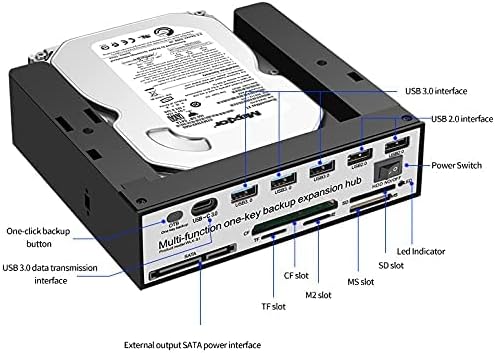
The VSVABEFV USB 3.0 Hard Drive Docking Station with a 3.5-inch HDD inserted, highlighting its multi-functionality.
പാക്കേജ് ഉള്ളടക്കം
പാക്കേജിൽ എല്ലാ ഇനങ്ങളും ഉണ്ടെന്ന് ഉറപ്പാക്കുക:
- VSVABEFV USB 3.0 Hard Drive Docking Station (Model: WLX-S1)
- USB 3.0 ഡാറ്റ കേബിൾ
- പവർ അഡാപ്റ്റർ
- ഇൻസ്ട്രക്ഷൻ മാനുവൽ
ഉൽപ്പന്ന സവിശേഷതകൾ
- Multifunctional Hard Disk Docking Station: Supports all 2.5-inch / 3.5-inch SATA/SSD hard disks with capacities up to 10TB.
- Upgraded Chip: Features a high-performance main control HUB chip for data transfer speeds up to 6 Gbps, ensuring faster and more stable operation.
- All-in-one Card Reader: Supports SD/CF/MS/XD/TF/M2 series memory cards, with a maximum capacity of 120GB.
- One-key Backup Function: Simple button operation for easy file copying from your computer to the hard disk.
- വിശാലമായ അനുയോജ്യത: Compatible with Windows 98/Me/2000/XP/Vista/7/8/10, Mac OS 9.X/10.X, Linux, and later versions. Backward compatible with USB 2.0/1.1 connections.

ഒരു ഓവർview of the docking station's multi-functional capabilities.
സജ്ജമാക്കുക
- പവർ ബന്ധിപ്പിക്കുക: Plug the provided power adapter into the DC 12V port on the back of the docking station and then into a power outlet.
- കമ്പ്യൂട്ടറുമായി ബന്ധിപ്പിക്കുക: യുഎസ്ബി 3.0 ഡാറ്റ കേബിളിന്റെ ഒരു അറ്റം ഡോക്കിംഗ് സ്റ്റേഷനിലെ യുഎസ്ബി 3.0 പോർട്ടിലേക്കും മറ്റേ അറ്റം നിങ്ങളുടെ കമ്പ്യൂട്ടറിലെ ലഭ്യമായ യുഎസ്ബി 3.0 പോർട്ടിലേക്കും ബന്ധിപ്പിക്കുക.
- ഹാർഡ് ഡ്രൈവ് ചേർക്കുക: Gently insert your 2.5-inch or 3.5-inch SATA HDD/SSD into the top slot of the docking station. The tool-free design allows for easy insertion and removal. Ensure the SATA connectors align properly.
- പവർ ഓൺ: Flip the power switch on the docking station to the 'ON' position. The device should be recognized by your computer automatically.

Proper insertion of a 3.5-inch hard drive into the docking station.
പ്രവർത്തന നിർദ്ദേശങ്ങൾ
ഡാറ്റ കൈമാറ്റം
Once the hard drive is inserted and the docking station is powered on and connected to your computer, the drive should appear as an external storage device. You can then drag and drop files to and from the drive, or use it for backups and other storage needs. The USB 3.0 interface ensures fast data transfer speeds.
One-Key Backup (OTB) Function
The docking station features a dedicated One-Key Backup button for quick data replication. To utilize this feature, you typically need to install specific software provided by the manufacturer. Refer to the manufacturer's website for the appropriate OTB software for your operating system. Once installed, configure the software to define your backup source and destination, then press the OTB button on the docking station to initiate the backup process.

Visual representation of the One-Key Backup function.
Using the Multi-Card Reader
The front panel of the docking station includes multiple card slots for various memory card formats (SD/CF/MS/XD/TF/M2). Simply insert your memory card into the corresponding slot. The card will appear as a removable drive on your computer, allowing you to access and transfer files.
HDD Independent Switch Control
The docking station is equipped with an independent power switch for the HDD. This allows you to power down the hard drive when not in use, contributing to energy saving and prolonging the drive's lifespan, without needing to disconnect the entire docking station from your computer.

The independent HDD power switch for convenient control.
അനുയോജ്യത
The docking station is compatible with a wide range of operating systems and hardware:
- ഓപ്പറേറ്റിംഗ് സിസ്റ്റങ്ങൾ: Windows 98/Me/2000/XP/Vista/7/8/10, Mac OS 9.X/10.X, Linux, and later versions.
- ഹാർഡ് ഡ്രൈവ് ഇന്റർഫേസ്: SATA I/II/III for 2.5-inch and 3.5-inch HDDs/SSDs.
- USB ഇൻ്റർഫേസ്: USB 3.0 (backward compatible with USB 2.0/1.1).
- Card Reader Support: SD/CF/MS/XD/TF/M2 series memory cards.

The docking station supports multiple operating systems.
മെയിൻ്റനൻസ്
നിങ്ങളുടെ ഡോക്കിംഗ് സ്റ്റേഷന്റെ ഒപ്റ്റിമൽ പ്രകടനവും ദീർഘായുസ്സും ഉറപ്പാക്കാൻ:
- ഉപകരണം വൃത്തിയായും പൊടിയില്ലാതെയും സൂക്ഷിക്കുക. വൃത്തിയാക്കാൻ മൃദുവായതും ഉണങ്ങിയതുമായ തുണി ഉപയോഗിക്കുക.
- തീവ്രമായ ഊഷ്മാവ്, ഈർപ്പം അല്ലെങ്കിൽ നേരിട്ടുള്ള സൂര്യപ്രകാശം എന്നിവയിലേക്ക് ഉപകരണം എക്സ്പോഷർ ചെയ്യുന്നത് ഒഴിവാക്കുക.
- ഉപകരണത്തെ ശക്തമായ ആഘാതങ്ങൾക്ക് വിധേയമാക്കുകയോ ഉപേക്ഷിക്കുകയോ ചെയ്യരുത്.
- Always safely eject hard drives from your operating system before physically removing them from the docking station.
ട്രബിൾഷൂട്ടിംഗ്
- ഡ്രൈവ് തിരിച്ചറിയാൻ കഴിഞ്ഞിട്ടില്ല: Ensure the power adapter is securely connected and the docking station is powered on. Verify the USB cable is properly connected to both the docking station and your computer. Try a different USB port on your computer. For new drives, you may need to initialize and format them through Disk Management (Windows) or Disk Utility (Mac).
- മന്ദഗതിയിലുള്ള ഡാറ്റാ ട്രാൻസ്ഫർ വേഗത: Ensure you are connected to a USB 3.0 port on your computer. Older USB 2.0/1.1 ports will result in slower speeds. The speed also depends on the hard drive's performance.
- One-Key Backup Not Working: Confirm that the OTB software is correctly installed and configured on your computer. Ensure the hard drive is properly inserted and recognized.
- Intermittent Drive Connection: Check all cable connections. Ensure the hard drive is fully seated in the SATA port.
സ്പെസിഫിക്കേഷനുകൾ
| ഫീച്ചർ | വിശദാംശങ്ങൾ |
|---|---|
| ബ്രാൻഡ് | VSVABEFV |
| മോഡൽ | WLX-S1 |
| അനുയോജ്യമായ ഡ്രൈവ് തരങ്ങൾ | 2.5" / 3.5" SATA HDD/SSD |
| Max Drive Capacity | 10 ടി.ബി |
| ഹാർഡ്വെയർ ഇന്റർഫേസ് | USB 3.0 (USB 2.0/1.1-നൊപ്പം പിന്നിലേക്ക് പൊരുത്തപ്പെടുന്നു) |
| ഡാറ്റ കൈമാറ്റ നിരക്ക് | 6 Gbps വരെ (USB 3.0) |
| കാർഡ് റീഡർ പിന്തുണ | SD/CF/MS/XD/TF/M2 series (Max 120GB) |
| അനുയോജ്യമായ OS | വിൻഡോസ്, മാക് ഒഎസ്, ലിനക്സ് |
| ഇനത്തിന്റെ അളവുകൾ (LxWxH) | 6.61 x 6.14 x 1.81 ഇഞ്ച് |
| ഇനത്തിൻ്റെ ഭാരം | 11.8 ഔൺസ് (335 ഗ്രാം) |
| നിറം | കറുപ്പ് |
Dimensions of the docking station.
ഔദ്യോഗിക ഉൽപ്പന്ന വീഡിയോ
This video demonstrates the features and functionality of a FIDECO USB 3.0 to SATA Hard Drive Docking Station, including speed tests for HDD and SSD.
വാറൻ്റിയും പിന്തുണയും
For warranty information, technical support, or any inquiries regarding your VSVABEFV USB 3.0 Hard Drive Docking Station, please refer to the product packaging or contact VSVABEFV customer service directly. Contact details can typically be found on the manufacturer's official webസൈറ്റ് അല്ലെങ്കിൽ നിങ്ങളുടെ വാങ്ങൽ പ്ലാറ്റ്ഫോം വഴി.