
1. ആമുഖം
This manual provides detailed instructions for the IRIVER EQwear-Q150 Wireless Keyboard and Optical Mouse Set. Please read this manual carefully before use to ensure proper operation and to maximize the product's lifespan. This set offers a comfortable and efficient wireless experience for your computer.
2. പാക്കേജ് ഉള്ളടക്കം
പാക്കേജിൽ എല്ലാ ഇനങ്ങളും ഉണ്ടെന്ന് ഉറപ്പാക്കുക:
- IRIVER EQwear-Q150 Wireless Keyboard
- IRIVER EQwear-Q150 Wireless Optical Mouse
- 2.4GHz യുഎസ്ബി റിസീവർ
- ഉപയോക്തൃ മാനുവൽ (ഈ പ്രമാണം)
3. സജ്ജീകരണം
Follow these steps to set up your IRIVER EQwear-Q150 Wireless Keyboard and Mouse Set:
- ബാറ്ററികൾ ഇൻസ്റ്റാൾ ചെയ്യുക: Open the battery compartments on both the keyboard and the mouse. Insert the required batteries (not included) according to the polarity indicators.
- USB റിസീവർ കണ്ടെത്തുക: The 2.4GHz USB receiver is typically stored within the mouse for convenience during transport. Gently remove it from its slot.
- USB റിസീവർ ബന്ധിപ്പിക്കുക: Plug the 2.4GHz USB receiver into an available USB port on your computer. Your operating system should automatically detect and install the necessary drivers.

Figure 3.1: Connecting the 2.4GHz USB receiver to a laptop.

Figure 3.2: The USB receiver is conveniently stored within the mouse.
The keyboard and mouse are pre-paired with the receiver. Once the receiver is connected, the devices should be ready for use.
4. പ്രവർത്തന നിർദ്ദേശങ്ങൾ
4.1 കീബോർഡ് ഉപയോഗം
The IRIVER EQwear-Q150 keyboard is designed for comfortable and accurate typing:
- എർഗണോമിക് ഡിസൈൻ: Features an ergonomic design for reduced hand fatigue during extended use.
- U-shaped Buttons: The unique U-shaped keycaps enhance typing accuracy and prevent typos.
- Durable Laser Printing: Keys are laser-printed and coated to prevent characters from fading over time.
- ജല പ്രതിരോധം: Equipped with four drainage holes on the underside to protect against accidental spills of water, coffee, or other liquids.
- ക്രമീകരിക്കാവുന്ന ടിൽറ്റ്: The keyboard includes adjustable tilt legs and anti-slip rubber pads for customized typing angles and stability.

Figure 4.1: User typing on the ergonomically designed keyboard.

ചിത്രം 4.2: വിശദമായി view of keyboard features: U-shaped keys for accuracy, adjustable feet for comfort, and drainage holes for spill protection.
4.2 മൗസ് ഉപയോഗം
The IRIVER EQwear-Q150 optical mouse provides precise control:
- ഉയർന്ന കൃത്യത: Features a 1600 DPI optical sensor for fast and accurate operation across various tasks, including general work, gaming, and graphic design.
- ബാക്ക്വേർഡ് ബട്ടൺ: An additional 'Backward' button is conveniently located near the thumb for easy page navigation.
- ഭാരം കുറഞ്ഞ ഡിസൈൻ: Weighing only 62g, the mouse is comfortable for prolonged use.
- ഈട്: Tested for over 3 million clicks, ensuring long-lasting performance.

Figure 4.3: The optical mouse with its convenient backward navigation button.
4.3 വയർലെസ് കണക്ഷൻ
The 2.4GHz wireless technology ensures a stable and wide-ranging connection:
- സ്ഥിരതയുള്ള കണക്ഷൻ: Provides a reliable 2.4GHz wireless connection for both keyboard and mouse simultaneously.
- വിപുലീകരിച്ച ശ്രേണി: Enjoy a maximum operating distance of up to 10 meters (33 feet) with 360-degree coverage, allowing flexible placement.
Figure 4.4: Illustration of the 360-degree, 10-meter wireless operating range.
4.4 മൾട്ടിമീഡിയ ഹോട്ട്കീകൾ
The keyboard features dedicated multimedia hotkeys for quick access to various functions. Press the Fn key in combination with the corresponding function key:
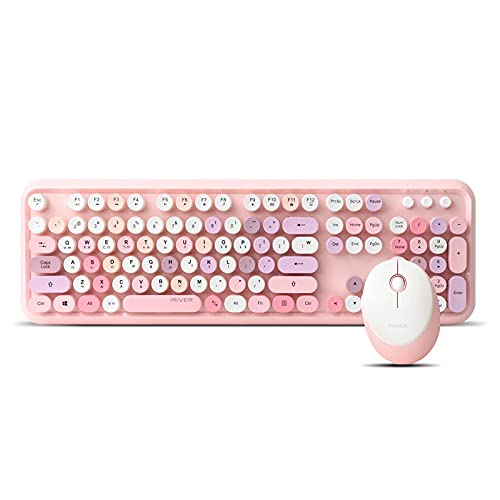
Figure 4.5: Keyboard layout with multimedia hotkeys.
| ഹോട്ട്കീ കോമ്പിനേഷൻ | ഫംഗ്ഷൻ |
|---|---|
| FN + ESC | മീഡിയ പ്ലെയർ |
| FN + F1 | പ്ലേ/താൽക്കാലികമായി നിർത്തുക |
| FN + F2 | മുമ്പത്തെ ട്രാക്ക് |
| FN + F3 | അടുത്ത ട്രാക്ക് |
| FN + F4 | വോളിയം കൂട്ടുക |
| FN + F5 | വോളിയം ഡൗൺ |
| FN + F6 | നിശബ്ദമാക്കുക |
| FN + F7 | Web വീട് |
| FN + F8 | തിരയൽ |
| FN + F9 | എനിക്ക് പ്രിയപ്പെട്ടവ |
| FN + F10 | ഇമെയിൽ |
| FN + F11 | കീബോർഡ് ലോക്ക് |
| FN + F12 | എൻ്റെ കമ്പ്യൂട്ടർ |
5. പരിപാലനം
ശരിയായ അറ്റകുറ്റപ്പണി നിങ്ങളുടെ ഉപകരണത്തിന്റെ ദീർഘായുസ്സും പ്രകടനവും ഉറപ്പാക്കുന്നു:
- വൃത്തിയാക്കൽ: Use a soft, dry cloth to clean the keyboard and mouse. For stubborn dirt, slightly dampതുണിയിൽ വെള്ളം അല്ലെങ്കിൽ നേരിയ ക്ലീനിംഗ് ലായനി ഉപയോഗിക്കുക. കഠിനമായ രാസവസ്തുക്കളോ ഉരച്ചിലുകളോ ഉള്ള വസ്തുക്കൾ ഒഴിവാക്കുക.
- ചോർച്ച മാനേജ്മെന്റ്: In case of liquid spills on the keyboard, immediately disconnect it from the computer, turn it upside down to drain, and allow it to dry completely before reuse. The drainage holes are designed to assist with this.
- ബാറ്ററി മാറ്റിസ്ഥാപിക്കൽ: Replace batteries promptly when performance degrades. Dispose of old batteries responsibly according to local regulations.
- സംഭരണം: When not in use for extended periods, store the keyboard and mouse in a cool, dry place. Remove batteries if storing for several months to prevent leakage.
6. പ്രശ്നപരിഹാരം
If you encounter issues with your IRIVER EQwear-Q150 set, refer to the following common solutions:
- കീബോർഡ്/മൗസിൽ നിന്ന് പ്രതികരണമൊന്നുമില്ല:
- ബാറ്ററികൾ ശരിയായി ചേർത്തിട്ടുണ്ടോ എന്നും ആവശ്യത്തിന് ചാർജ് ഉണ്ടോ എന്നും പരിശോധിക്കുക. ആവശ്യമെങ്കിൽ മാറ്റി സ്ഥാപിക്കുക.
- Ensure the 2.4GHz USB receiver is securely plugged into a working USB port on your computer. Try a different USB port.
- നിങ്ങളുടെ കമ്പ്യൂട്ടർ പുനരാരംഭിക്കുക.
- ലാഗിംഗ് അല്ലെങ്കിൽ ഇടവിട്ടുള്ള കണക്ഷൻ:
- കീബോർഡും മൗസും യുഎസ്ബി റിസീവറിന് അടുത്തേക്ക് നീക്കുക.
- Ensure there are no large metal objects or other wireless devices (e.g., Wi-Fi routers, cordless phones) operating too close to the receiver, which might cause interference.
- ബാറ്ററി ലെവലുകൾ പരിശോധിക്കുകയും കുറവാണെങ്കിൽ മാറ്റി വയ്ക്കുകയും ചെയ്യുക.
- മൗസ് കഴ്സർ ചാടുന്നു അല്ലെങ്കിൽ കൃത്യമല്ല:
- മൗസിന്റെ അടിവശത്തുള്ള ഒപ്റ്റിക്കൽ സെൻസർ വൃത്തിയാക്കുക.
- വൃത്തിയുള്ളതും പ്രതിഫലിക്കാത്തതുമായ ഒരു പ്രതലത്തിലോ മൗസ് പാഡിലോ മൗസ് ഉപയോഗിക്കുക.
- പ്രതികരിക്കാത്ത കീകൾ:
- Ensure the keyboard is not in 'Keyboard Lock' mode (check FN+F11).
- If specific keys are not working, gently clean around them to remove any debris.
7 സ്പെസിഫിക്കേഷനുകൾ
Detailed specifications for the IRIVER EQwear-Q150 Wireless Keyboard and Mouse Set:
ചിത്രം 7.1: ഉൽപ്പന്നം കഴിഞ്ഞുview with key features and specifications.
കീബോർഡ് സവിശേഷതകൾ:
- കീ എണ്ണം: 106 കീകൾ
- ലേഔട്ട്: QWERTY (Korean language support)
- അളവുകൾ: 452.4 x 143.9 x 35.8 മിമി
- ഭാരം: 780 ഗ്രാം
- കീ തരം: മെംബ്രൺ
- ഫീച്ചറുകൾ: Ergonomic design, U-shaped buttons, Laser printing, Water-resistant (drainage holes), Adjustable tilt, Anti-slip pads
മൗസ് സവിശേഷതകൾ:
- DPI: 1600 DPI Optical
- ബട്ടണുകൾ: 4 buttons (including Backward button)
- അളവുകൾ: 101.2 x 75 x 33.6 മിമി
- ഭാരം: 62 ഗ്രാം
- ഈട്: 3 million click test
പൊതുവായ സവിശേഷതകൾ:
- കണക്റ്റിവിറ്റി: 2.4GHz വയർലെസ്
- വയർലെസ് ശ്രേണി: Up to 10 meters (360-degree)
- OS അനുയോജ്യത: Windows (Vista, 7, 8, 10), Mac OS X 10.5 or later, Linux kernel 2.6 or later, Chrome OS
- എൻക്രിപ്ഷൻ: AES 128-ബിറ്റ്
- UPC: 639015008413
8. വാറൻ്റി വിവരങ്ങൾ
The IRIVER EQwear-Q150 Wireless Keyboard and Mouse Set comes with a limited warranty. Please refer to the warranty card included with your product for specific terms, conditions, and duration of coverage. For warranty claims or inquiries, retain your proof of purchase.
9. പിന്തുണ
For further assistance, technical support, or product-related questions, please contact IRIVER customer service or visit the official IRIVER website. Contact details can typically be found on the product packaging or the official brand webസൈറ്റ്.