
1. ആമുഖം
This manual provides detailed instructions for the setup, operation, and maintenance of your vretti 420B Ethernet Network Thermal Label Printer. The vretti 420B is designed for efficient label printing, supporting various operating systems including Windows, Mac, and Linux, and is suitable for a wide range of applications.
2. പാക്കേജ് ഉള്ളടക്കം
താഴെ ലിസ്റ്റ് ചെയ്തിരിക്കുന്ന എല്ലാ ഇനങ്ങളും നിങ്ങളുടെ പാക്കേജിൽ ഉൾപ്പെടുത്തിയിട്ടുണ്ടെന്ന് ദയവായി പരിശോധിക്കുക. ഏതെങ്കിലും ഇനങ്ങൾ നഷ്ടപ്പെട്ടിട്ടുണ്ടെങ്കിലോ കേടായിട്ടുണ്ടെങ്കിലോ, ദയവായി ഉപഭോക്തൃ പിന്തുണയുമായി ബന്ധപ്പെടുക.
- vretti 420B Thermal Label Printer
- പവർ അഡാപ്റ്ററും പവർ കോർഡും
- USB കേബിൾ
- Label Spindle and Guides
- ദ്രുത ആരംഭ ഗൈഡ്
- USB Drive (containing drivers and manuals)
- Sample Labels (may vary)

ചിത്രം 2.1: Contents of the vretti 420B printer package. This image displays the printer unit, power supply, USB cable, label guides, a USB drive, and a quick start guide.
3. സജ്ജീകരണം
3.1 ശാരീരിക ബന്ധം
- പ്രിന്റർ ഒരു സ്ഥിരതയുള്ളതും പരന്നതുമായ പ്രതലത്തിൽ സ്ഥാപിക്കുക.
- Connect the power adapter to the printer's power port and then plug the power cord into an electrical outlet.
- Connect the printer to your computer using either the provided USB cable or an Ethernet cable for network printing.
- പവർ സ്വിച്ച് ഉപയോഗിച്ച് പ്രിന്റർ ഓണാക്കുക.
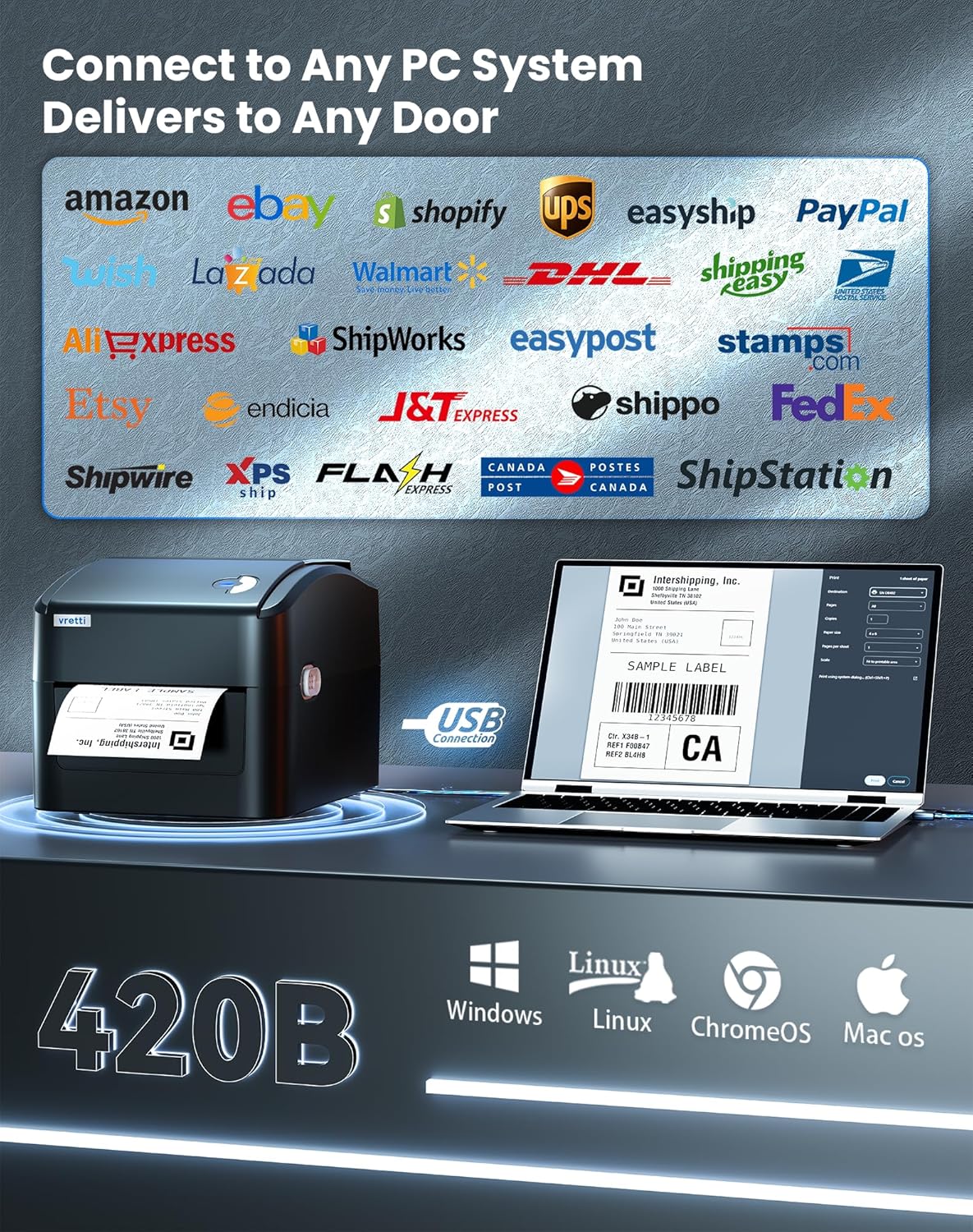
ചിത്രം 3.1: The vretti 420B printer connected to a computer, illustrating its compatibility with various PC systems and shipping platforms.
3.2 ലേബലുകൾ ലോഡുചെയ്യുന്നു
- പ്രിന്ററിന്റെ മുകളിലെ കവർ തുറക്കുക.
- Place the label roll onto the adjustable spindle inside the built-in paper bin. Ensure the labels feed from the bottom of the roll.
- Adjust the guide rails to fit the width of your labels, ensuring the labels are snug but can move freely.
- Pull the leading edge of the labels through the printer mechanism until it extends slightly past the print head.
- മുകളിലെ കവർ അടയ്ക്കുക.
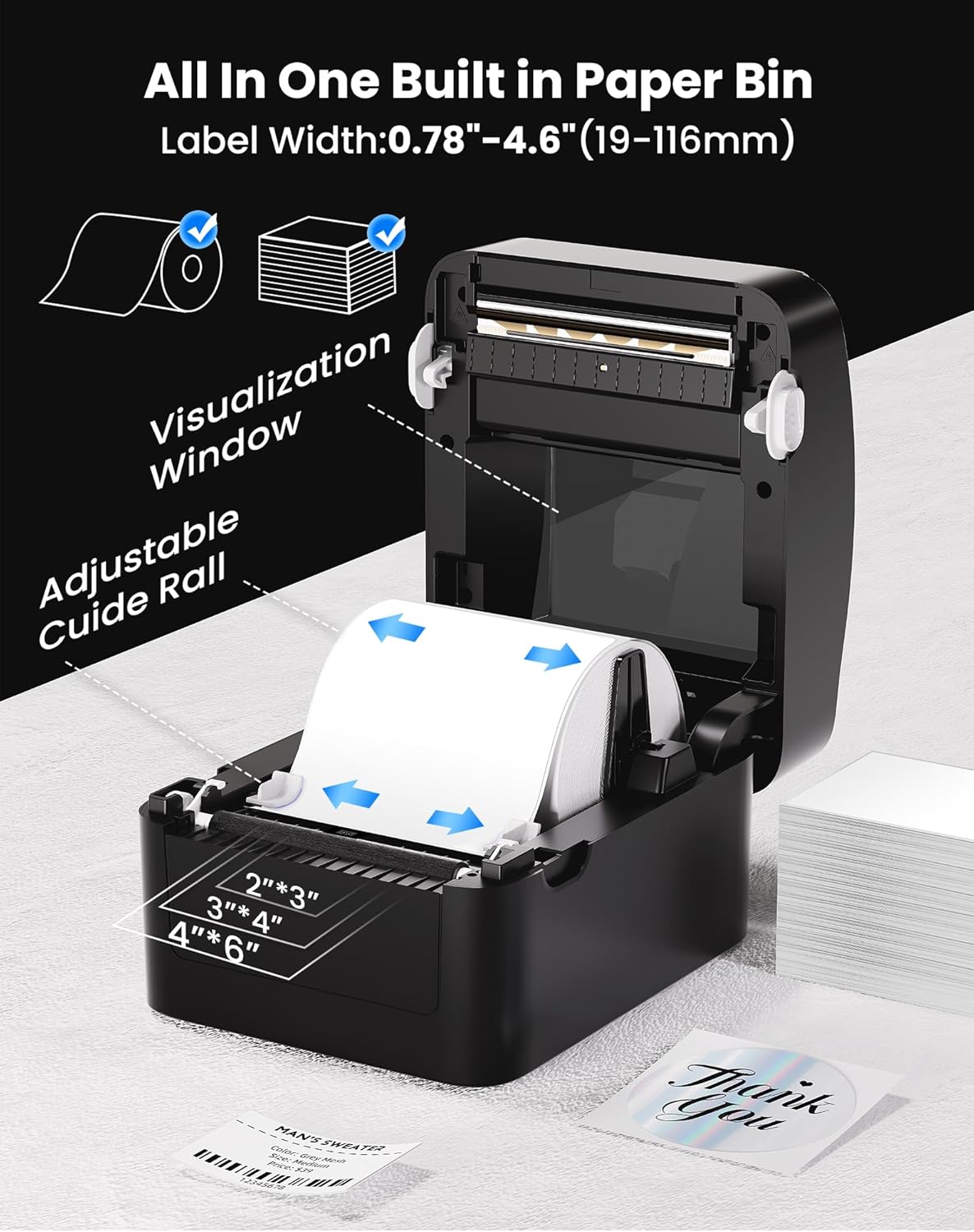
ചിത്രം 3.2: Illustration of the label loading process, showing the adjustable guide rails and the visualization window for monitoring label supply. The printer supports label widths from 0.78 to 4.6 inches (19-116mm).
3.3 ഡ്രൈവർ ഇൻസ്റ്റലേഷൻ
Before printing, you must install the appropriate printer driver for your operating system.
- വിൻഡോസ്/ലിനക്സ്: Insert the provided USB drive into your computer and follow the instructions to install the driver. Alternatively, download the latest driver from the official vretti webസൈറ്റ്.
- മാക് ഒഎസ്: The driver from the provided USB drive is recommended for Mac OS. If issues arise, contact vretti customer support for the latest compatible Mac driver.

ചിത്രം 3.3: A user setting up the vretti 420B printer, demonstrating the ease of installation.
3.4 Label Calibration
After loading labels, it is crucial to calibrate the printer to recognize the label size.
- With the printer powered on and labels loaded, press and hold the feed button (usually the single button on the top of the printer) until the printer emits a beep or the status light changes.
- Release the button. The printer will feed a few blank labels to detect the label gaps and calibrate itself.
- Once calibration is complete, the printer is ready for use.
4. പ്രവർത്തന നിർദ്ദേശങ്ങൾ
4.1 ഒരു ലേബൽ അച്ചടിക്കൽ
- പ്രിന്റർ നിങ്ങളുടെ കമ്പ്യൂട്ടറുമായി ബന്ധിപ്പിച്ചിട്ടുണ്ടെന്നും പവർ ഓൺ ചെയ്തിട്ടുണ്ടെന്നും ഉറപ്പാക്കുക.
- നിങ്ങൾ പ്രിന്റ് ചെയ്യാൻ ആഗ്രഹിക്കുന്ന ഡോക്യുമെന്റ് അല്ലെങ്കിൽ ആപ്ലിക്കേഷൻ തുറക്കുക.
- ആപ്ലിക്കേഷന്റെ മെനുവിൽ നിന്ന് "പ്രിന്റ്" തിരഞ്ഞെടുക്കുക.
- Choose the "vretti 420B" printer from the list of available printers.
- Adjust print settings (e.g., label size, orientation) as needed within the printer preferences or application settings.
- ജോലി പ്രിന്ററിലേക്ക് അയയ്ക്കാൻ "പ്രിന്റ്" ക്ലിക്ക് ചെയ്യുക.
4.2 പിന്തുണയ്ക്കുന്ന പ്ലാറ്റ്ഫോമുകൾ
The vretti 420B printer is compatible with a variety of operating systems:
- വിൻഡോസ്
- Mac OS
- ലിനക്സ്
- ChromeOS
4.3 Print Quality and Speed
The vretti 420B offers high-quality thermal printing with efficient speed.
- റെസലൂഷൻ: 203 x 203 DPI, ensuring clear and scannable barcodes and text.
- പ്രിൻ്റ് വേഗത: Up to 152 mm/s (72 labels per minute), optimizing workflow efficiency.

ചിത്രം 4.1: ക്ലോസ് അപ്പ് view of a printed label, demonstrating the 203 DPI print resolution and the high scannability of barcodes.

ചിത്രം 4.2: The vretti 420B printer in operation, illustrating its capability for high-volume printing at 152 mm/s (72 labels per minute).
5. പരിപാലനം
The vretti 420B is a direct thermal printer, meaning it does not require ink or toner cartridges. Regular maintenance primarily involves cleaning.
5.1 പ്രിന്റ് ഹെഡ് വൃത്തിയാക്കൽ
- പ്രിന്റർ ഓഫ് ചെയ്ത് പവർ കോർഡ് വിച്ഛേദിക്കുക.
- പ്രിന്ററിന്റെ മുകളിലെ കവർ തുറക്കുക.
- Wait a few minutes for the print head to cool down if the printer has been recently used.
- ആൽക്കഹോൾ സ്വാബ് അല്ലെങ്കിൽ മൃദുവായ, ലിന്റ് രഹിത തുണി ഉപയോഗിച്ച് പ്രിന്റ് ഹെഡ് സൌമ്യമായി തുടയ്ക്കുക d.ampഐസോപ്രോപൈൽ ആൽക്കഹോൾ ഉപയോഗിച്ചാണ് നിർവഹിച്ചത്.
- കവർ അടച്ച് വീണ്ടും പവർ കണക്റ്റ് ചെയ്യുന്നതിനുമുമ്പ് പ്രിന്റ് ഹെഡ് പൂർണ്ണമായും ഉണങ്ങാൻ അനുവദിക്കുക.
ജാഗ്രത: Do not touch the print head with bare hands as oils can transfer and affect print quality. Use only isopropyl alcohol for cleaning.
6. പ്രശ്നപരിഹാരം
This section addresses common issues you might encounter with your vretti 420B printer.
6.1 പ്രിന്റർ പ്രതികരിക്കുന്നില്ല
- പവർ കോർഡ് സുരക്ഷിതമായി ബന്ധിപ്പിച്ചിട്ടുണ്ടെന്നും പ്രിന്റർ ഓണാക്കിയിട്ടുണ്ടെന്നും ഉറപ്പാക്കുക.
- Verify the USB or Ethernet cable is properly connected to both the printer and the computer/network.
- Check the printer's status light. If it's flashing or red, refer to the quick start guide for error codes.
- പ്രിന്ററും നിങ്ങളുടെ കമ്പ്യൂട്ടറും പുനരാരംഭിക്കുക.
6.2 മോശം പ്രിന്റ് നിലവാരം
- Ensure you are using high-quality direct thermal labels.
- മെയിന്റനൻസ് വിഭാഗത്തിൽ വിവരിച്ചിരിക്കുന്നതുപോലെ പ്രിന്റ് ഹെഡ് വൃത്തിയാക്കുക.
- Recalibrate the labels (Section 3.4).
- Check printer driver settings to ensure optimal print density and speed are selected.
6.3 ശരിയായി ഭക്ഷണം നൽകാത്ത ലേബലുകൾ
- Verify labels are loaded correctly and the guide rails are adjusted snugly against the label edges.
- Perform a label calibration (Section 3.4).
- ലേബൽ പാതയിൽ തടസ്സങ്ങളൊന്നുമില്ലെന്ന് ഉറപ്പാക്കുക.
6.4 Mac Driver Issues
If you experience issues with the Mac driver, particularly if the one from the website is outdated, please use the driver provided on the USB stick that came with the printer. If problems persist, contact vretti customer support for assistance.
7 സ്പെസിഫിക്കേഷനുകൾ
| ഫീച്ചർ | സ്പെസിഫിക്കേഷൻ |
|---|---|
| ബ്രാൻഡ് | വ്രെത്തി |
| മോഡലിൻ്റെ പേര് | 420 ബി |
| കണക്റ്റിവിറ്റി ടെക്നോളജി | ഇഥർനെറ്റ്, യുഎസ്ബി |
| പ്രിൻ്റിംഗ് ടെക്നോളജി | തെർമൽ |
| പ്രിൻ്റർ ഔട്ട്പുട്ട് | മോണോക്രോം |
| പരമാവധി പ്രിന്റ് വേഗത | 152 മിമി/സെക്കൻഡ് (72 ലേബലുകൾ/മിനിറ്റ്) |
| റെസലൂഷൻ | 203 x 203 ബിപിഐ |
| ലേബൽ വീതി | 0.78" - 4.6" (19-116 മിമി) |
| അനുയോജ്യമായ ഉപകരണങ്ങൾ | PC (Windows, Mac, Linux, ChromeOS) |
| ഇനത്തിൻ്റെ അളവുകൾ (D x W x H) | 8"D x 6.69"W x 5.9"H |
| ഇനത്തിൻ്റെ ഭാരം | 10.92 കിലോഗ്രാം |
| വാട്ട്tage | 600 വാട്ട്സ് |
| മോഡൽ നമ്പർ | AZ-420B-B-UK |
| യു.പി.സി | 602309953690 |
8. വാറൻ്റിയും പിന്തുണയും
For information regarding the product warranty, please refer to the warranty card included in your package or visit the official vretti webസൈറ്റ്.
For technical support, driver updates, or further assistance, please visit the official vretti support website or contact their customer service department. Contact details can typically be found on the vretti webസൈറ്റിലോ ക്വിക്ക് സ്റ്റാർട്ട് ഗൈഡിലോ.