
1. ആമുഖം
This instruction manual provides detailed information on the setup, operation, maintenance, and troubleshooting for your Aibecy withzoom 1080P 3X Optical Zoom Webcam. Please read this manual thoroughly before using the product to ensure proper functionality and to prevent damage.
2. ഉൽപ്പന്നം കഴിഞ്ഞുview
2.1 പ്രധാന സവിശേഷതകൾ
- 1080P Full HD Video Resolution
- 3X ഒപ്റ്റിക്കൽ സൂം ലെൻസ്
- 355° Horizontal Rotation and 90° Vertical Rotation
- റിമോട്ട് കൺട്രോൾ ഓപ്പറേഷൻ
- USB കണക്റ്റിവിറ്റി
- Compatible with Windows, Mac, Linux, and Chromebook operating systems
- Infrared (IR) support
2.2 പാക്കേജ് ഉള്ളടക്കം
പാക്കേജിൽ എല്ലാ ഇനങ്ങളും ഉണ്ടെന്ന് ഉറപ്പാക്കുക:
- Aibecy withzoom Webക്യാമറ
- റിമോട്ട് കൺട്രോൾ
- എസി പവർ അഡാപ്റ്റർ
- USB കേബിൾ
- മൌണ്ടിംഗ് ബ്രാക്കറ്റ്
- ഇൻസ്റ്റാളേഷനുള്ള സ്ക്രൂകൾ

ചിത്രം 1: പാക്കേജ് ഉള്ളടക്കം
2.3 ഉൽപ്പന്ന ഡയഗ്രം

ചിത്രം 2: മുൻഭാഗം View ഘടകങ്ങളും
- എച്ച്ഡി ലെൻസ്: ഹൈ-ഡെഫനിഷൻ വീഡിയോ പകർത്തുന്നു.
- 355° Rotating Gimbal: Allows for wide-angle coverage and precise positioning.
- IR Infrared Receiver: റിമോട്ട് കൺട്രോളിൽ നിന്ന് സിഗ്നലുകൾ സ്വീകരിക്കുന്നു.
- പവർ സൂചകം: ഉപകരണത്തിന്റെ പവർ സ്റ്റാറ്റസ് കാണിക്കുന്നു.
- Remote Indicator: Lights up when a remote control signal is received.
3. സജ്ജീകരണ ഗൈഡ്
3.1 ഇൻസ്റ്റലേഷൻ രീതികൾ
The Aibecy withzoom webcam offers flexible installation options:
- ടേബിൾ പ്ലേസ്മെൻ്റ്: Place the camera on a flat surface such as a desk or conference table.
- സീലിംഗ് മൗണ്ട്: Use the included mounting bracket and screws to attach the camera to the ceiling. Ensure the image flip function is enabled if mounting upside down.
- ബ്രാക്കറ്റ് മൗണ്ട്: Attach the camera to a tripod or other compatible bracket using the screw hole at the bottom.

Figure 3: Installation Options
3.2 ക്യാമറ കണക്ട് ചെയ്യുന്നു
Follow these steps to connect your webക്യാം:
- പവർ കണക്ഷൻ: Connect the AC power adapter to the camera's 12V power input port and plug it into a power outlet.
- USB കണക്ഷൻ: Connect the USB cable from the camera's USB port to an available USB port on your computer (Windows, Mac, Linux, or Chromebook). The camera is plug-and-play and does not require driver software.
- Optional RS232/RS422 Connection: If advanced control via RS232 or RS422 is required, connect the appropriate cable from the camera to your control device.

ചിത്രം 4: കണക്ഷൻ ഡയഗ്രം
Once connected, open your video conferencing software (e.g., Zoom, Skype, Microsoft Teams) and select the Aibecy withzoom camera as your video input device.
4. പ്രവർത്തന നിർദ്ദേശങ്ങൾ
4.1 അടിസ്ഥാന പ്രവർത്തനം
- പവർ ഓൺ: After connecting the power adapter, the camera will automatically power on. The Power Indicator light will illuminate.
- പവർ ഓഫ്: Disconnect the power adapter from the camera.
4.2 റിമോട്ട് കൺട്രോൾ ഉപയോഗിക്കുന്നു
The included remote control allows for easy adjustment of camera functions.

ചിത്രം 5: Webcam and Remote Control
- Camera Selection Buttons: If multiple cameras are connected, use these buttons to select the camera you wish to control.
- Rotation Speed Control: Adjust the pan/tilt speed for smoother movements.
- Pan/Tilt/Zoom (PTZ) Controls: Use the directional arrows to pan (left/right) and tilt (up/down) the camera. Use the zoom in/out buttons to adjust the optical zoom.
- Preset Function Area: Save and recall specific camera positions and zoom levels using the preset buttons.
4.3 Camera Movement and Zoom
The camera supports wide-range movement for comprehensive coverage:
- തിരശ്ചീന ഭ്രമണം: The camera head can rotate 355 degrees horizontally.
- ലംബ ഭ്രമണം: The camera head can tilt 90 degrees vertically.
- ഒപ്റ്റിക്കൽ സൂം: Utilize the 3X optical zoom to focus on specific areas without loss of image quality.
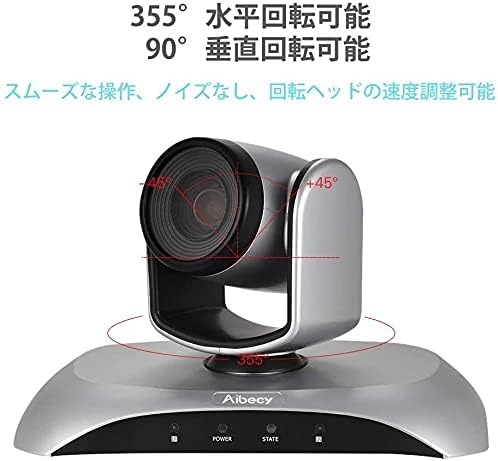
Figure 6: Camera Rotation Capabilities
4.4 ഇമേജ് ഫ്ലിപ്പ് ഫംഗ്ഷൻ
If the camera is mounted upside down (e.g., on a ceiling), you can use the image flip function to correct the video orientation.

Figure 7: Image Flip Function in Use
Refer to the remote control instructions for the specific button to activate or deactivate the image flip function.
5. പരിപാലനം
ശരിയായ അറ്റകുറ്റപ്പണി നിങ്ങളുടെ ഉപകരണത്തിന്റെ ദീർഘായുസ്സും മികച്ച പ്രകടനവും ഉറപ്പാക്കുന്നു webക്യാം
- വൃത്തിയാക്കൽ: ക്യാമറ ബോഡി വൃത്തിയാക്കാൻ മൃദുവായതും ഉണങ്ങിയതുമായ തുണി ഉപയോഗിക്കുക. ലെൻസിന്, ഒരു പ്രത്യേക ലെൻസ് ക്ലീനിംഗ് തുണിയും ലായനിയും ഉപയോഗിക്കുക. അബ്രസിവ് ക്ലീനറുകളോ ലായകങ്ങളോ ഉപയോഗിക്കുന്നത് ഒഴിവാക്കുക.
- സംഭരണം: ദീർഘനേരം ഉപയോഗിക്കാത്തപ്പോൾ, നേരിട്ടുള്ള സൂര്യപ്രകാശവും ഉയർന്ന താപനിലയും ഏൽക്കാത്ത തണുത്തതും വരണ്ടതുമായ സ്ഥലത്ത് ക്യാമറ സൂക്ഷിക്കുക.
- കൈകാര്യം ചെയ്യൽ: ക്യാമറ താഴെയിടുകയോ ശക്തമായ ആഘാതങ്ങൾക്ക് വിധേയമാക്കുകയോ ചെയ്യുന്നത് ഒഴിവാക്കുക.
6. പ്രശ്നപരിഹാരം
If you encounter issues with your Aibecy withzoom webcam, refer to the table below for common problems and solutions.
| പ്രശ്നം | സാധ്യമായ കാരണം | പരിഹാരം |
|---|---|---|
| No image or video output | Power not connected; USB cable loose; Incorrect camera selected in software. | Ensure power adapter is securely connected. Check USB cable connection. Select the Aibecy withzoom camera in your video conferencing software settings. |
| റിമോട്ട് കൺട്രോൾ പ്രവർത്തിക്കുന്നില്ല | Batteries low/dead; Obstruction between remote and camera; Remote not pointed at IR receiver. | Replace remote control batteries. Ensure a clear line of sight to the camera's IR receiver. Point the remote directly at the camera. |
| ചിത്രം തലകീഴായി കിടക്കുന്നു | Camera mounted upside down and image flip not activated. | Activate the image flip function using the remote control. |
| മോശം വീഡിയോ നിലവാരം | Insufficient lighting; Dirty lens; Network bandwidth issues. | Ensure adequate lighting in the room. Clean the camera lens. Check your internet connection speed. |
7 സാങ്കേതിക സവിശേഷതകൾ
| ഫീച്ചർ | സ്പെസിഫിക്കേഷൻ |
|---|---|
| ബ്രാൻഡ് | ഐബിസി |
| മോഡൽ നമ്പർ | withzoom |
| വീഡിയോ ക്യാപ്ചർ റെസല്യൂഷൻ | 1080p |
| ഒപ്റ്റിക്കൽ സൂം | 3X |
| തിരശ്ചീന ഭ്രമണം | 355° |
| ലംബ റൊട്ടേഷൻ | 90° |
| കണക്റ്റിവിറ്റി ടെക്നോളജി | USB |
| അനുയോജ്യമായ ഉപകരണങ്ങൾ | Windows, Mac, Linux, Chromebook |
| പ്രത്യേക സവിശേഷതകൾ | Remote Control, Infrared |
| ഇമേജ് സ്റ്റെബിലൈസേഷൻ | ഇല്ല |
| പാക്കേജ് അളവുകൾ | 29.7 x 22.4 x 19.9 സെ.മീ |
| ഇനത്തിൻ്റെ ഭാരം | 1.51 കി.ഗ്രാം |
8. പിന്തുണാ വിവരങ്ങൾ
For further assistance or inquiries not covered in this manual, please refer to the official Aibecy support channels or contact your retailer. Keep your purchase receipt for warranty purposes.