
OWC OWCTB4HUB5P
OWC 5 Port Thunderbolt Hub Instruction Manual
Model: OWCTB4HUB5P | Brand: OWC
ആമുഖം
This manual provides comprehensive instructions for the OWC 5 Port Thunderbolt Hub. It covers setup, operation, maintenance, and troubleshooting to ensure optimal performance and longevity of your device. The OWC Thunderbolt Hub expands the connectivity of your computer, offering multiple Thunderbolt 4 ports and a USB 3.2 Gen 2 Type-A port, along with power delivery capabilities.
സുരക്ഷാ വിവരങ്ങൾ
- ഈർപ്പം അല്ലെങ്കിൽ അങ്ങേയറ്റത്തെ താപനിലയിലേക്ക് ഉപകരണം തുറന്നുകാട്ടരുത്.
- Use only the power adapter supplied with the hub.
- അമിതമായി ചൂടാക്കുന്നത് തടയാൻ വെൻ്റിലേഷൻ ഓപ്പണിംഗുകൾ തടയുന്നത് ഒഴിവാക്കുക.
- ഉപകരണം സ്വയം ഡിസ്അസംബ്ലിംഗ് ചെയ്യാനോ നന്നാക്കാനോ ശ്രമിക്കരുത്. എല്ലാ സേവനങ്ങളും യോഗ്യതയുള്ള ഉദ്യോഗസ്ഥരെ ഏൽപ്പിക്കുക.
- ശക്തമായ കാന്തിക മണ്ഡലങ്ങളിൽ നിന്ന് ഉപകരണം അകറ്റി നിർത്തുക.
പാക്കേജ് ഉള്ളടക്കം
നിങ്ങളുടെ പാക്കേജിൽ എല്ലാ ഇനങ്ങളും ഉണ്ടെന്ന് ഉറപ്പാക്കുക:
- OWC 5 Port Thunderbolt Hub
- പവർ അഡാപ്റ്റർ
- തണ്ടർബോൾട്ട് 4 കേബിൾ
- ക്വിക്ക് സ്റ്റാർട്ട് ഗൈഡ് (ഈ ഡിജിറ്റൽ മാനുവലിൽ ഉൾപ്പെടുത്തിയിട്ടില്ല)
ഉൽപ്പന്നം കഴിഞ്ഞുview
The OWC 5 Port Thunderbolt Hub is designed to expand your computer's connectivity, providing additional Thunderbolt 4 and USB 3.2 Gen 2 Type-A ports. It features a compact design suitable for various setups.

ചിത്രം 1: മുൻഭാഗം view of the OWC 5 Port Thunderbolt Hub, showing the OWC logo and the USB 3.2 10Gb/s port.
പോർട്ട് ലേഔട്ട്
The hub features a variety of ports to connect your devices:
- ഹോസ്റ്റ് പോർട്ട്: One Thunderbolt 4 port (up to 40 Gb/s) for connecting to your computer.
- ഉപകരണ പോർട്ടുകൾ: Three Thunderbolt 4 ports for connecting external drives, displays, and other Thunderbolt devices.
- USB-A പോർട്ട്: One USB 3.2 Gen 2 Type-A port (up to 10 Gb/s) for connecting USB peripherals. This port is backwards compatible with USB 2.0/3.0.
- പവർ ഇൻപുട്ട്: DC IN 20V 5.5A for connecting the power adapter.

ചിത്രം 2: മുകളിലും താഴെയും views of the hub, illustrating the arrangement of the DC power input, host Thunderbolt port, three device Thunderbolt ports, and the USB 3.2 port.
സജ്ജമാക്കുക
- പവർ ബന്ധിപ്പിക്കുക: Plug the provided power adapter into the DC IN port on the OWC Thunderbolt Hub, then connect the adapter to a power outlet.
- Connect to Host Computer: Use the included Thunderbolt 4 cable to connect the host Thunderbolt 4 port on the hub to an available Thunderbolt 3 or Thunderbolt 4 port on your computer. For USB-C equipped devices, connect to a USB-C port.
- ഡ്രൈവറുകൾ ഇൻസ്റ്റാൾ ചെയ്യുക (ആവശ്യമെങ്കിൽ): For most modern operating systems (macOS 11.1 Big Sur or later, Windows 10/11 with Thunderbolt 4), drivers are automatically installed. If prompted, follow on-screen instructions.
- പെരിഫറലുകൾ ബന്ധിപ്പിക്കുക: Connect your Thunderbolt devices, USB devices, and displays to the available ports on the hub.

Figure 3: The hub in use, demonstrating multiple devices connected for full performance.
പ്രവർത്തന നിർദ്ദേശങ്ങൾ
പവർ ഡെലിവറി
- The Thunderbolt 4 host port provides up to 60W of power to charge your connected host computer.
- Each Thunderbolt 4 device port provides 15W of power for external drives and other devices.
- The USB 3.2 Gen 2 Type-A port provides up to 1.5A of power for bus-powered drives and device charging.

Figure 4: The hub actively charging a laptop and providing power to connected peripherals.
ഡിസ്പ്ലേ പിന്തുണ
The OWC Thunderbolt Hub supports various display configurations:
- Up to one 8K display at 60Hz.
- Up to one 4K display at 120Hz.
- Up to two 4K displays at 60Hz.
- Up to two 5K displays at 60Hz.
- Display support via Thunderbolt 4: Up to 8K @ 60Hz or 4K @ 120Hz via a native Thunderbolt 4 display or other display that supports USB-C connections and DisplayPort 1.4.
- Note: Actual display support may vary based on your computer's specifications. Intel-based Apple Mac models and Thunderbolt 4 PCs typically support two displays.
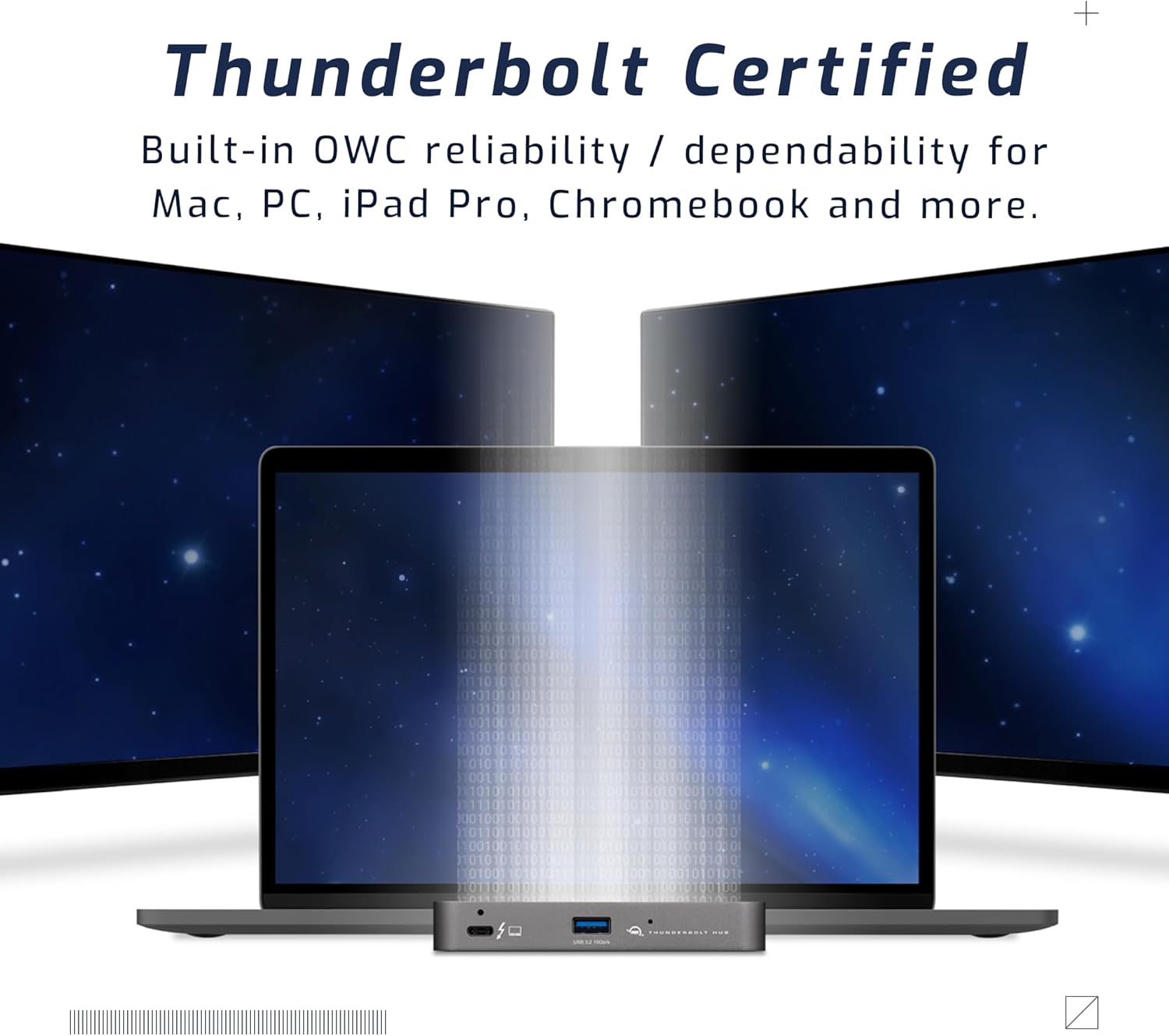
Figure 5: A setup demonstrating the hub's capability to connect a laptop to multiple external displays.
അനുയോജ്യത
The hub is compatible with a wide range of devices:
- Macs with an available Thunderbolt 3 or later port running macOS 11.1 Big Sur or later.
- Windows PCs with an available Thunderbolt 4 port.
- Non-Thunderbolt USB-C machines like Chromebooks and iPads.
- USB-C equipped MacBooks, iPads, Chromebooks, and Android devices.
- Note: Thunderbolt/Thunderbolt 2 Mac models are supported via USB-A host connection, but Thunderbolt/Thunderbolt 2 host connection is not directly supported. USB connection may limit some functionality.
മെയിൻ്റനൻസ്
- വൃത്തിയാക്കൽ: Use a soft, dry, lint-free cloth to clean the exterior of the hub. Do not use liquid cleaners or aerosols.
- സംഭരണം: When not in use for extended periods, store the hub in a cool, dry place away from direct sunlight.
- കേബിൾ മാനേജുമെന്റ്: പോർട്ടുകൾക്കോ കേബിളുകൾക്കോ കേടുപാടുകൾ സംഭവിക്കാതിരിക്കാൻ കേബിളുകൾ അമിതമായി വളയുകയോ ആയാസപ്പെടുകയോ ചെയ്യുന്നില്ലെന്ന് ഉറപ്പാക്കുക.
ട്രബിൾഷൂട്ടിംഗ്
പൊതുവായ പ്രശ്നങ്ങളും പരിഹാരങ്ങളും
- No Power/Device Not Recognized:
- Ensure the power adapter is securely connected to the hub and a working power outlet.
- Verify the Thunderbolt cable is firmly connected to both the hub and your computer.
- Try a different Thunderbolt port on your computer, if available.
- നിങ്ങളുടെ കമ്പ്യൂട്ടർ പുനരാരംഭിക്കുക.
- ഡിസ്പ്ലേ പ്രശ്നങ്ങൾ (സിഗ്നൽ ഇല്ല, മിന്നിമറയുന്നു):
- Check all display cables (HDMI, DisplayPort, USB-C to display) are securely connected.
- Ensure your display is set to the correct input source.
- Verify your computer's display settings (resolution, refresh rate) are compatible with the connected display and hub capabilities.
- നിങ്ങളുടെ കമ്പ്യൂട്ടറിന്റെ ഗ്രാഫിക്സ് ഡ്രൈവറുകൾ അപ്ഡേറ്റ് ചെയ്യുക.
- മന്ദഗതിയിലുള്ള ഡാറ്റാ ട്രാൻസ്ഫർ വേഗത:
- Ensure you are using high-quality Thunderbolt or USB 3.2 cables.
- Confirm the connected device supports the speeds advertised by the hub (e.g., a USB 2.0 device will not achieve USB 3.2 speeds).
- Avoid connecting too many high-bandwidth devices simultaneously if experiencing slowdowns.
സ്പെസിഫിക്കേഷനുകൾ
| ഫീച്ചർ | വിശദാംശങ്ങൾ |
|---|---|
| മോഡൽ നമ്പർ | OWCTB4HUB5P വർഗ്ഗീകരണം |
| ബ്രാൻഡ് | OWC |
| ഉൽപ്പന്ന അളവുകൾ | 19.69 x 19.69 x 11.02 ഇഞ്ച് |
| ഇനത്തിൻ്റെ ഭാരം | 7 ഔൺസ് |
| നിറം | Also Black/Gray |
| ഹാർഡ്വെയർ ഇന്റർഫേസ് | തണ്ടർബോൾട്ട് |
| പ്രത്യേക ഫീച്ചർ | അധികാരപ്പെടുത്തിയത് |
| ഹോസ്റ്റ് പോർട്ട് | 1x Thunderbolt 4 (up to 40 Gb/s) |
| ഉപകരണ പോർട്ടുകൾ | 3x Thunderbolt 4, 1x USB 3.2 Gen 2 Type-A (10 Gb/s) |
| Host Power Delivery | 60W വരെ |
| Device Power Delivery | 15W per Thunderbolt 4 port, 1.5A for USB-A port |
| ഡിസ്പ്ലേ പിന്തുണ | Up to 8K @ 60Hz or 4K @ 120Hz (single display); Up to two 4K @ 60Hz or two 5K @ 60Hz (dual displays) |
| അനുയോജ്യമായ ഉപകരണങ്ങൾ | Macs with Thunderbolt 3+, Windows PCs with Thunderbolt 4, USB-C equipped MacBooks, iPads, Chromebooks, Android devices |
വാറൻ്റി വിവരങ്ങൾ
The OWC 5 Port Thunderbolt Hub comes with a 2 വർഷത്തെ OWC ലിമിറ്റഡ് വാറന്റി. For detailed terms and conditions, please refer to the official OWC webസൈറ്റ് അല്ലെങ്കിൽ ഉപഭോക്തൃ പിന്തുണയുമായി ബന്ധപ്പെടുക.
പിന്തുണ
For further assistance, technical support, or warranty claims, please visit the official OWC support webസൈറ്റ് അല്ലെങ്കിൽ അവരുടെ ഉപഭോക്തൃ സേവന വിഭാഗവുമായി ബന്ധപ്പെടുക.
- OWC പിന്തുണ Webസൈറ്റ്: www.owcdigital.com/support
- ഓൺലൈൻ ഉറവിടങ്ങൾ: FAQs, drivers, and additional documentation may be available online.
Ask a question about this manual
Ask about setup, troubleshooting, compatibility, parts, safety, or missing instructions. Manuals+ will review the question and use this page’s manual context to help answer it.