
1. ആമുഖം
This manual provides essential information for setting up, operating, and maintaining your TECLAST T60Pro 12-inch 2K Tablet. The T60Pro features a 12-inch 2K IPS display, powered by a MediaTek Helio G99 Octa-Core processor, running Android 15. It includes 20GB RAM (8GB physical + 12GB virtual expansion) and 128GB internal storage, expandable up to 1TB via Micro SD. The tablet is equipped with four stereo speakers, a 13MP rear camera, an 8MP front camera, and an 8000mAh battery with 18W fast charging.

The TECLAST T60Pro features a slim 7.9mm metal body, weighing 553g, designed for portability and comfortable handling.
2. ബോക്സിൽ എന്താണുള്ളത്?
പാക്കേജിൽ എല്ലാ ഇനങ്ങളും ഉണ്ടെന്ന് ഉറപ്പാക്കുക:
- TECLAST T60Pro Tablet (x1)
- ചാർജർ (x1)
- USB-C കേബിൾ (x1)
- SIM Ejector Tool (x1)
- ഉപയോക്തൃ മാനുവൽ (x1)
This video demonstrates the unboxing process of the TECLAST T60Pro tablet and its included accessories.
3. സജ്ജീകരണം
3.1 ഉപകരണ ലേayട്ട്
The image displays the side profile of the tablet, highlighting the SIM/TF Card slot, speaker grilles, and the Type-C port for charging and data transfer.
3.2 ടാബ്ലെറ്റ് ചാർജ് ചെയ്യുന്നു
Before first use, fully charge the tablet using the provided USB-C cable and charger. Connect the USB-C cable to the tablet's Type-C port and the charger to a power outlet. The battery indicator on the screen will show charging status.
3.3 പവർ ഓൺ/ഓഫ്
- To power on: Press and hold the Power button until the TECLAST logo appears.
- പവർ ഓഫ് ചെയ്യാൻ: പവർ ബട്ടൺ അമർത്തിപ്പിടിക്കുക, തുടർന്ന് സ്ക്രീനിലെ ഓപ്ഷനുകളിൽ നിന്ന് 'പവർ ഓഫ്' തിരഞ്ഞെടുക്കുക.
- പുനരാരംഭിക്കാൻ: പവർ ബട്ടൺ അമർത്തിപ്പിടിക്കുക, തുടർന്ന് ഓപ്ഷനുകളിൽ നിന്ന് 'പുനരാരംഭിക്കുക' തിരഞ്ഞെടുക്കുക.
3.4 സിം/ടിഎഫ് കാർഡ് ഇൻസ്റ്റാളേഷൻ
To install a SIM card for cellular connectivity or a TF (Micro SD) card for expanded storage:
- Locate the SIM/TF card tray on the side of the tablet.
- Insert the provided SIM ejector tool into the small hole next to the tray and press gently until the tray pops out.
- Place your Nano-SIM card(s) and/or Micro SD card into the designated slots on the tray, ensuring correct orientation.
- ട്രേ അതിന്റെ സ്ഥാനത്ത് ക്ലിക്കായി വരുന്നത് വരെ ശ്രദ്ധാപൂർവ്വം ടാബ്ലെറ്റിലേക്ക് തിരികെ തള്ളുക.

The tablet supports up to 1TB Micro SD card expansion for additional storage.
3.5 പ്രാരംഭ ആൻഡ്രോയിഡ് സജ്ജീകരണം
Upon first power-on, follow the on-screen prompts to complete the initial setup, which includes selecting your language, connecting to Wi-Fi, setting up your Google account, and configuring security options.
4. പ്രവർത്തന നിർദ്ദേശങ്ങൾ
4.1 ഡിസ്പ്ലേയും ദൃശ്യങ്ങളും
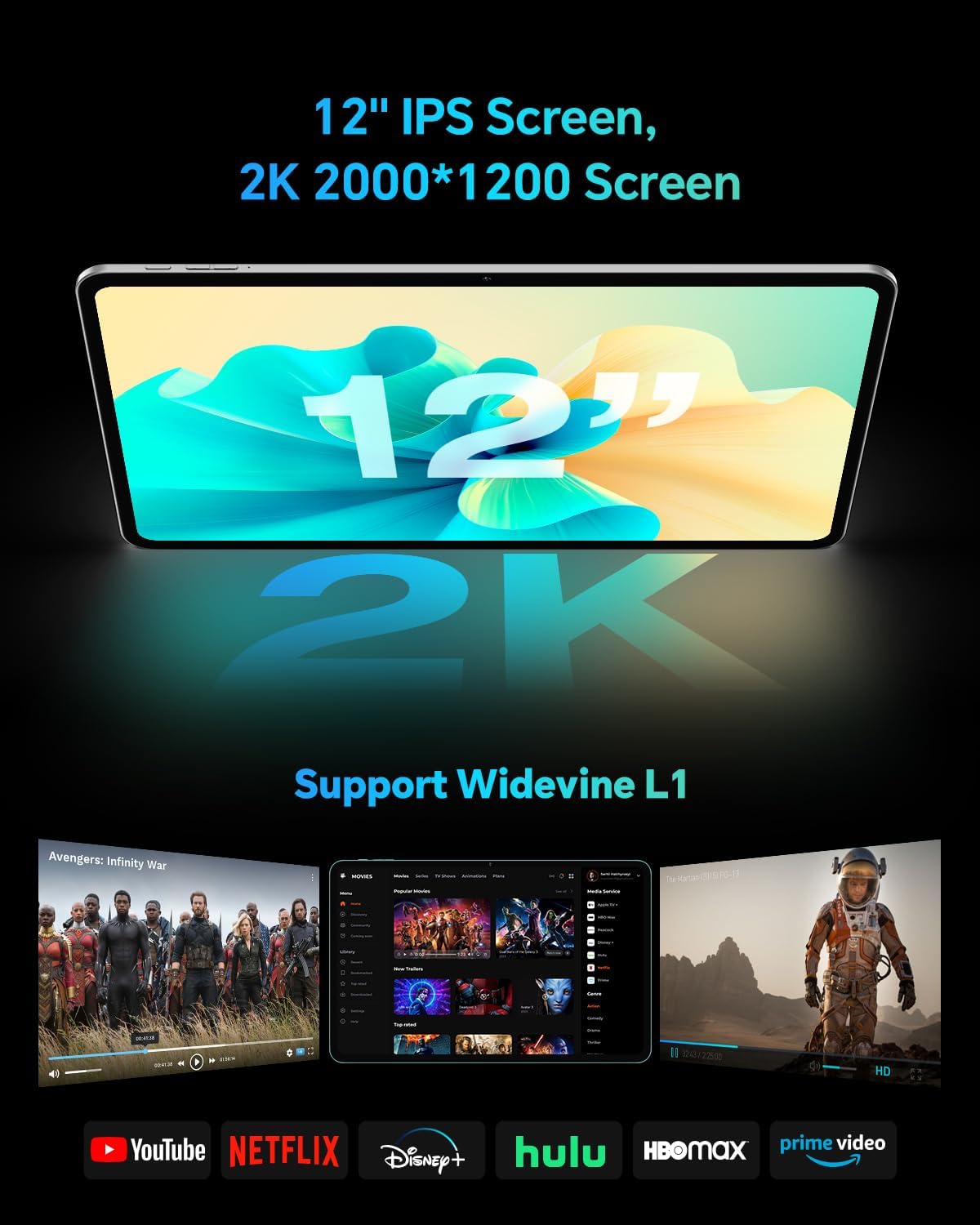
The TECLAST T60Pro features a 12-inch 2K (2000x1200) IPS TDDI full-lamination screen. It includes built-in blue light filtering for eye protection. The display supports Widevine L1 for high-definition streaming content.

Experience crisp visuals and support for HD streaming with the 12-inch 2K IPS display and Widevine L1 certification.
4.2 ഓഡിയോ
The tablet is equipped with four high-fidelity stereo speakers, providing an immersive audio experience for media consumption and video calls.
4.3 ക്യാമറ പ്രവർത്തനങ്ങൾ
The T60Pro includes a 13MP rear camera and an 8MP front camera. The rear camera is designed for clear shooting, even in low-light conditions. Utilize the camera for photos, videos, and video calls.

The tablet features a 13MP rear camera and an 8MP front camera, supporting features like Google Lens and Face Recognition.
4.4 കണക്റ്റിവിറ്റി
- വൈഫൈ: Supports 2.4/5GHz dual-band Wi-Fi (802.11a/b/g/n/ac) for stable internet connection.
- ബ്ലൂടൂത്ത്: Features Bluetooth 5.2 for connecting wireless accessories.
- സെല്ലുലാർ: Supports 4G cellular connectivity with a compatible SIM card.
- ജിപിഎസ്: Integrated A-GPS/GPS/BeiDou/GLONASS/Galileo multi-navigation system for accurate location services.

The tablet includes built-in GPS with support for multiple satellite positioning systems for reliable navigation.
4.5 സ്റ്റോറേജ് മാനേജ്മെൻ്റ്
The tablet comes with 128GB of internal storage. This can be expanded up to 1TB using a Micro SD card (sold separately).
4.6 മുഖം തിരിച്ചറിയൽ
For convenient and secure unlocking, the tablet supports face recognition. Simply hold your face in front of the front camera. If face recognition fails, use your registered password or adjust ambient lighting for better recognition.

Unlock your tablet quickly and securely using the face recognition feature.
4.7 വയർലെസ് പ്രൊജക്ഷൻ
Mirror your tablet's display to a larger screen, such as a TV, for an enhanced viewing experience. Refer to your TV's manual for specific wireless projection setup instructions.
4.8 Parental Controls and Kids Mode
The Android 15 system includes built-in parental controls to manage screen time and app access for children. Utilize these features to create a safe and controlled environment for younger users.
5. പരിപാലനം
5.1 ഉപകരണം വൃത്തിയാക്കുന്നു
Use a soft, lint-free cloth to clean the tablet's screen and body. Avoid using harsh chemicals or abrasive materials that could damage the surfaces.
5.2 ബാറ്ററി കെയർ
ബാറ്ററി ആയുസ്സ് വർദ്ധിപ്പിക്കാൻ:
- തീവ്രമായ താപനില ഒഴിവാക്കുക.
- ബാറ്ററി ഇടയ്ക്കിടെ പൂർണ്ണമായും തീർന്നുപോകാൻ അനുവദിക്കരുത്.
- ഒപ്റ്റിമൽ ചാർജിംഗിനായി നൽകിയിരിക്കുന്ന ചാർജർ ഉപയോഗിക്കുക.
5.3 സോഫ്റ്റ്വെയർ അപ്ഡേറ്റുകൾ
Regularly check for and install system updates to ensure optimal performance, security, and access to the latest features. Navigate to ക്രമീകരണങ്ങൾ > സിസ്റ്റം > സിസ്റ്റം അപ്ഡേറ്റ് ലഭ്യമായ അപ്ഡേറ്റുകൾ പരിശോധിക്കാൻ.
5.4 Screen Protection
The tablet comes with a pre-applied tempered glass screen protector. A protective film for shipping is also applied, which should be removed after opening the package.

The tablet includes a pre-applied screen protector for immediate use and protection.
6. പ്രശ്നപരിഹാരം
6.1 ഉപകരണം ഓണാക്കുന്നില്ല
- Ensure the battery is charged. Connect the tablet to the charger for at least 30 minutes before attempting to power on.
- നിർബന്ധിതമായി റീബൂട്ട് ചെയ്യാൻ പവർ ബട്ടൺ 10-15 സെക്കൻഡ് അമർത്തിപ്പിടിക്കുക.
6.2 കണക്റ്റിവിറ്റി പ്രശ്നങ്ങൾ (വൈ-ഫൈ/ബ്ലൂടൂത്ത്)
- Toggle Wi-Fi or Bluetooth off and on in the Settings menu.
- Restart your router or Bluetooth device.
- നെറ്റ്വർക്ക്/ഉപകരണം മറന്ന് വീണ്ടും കണക്റ്റുചെയ്യുക.
6.3 Low Audio Volume
- Adjust the volume using the physical Volume buttons on the tablet.
- Check media volume settings in ക്രമീകരണം > ശബ്ദവും വൈബ്രേഷനും.
- Ensure no external audio devices are connected via Bluetooth or Type-C that might be overriding the internal speakers.
6.4 ആപ്പുകൾ ക്രാഷാകുകയോ മരവിപ്പിക്കുകയോ ചെയ്യുന്നു
- ആപ്പ് അടച്ച് വീണ്ടും തുറക്കുക.
- ആപ്പിന്റെ കാഷെയും ഡാറ്റയും മായ്ക്കുക ക്രമീകരണങ്ങൾ > ആപ്പുകൾ > [ആപ്പ് നാമം] > സംഭരണം > കാഷെ മായ്ക്കുക/ഡാറ്റ മായ്ക്കുക.
- ഗൂഗിൾ പ്ലേ സ്റ്റോറിൽ നിന്ന് ആപ്പ് അതിന്റെ ഏറ്റവും പുതിയ പതിപ്പിലേക്ക് അപ്ഡേറ്റ് ചെയ്തിട്ടുണ്ടെന്ന് ഉറപ്പാക്കുക.
7 സ്പെസിഫിക്കേഷനുകൾ
| ഫീച്ചർ | സ്പെസിഫിക്കേഷൻ |
|---|---|
| ബ്രാൻഡ് | ടെക്ലാസ്റ്റ് |
| മോഡലിൻ്റെ പേര് | ടി 60 പ്രോ |
| ഓപ്പറേറ്റിംഗ് സിസ്റ്റം | ആൻഡ്രോയിഡ് 15 |
| സ്ക്രീൻ വലിപ്പം | 12 ഇഞ്ച് |
| ഡിസ്പ്ലേ റെസല്യൂഷൻ | 2000x1200 പിക്സലുകൾ (2K) |
| പ്രോസസ്സർ | മീഡിയടെക് ഹീലിയോ G99 ഒക്ടാ-കോർ (2.2 GHz) |
| റാം മെമ്മറി | 20 ജിബി (8 ജിബി ഫിസിക്കൽ + 12 ജിബി വെർച്വൽ) |
| സംഭരണ ശേഷി | 128 ജിബി |
| വികസിപ്പിക്കാവുന്ന സംഭരണം | Up to 1 TB (Micro SD) |
| ഗ്രാഫിക്സ് കോപ്രൊസസർ | മാലി-G57 MC2 |
| ബാറ്ററി ശേഷി | 8000 mAh |
| ചാർജിംഗ് | 18W USB-PD Fast Charging |
| പിൻ ക്യാമറ | 13 എം.പി |
| മുൻ ക്യാമറ | 8 എം.പി |
| വയർലെസ് ടെക്നോളജി | Wi-Fi (2.4/5GHz), Bluetooth 5.2, 4G Cellular |
| ജിപിഎസ് പ്രവർത്തനം | GPS/BEIDOU/GLONASS/GALILEO |
| ഹെഡ്ഫോണുകൾ ജാക്ക് | ടൈപ്പ്-സി |
| അളവുകൾ (L x W x T) | 10.97" x 6.85" x 0.31" |
| നിറം | ഇരുണ്ട ചാരനിറം |
8. വാറൻ്റിയും പിന്തുണയും
8.1 നിർമ്മാതാവിന്റെ വാറന്റി
The TECLAST T60Pro tablet comes with a 1 വർഷത്തെ നിർമ്മാതാവിന്റെ വാറന്റി. സാധാരണ ഉപയോഗത്തിലുള്ള മെറ്റീരിയലുകളിലെയും നിർമ്മാണത്തിലെയും വൈകല്യങ്ങൾ ഈ വാറന്റി ഉൾക്കൊള്ളുന്നു. വാറന്റി ക്ലെയിമുകൾക്കായി നിങ്ങളുടെ വാങ്ങലിന്റെ തെളിവ് സൂക്ഷിക്കുക.
8.2 ഉപഭോക്തൃ പിന്തുണ
For technical assistance, troubleshooting, or warranty inquiries, please contact TECLAST customer support. Most questions are answered within 24 hours. Refer to the official TECLAST webനിർദ്ദിഷ്ട കോൺടാക്റ്റ് വിശദാംശങ്ങൾക്കായി സൈറ്റ് അല്ലെങ്കിൽ നിങ്ങളുടെ വാങ്ങൽ പ്ലാറ്റ്ഫോം.
Online resources and FAQs may also be available on the TECLAST support page.