
1. ആമുഖം
Welcome to the instruction manual for your Hyperkin Duke Wired Controller. This officially licensed controller is designed to provide a classic gaming experience with modern compatibility for Xbox Series X|S, Xbox One, and Windows 10 PCs. This special edition features an Xbox 20th Anniversary design.

ചിത്രം 1.1: മുൻഭാഗം view of the Hyperkin Duke Wired Controller, White 20th Anniversary Edition.
2. പാക്കേജ് ഉള്ളടക്കം
പാക്കേജിൽ എല്ലാ ഇനങ്ങളും ഉണ്ടെന്ന് ഉറപ്പാക്കുക:
- Hyperkin Duke Wired Controller (White)
- Detachable Type-C Braided Cable

Image 2.1: Hyperkin Duke Wired Controller product packaging.
3. കൺട്രോളർ ലേഔട്ട്
Familiarize yourself with the controller's buttons and features:
- Left and Right Analog Sticks: കൃത്യമായ ചലനത്തിനും ക്യാമറ നിയന്ത്രണത്തിനും.
- ഡി-പാഡ്: ദിശാ ഇൻപുട്ട്.
- A, B, X, Y ബട്ടണുകൾ: സ്റ്റാൻഡേർഡ് ആക്ഷൻ ബട്ടണുകൾ.
- Left and Right Triggers (LT, RT): Pressure-sensitive for nuanced control.
- Left and Right Bumpers (LB, RB): Mirror the original black and white buttons for expanded functionality.
- Xbox ബട്ടൺ: Features an animated original Xbox startup screen.
- പങ്കിടൽ ബട്ടൺ: For capturing screenshots and video clips (functionality may vary by platform).
- View ബട്ടൺ: Accesses in-game menus or system functions.
- മെനു ബട്ടൺ: ഗെയിം അല്ലെങ്കിൽ ആപ്പ് മെനുകൾ ആക്സസ് ചെയ്യുന്നു.
- 3.5എംഎം ഹെഡ്സെറ്റ് ജാക്ക്: For connecting compatible headsets.

ചിത്രം 3.1: മുൻഭാഗം view of the controller highlighting the main controls.
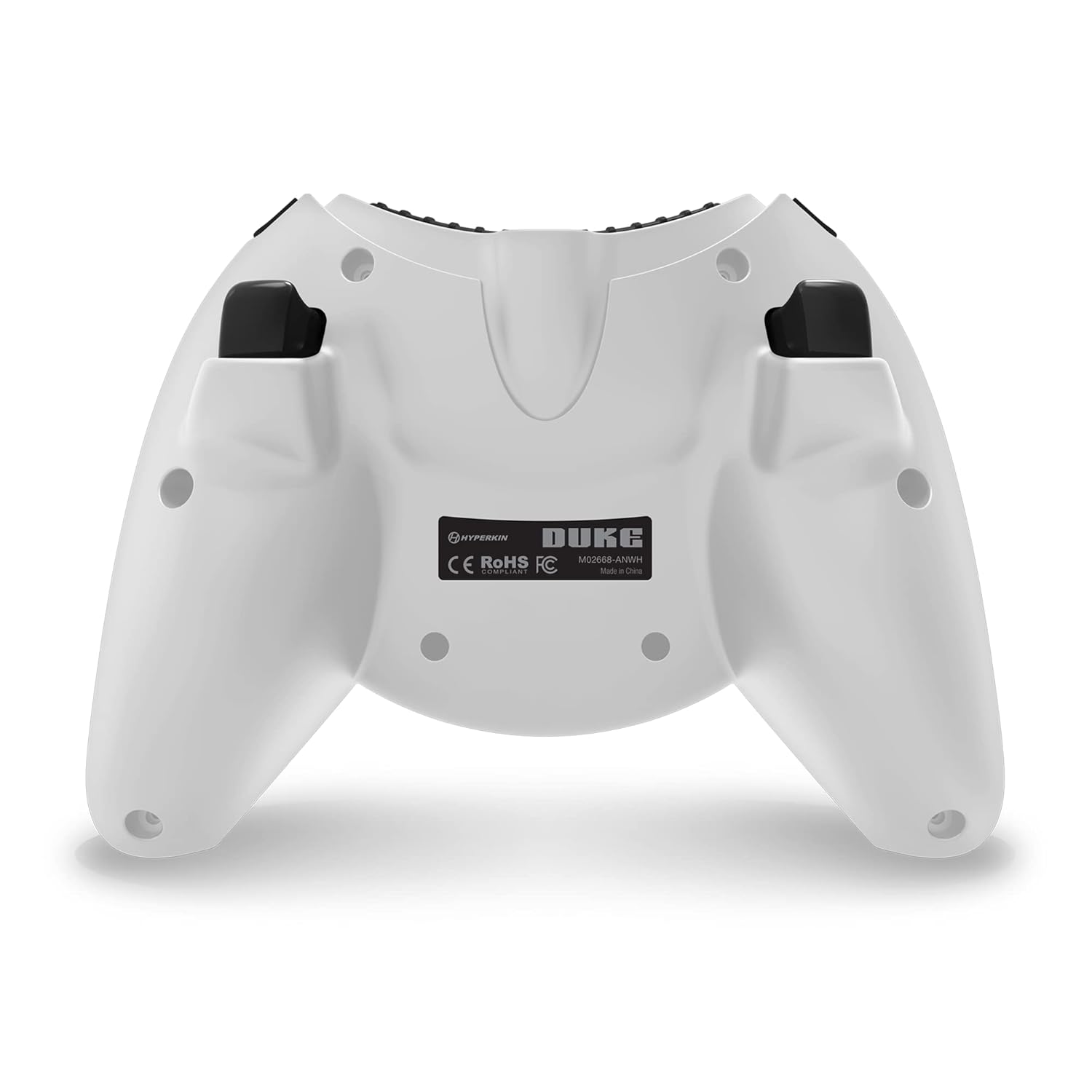
ചിത്രം 3.2: പിന്നിലേക്ക് view കൺട്രോളറുടെ.

Image 3.3: Detail of the Share button and detachable Type-C cable connection.
4. സജ്ജീകരണം
The Hyperkin Duke Wired Controller is designed for simple plug-and-play functionality.
- Connect the detachable Type-C braided cable to the port on the top of the controller.
- Plug the USB-A end of the cable into an available USB port on your Xbox Series X|S, Xbox One console, or Windows 10 PC.
- The controller will automatically be detected and configured by your system. The Xbox button will illuminate, and the animated startup screen will play.
Video 4.1: This video demonstrates the animated Xbox button startup sequence on the Hyperkin Duke controller.
5. പ്രവർത്തന നിർദ്ദേശങ്ങൾ
Once connected, the controller functions similarly to standard Xbox controllers, with additional nostalgic elements.
- ഗെയിമിംഗ്: Use the analog sticks for movement and camera control, the D-pad for directional input, and the A, B, X, Y buttons for in-game actions.
- Precision Triggers: The analog triggers (LT, RT) offer variable input, ideal for racing games or actions requiring precise pressure.
- Bumpers (LB, RB): These buttons provide additional input options, often used for secondary actions or menu navigation.
- Xbox ബട്ടൺ: Press the Xbox button to access the console's guide menu or the PC's Xbox Game Bar. The animated startup screen will play upon connection or when the button is pressed.
- പങ്കിടൽ ബട്ടൺ: Utilize the Share button to quickly capture and share your gameplay moments.
- ഹെഡ്സെറ്റ് ഉപയോഗം: Plug any compatible 3.5mm headset into the jack for in-game audio and voice chat.
- വൈബ്രേഷൻ ഫീഡ്ബാക്ക്: The controller provides haptic feedback to enhance immersion during gameplay.
6. പരിപാലനവും പരിചരണവും
To ensure the longevity and optimal performance of your controller, follow these care guidelines:
- വൃത്തിയാക്കൽ: Use a soft, dry cloth to wipe down the controller. Avoid using abrasive cleaners, solvents, or harsh chemicals, as these can damage the surface and internal components.
- സംഭരണം: Store the controller in a cool, dry place away from direct sunlight, extreme temperatures, and excessive humidity.
- കേബിൾ കെയർ: Handle the detachable Type-C cable with care. Avoid sharp bends, kinks, or excessive pulling, which can damage the cable or the connector ports. Always grasp the connector head when plugging or unplugging.
- തുള്ളികൾ ഒഴിവാക്കുക: Protect the controller from drops or impacts, as these can cause internal damage.
7. പ്രശ്നപരിഹാരം
If you encounter issues with your Hyperkin Duke Wired Controller, refer to the following common solutions:
| പ്രശ്നം | പരിഹാരം |
|---|---|
| കൺട്രോളർ പ്രതികരിക്കുന്നില്ല | Ensure the detachable Type-C cable is securely connected to both the controller and the console/PC. Try a different USB port on your system. Restart your console or PC. |
| Input issues (e.g., stick drift, unresponsive buttons) | For PC, try calibrating the controller through your operating system's game controller settings. Ensure no debris is obstructing buttons or sticks. If the issue persists, contact Hyperkin support. |
| No vibration feedback | Check in-game settings to ensure vibration is enabled. Verify that vibration settings are active in your console or PC's controller settings. |
| ഹെഡ്സെറ്റിൽ നിന്നുള്ള ഓഡിയോ ഇല്ല | Ensure your 3.5mm headset is fully plugged into the controller's jack. Check your console or PC's audio settings to confirm the headset is selected as the output device. Test the headset with another device if possible. |
Video 7.1: This video demonstrates a potential issue with the left trigger on the controller. If you experience similar issues, refer to the troubleshooting table and contact support.
8 സ്പെസിഫിക്കേഷനുകൾ
- മോഡൽ നമ്പർ: M02668-ANWH
- അനുയോജ്യത: Xbox Series X|S, Xbox One, Windows 10 PCs
- കണക്റ്റിവിറ്റി: Wired (Detachable USB Type-C cable)
- അളവുകൾ: ഏകദേശം 6.5 x 5.25 x 3 ഇഞ്ച് (16.5 x 13.3 x 7.6 സെ.മീ)
- ഭാരം: ഏകദേശം 11.99 ഔൺസ് (340 ഗ്രാം)
- ഫീച്ചറുകൾ: Precision analog triggers, vibration feedback, 3.5mm headset jack, Share button, animated Xbox button, 20th Anniversary design.
9. വാറൻ്റിയും പിന്തുണയും
For detailed warranty information, product registration, and customer support, please visit the official Hyperkin webസൈറ്റിൽ ബന്ധപ്പെടുകയോ അവരുടെ ഉപഭോക്തൃ സേവന വിഭാഗവുമായി ബന്ധപ്പെടുകയോ ചെയ്യുക. വാറന്റി ക്ലെയിമുകൾക്കായി നിങ്ങളുടെ വാങ്ങിയതിന്റെ തെളിവ് സൂക്ഷിക്കുക.
Hyperkin Official Webസൈറ്റ്: www.hyperkin.com