
weelikeit C72W
weelikeit 7-inch Kids Tablet C72W User Manual
മോഡൽ: C72W
1. ആമുഖം
The weelikeit 7-inch Kids Tablet is designed to provide a safe and engaging digital experience for children. Running on Android 11.0, it features a durable kid-proof case, parental control functions, and access to educational content. This manual will guide you through the setup, operation, and maintenance of your new tablet.

Figure 1: weelikeit 7-inch Kids Tablet
2. ബോക്സിൽ എന്താണുള്ളത്?
എല്ലാ ഇനങ്ങളും ഉണ്ടെന്ന് ഉറപ്പാക്കാൻ പാക്കേജ് ഉള്ളടക്കങ്ങൾ പരിശോധിക്കുക:
- 1 x 7-inch Android Tablet
- 1 x സ്ക്രീൻ പ്രൊട്ടക്ടർ
- 1 x സ്റ്റൈലസ്
- 1 x ടൈപ്പ്-സി കേബിൾ
- 1 x UL Certified Charger
- 1 x ഉപയോക്തൃ മാനുവൽ (ഈ പ്രമാണം)

Figure 2: Stylus and Screen Protector included with the tablet.
3. ഉൽപ്പന്നം കഴിഞ്ഞുview
The weelikeit Kids Tablet features a 7-inch IPS HD display, dual cameras (2MP front, 5MP rear), and a durable kid-proof case with an integrated stand. It is equipped with a 1.5 GHz quad-core processor, 2GB RAM, and 32GB ROM, expandable up to 256GB via an SD card.

Figure 3: Tablet Features and Ports
പ്രധാന സവിശേഷതകൾ:
- ഡിസ്പ്ലേ: 7-inch IPS HD (1024x600)
- പ്രോസസ്സർ: 1.5 GHz ക്വാഡ് കോർ
- മെമ്മറി: 2GB RAM, 32GB ROM (expandable to 256GB with SD card)
- ക്യാമറകൾ: 2MP ഫ്രണ്ട്, 5MP പിൻഭാഗം
- കണക്റ്റിവിറ്റി: വൈ-ഫൈ, ബ്ലൂടൂത്ത്
- ഓപ്പറേറ്റിംഗ് സിസ്റ്റം: ആൻഡ്രോയിഡ് 11.0
- തുറമുഖങ്ങൾ: Type-C, 3.5mm Headphone Jack, Micro SD Card Slot
- സംരക്ഷണം: Built-in Kid-Proof Case with Stand
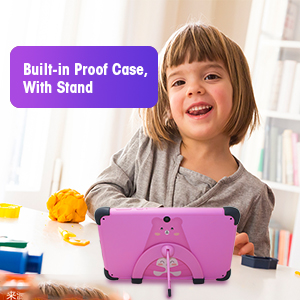
Figure 4: Built-in Kid-Proof Case with Stand
4. സജ്ജീകരണം
Follow these steps to set up your weelikeit Kids Tablet for the first time:
- ടാബ്ലെറ്റ് ചാർജ് ചെയ്യുക: Before first use, fully charge the tablet using the provided Type-C cable and UL Certified Charger. The charging port is located on the side of the tablet.
- പവർ ഓൺ: Press and hold the Power button (refer to Figure 3) for a few seconds until the screen lights up.
- പ്രാരംഭ സജ്ജീകരണ വിസാർഡ്: The tablet will guide you through the initial setup process. This includes selecting your language, connecting to a Wi-Fi network, and setting up a Google account. A Google account is required to download apps from the Google Play Store.
- Wi-Fi കണക്ഷൻ: During setup, you will be prompted to connect to a Wi-Fi network. Select your network from the list and enter the password. If you encounter issues, ensure your Wi-Fi router is on and within range.
- Google അക്കൗണ്ട്: You can choose to set up the tablet with a parent's Google account or create a new one. This account will be used for app downloads and parental control management.
5. പ്രവർത്തന നിർദ്ദേശങ്ങൾ
5.1 പവർ ഓൺ/ഓഫ് ചെയ്ത് പുനരാരംഭിക്കുക
- പവർ ഓൺ: സ്ക്രീൻ ഓണാകുന്നതുവരെ പവർ ബട്ടൺ അമർത്തിപ്പിടിക്കുക.
- പവർ ഓഫ്: Press and hold the Power button until a menu appears. Select "Power off" to shut down the tablet.
- പുനരാരംഭിക്കുക: Press and hold the Power button until a menu appears. Select "Restart" to reboot the tablet.
5.2 അടിസ്ഥാന നാവിഗേഷൻ
The tablet uses a touchscreen interface. Swipe, tap, and pinch gestures are used for navigation and interaction. Swipe up from the bottom of the screen to access the app drawer or navigate between screens.
5.3 Parental Control Function (iWawa App)
The tablet comes with the iWawa App pre-installed, offering robust parental control features. This allows parents to manage content and screen time for their children.
- Access iWawa: Turn on the tablet and open the iWawa application.
- Set Up Profiles: Parents can create separate profileഓരോ കുട്ടിക്കും.
- ഉള്ളടക്കം കൈകാര്യം ചെയ്യുക: Within the parental control settings, you can add or block specific applications, filter web content, and set screen time limits.
- Lock Device: The tablet can be locked with a password to prevent children from exiting the child mode without permission.
- Exit Child Mode: Parents can exit the child mode using a password to use the tablet as a regular Android device.
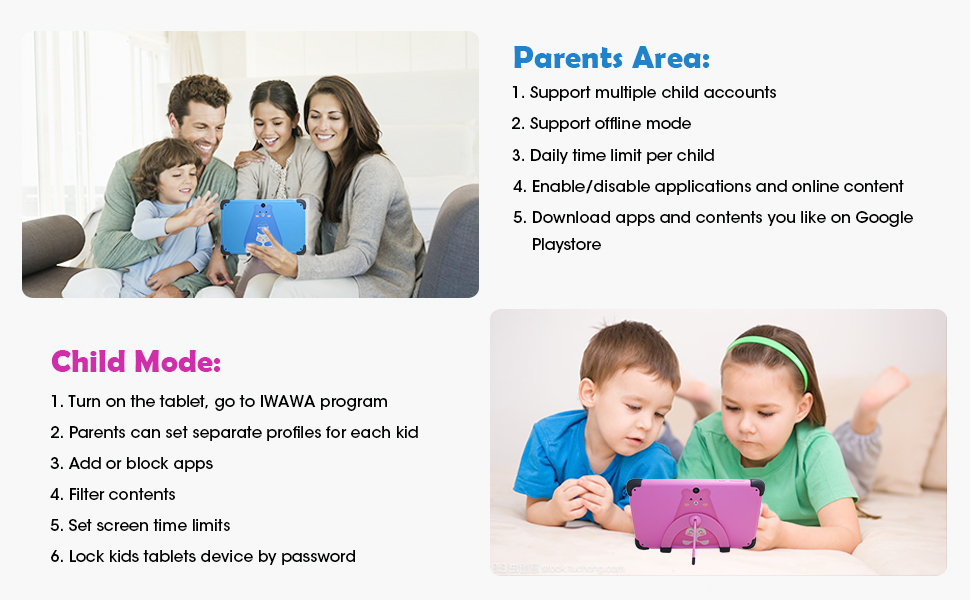
Figure 5: Parental Control Interface
5.4 Learning and Entertainment
The iWawa App provides a range of age-appropriate creative and educational content. Additionally, the tablet is GMS Certified, allowing access to the Google Play Store for downloading more educational apps like ABC Mouse, YouTube Kids, and Zoom.

Figure 6: Children engaging with the tablet
വീഡിയോ 1: കഴിഞ്ഞുview of the weelikeit Kids Tablet features, including ports, parental control, and learning apps.
6. പരിപാലനം
നിങ്ങളുടെ ടാബ്ലെറ്റിന്റെ ദീർഘായുസ്സും മികച്ച പ്രകടനവും ഉറപ്പാക്കാൻ, ഈ പരിപാലന മാർഗ്ഗനിർദ്ദേശങ്ങൾ പാലിക്കുക:
- വൃത്തിയാക്കൽ: ടാബ്ലെറ്റിന്റെ സ്ക്രീനും ബോഡിയും വൃത്തിയാക്കാൻ മൃദുവായ, ലിന്റ് രഹിത തുണി ഉപയോഗിക്കുക. കഠിനമായ രാസവസ്തുക്കളോ ഉരച്ചിലുകളോ ഉള്ള വസ്തുക്കൾ ഉപയോഗിക്കുന്നത് ഒഴിവാക്കുക.
- ബാറ്ററി കെയർ: Avoid completely draining the battery frequently. Charge the tablet regularly. Do not expose the tablet to extreme temperatures.
- സോഫ്റ്റ്വെയർ അപ്ഡേറ്റുകൾ: Periodically check for system updates to ensure your tablet has the latest features and security patches.
- സ്റ്റോറേജ് മാനേജ്മെന്റ്: അനാവശ്യമായവ പതിവായി നീക്കം ചെയ്യുക files and apps to maintain optimal performance. Consider using an SD card for additional storage.
- സംരക്ഷണ കേസ്: The built-in kid-proof case provides protection against drops and bumps. Ensure it remains properly fitted.
7. പ്രശ്നപരിഹാരം
നിങ്ങളുടെ ടാബ്ലെറ്റിൽ പ്രശ്നങ്ങൾ നേരിടുകയാണെങ്കിൽ, ഇനിപ്പറയുന്ന പൊതുവായ പ്രശ്നങ്ങളും പരിഹാരങ്ങളും പരിശോധിക്കുക:
| പ്രശ്നം | സാധ്യമായ പരിഹാരം |
|---|---|
| ടാബ്ലെറ്റ് ഓണാക്കുന്നില്ല | Ensure the tablet is charged. Connect it to the charger for at least 30 minutes, then try powering it on again. If it still doesn't turn on, try pressing and holding the power button for 10-15 seconds. |
| Wi-Fi കണക്ഷൻ പ്രശ്നങ്ങൾ | Check if your Wi-Fi router is working correctly. Restart the tablet and your router. Ensure you are entering the correct Wi-Fi password. Try connecting to a different Wi-Fi network if available. |
| മന്ദഗതിയിലുള്ള പ്രകടനം | Close unused applications. Clear cache and data for frequently used apps. Uninstall unnecessary apps. Restart the tablet. |
| ചെറിയ ബാറ്ററി ലൈഫ് | Reduce screen brightness. Close background apps. Disable Wi-Fi or Bluetooth when not in use. Limit continuous video streaming or gaming. |
| ടച്ച്സ്ക്രീൻ പ്രതികരിക്കുന്നില്ല | Restart the tablet. If specific areas are unresponsive, ensure the screen is clean and free of debris. If the issue persists, contact customer support. |
| Cannot download apps | Ensure you are connected to Wi-Fi. Check your Google account settings and payment methods if applicable. Verify that parental controls are not blocking the app. |
8 സ്പെസിഫിക്കേഷനുകൾ
Detailed technical specifications for the weelikeit 7-inch Kids Tablet C72W:
| ഫീച്ചർ | വിശദാംശങ്ങൾ |
|---|---|
| ബ്രാൻഡ് | weelikeit |
| മോഡലിൻ്റെ പേര് | സ്പർശിക്കുക |
| മോഡൽ നമ്പർ | C72W |
| ഓപ്പറേറ്റിംഗ് സിസ്റ്റം | ആൻഡ്രോയിഡ് 11.0 |
| സ്ക്രീൻ വലിപ്പം | 7 ഇഞ്ച് |
| ഡിസ്പ്ലേ റെസല്യൂഷൻ | 1024 x 600 IPS HD |
| പ്രോസസ്സർ വേഗത | 1.5 GHz ക്വാഡ് കോർ |
| റാം മെമ്മറി | 2 ജിബി |
| ആന്തരിക സംഭരണം | 32 ജിബി |
| വികസിപ്പിക്കാവുന്ന സംഭരണം | 256 GB വരെ (മൈക്രോ എസ്ഡി) |
| പിൻ ക്യാമറ | 5 എം.പി |
| മുൻ ക്യാമറ | 2 എം.പി |
| ബാറ്ററി ശേഷി | 3000 മില്ലിamp മണിക്കൂർ (ലിഥിയം അയോൺ) |
| കണക്റ്റിവിറ്റി | ബ്ലൂടൂത്ത്, വൈഫൈ |
| തുറമുഖങ്ങൾ | Type-C, 3.5mm Headphone Jack, MicroSD Slot |
| മനുഷ്യ-ഇൻ്റർഫേസ് ഇൻപുട്ട് | ടച്ച്സ്ക്രീൻ, സ്റ്റൈലസ് പിന്തുണയുള്ള ടച്ച്സ്ക്രീൻ |
| ജിടിഐഎൻ / യുപിസി | 608571029989 |
9. വാറൻ്റിയും പിന്തുണയും
weelikeit tablets come with a one-year warranty. For any questions or technical assistance regarding your weelikeit Kids Tablet, please refer to the following:
- വാറൻ്റി: വാങ്ങിയ തീയതി മുതൽ ഒരു വർഷം.
- പിന്തുണയുമായി ബന്ധപ്പെടുക: If you purchased through Amazon, find your order and click "Get Product Support." Weelikeit aims to assist you within 24 hours.
- ഓൺലൈൻ ഉറവിടങ്ങൾ: Visit the official weelikeit store on Amazon for additional product information and FAQs: weelikeit Store
Ask a question about this manual
Ask about setup, troubleshooting, compatibility, parts, safety, or missing instructions. Manuals+ will review the question and use this page’s manual context to help answer it.