
1. ആമുഖം
This manual provides detailed instructions for the installation, operation, and maintenance of your ESSGOO Double DIN Android 9.1 Car Stereo. Please read this manual thoroughly before using the product to ensure proper functionality and safety.
The ESSGOO car stereo features a 7-inch capacitive touch screen, Android 9.1 operating system, GPS navigation, Bluetooth 4.0, Wi-Fi connectivity, and support for iOS/Android phone mirror link. It also includes a backup camera for enhanced safety.
2. പാക്കേജ് ഉള്ളടക്കം
താഴെ ലിസ്റ്റ് ചെയ്തിരിക്കുന്ന എല്ലാ ഇനങ്ങളും നിങ്ങളുടെ പാക്കേജിൽ ഉൾപ്പെടുത്തിയിട്ടുണ്ടെന്ന് ഉറപ്പാക്കുക:
- 1 x Android Car Stereo Player
- 1 x Radio Frame
- 1 x Bracket and Screws
- 1 x ജിപിഎസ് ആന്റിന
- 1 x Universal Power Cable
- 1 x ISO Power Cable
- 1 x RCA കേബിൾ
- 1 x ബാക്കപ്പ് ക്യാമറ ഇൻപുട്ട് കേബിൾ
- 1 x ബാക്കപ്പ് ക്യാമറ
- 2 x USB കേബിളുകൾ
- 1 x ഉപയോക്തൃ മാനുവൽ

ചിത്രം 2.1: ഉൾപ്പെടുത്തിയ പാക്കേജ് ഉള്ളടക്കങ്ങൾ
3 സ്പെസിഫിക്കേഷനുകൾ
| ഫീച്ചർ | സ്പെസിഫിക്കേഷൻ |
|---|---|
| ഓപ്പറേറ്റിംഗ് സിസ്റ്റം | ആൻഡ്രോയിഡ് 9.1 |
| സിപിയു | ക്വാഡ്-കോർ |
| റാം | 1 ജിബി |
| ROM | 16 ജിബി |
| ബ്ലൂടൂത്ത് പതിപ്പ് | 4.0 |
| ഓപ്പറേറ്റിംഗ് വോളിയംtage | 12V DC |
| പരമാവധി പവർ ഔട്ട്പുട്ട് | 4 x 50W |
| സ്ക്രീൻ വലിപ്പം | 7 ഇഞ്ച് കപ്പാസിറ്റീവ് ടച്ച് സ്ക്രീൻ |
| സ്ക്രീൻ റെസല്യൂഷൻ | 1024x600 |
| പിന്തുണയ്ക്കുന്ന ഓഡിയോ ഫോർമാറ്റുകൾ | എംപി3, ഡബ്ല്യുഎംഎ, ഡബ്ല്യുഎവി, എഫ്എൽഎസി |
| പിന്തുണയ്ക്കുന്ന വീഡിയോ ഫോർമാറ്റുകൾ | MP4, MP5, MKV, AVI |
| കണക്റ്റിവിറ്റി | Bluetooth, Wi-Fi (802.11b/g/n), USB |
| പ്രത്യേക സവിശേഷതകൾ | GPS Navigation, Mirror Link (iOS/Android), Backup Camera Support, Steering Wheel Control |
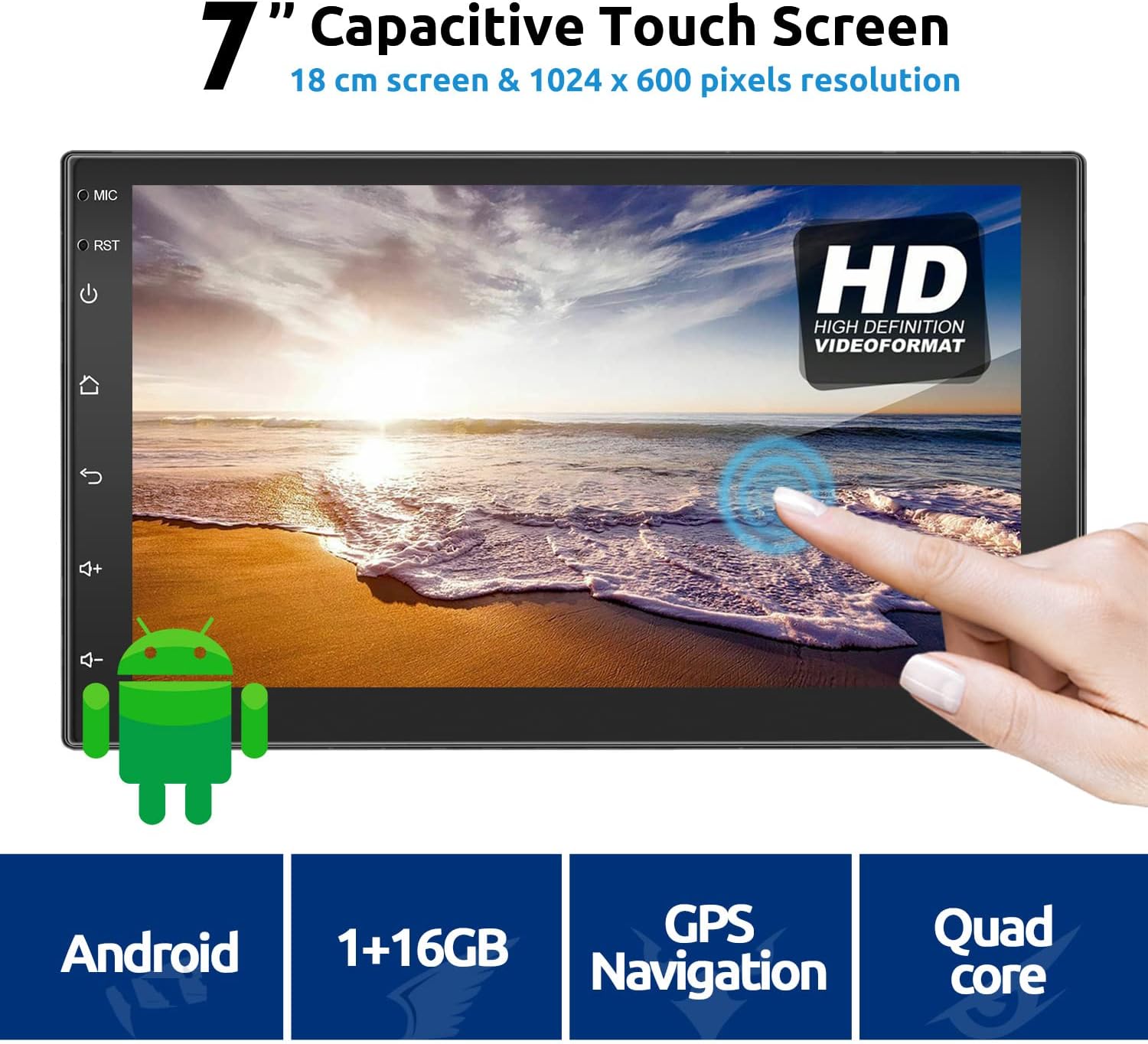
Figure 3.1: ESSGOO Car Stereo Front View കൂടാതെ പ്രധാന സവിശേഷതകൾ
4. സജ്ജീകരണവും ഇൻസ്റ്റാളേഷനും
പ്രൊഫഷണൽ ഇൻസ്റ്റാളേഷൻ ശുപാർശ ചെയ്യുന്നു. ഇൻസ്റ്റാളേഷൻ ആരംഭിക്കുന്നതിന് മുമ്പ് വാഹനത്തിന്റെ പവർ വിച്ഛേദിച്ചിട്ടുണ്ടെന്ന് ഉറപ്പാക്കുക.
4.1 വയറിംഗ് കണക്ഷനുകൾ
Refer to the wiring diagram below for proper connection of power, speakers, GPS antenna, USB, and backup camera.
ചിത്രം 4.1: പിൻ പാനൽ കണക്ഷനുകൾ
- പവർ കേബിൾ: Connect the universal power cable and ISO power cable to the vehicle's wiring harness. Ensure correct polarity.
- ആർസിഎ കേബിൾ: Use for audio/video input/output connections to external ampലൈഫയറുകൾ അല്ലെങ്കിൽ മോണിറ്ററുകൾ.
- USB കേബിളുകൾ: Connect the two provided USB cables for media playback, phone charging, or other USB devices.
- ക്യാമറ ഇൻപുട്ട്: Connect the backup camera input cable to the designated port.
- ജിപിഎസ് ആന്റിന: വ്യക്തമായ വെളിച്ചമുള്ള ഒരു സ്ഥലത്ത് GPS ആന്റിന സ്ഥാപിക്കുക. view of the sky, typically on the dashboard or windshield.
- റേഡിയോ ആന്റിന: Connect the vehicle's radio antenna to the ANT port.
4.2 ഫിസിക്കൽ ഇൻസ്റ്റലേഷൻ
- Carefully remove the existing car stereo and trim panel.
- Connect all necessary wiring harnesses to the ESSGOO unit.
- Secure the ESSGOO unit into the double DIN slot using the provided brackets and screws.
- Install the radio frame around the unit for a finished look.
- Reconnect the vehicle's power and test the unit before fully reassembling the dashboard.
ചിത്രം 4.2: യൂണിറ്റ് അളവുകൾ
5. പ്രവർത്തന നിർദ്ദേശങ്ങൾ
This section details the various functions and features of your ESSGOO car stereo.
5.1 പ്രധാന ഇന്റർഫേസും നാവിഗേഷനും
Upon startup, the main menu will display various application icons. Tap an icon to launch the corresponding function.

Figure 5.1: Main Menu and Settings Overview
5.2 ജിപിഎസ് നാവിഗേഷൻ
The unit supports online and offline GPS navigation. You can download navigation applications like Waze, Navfree, or Google Maps from the Google Play Store. Maps can run in the background, and the system supports vocal guidance.
- Ensure the GPS antenna is properly connected and positioned.
- Open your preferred navigation app from the main menu.
- Follow the app's instructions to set your destination and start navigation.

Figure 5.2: GPS Navigation Interface
5.3 ബ്ലൂടൂത്ത് പ്രവർത്തനം
The built-in Bluetooth 4.0 module allows for hands-free calling and music playback. The unit has an integrated microphone.
- കാർ സ്റ്റീരിയോയിലെ ബ്ലൂടൂത്ത് ക്രമീകരണങ്ങളിലേക്ക് പോകുക.
- നിങ്ങളുടെ മൊബൈൽ ഫോണിൽ ബ്ലൂടൂത്ത് പ്രവർത്തനക്ഷമമാക്കി ലഭ്യമായ ഉപകരണങ്ങൾക്കായി തിരയുക.
- Select "ESSGOO" (or similar device name) from your phone's list and pair. The default PIN is usually "0000".
- Once paired, you can make/receive calls and stream audio from your phone. Music playback will automatically pause during calls.

Figure 5.3: Bluetooth Hands-Free Calling
5.4 Wi-Fi and Internet Connectivity
The unit supports 802.11b/g/n WLAN standards, allowing connection to Wi-Fi networks. You can also use your mobile phone as a 3G/4G hotspot to provide internet access to the car stereo.
- Go to the Wi-Fi settings on the car stereo.
- വൈഫൈ ഓണാക്കി ലിസ്റ്റിൽ നിന്ന് നിങ്ങൾക്ക് ആവശ്യമുള്ള നെറ്റ്വർക്ക് തിരഞ്ഞെടുക്കുക.
- ആവശ്യപ്പെടുകയാണെങ്കിൽ പാസ്വേഡ് നൽകി കണക്റ്റുചെയ്യുക.
- Once connected, you can browse the internet, download apps, and stream online content.

Figure 5.4: Wi-Fi Hotspot Connectivity
5.5 Mirror Link (Easy Connection)
Mirror Link allows you to display your smartphone's screen on the car stereo. This feature supports both Android and iOS devices.
- ആൻഡ്രോയിഡ് ഫോണുകൾ: Can be controlled in two directions (phone to radio or radio to phone) via USB cable or Wi-Fi connection.
- iOS ഫോണുകൾ: Can only perform one-way control (from phone to radio) via Wi-Fi connection.
- Open the "Easy Connection" or "Mirror Link" app on the car stereo.
- Follow the on-screen instructions to connect your phone via USB or Wi-Fi.
- Grant necessary permissions on your phone.
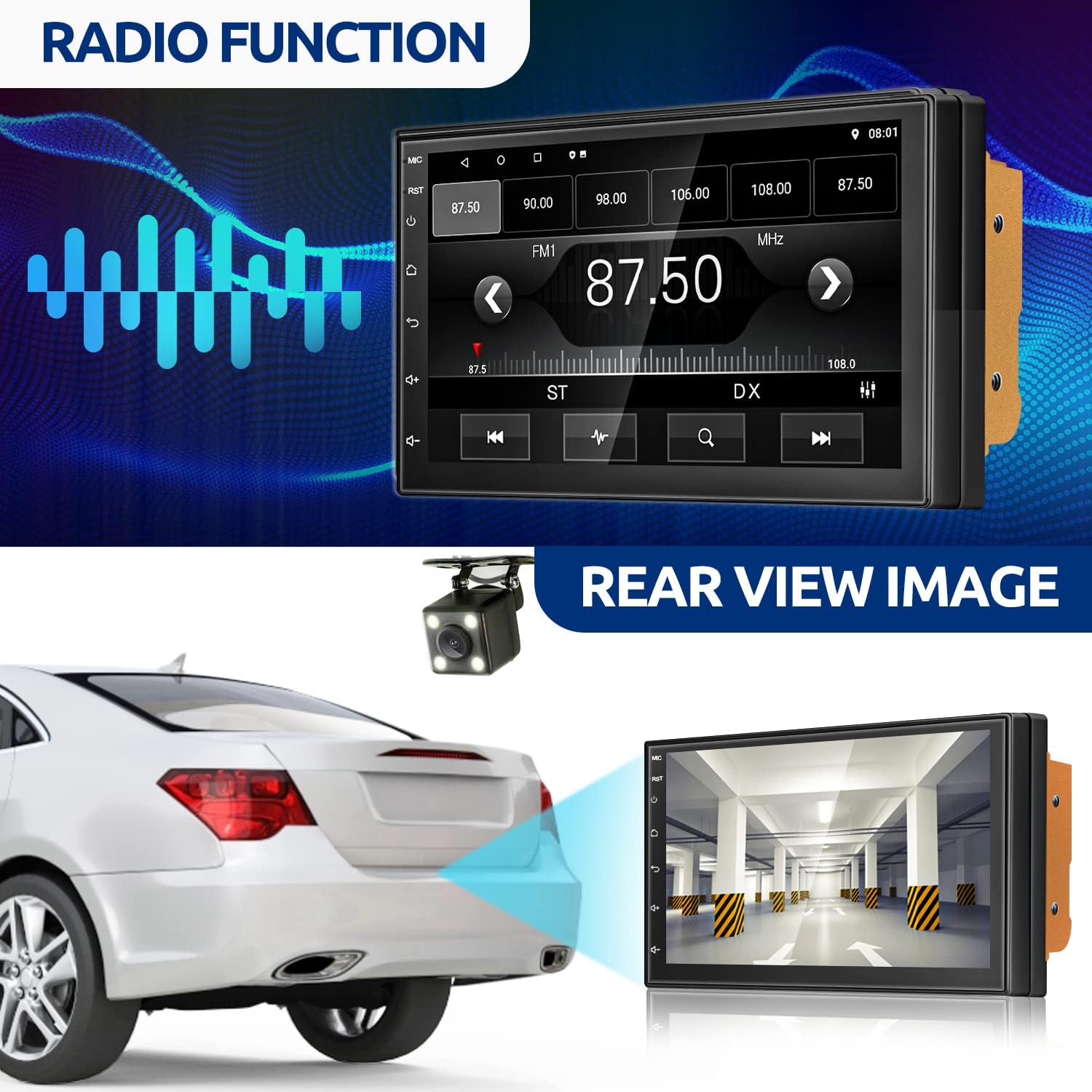
Figure 5.5: Mirror Link Connection Methods
5.6 റേഡിയോ പ്രവർത്തനം
Access the FM/AM radio tuner from the main menu. You can scan for stations, save presets, and adjust settings.

Figure 5.6: Radio Interface
5.7 പിൻഭാഗം View ക്യാമറ
The unit supports a backup camera, which automatically displays the rear view when the vehicle is in reverse gear (if properly wired).
- Ensure the backup camera and its input cable are correctly installed and connected to the car stereo.
- When the vehicle is shifted into reverse, the screen will automatically switch to the camera view.
ചിത്രം 5.7: പിൻഭാഗം View ക്യാമറ ഡിസ്പ്ലേ
5.8 സ്റ്റിയറിംഗ് വീൽ നിയന്ത്രണങ്ങൾ
The unit supports steering wheel controls, allowing you to manage basic functions without taking your hands off the wheel. This feature requires proper wiring and configuration.
- Access the "Steering Wheel Controls" or "Key Study" section in the system settings.
- Follow the on-screen prompts to program each button on your steering wheel to the corresponding function on the stereo.
Figure 5.8: Steering Wheel Control Setup
6. പരിപാലനം
- സ്ക്രീൻ വൃത്തിയാക്കൽ: ടച്ച് സ്ക്രീൻ മൃദുവായി തുടയ്ക്കാൻ മൃദുവായ, ലിന്റ് രഹിത തുണി ഉപയോഗിക്കുക. അബ്രാസീവ് ക്ലീനറുകളോ ലായകങ്ങളോ ഉപയോഗിക്കരുത്.
- സോഫ്റ്റ്വെയർ അപ്ഡേറ്റുകൾ: Periodically check for system updates in the settings menu to ensure optimal performance and access to new features.
- പൊതു പരിചരണം: യൂണിറ്റിന് തീവ്രമായ താപനില, ദീർഘനേരം നേരിട്ടുള്ള സൂര്യപ്രകാശം, അല്ലെങ്കിൽ അമിതമായ ഈർപ്പം എന്നിവ ഏൽക്കുന്നത് ഒഴിവാക്കുക.
7. പ്രശ്നപരിഹാരം
| പ്രശ്നം | സാധ്യമായ കാരണം | പരിഹാരം |
|---|---|---|
| യൂണിറ്റ് പവർ ഓണാക്കുന്നില്ല. | Incorrect wiring; Blown fuse; Vehicle power issue. | Check power connections (ACC, B+, GND). Inspect vehicle's fuse box and the unit's fuse. Ensure vehicle battery is charged. |
| ശബ്ദമില്ല. | Speaker wires disconnected; Volume too low; Mute activated. | സ്പീക്കർ കണക്ഷനുകൾ പരിശോധിക്കുക. ശബ്ദം വർദ്ധിപ്പിക്കുക. മ്യൂട്ട് ഫംഗ്ഷൻ നിർജ്ജീവമാക്കുക. |
| GPS not working or inaccurate. | GPS antenna not connected or poorly positioned; GPS app issue. | ജിപിഎസ് ആന്റിന സുരക്ഷിതമായി ബന്ധിപ്പിച്ചിട്ടുണ്ടെന്നും വ്യക്തമായ ഒരു കണക്ഷൻ ഉണ്ടെന്നും ഉറപ്പാക്കുക. view of the sky. Try restarting the GPS application. |
| ബ്ലൂടൂത്ത് കണക്ഷൻ പ്രശ്നങ്ങൾ. | Bluetooth not enabled; Incorrect pairing; Device out of range. | Ensure Bluetooth is enabled on both devices. Re-pair the devices. Keep devices within close proximity. |
| ടച്ച് സ്ക്രീൻ പ്രതികരിക്കുന്നില്ല. | Temporary software glitch; Screen calibration needed. | Restart the unit. If issue persists, perform a system reset (refer to settings). |
| ബാക്കപ്പ് ക്യാമറ പ്രദർശിപ്പിക്കുന്നില്ല. | Camera not connected; Reverse trigger wire not connected; Faulty camera. | Check camera input cable and reverse trigger wire connection. Test camera functionality if possible. |
ഈ പരിഹാരങ്ങൾ പരീക്ഷിച്ചതിന് ശേഷവും പ്രശ്നങ്ങൾ നിലനിൽക്കുകയാണെങ്കിൽ, ദയവായി ഉപഭോക്തൃ പിന്തുണയുമായി ബന്ധപ്പെടുക.
8. വാറൻ്റിയും പിന്തുണയും
ഈ ഉൽപ്പന്നം ഒരു സ്റ്റാൻഡേർഡ് നിർമ്മാതാവിന്റെ വാറണ്ടിയോടെയാണ് വരുന്നത്. നിർദ്ദിഷ്ട നിബന്ധനകൾക്കും വ്യവസ്ഥകൾക്കും നിങ്ങളുടെ പാക്കേജിൽ ഉൾപ്പെടുത്തിയിരിക്കുന്ന വാറന്റി കാർഡ് പരിശോധിക്കുക.
For technical support, troubleshooting assistance, or warranty claims, please contact ESSGOO customer service through their official website or the retailer where the product was purchased. Have your model number (B09JWLGLQN) and purchase details ready when contacting support.