
1. സജ്ജീകരണവും ഇൻസ്റ്റാളേഷനും
This section provides instructions for the initial setup and physical installation of your ESSGOO Android 9.1 Double Din Car Stereo.
1.1 പാക്കേജ് ഉള്ളടക്കം
ഇൻസ്റ്റാളേഷൻ ആരംഭിക്കുന്നതിന് മുമ്പ്, പാക്കേജിൽ എല്ലാ ഘടകങ്ങളും ഉണ്ടെന്ന് ഉറപ്പാക്കുക:

Image: The package contents include the main head unit, backup camera, microphone, GPS antenna, camera input cable, 2 USB cables, RCA input/output cables, power cable, fixed brackets, spare fuse, and user manual.
- Main Head Unit
- ബാക്കപ്പ് ക്യാമറ
- മൈക്രോഫോൺ
- ജിപിഎസ് ആൻ്റിന
- ക്യാമറ ഇൻപുട്ട് കേബിൾ
- 2 USB കേബിളുകൾ
- RCA Input/Output Cables
- Power Cable (ISO Power Cable)
- Fixed Brackets
- സ്പെയർ ഫ്യൂസ്
- ഉപയോക്തൃ മാനുവൽ
1.2 ഭൗതിക അളവുകൾ
Ensure your vehicle's dashboard opening is compatible with the unit's dimensions.

Image: Diagram showing the dimensions of the head unit: 230mm (width), 130mm (height), 40mm (depth). Also shows the rear panel connections.
- വീതി: 230mm (approximately 9.06 inches)
- ഉയരം: 130mm (approximately 5.12 inches)
- ആഴം: 40mm (approximately 1.57 inches)
1.3 വയറിംഗും കണക്ഷനുകളും
Carefully follow the wiring diagram to connect the head unit to your vehicle's electrical system. Incorrect wiring can cause damage to the unit or vehicle.

Image: Detailed wiring diagram showing connections for power, speakers, video, audio, USB, GPS antenna, and camera input.

Image: The ISO power cable provided for connecting the head unit to the vehicle's power supply.
- പവർ കേബിൾ: Connect the main power harness to the vehicle's power supply (B+ Battery, ACC, GND).
- സ്പീക്കർ വയറുകൾ: Connect the speaker output wires (FRONT L/R, REAR L/R) to your vehicle's speakers. Ensure correct polarity.
- ജിപിഎസ് ആന്റിന: Connect the GPS antenna to the dedicated port on the rear of the unit and mount it in a location with a clear view ആകാശത്തിൻ്റെ.
- USB കേബിളുകൾ: Connect the provided USB cables for external devices or data transfer.
- ആർസിഎ കേബിളുകൾ: Use RCA input/output cables for external amplifiers, subwoofers, or auxiliary audio/video sources.
- ക്യാമറ ഇൻപുട്ട്: പിൻഭാഗം ബന്ധിപ്പിക്കുക view camera cable to the 'Camera Input' port.
- സ്റ്റിയറിംഗ് വീൽ നിയന്ത്രണം (SWC): Connect the KEY1 and KEY2 wires to your vehicle's steering wheel control wires, if applicable.
1.4 പിൻഭാഗം View ക്യാമറ ഇൻസ്റ്റാളേഷൻ
ഉൾപ്പെടുത്തിയ പിൻഭാഗം view camera provides assistance when reversing. Connect the camera's video output to the 'Camera Input' on the head unit and its power to your vehicle's reverse light circuit.

Image: The car stereo displaying the rear view camera feed with parking guidelines, alongside an illustration of the camera mounted on a car.
2. പ്രവർത്തന നിർദ്ദേശങ്ങൾ
This section details the various functions and features of your ESSGOO Android 9.1 Double Din Car Stereo.
2.1 അടിസ്ഥാന നിയന്ത്രണങ്ങളും ടച്ച് സ്ക്രീനും
The unit features a 9-inch capacitive touchscreen for intuitive operation. Physical buttons on the left side provide quick access to essential functions.
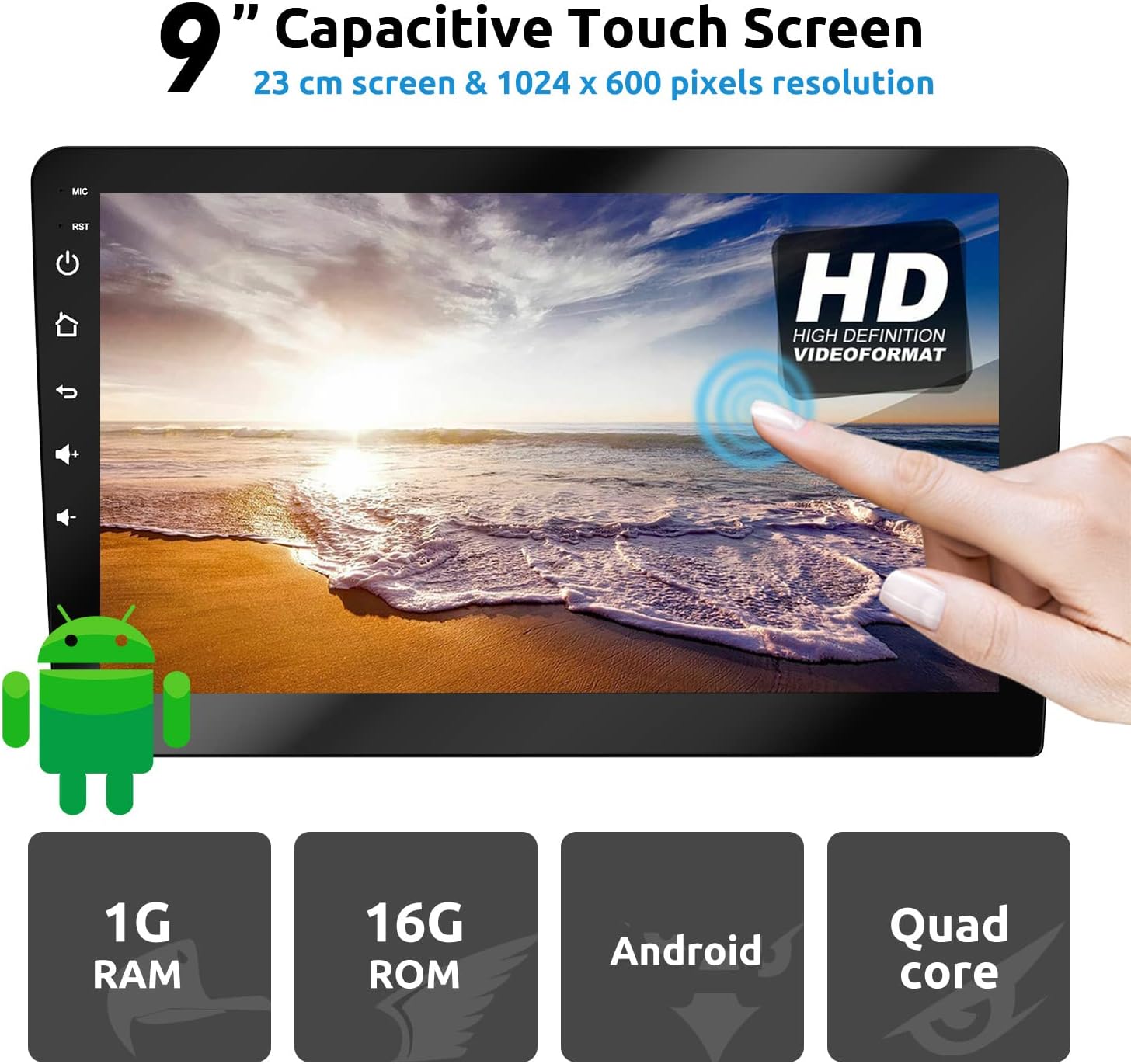
Image: The 9-inch capacitive touch screen displaying a high-definition video format, with physical buttons for MIC, RST, Power, Home, Back, Volume Up/Down on the left bezel.
- പവർ ബട്ടൺ: Press and hold to turn the unit on/off. Short press to mute/unmute.
- വോളിയം ബട്ടണുകൾ: ഓഡിയോ ഔട്ട്പുട്ട് ലെവൽ ക്രമീകരിക്കുക.
- ഹോം ബട്ടണ്: Return to the main Android home screen.
- ബാക്ക് ബട്ടൺ: മുമ്പത്തെ സ്ക്രീനിലേക്കോ മെനുവിലേക്കോ മടങ്ങുക.
- RST (റീസെറ്റ്) ബട്ടൺ: A small pinhole button to reset the unit if it becomes unresponsive.
2.2 ജിപിഎസ് നാവിഗേഷൻ
The unit supports both online and offline navigation. You can download GPS applications from the Google Play Store.
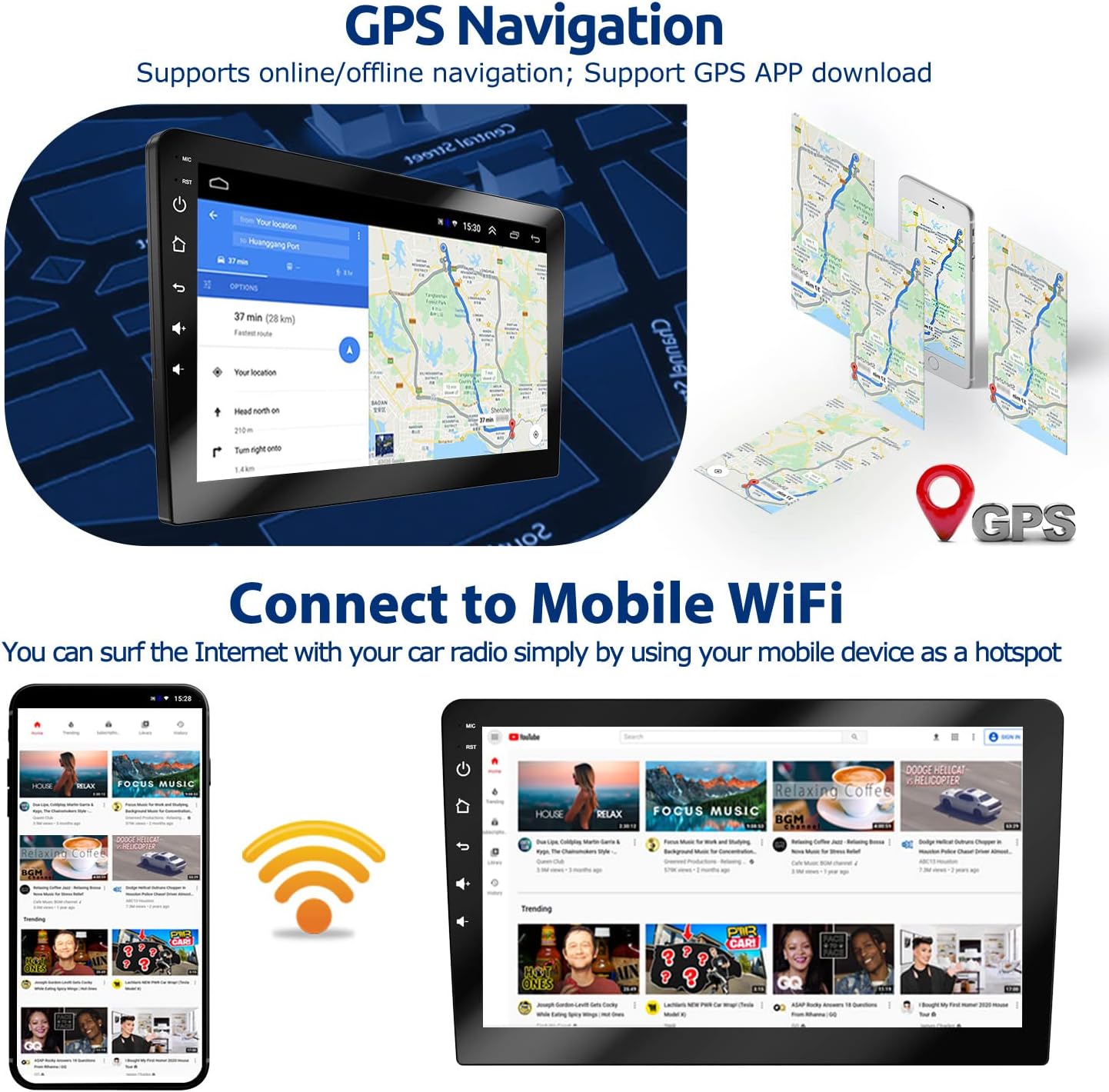
Image: The car stereo displaying a navigation map, with an illustration of mobile phones providing a WiFi hotspot for internet connectivity.
- Ensure the GPS antenna is properly connected and positioned.
- Access navigation apps from the main menu.
- For online navigation, ensure the unit is connected to the internet via WiFi.
2.3 ബ്ലൂടൂത്ത് കണക്റ്റിവിറ്റി
Connect your smartphone via Bluetooth for hands-free calling and music playback.

Image: The car stereo displaying a Bluetooth dial pad and music playback interface, with a person using a phone for hands-free calling.
- Go to the Bluetooth menu on the head unit.
- നിങ്ങളുടെ ഫോണിൽ ബ്ലൂടൂത്ത് പ്രവർത്തനക്ഷമമാക്കി ലഭ്യമായ ഉപകരണങ്ങൾക്കായി തിരയുക.
- Select the car stereo (usually named 'BT_Android' or similar) and pair.
- പെയർ ചെയ്തുകഴിഞ്ഞാൽ, നിങ്ങൾക്ക് കോളുകൾ വിളിക്കാനും സ്വീകരിക്കാനും ഓഡിയോ സ്ട്രീം ചെയ്യാനും കഴിയും.
2.4 വൈഫൈ കണക്റ്റിവിറ്റി
Connect to a WiFi network (e.g., your phone's hotspot) to access online features, download apps, and browse the internet.

Image: The car stereo displaying a WiFi connection icon and a smartphone showing YouTube, indicating internet access.
- Navigate to 'Settings' > 'Network & Internet' > 'Wi-Fi'.
- വൈഫൈ ഓണാക്കി നിങ്ങൾക്ക് ആവശ്യമുള്ള നെറ്റ്വർക്ക് തിരഞ്ഞെടുക്കുക.
- ആവശ്യപ്പെടുകയാണെങ്കിൽ പാസ്വേഡ് നൽകുക.
2.5 മിറർ ലിങ്ക്
Mirror Link allows you to display your smartphone's screen on the car stereo. This feature supports both Android and iOS devices.

Image: Diagram illustrating Mirror Link connectivity for iOS (WiFi connection, one-way control) and Android (USB cable or WiFi connection, two-way control).
- ആൻഡ്രോയിഡ് ഫോണുകൾ: Can be controlled in two directions (phone to radio or radio to phone) via USB cable or WiFi connection.
- iOS ഫോണുകൾ: Can only perform one-way control (from phone to radio) via WiFi connection.
- Access the 'Mirror Link' application from the main menu and follow the on-screen instructions for connection.
2.6 എഫ്എം റേഡിയോ
നിങ്ങളുടെ പ്രിയപ്പെട്ട എഫ്എം റേഡിയോ സ്റ്റേഷനുകൾ കേൾക്കൂ.
Image: The car stereo displaying the FM radio interface with frequency selection and preset options.
- Select the 'Radio' application from the main menu.
- Use the on-screen controls to scan for stations, manually tune, or select presets.
2.7 സ്റ്റിയറിംഗ് വീൽ നിയന്ത്രണങ്ങൾ
If your vehicle supports it, you can program the unit to respond to your steering wheel controls for convenience.
Image: The car stereo displaying the steering wheel control learning interface, with an inset showing a hand operating steering wheel buttons.
- Go to 'Settings' > 'Steering Wheel Control' (or similar).
- Follow the on-screen instructions to assign functions to your vehicle's steering wheel buttons.
2.8 സ്പ്ലിറ്റ് സ്ക്രീൻ ഫംഗ്ഷൻ
സ്പ്ലിറ്റ്-സ്ക്രീൻ സവിശേഷത നാവിഗേഷൻ, മ്യൂസിക് പ്ലേബാക്ക് പോലുള്ള രണ്ട് ആപ്ലിക്കേഷനുകൾ ഒരേസമയം പ്രവർത്തിപ്പിക്കാൻ നിങ്ങളെ അനുവദിക്കുന്നു.

Image: The car stereo displaying two applications side-by-side in split-screen mode, showing navigation on one side and music playback on the other.
- സജീവമാക്കാൻ, ഒരു ആപ്പ് തുറക്കുക, തുടർന്ന് സമീപകാല ആപ്പുകൾ ബട്ടൺ ദീർഘനേരം അമർത്തുക അല്ലെങ്കിൽ സ്ക്രീനിന്റെ ഒരു വശത്തേക്ക് ഒരു ആപ്പ് വലിച്ചിടുക.
- സ്ക്രീനിന്റെ മറ്റേ പകുതി നിറയ്ക്കാൻ രണ്ടാമത്തെ ആപ്പ് തിരഞ്ഞെടുക്കുക.
2.9 EQ ക്രമീകരണങ്ങൾ
Adjust the audio equalizer settings to customize your sound experience.

Image: The car stereo displaying the audio equalizer interface with adjustable frequency bands and sound field settings.
- Access the 'EQ' or 'Sound Settings' application.
- ഫ്രീക്വൻസി ബാൻഡുകൾ, ബാലൻസ്, ഫേഡർ, പ്രീസെറ്റ് സൗണ്ട് മോഡുകൾ എന്നിവ നിങ്ങളുടെ ഇഷ്ടത്തിനനുസരിച്ച് ക്രമീകരിക്കുക.
3. പരിപാലനം
ശരിയായ അറ്റകുറ്റപ്പണി നിങ്ങളുടെ കാർ സ്റ്റീരിയോയുടെ ദീർഘായുസ്സും മികച്ച പ്രകടനവും ഉറപ്പാക്കുന്നു.
3.1 യൂണിറ്റ് വൃത്തിയാക്കൽ
- സ്ക്രീനും പുറം പ്രതലങ്ങളും തുടയ്ക്കാൻ മൃദുവായതും ഉണങ്ങിയതുമായ ഒരു തുണി ഉപയോഗിക്കുക.
- For stubborn smudges on the screen, use a screen cleaner specifically designed for electronic displays and a microfiber cloth.
- Avoid using abrasive cleaners, solvents, or harsh chemicals, as these can damage the screen or finish.
3.2 സോഫ്റ്റ്വെയർ അപ്ഡേറ്റുകൾ
- Periodically check for available software updates to ensure optimal performance and access to new features.
- Updates can typically be found in the 'Settings' menu under 'About device' or 'System updates'.
- Ensure a stable internet connection during updates to prevent interruption.
4. പ്രശ്നപരിഹാരം
നിങ്ങളുടെ കാർ സ്റ്റീരിയോയിൽ നിങ്ങൾ നേരിട്ടേക്കാവുന്ന സാധാരണ പ്രശ്നങ്ങളെയാണ് ഈ വിഭാഗം അഭിസംബോധന ചെയ്യുന്നത്.
| പ്രശ്നം | സാധ്യമായ കാരണം | പരിഹാരം |
|---|---|---|
| യൂണിറ്റ് പവർ ഓണാക്കുന്നില്ല. | Incorrect power wiring; Blown fuse; Vehicle battery issue. | Check power cable connections (B+, ACC, GND). Verify the fuse is intact. Check vehicle battery voltage. |
| സ്പീക്കറുകളിൽ നിന്ന് ശബ്ദമില്ല. | സ്പീക്കർ വയറിംഗ് തെറ്റാണ്; ശബ്ദം വളരെ കുറവാണ്; മ്യൂട്ട് ഫംഗ്ഷൻ സജീവമാണ്. | Check speaker wire connections and polarity. Increase volume. Disable mute. Check EQ settings. |
| GPS signal is weak or unavailable. | GPS antenna improperly connected or positioned; Obstruction. | Ensure GPS antenna is securely connected and mounted in a clear location (e.g., dashboard, not under metal). |
| ബ്ലൂടൂത്ത് കണക്ഷൻ പ്രശ്നങ്ങൾ. | Bluetooth not enabled; Device not paired; Interference. | Ensure Bluetooth is enabled on both devices. Re-pair the devices. Move closer to the unit. |
| ടച്ച്സ്ക്രീൻ പ്രതികരിക്കുന്നില്ല. | താൽക്കാലിക സോഫ്റ്റ്വെയർ തകരാർ. | Press the RST (Reset) button with a thin object (e.g., paperclip). |
| പിൻഭാഗം view ക്യാമറ പ്രദർശിപ്പിക്കുന്നില്ല. | Camera wiring issue; Camera power issue. | Check camera video input connection. Verify camera power connection to reverse light. |
If you encounter issues not listed here or require further assistance, please contact ESSGOO customer support.
5 സ്പെസിഫിക്കേഷനുകൾ
Key technical specifications for the ESSGOO Android 9.1 Double Din Car Stereo.
| ഫീച്ചർ | വിശദാംശങ്ങൾ |
|---|---|
| ഓപ്പറേറ്റിംഗ് സിസ്റ്റം | ആൻഡ്രോയിഡ് 9.1 |
| സ്ക്രീൻ വലിപ്പം | 9 ഇഞ്ച് |
| റെസലൂഷൻ | 1024 x 600 |
| മെമ്മറി (റാം) | 1 ജിബി |
| സംഭരണം (ROM) | 16 ജിബി |
| കണക്റ്റിവിറ്റി ടെക്നോളജി | ബ്ലൂടൂത്ത്, യുഎസ്ബി, വൈ-ഫൈ |
| പ്രത്യേക സവിശേഷതകൾ | Bluetooth, Touchscreen, GPS Navigation, Mirror Link, FM Radio, Rear View ക്യാമറ പിന്തുണ |
| ഓഡിയോ put ട്ട്പുട്ട് മോഡ് | സ്റ്റീരിയോ |
| മൗണ്ടിംഗ് തരം | പാനൽ മ .ണ്ട് |
| ഉൽപ്പന്ന അളവുകൾ | 9.06 x 5.12 x 3.15 ഇഞ്ച് (230 x 130 x 80 മിമി) |
| ഇനത്തിൻ്റെ ഭാരം | 3.06 പൗണ്ട് |
| നിർമ്മാതാവ് | എസ്.എസ്.ഗു |
6. വാറൻ്റിയും പിന്തുണയും
For warranty information and customer support, please refer to the details below.
6.1 വാറൻ്റി വിവരങ്ങൾ
ESSGOO products typically come with a manufacturer's warranty. Please refer to the warranty card included in your product packaging or visit the official ESSGOO webനിർദ്ദിഷ്ട വാറന്റി നിബന്ധനകൾക്കും വ്യവസ്ഥകൾക്കും സൈറ്റ്.
6.2 ഉപഭോക്തൃ പിന്തുണ
If you have any questions, require technical assistance, or need to report an issue, please contact ESSGOO Support. You can typically reach support via Amazon Messages or through the contact information provided on the ESSGOO official webസൈറ്റ്.
- ഓൺലൈൻ പിന്തുണ: Contact ESSGOO Support via Amazon Messages for prompt assistance.
- സാങ്കേതിക മാർഗ്ഗനിർദ്ദേശം: Professional technical guidance is available to help with installation or operational queries.