
Dragonwar GSPS4-BU
Dragonwar Dragon Shock 4 Wireless Controller User Manual
Model: GSPS4-BU
1. ആമുഖം
Thank you for choosing the Dragonwar Dragon Shock 4 Wireless Controller. This manual provides detailed instructions to help you set up, operate, and maintain your controller for optimal performance across PlayStation 4, PC, and mobile devices. Please read this manual thoroughly before use.
2. പാക്കേജ് ഉള്ളടക്കം
പാക്കേജിൽ എല്ലാ ഇനങ്ങളും ഉണ്ടെന്ന് ഉറപ്പാക്കുക:
- Dragonwar Dragon Shock 4 Wireless Controller
- യുഎസ്ബി ചാർജിംഗ് കേബിൾ
- ഉപയോക്തൃ മാനുവൽ
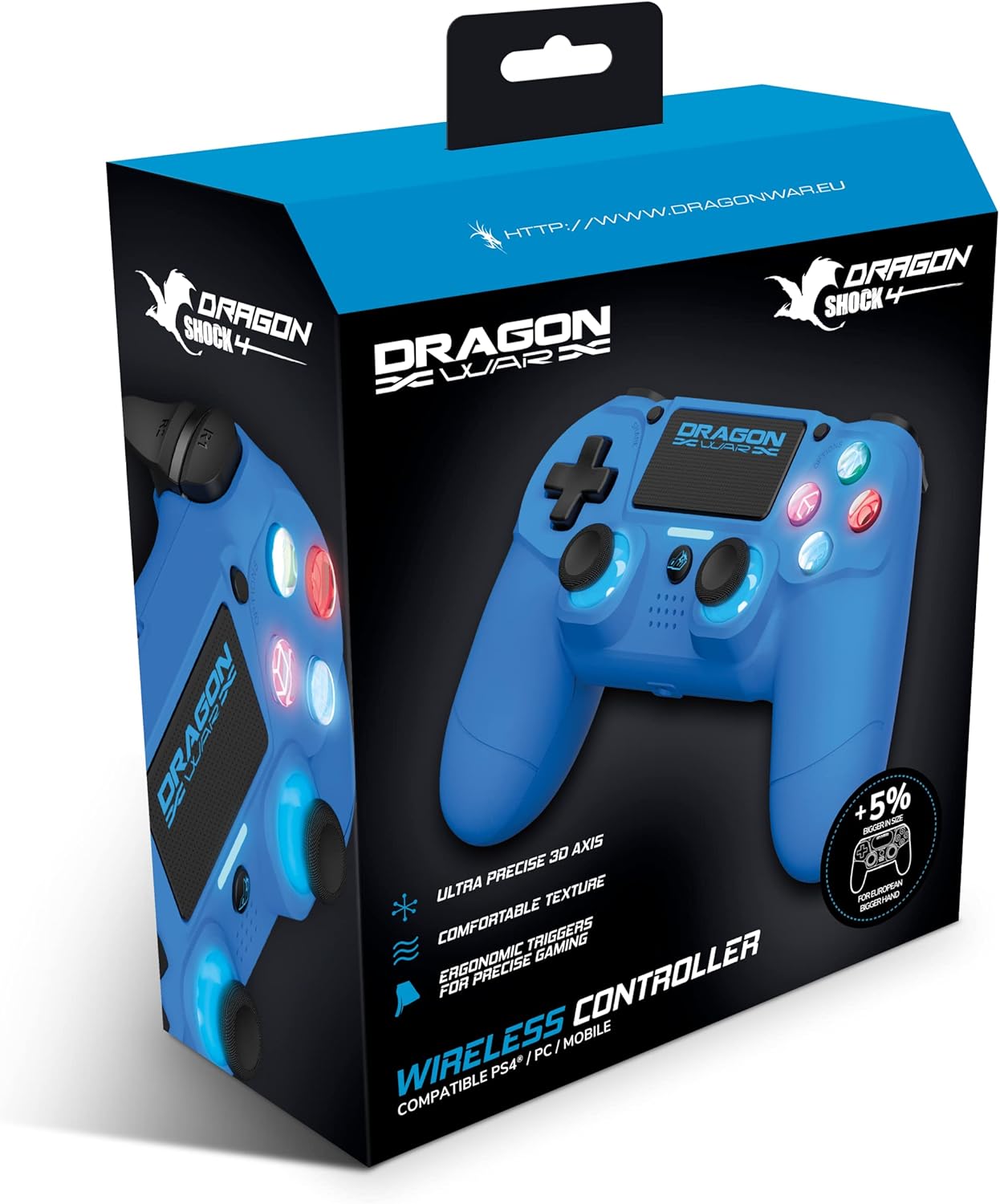
Image: The Dragonwar Dragon Shock 4 Wireless Controller packaging, showing the blue controller inside a blue and black box with product features listed.
3. കൺട്രോളർ ഓവർview
Familiarize yourself with the various buttons and features of your Dragon Shock 4 controller:

Image: A detailed diagram of the Dragonwar Dragon Shock 4 Wireless Controller, highlighting and numbering its various buttons and components for easy identification.
- Left Joystick / L3 Button: Used for movement and as a clickable button.
- ഹോം ബട്ടണ്: കൺട്രോളർ ഓൺ/ഓഫ് ചെയ്യുകയും സിസ്റ്റം മെനുകൾ ആക്സസ് ചെയ്യുകയും ചെയ്യുന്നു.
- 3.5mm Jack Play & Chat: For connecting a headset for audio and voice chat.
- Right Joystick / R3 Button: Used for camera control, aiming, and as a clickable button.
- Button (Cross): പ്രവർത്തന ബട്ടൺ.
- Button (Circle): പ്രവർത്തന ബട്ടൺ.
- Button (Triangle): പ്രവർത്തന ബട്ടൺ.
- Button (Square): പ്രവർത്തന ബട്ടൺ.
- ഓപ്ഷനുകൾ ബട്ടൺ: Accesses in-game or system options.
- ടച്ച് പാഡ്: Multi-touch input surface.
- പങ്കിടൽ ബട്ടൺ: For sharing gameplay content.
- Up Button (D-Pad): ദിശാ ഇൻപുട്ട്.
- Right Button (D-Pad): ദിശാ ഇൻപുട്ട്.
- Left Button (D-Pad): ദിശാ ഇൻപുട്ട്.
- Down Button (D-Pad): ദിശാ ഇൻപുട്ട്.
- R1 Button: Right shoulder button.
- R2 Button: Right trigger button.
- L1 Button: Left shoulder button.
- L2 Button: Left trigger button.
- ചാർജിംഗ് പോർട്ട്: USB port for charging the controller.
4. സജ്ജീകരണം
4.1 പ്രാരംഭ ചാർജിംഗ്
Before first use, fully charge the controller. Connect the supplied USB charging cable to the controller's charging port (20) and the other end to a powered USB port (e.g., PS4 console, PC, or USB wall adapter). The light bar will indicate charging status and turn off when fully charged.
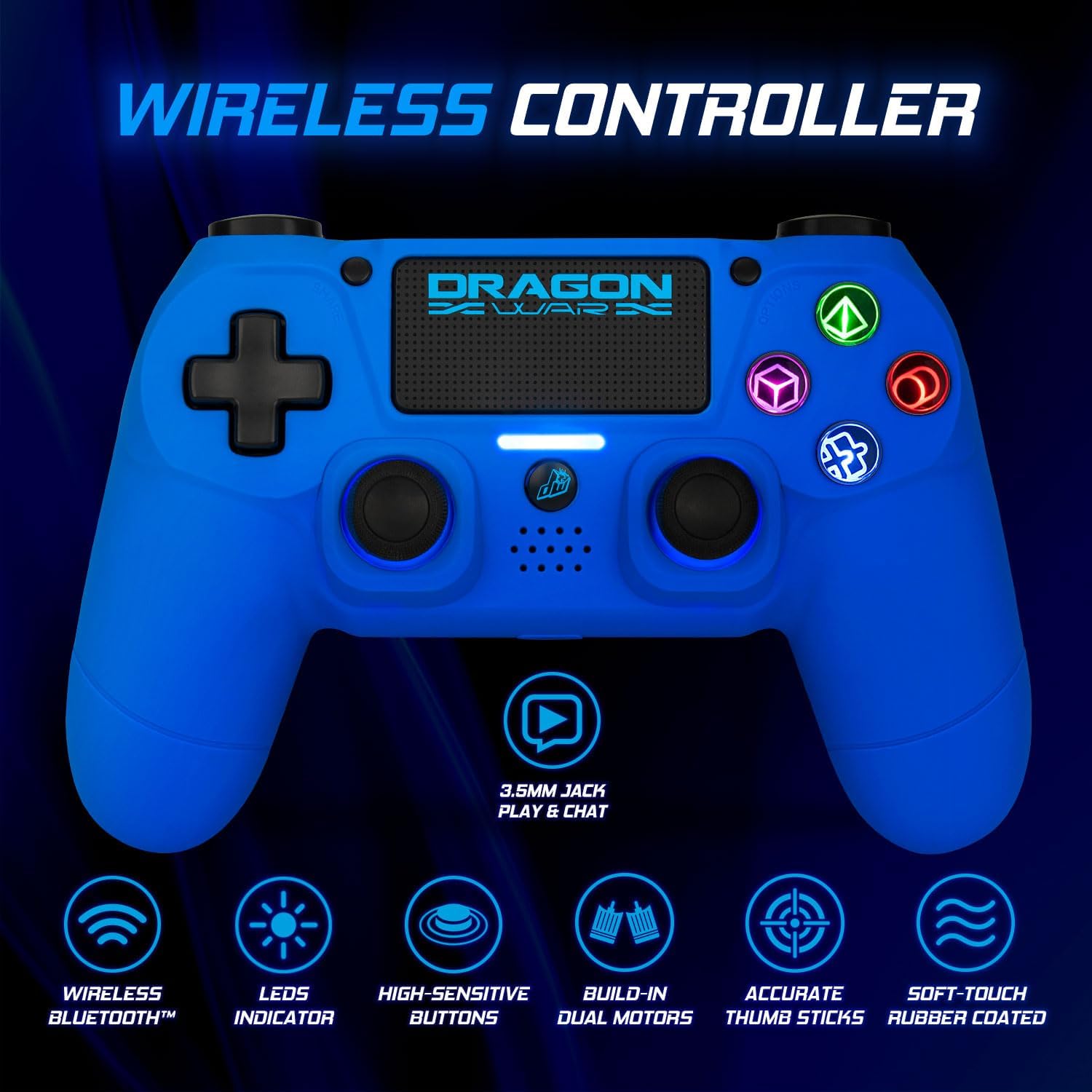
Image: The Dragonwar Dragon Shock 4 Wireless Controller displayed with text indicating "Long Battery Life" and a 500mAh battery, along with play time and charging time details.
4.2 Pairing with PlayStation 4
- നിങ്ങളുടെ PS4 കൺസോൾ ഓണാക്കിയിട്ടുണ്ടെന്ന് ഉറപ്പാക്കുക.
- Connect the controller to the PS4 console using the USB charging cable.
- അമർത്തുക ഹോം ബട്ടൺ (2) on the controller.
- The controller will pair with the PS4. Once paired, you can disconnect the USB cable for wireless play.
- To pair additional controllers, repeat the process.
4.3 പിസിയിലേക്ക് (വിൻഡോസ്) കണക്റ്റുചെയ്യുന്നു
The controller can be connected to a PC via Bluetooth or USB cable.
4.3.1 ബ്ലൂടൂത്ത് കണക്ഷൻ
- നിങ്ങളുടെ പിസിയിൽ ബ്ലൂടൂത്ത് പ്രവർത്തനക്ഷമമാക്കിയിട്ടുണ്ടെന്ന് ഉറപ്പാക്കുക.
- നിങ്ങളുടെ പിസിയിൽ, പോകുക ക്രമീകരണങ്ങൾ > ഉപകരണങ്ങൾ > ബ്ലൂടൂത്തും മറ്റ് ഉപകരണങ്ങളും.
- അമർത്തിപ്പിടിക്കുക ബട്ടൺ പങ്കിടുക (11) കൂടാതെ ഹോം ബട്ടൺ (2) on the controller simultaneously until the light bar starts flashing rapidly. This indicates pairing mode.
- On your PC, click "Add Bluetooth or other device" and select "Bluetooth".
- Select the controller from the list of available devices (it may appear as "Wireless Controller" or similar).
- Follow any on-screen prompts to complete the pairing.
4.3.2 വയർഡ് കണക്ഷൻ
- Connect the controller to your PC using the USB charging cable.
- പിസി ആവശ്യമായ ഡ്രൈവറുകൾ യാന്ത്രികമായി കണ്ടെത്തി ഇൻസ്റ്റാൾ ചെയ്യണം.
4.4 മൊബൈൽ ഉപകരണങ്ങളിലേക്ക് ബന്ധിപ്പിക്കുന്നു
- നിങ്ങളുടെ മൊബൈൽ ഉപകരണത്തിൽ ബ്ലൂടൂത്ത് പ്രവർത്തനക്ഷമമാക്കിയിട്ടുണ്ടെന്ന് ഉറപ്പാക്കുക.
- അമർത്തിപ്പിടിക്കുക ബട്ടൺ പങ്കിടുക (11) കൂടാതെ ഹോം ബട്ടൺ (2) on the controller simultaneously until the light bar starts flashing rapidly.
- On your mobile device, go to Bluetooth settings and scan for new devices.
- ലഭ്യമായ ഉപകരണങ്ങളുടെ പട്ടികയിൽ നിന്ന് കൺട്രോളർ തിരഞ്ഞെടുക്കുക.
- Follow any on-screen prompts to complete the pairing.
5. പ്രവർത്തന നിർദ്ദേശങ്ങൾ
5.1 പവർ ഓൺ/ഓഫ്
- പവർ ഓണാക്കാൻ: അമർത്തുക ഹോം ബട്ടൺ (2). The controller will attempt to connect to the last paired device.
- പവർ ഓഫ് ചെയ്യാൻ: പിടിക്കുക ഹോം ബട്ടൺ (2) for approximately 10 seconds until the light bar turns off. The controller will also power off automatically after a period of inactivity.
5.2 Using the Touch Pad
The touch pad (10) supports multi-touch input, allowing for various gestures depending on the game or application. Refer to specific game instructions for touch pad functionality.
5.3 ഹെഡ്സെറ്റ് കണക്ഷൻ
Connect a standard 3.5mm headset to the 3.5mm Jack Play & Chat (3) for in-game audio and voice communication.

ചിത്രം: ഒരു ക്ലോസ്-അപ്പ് view of the 3.5mm stereo audio jack located on the Dragonwar Dragon Shock 4 Wireless Controller, indicating its function for play and chat.
5.4 വൈബ്രേഷൻ ഫംഗ്ഷൻ
The controller features dual vibration motors for enhanced haptic feedback during gameplay. This function is automatically enabled when supported by the game.
5.5 Precision Analog Sticks
The controller is equipped with high-precision analog sticks (1, 4) designed for accurate movement and aiming.

Image: A close-up of the Dragonwar Dragon Shock 4 Wireless Controller's analog sticks, emphasizing their precision for improved gaming accuracy and speed.
6. പരിപാലനം
6.1 വൃത്തിയാക്കൽ
കൺട്രോളർ വൃത്തിയാക്കാൻ, മൃദുവായതും ഉണങ്ങിയതുമായ ഒരു തുണി ഉപയോഗിക്കുക. കഠിനമായ അഴുക്കിന്, ചെറുതായി dampen the cloth with water. Do not use harsh chemicals, solvents, or abrasive cleaners, as these can damage the controller's finish and internal components.
6.2 സംഭരണം
കൺട്രോളർ നേരിട്ട് സൂര്യപ്രകാശത്തിൽ നിന്നും കടുത്ത താപനിലയിൽ നിന്നും അകന്ന് തണുത്തതും വരണ്ടതുമായ സ്ഥലത്ത് സൂക്ഷിക്കുക. ബട്ടണുകൾക്കോ ജോയ്സ്റ്റിക്കുകൾക്കോ കേടുപാടുകൾ സംഭവിക്കാതിരിക്കാൻ കൺട്രോളറിൽ ഭാരമുള്ള വസ്തുക്കൾ വയ്ക്കുന്നത് ഒഴിവാക്കുക.
7. പ്രശ്നപരിഹാരം
- കൺട്രോളർ ഓണാക്കുന്നില്ല: Ensure the controller is fully charged. Connect it to a power source using the USB cable.
- കൺട്രോളർ ബന്ധിപ്പിക്കുന്നില്ല/ജോടിയാക്കുന്നില്ല:
- For PS4: Try connecting with the USB cable first to re-establish the connection.
- For PC/Mobile: Ensure Bluetooth is enabled on your device and the controller is in pairing mode (flashing light bar). Remove previous pairings from your device's Bluetooth list and try again.
- Reset the controller: Locate the small reset button on the back of the controller (often a small hole near the L2 button). Use a thin object (like a paperclip) to press and hold the button for 3-5 seconds. Then, attempt to pair again.
- ബട്ടണുകൾ അല്ലെങ്കിൽ ജോയ്സ്റ്റിക്കുകൾ പ്രതികരിക്കുന്നില്ല:
- കൺട്രോളർ ശരിയായി ബന്ധിപ്പിച്ചിട്ടുണ്ടെന്ന് ഉറപ്പാക്കുക.
- Restart the controller and the connected device (PS4, PC, mobile).
- Test the controller with another game or application to determine if the issue is specific to one program.
- ഇൻപുട്ട് ലാഗ് അല്ലെങ്കിൽ വിച്ഛേദിക്കൽ:
- Ensure there are no obstructions or strong interference sources (e.g., Wi-Fi routers, other Bluetooth devices) between the controller and the connected device.
- ബന്ധിപ്പിച്ചിരിക്കുന്ന ഉപകരണത്തിന് അടുത്തേക്ക് നീങ്ങുക.
- കൺട്രോളർ പൂർണ്ണമായും ചാർജ്ജ് ചെയ്തിട്ടുണ്ടെന്ന് ഉറപ്പാക്കുക.
8 സ്പെസിഫിക്കേഷനുകൾ
| ബ്രാൻഡ് | ഡ്രാഗൺവാർ |
| മോഡൽ നമ്പർ | GSPS4-BU |
| നിറം | നീല |
| കണക്റ്റിവിറ്റി ടെക്നോളജി | ബ്ലൂടൂത്ത് |
| അനുയോജ്യമായ ഉപകരണങ്ങൾ | PlayStation 4, Windows, Mobile |
| കൺട്രോളർ തരം | ഗെയിംപാഡ് |
| പവർ ഉറവിടം | ബാറ്ററി പവർ (500mAh) |
| അളവുകൾ (L x W x H) | 17.5 x 20 x 8 സെ.മീ |
| പ്രത്യേക സവിശേഷതകൾ | Ergonomic Design, Wireless, Dual Vibration, 3.5mm Audio Jack, Touch Pad |
| ബട്ടണുകളുടെ എണ്ണം | 16 |
9. വാറൻ്റിയും പിന്തുണയും
9.1 വാറൻ്റി വിവരങ്ങൾ
This Dragonwar product comes with a 2 വർഷത്തെ നിർമ്മാതാവിന്റെ വാറന്റി വാങ്ങിയ തീയതി മുതൽ. സാധാരണ ഉപയോഗത്തിലുള്ള മെറ്റീരിയലുകളിലെയും നിർമ്മാണത്തിലെയും വൈകല്യങ്ങൾ ഈ വാറന്റി ഉൾക്കൊള്ളുന്നു. ദുരുപയോഗം, അപകടങ്ങൾ, അനധികൃത പരിഷ്കാരങ്ങൾ, അല്ലെങ്കിൽ സാധാരണ തേയ്മാനം എന്നിവ മൂലമുണ്ടാകുന്ന നാശനഷ്ടങ്ങൾക്ക് ഇത് പരിരക്ഷ നൽകുന്നില്ല. വാറന്റി ക്ലെയിമുകൾക്കായി നിങ്ങളുടെ വാങ്ങലിന്റെ തെളിവ് സൂക്ഷിക്കുക.
9.2 ഉപഭോക്തൃ പിന്തുണ
For technical assistance, troubleshooting, or warranty inquiries, please visit the official Dragonwar website or contact their customer support service. Contact details can typically be found on the product packaging or the official brand webസൈറ്റ്.
Ask a question about this manual
Ask about setup, troubleshooting, compatibility, parts, safety, or missing instructions. Manuals+ will review the question and use this page’s manual context to help answer it.