
ആമുഖം
This manual provides detailed instructions for the setup, operation, and maintenance of your PUSAT One Shot Pro Wireless Gaming Mouse. Please read this manual thoroughly before using the product to ensure optimal performance and longevity.
പാക്കേജ് ഉള്ളടക്കം
താഴെ കൊടുത്തിരിക്കുന്ന എല്ലാ ഇനങ്ങളും നിങ്ങളുടെ പാക്കേജിൽ ഉണ്ടെന്ന് ദയവായി ഉറപ്പാക്കുക:
- PUSAT വൺ ഷോട്ട് പ്രോ വയർലെസ് ഗെയിമിംഗ് മൗസ്
- യുഎസ്ബി വയർലെസ് റിസീവർ
- യുഎസ്ബി-സി മുതൽ യുഎസ്ബി-എ ചാർജിംഗ് കേബിൾ വരെ
- Additional Side Buttons (interchangeable)
- ഉപയോക്തൃ മാനുവൽ (ഈ പ്രമാണം)

ചിത്രം 1: PUSAT One Shot Pro mouse, charging cable, and interchangeable side buttons, displayed with its retail packaging.
ഉൽപ്പന്നം കഴിഞ്ഞുview
Familiarize yourself with the various components and controls of your PUSAT One Shot Pro Wireless Gaming Mouse.
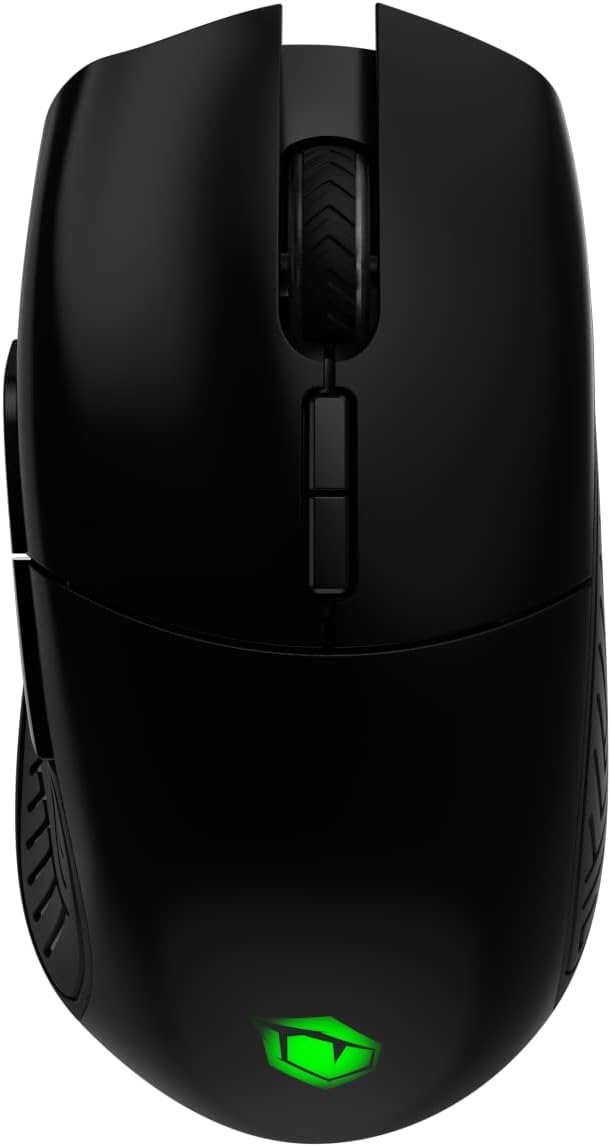
ചിത്രം 2: മുകളിൽ view of the PUSAT One Shot Pro mouse, showing the left and right click buttons, scroll wheel, and DPI switch buttons.

ചിത്രം 3: ഇടത് വശം view of the PUSAT One Shot Pro mouse, highlighting the two programmable side buttons and textured grip.

ചിത്രം 4: താഴെ view of the PUSAT One Shot Pro mouse, showing the optical sensor, ON/OFF switch, user profile switch, and the compartment for the USB receiver.
ബട്ടൺ പ്രവർത്തനങ്ങൾ:
- ഇടത് ക്ലിക്ക് ബട്ടൺ: സ്റ്റാൻഡേർഡ് പ്രൈമറി ക്ലിക്ക് ഫംഗ്ഷൻ.
- റൈറ്റ് ക്ലിക്ക് ബട്ടൺ: സ്റ്റാൻഡേർഡ് സെക്കൻഡറി ക്ലിക്ക് ഫംഗ്ഷൻ.
- സ്ക്രോൾ വീൽ: Scrolls content up/down, also functions as a middle click button.
- DPI Switch Buttons: Adjusts the mouse's sensitivity (DPI) on the fly.
- Programmable Side Buttons (8 total): Customizable buttons for various functions, often used for macros or in-game actions.
- ഉപയോക്തൃ പ്രോfile Switch (Bottom): Allows switching between different user-defined profiles.
- ON/OFF Switch (Bottom): മൗസ് ഓൺ അല്ലെങ്കിൽ ഓഫ് ആക്കുന്നു.
സജ്ജമാക്കുക
മൗസിനെ ബന്ധിപ്പിക്കുന്നു:
- Locate the USB wireless receiver. It is typically stored in a compartment on the underside of the mouse (refer to Figure 4).
- Remove the USB wireless receiver from its storage slot.
- Plug the USB wireless receiver into an available USB port on your computer (PC or Notebook).
- Flip the ON/OFF switch on the bottom of the mouse to the "ON" position.
- നിങ്ങളുടെ കമ്പ്യൂട്ടർ ആവശ്യമായ ഡ്രൈവറുകൾ സ്വയമേവ കണ്ടെത്തി ഇൻസ്റ്റാൾ ചെയ്യണം. ഇൻസ്റ്റാളേഷൻ പൂർത്തിയായിക്കഴിഞ്ഞാൽ മൗസ് ഉപയോഗത്തിന് തയ്യാറാകും.
For optimal wireless performance, ensure the USB receiver is placed in a location with minimal interference and a clear line of sight to the mouse.
പ്രവർത്തന നിർദ്ദേശങ്ങൾ
അടിസ്ഥാന ഉപയോഗം:
- നിങ്ങളുടെ സ്ക്രീനിലെ കഴ്സർ നിയന്ത്രിക്കാൻ മൗസ് ഒരു പരന്ന പ്രതലത്തിൽ നീക്കുക.
- Use the left and right click buttons for primary and secondary actions.
- Rotate the scroll wheel to navigate through documents or web പേജുകൾ.
DPI ക്രമീകരണം:
The PUSAT One Shot Pro mouse features adjustable DPI (Dots Per Inch) settings, allowing you to change cursor sensitivity. Use the dedicated DPI switch buttons, usually located near the scroll wheel, to cycle through preset DPI levels (1,000 to 16,000 DPI). Each change typically corresponds to a visual indicator, such as an RGB lighting color change, though specific indicators may vary.
പ്രോഗ്രാം ചെയ്യാവുന്ന ബട്ടണുകൾ:
The mouse is equipped with 8 programmable buttons. To customize these buttons, you will typically need to download and install the official PUSAT software from the manufacturer's website. This software allows you to assign macros, keyboard functions, or other commands to each programmable button.
ചാർജിംഗ്
The PUSAT One Shot Pro mouse is equipped with a rechargeable Lithium Ion battery (700 mAh) and supports both wired and wireless charging.
വയർഡ് ചാർജിംഗ്:
- Connect the USB-C end of the charging cable to the port on the front of the mouse.
- Connect the USB-A end of the charging cable to an available USB port on your computer or a USB wall adapter.
- The mouse's RGB lighting or an indicator light will typically show the charging status.

ചിത്രം 5: The PUSAT One Shot Pro mouse connected via its USB-C charging cable.
വയർലെസ് ചാർജിംഗ്:
The PUSAT One Shot Pro supports wireless charging. To charge wirelessly, place the mouse on a compatible wireless charging pad. Ensure the mouse is correctly positioned on the charging pad for the charging process to initiate. The mouse's indicator lights will typically confirm that wireless charging is active.
Note: A wireless charging pad is sold separately and is not included with the mouse.
മെയിൻ്റനൻസ്
വൃത്തിയാക്കൽ:
- വൃത്തിയാക്കുന്നതിനുമുമ്പ് മൗസ് ഓഫാക്കിയിട്ടുണ്ടെന്ന് ഉറപ്പാക്കുക.
- മൃദുവായ, ലിൻ്റ് രഹിത തുണി ഉപയോഗിക്കുകampമൗസിന്റെ ഉപരിതലം തുടയ്ക്കാൻ വെള്ളമോ നേരിയ ക്ലീനിംഗ് ലായനിയോ ഉപയോഗിച്ച് നനയ്ക്കുക.
- കഠിനമായ രാസവസ്തുക്കൾ, അബ്രസീവ് ക്ലീനറുകൾ, അല്ലെങ്കിൽ ലായകങ്ങൾ എന്നിവ ഉപയോഗിക്കുന്നത് ഒഴിവാക്കുക.
- Use compressed air to remove dust and debris from crevices and around buttons.
- കൃത്യമായ ട്രാക്കിംഗ് ഉറപ്പാക്കാൻ മൗസിന്റെ അടിയിലുള്ള ഒപ്റ്റിക്കൽ സെൻസർ ഒരു കോട്ടൺ സ്വാബ് ഉപയോഗിച്ച് ഇടയ്ക്കിടെ വൃത്തിയാക്കുക.
ബാറ്ററി കെയർ:
- ബാറ്ററി ഇടയ്ക്കിടെ പൂർണ്ണമായും ഡിസ്ചാർജ് ചെയ്യുന്നത് ഒഴിവാക്കുക.
- ദീർഘനേരം ഉപയോഗിക്കാത്തപ്പോൾ തണുത്തതും വരണ്ടതുമായ സ്ഥലത്ത് മൗസ് സൂക്ഷിക്കുക.
- If storing for a long time, charge the battery to about 50% to prolong its lifespan.
ട്രബിൾഷൂട്ടിംഗ്
| പ്രശ്നം | സാധ്യമായ കാരണം | പരിഹാരം |
|---|---|---|
| മൗസ് പ്രതികരിക്കുന്നില്ല |
|
|
| കഴ്സർ ചലനം മന്ദഗതിയിലായതോ ക്രമരഹിതമായതോ ആണ് |
|
|
| Buttons not working or programmable features not active |
|
|
| വയർലെസ് ചാർജിംഗ് പ്രവർത്തിക്കുന്നില്ല |
|
|
സ്പെസിഫിക്കേഷനുകൾ
| ഫീച്ചർ | വിശദാംശങ്ങൾ |
|---|---|
| ബ്രാൻഡ് | പുസാറ്റ് |
| മോഡൽ | One Shot Pro |
| കണക്റ്റിവിറ്റി | 2.4GHz വയർലെസ് (USB റിസീവർ) |
| ഡിപിഐ ശ്രേണി | 1,000 - 16,000 ഡിപിഐ |
| ബട്ടണുകളുടെ എണ്ണം | 8 (പ്രോഗ്രാം ചെയ്യാവുന്നത്) |
| സെൻസർ തരം | ഒപ്റ്റിക്കൽ |
| ബാറ്ററി തരം | 1 Lithium Ion Battery (Included) |
| ബാറ്ററി ശേഷി | 700 mAh |
| ചാർജിംഗ് | USB-C Wired, Wireless Charging Compatible |
| അളവുകൾ (L x W x H) | 12.5 x 6.6 x 4.2 സെ.മീ |
| ഭാരം | 110 ഗ്രാം |
| നിറം | കറുപ്പ് |
| ഹാർഡ്വെയർ പ്ലാറ്റ്ഫോം | PC, Notebook |
സുരക്ഷാ വിവരങ്ങൾ
- മൗസിനെ തീവ്രമായ താപനില, ഈർപ്പം, നേരിട്ടുള്ള സൂര്യപ്രകാശം എന്നിവയ്ക്ക് വിധേയമാക്കരുത്.
- ശക്തമായ ആഘാതങ്ങൾക്ക് മൗസ് വീഴ്ത്തുകയോ വിധേയമാക്കുകയോ ചെയ്യരുത്.
- Do not attempt to disassemble or modify the mouse. This may void the warranty and cause damage.
- Keep the mouse away from liquids. If liquid enters the device, discontinue use immediately and contact support.
- Dispose of the battery according to local regulations. Do not dispose of batteries in general household waste.
വാറൻ്റിയും പിന്തുണയും
For warranty information and technical support, please refer to the warranty card included with your product or visit the official PUSAT website. If you encounter any issues not covered in this manual, please contact PUSAT customer service for assistance.