
1. സജ്ജീകരണം
1.1 അൺബോക്സിംഗ്
പാക്കേജിംഗിൽ നിന്ന് എല്ലാ ഘടകങ്ങളും ശ്രദ്ധാപൂർവ്വം നീക്കം ചെയ്യുക. ബോക്സിൽ ഇനിപ്പറയുന്ന ഇനങ്ങൾ ഉണ്ടായിരിക്കണം:
- X5 വയർലെസ് മെക്കാനിക്കൽ കീബോർഡ്
- X5 Dongle (USB receiver)
- റിസ്റ്റ് റെസ്റ്റ്
- പ്ലാസ്റ്റിക് പൊടി കവർ
- USB-C ഡാറ്റ കേബിൾ
- കീക്യാപ് പുള്ളർ
- ഉപയോക്തൃ മാനുവൽ (ഈ പ്രമാണം)

Image: Hexgears X5 keyboard with its accessories, including the detachable wrist rest, USB-C cable, USB dongle, and keycap puller.
1.2 കീബോർഡ് ബന്ധിപ്പിക്കുന്നു
The Hexgears X5 keyboard supports both 2.4GHz wireless and USB-C wired connectivity.
1.2.1 2.4GHz വയർലെസ് മോഡ്
- Locate the X5 USB dongle. It is typically stored in a compartment on the underside of the keyboard or within the packaging.
- നിങ്ങളുടെ കമ്പ്യൂട്ടറിലോ ഉപകരണത്തിലോ ലഭ്യമായ ഒരു USB പോർട്ടിലേക്ക് USB ഡോംഗിൾ പ്ലഗ് ചെയ്യുക.
- Ensure the keyboard's power switch (usually on the back or bottom) is set to the wireless mode.
- The keyboard should automatically connect. If not, refer to the troubleshooting section.
1.2.2 USB-C വയേർഡ് മോഡ്
- Connect one end of the provided USB-C data cable to the USB-C port on the keyboard.
- Connect the other end of the USB-C data cable to an available USB port on your computer or device.
- The keyboard will function immediately in wired mode and will also charge its internal battery.

Image: The Hexgears X5 keyboard demonstrating both wired connectivity via USB-C and wireless connectivity using the USB dongle.
1.3 റിസ്റ്റ് റെസ്റ്റ് ഘടിപ്പിക്കൽ
The ergonomic wrist rest can be easily attached to the front of the keyboard for enhanced comfort during extended use. Align the magnetic connectors on the wrist rest with those on the keyboard and gently bring them together until they snap into place.
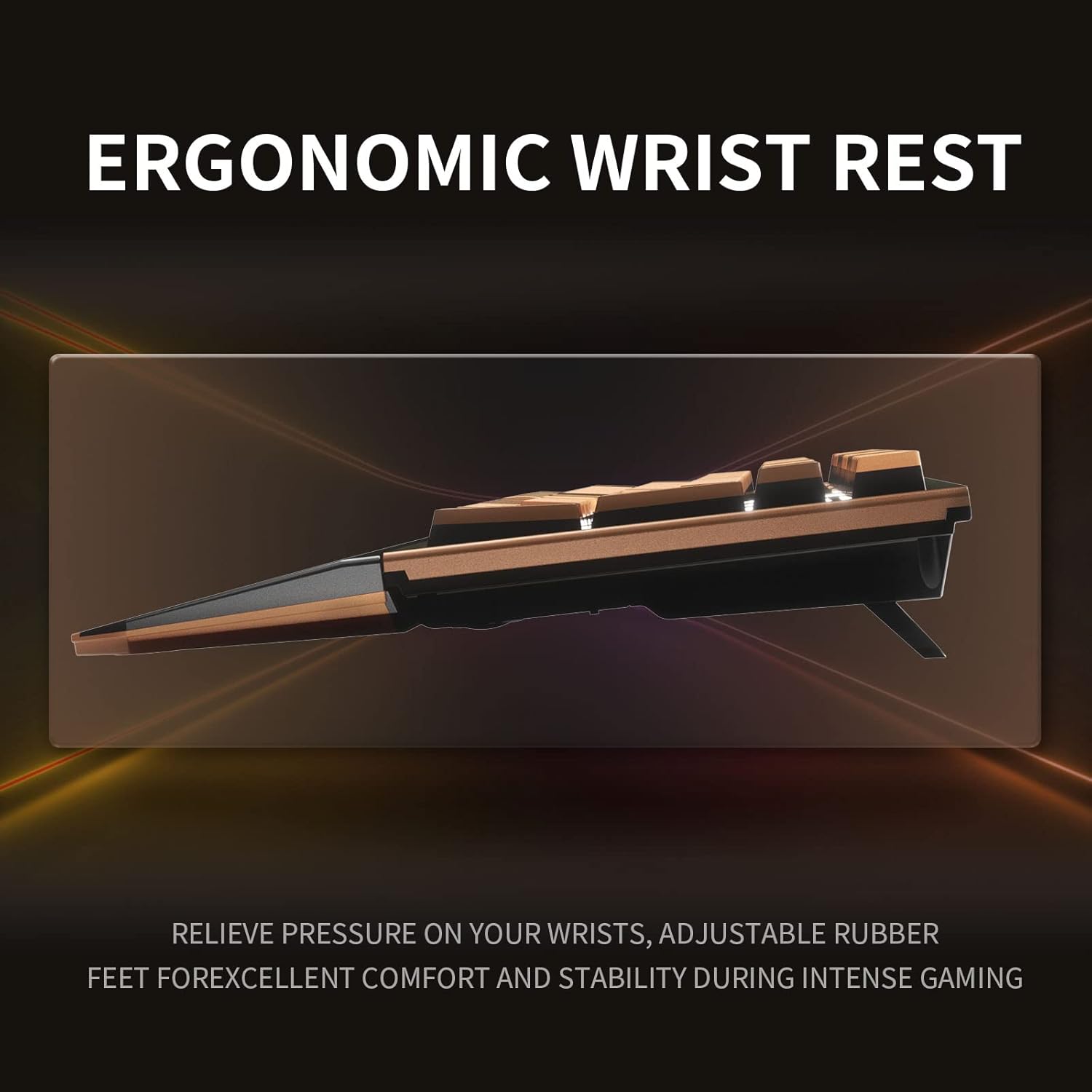
Image: An illustration highlighting the ergonomic design of the Hexgears X5 keyboard, specifically showing the integrated wrist rest for comfortable typing and gaming.
2. പ്രവർത്തന നിർദ്ദേശങ്ങൾ
2.1 പ്രധാന സവിശേഷതകൾ
The Hexgears X5 features 108 keys, including a full numeric keypad and function keys. It supports N-Key Rollover, ensuring every key press is registered accurately, even when multiple keys are pressed simultaneously.

Image: The Hexgears X5 keyboard featuring double-colored keycaps, highlighting its full 108-key layout.
2.2 Kailh Box 3.0 Switches
The keyboard is equipped with Hexgears customized Kailh Box 3.0 switches, designed for durability and a smooth typing experience. The switches feature a reduced gap between the shaft and housing for improved stability and dust/water resistance. Each switch is factory-lubricated for a lifespan of 100 million clicks.
- Kailh Box 3.0 Gold Switch (Quicksand Gold): Linear switch with a 45g actuation force, providing a smooth and quiet typing experience with a creamy sound profile.
- Sky Blue Switch: Offers tactile feedback with a "Clicky" sound.
- Rose Red Switch: Provides a linear typing effect.

ചിത്രം: വിശദമായ ഒരു ചിത്രം view of the Kailh Box switches installed on the Hexgears X5 keyboard, showing their design.

Image: An exploded diagram of a Kailh Box switch, detailing its components, including the dust seal in four directions and the patented safety box for conductors.
2.3 ബാക്ക്ലൈറ്റിംഗ് നിയന്ത്രണം
The Hexgears X5 features white LED backlighting with 16 lighting modes. These controls are accessed using the Function (Fn) key in combination with other keys.
2.3.1 Side LED Controls (Keyboard Rim)
- എഫ്എൻ + പ്രിന്റ്സ്ക്രിപ്ഷൻ: Activates a full, rainbow-colored border around the keyboard (if applicable to the current mode).
- Fn + Pause: Cycles through specific single colors for the keyboard border (red, green, blue, white, light blue, light magenta, dark magenta, orange).
- Fn + PgDn: Switches between various side LED modes:
- Entire LED border cycles through colors (e.g., blue to green to yellow).
- Rainbow color moves counter-clockwise.
- Rainbow color moves in both directions.
- Stable rainbow color.
- Fn + ,<: Decreases the speed of light changes for the side LED.
- Fn + .>: Increases the speed of light changes for the side LED.
- Fn + -_: Decreases the brightness of the side LED, down to off.
- Fn + =+: Increases the brightness of the side LED.
2.3.2 Key Backlighting Controls
- Fn + Ins: Cycles through several key lighting modes:
- Pressing a key sends rainbow light from that key across the keyboard.
- Light goes outward from the pressed key only in that row.
- Light moves in two split columns away from the key.
- A key lights only itself up, and the light lasts briefly.
- All keys are lit continuously with stable light.
- Fn + ഹോം: Activates "breathing mode," where the entire keyboard's light changes color continuously.
- Fn + PgUp: Changes the color of key presses to a single color (press repeatedly to cycle colors).
- Fn + Del: Provides additional key lighting modes:
- All keys lit with the same color (adjustable with Fn + PgUp).
- Random keys lit across the keyboard (default mixed colors, adjustable to single color with Fn + PgUp).
- Pulsing rainbow light under all keys.
- Pulsing single light under all keys.
- Wave effect moving left to right.
- Bouncing wave effect.
- Diagonal wave effect.
- Wave effect across rows.
- Fn + അവസാനം: Turns all key lights off.
- Fn + മുകളിലേക്കുള്ള അമ്പടയാളം: Increases brightness of key light.
- Fn + താഴേക്കുള്ള അമ്പടയാളം: Decreases brightness of key light.
- Fn + ഇടത് അമ്പടയാളം: Decreases speed of key light changes.
- Fn + വലത് അമ്പടയാളം: Increases speed of key light changes.
Video: An official Hexgears video demonstrating the features and lighting effects of the Hexgears X5 Wireless Mechanical Keyboard.
3. പരിപാലനം
3.1 കീബോർഡ് വൃത്തിയാക്കൽ
To maintain optimal performance and appearance, regularly clean your Hexgears X5 keyboard.
- പൊടി നീക്കം: കീക്യാപ്പുകൾക്കിടയിൽ നിന്ന് പൊടിയും അവശിഷ്ടങ്ങളും നീക്കം ചെയ്യാൻ മൃദുവായ ബ്രഷ് അല്ലെങ്കിൽ കംപ്രസ് ചെയ്ത വായു ഉപയോഗിക്കുക.
- ഉപരിതല ശുചീകരണം: കീക്യാപ്പുകളും കീബോർഡ് പ്രതലവും അല്പം d ഉപയോഗിച്ച് തുടയ്ക്കുക.amp, ലിന്റ് രഹിത തുണി. അമിതമായ ഈർപ്പം ഒഴിവാക്കുക.
- കീക്യാപ്പ് നീക്കംചെയ്യൽ: Use the provided keycap puller to carefully remove keycaps for deeper cleaning. Gently pull straight up on the keycap. Do not force it.
3.2 ജല പ്രതിരോധം
The Hexgears X5 keyboard features a water-resistant design with three drain holes on the underside to help prevent damage from accidental spills. While it offers protection, it is not fully waterproof. Avoid submerging the keyboard in liquid.

Image: The underside of the Hexgears X5 keyboard, illustrating the three drain holes designed to prevent water damage from spills.
4. പ്രശ്നപരിഹാരം
4.1 കണക്റ്റിവിറ്റി പ്രശ്നങ്ങൾ
- Wireless Connection Failure:
- പ്രവർത്തിക്കുന്ന ഒരു USB പോർട്ടിലേക്ക് USB ഡോംഗിൾ സുരക്ഷിതമായി പ്ലഗ് ചെയ്തിട്ടുണ്ടെന്ന് ഉറപ്പാക്കുക.
- Verify the keyboard's power switch is in wireless mode.
- Check the keyboard's battery level. Recharge if necessary using the USB-C cable.
- Try plugging the dongle into a different USB port or a different computer to isolate the issue.
- Wired Connection Failure:
- Ensure the USB-C cable is firmly connected to both the keyboard and the computer.
- Try using a different USB-C cable or a different USB port on your computer.
4.2 കീകൾ ഒട്ടിപ്പിടിക്കുകയോ രജിസ്റ്റർ ചെയ്യാതിരിക്കുകയോ ചെയ്യുന്നു
If keys are intermittently sticking, ghosting, or not registering, try the following:
- Re-plugging: If using wireless, try plugging the keyboard into wired mode, then unplugging it and returning to wireless. This can sometimes reset the connection.
- വൃത്തിയാക്കൽ: Dust or debris under the keycaps can cause issues. Refer to the "Cleaning the Keyboard" section for instructions on how to clean or remove keycaps.
- ബാറ്ററി നില: A low battery can sometimes lead to inconsistent key registration in wireless mode. Ensure the keyboard is fully charged.
4.3 ബാക്ക്ലൈറ്റിംഗ് പ്രവർത്തിക്കുന്നില്ല
- തെളിച്ച ക്രമീകരണം: Ensure the brightness is not set to minimum (off) using Fn + Down Arrow (for keys) or Fn + -_ (for side LED).
- മോഡ് തിരഞ്ഞെടുക്കൽ: Cycle through different lighting modes using Fn + Ins, Fn + Home, or Fn + Del to see if the lights activate.
- പവർ സൈക്കിൾ: കീബോർഡ് ഓഫാക്കി വീണ്ടും ഓണാക്കുക.
5 സ്പെസിഫിക്കേഷനുകൾ
| ഫീച്ചർ | വിശദാംശങ്ങൾ |
|---|---|
| ബ്രാൻഡ് | Hexgears |
| മോഡലിൻ്റെ പേര് | X5 വയർലെസ് മെക്കാനിക്കൽ കീബോർഡ് |
| കണക്റ്റിവിറ്റി ടെക്നോളജി | 2.4GHz Wireless, USB-C Wired |
| കീകളുടെ എണ്ണം | 108 |
| സ്വിച്ച് തരം | Kailh Box 3.0 Gold (Linear), Sky Blue (Clicky), Rose Red (Linear) |
| കീ റോൾഓവർ | എൻ-കീ റോൾഓവർ |
| ബാക്ക്ലൈറ്റിംഗ് | White LED, 16 Lighting Modes |
| പ്രത്യേക സവിശേഷതകൾ | Backlit, Ergonomic, Hotkeys and Media Keys, Rechargeable, Wrist Rest |
| അനുയോജ്യമായ ഉപകരണങ്ങൾ | Gaming Console, Laptop, Mac, PC, Desktop |
| ഉൽപ്പന്ന അളവുകൾ | 16"L x 5"W x 2.4"H |
| മെറ്റീരിയൽ | Polybutylene Terephthalate (PBT Keycaps) |
| ജല പ്രതിരോധ നില | Water Resistant (with drain holes) |
| പവർ ഉറവിടം | ബാറ്ററി പവർ |
6. വാറൻ്റിയും പിന്തുണയും
For any issues encountered while using your Hexgears X5 Wireless Mechanical Keyboard, please contact Hexgears customer support. They aim to respond within 24 hours (excluding holidays).
Please refer to your purchase documentation or the official Hexgears webനിർദ്ദിഷ്ട വാറന്റി നിബന്ധനകൾക്കും ബന്ധപ്പെടാനുള്ള വിശദാംശങ്ങൾക്കും സൈറ്റ്.
Hexgears Support: Visit the Hexgears Store on Amazon