
Phomemo Q30S
Phomemo Q30S Mini Label Maker User Manual
മോഡൽ: Q30S
ആമുഖം
The Phomemo Q30S Mini Label Maker is a compact, portable, and wireless label printer designed for ease of use and versatility. This device connects via Bluetooth to your smartphone or tablet, allowing you to create and print custom labels for various organizational needs. Its thermal printing technology ensures inkless operation, providing clear and durable labels for home, office, or travel use.
സജ്ജീകരണ ഗൈഡ്
1. പാക്കേജ് ഉള്ളടക്കം
- Phomemo Q30S Mini Label Maker
- ടൈപ്പ്-സി ചാർജിംഗ് കേബിൾ
- One roll of 12x40mm labels (pre-installed or included)
- ഉപയോക്തൃ മാനുവൽ (ഈ പ്രമാണം)
2. ഉപകരണം പവർ ചെയ്യുന്നു
The Phomemo Q30S supports two power methods: USB-C charging or AAA batteries.
- USB-C ചാർജിംഗ്: Connect the provided Type-C charging cable to the printer's charging port and a USB power adapter (not included). The device will charge automatically.
- AAA ബാറ്ററികൾ: Open the battery compartment and insert 4 AAA batteries (not included), ensuring correct polarity.

Image: The Phomemo Q30S label maker can be powered via its Type-C charging port or by inserting 4 AAA batteries into its dedicated compartment.
3. ആപ്പ് ഇൻസ്റ്റാളേഷനും ബ്ലൂടൂത്ത് കണക്ഷനും
The Phomemo Q30S requires the "Print Master" application for operation. Do not connect via your phone's system Bluetooth settings directly.
- ആപ്പ് ഡൗൺലോഡ് ചെയ്യുക: ഇതിനായി തിരയുക "Print Master" on the Apple App Store (for iOS) or Google Play Store (for Android) and install it.
- ബ്ലൂടൂത്ത് പ്രവർത്തനക്ഷമമാക്കുക: നിങ്ങളുടെ സ്മാർട്ട്ഫോണിലോ ടാബ്ലെറ്റിലോ ബ്ലൂടൂത്ത് പ്രവർത്തനക്ഷമമാക്കിയിട്ടുണ്ടെന്ന് ഉറപ്പാക്കുക.
- ആപ്പ് വഴി കണക്റ്റുചെയ്യുക: Open the "Print Master" app. The app will guide you to connect to the Q30S printer. Select "Q30S" from the list of found devices within the app to establish the connection.
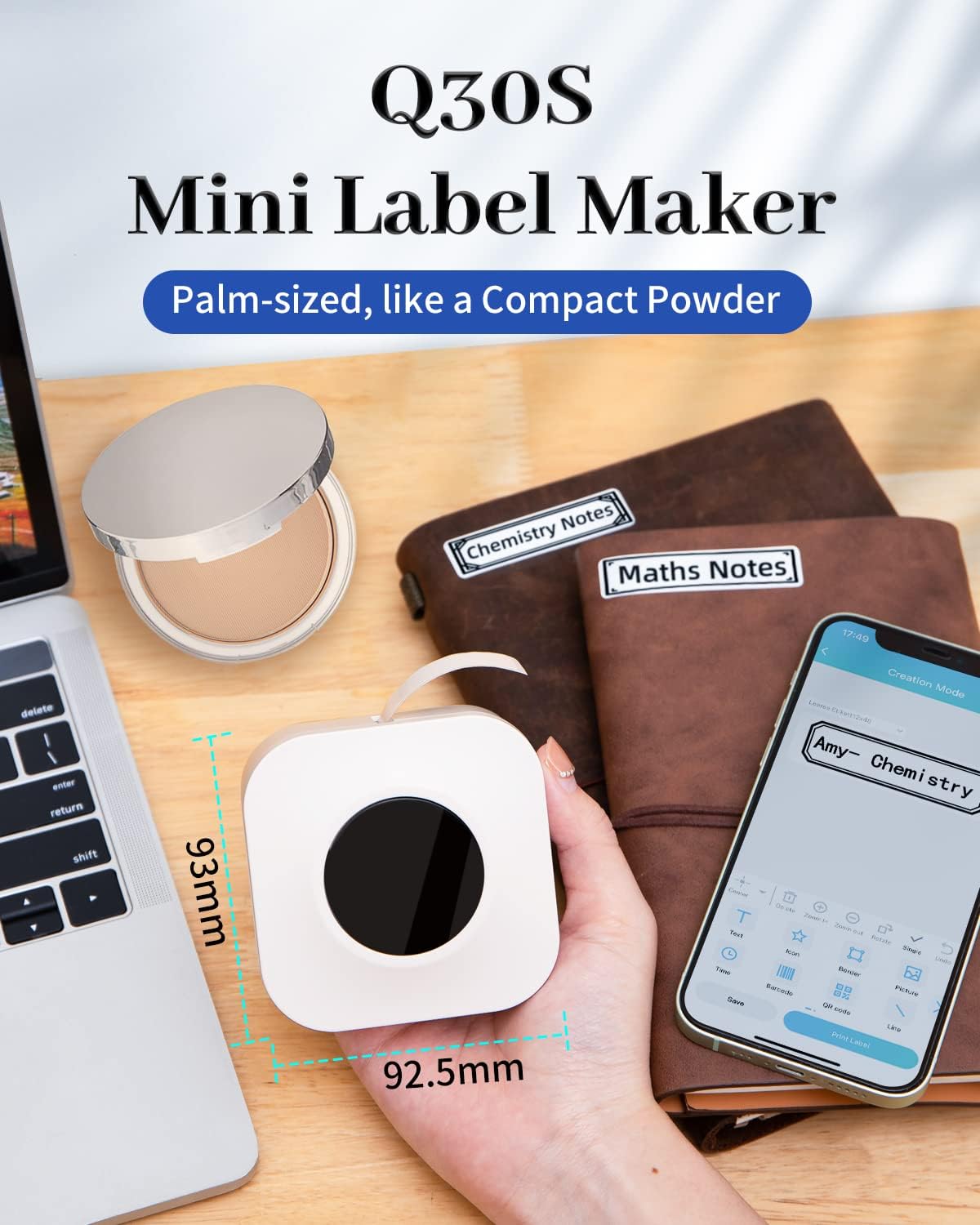
Image: Visual guide demonstrating the three steps to connect the Phomemo Q30S to your mobile device using the Print Master app, starting with enabling Bluetooth and then connecting within the app.
4. ലേബലുകൾ ലോഡുചെയ്യുന്നു
The Phomemo Q30S uses thermal labels. Ensure the label roll is inserted correctly for proper printing.
- പ്രിന്ററിന്റെ കവർ തുറക്കുക.
- Insert the label roll with the printing side facing upwards, ensuring the labels feed smoothly through the output slot.
- കവർ സുരക്ഷിതമായി അടയ്ക്കുക.

Image: The Phomemo Q30S label maker with a label roll, illustrating how labels are dispensed from the device, alongside examples of printed labels including a barcode and text labels.
പ്രവർത്തന നിർദ്ദേശങ്ങൾ
1. Designing Labels with Print Master App
The Print Master app offers extensive customization options for your labels.
- വാചകം: Enter text and choose from over 22 fonts.
- ഐക്കണുകളും ബോർഡറുകളും: Access a library of over 300 icons and 39 borders to enhance your labels.
- ബാർകോഡുകളും ക്യുആർ കോഡുകളും: Generate and print barcodes and QR codes directly.
- തീയതിയും സമയവും: Add current date or time to your labels.
- വരികൾ: Incorporate lines for separation or design elements.
- ലേബൽ വലുപ്പം: Compatible with label widths of 6mm, 12mm, 14mm, and 15mm.

Image: The Print Master app interface displaying various customization tools including borders, icons, fonts, and options for adding QR codes, barcodes, and dates, alongside examples of customized labels on food containers.
2. പ്രിൻ്റിംഗ് ലേബലുകൾ
Once your design is complete in the Print Master app, simply tap the print button. The Q30S will quickly print your label.
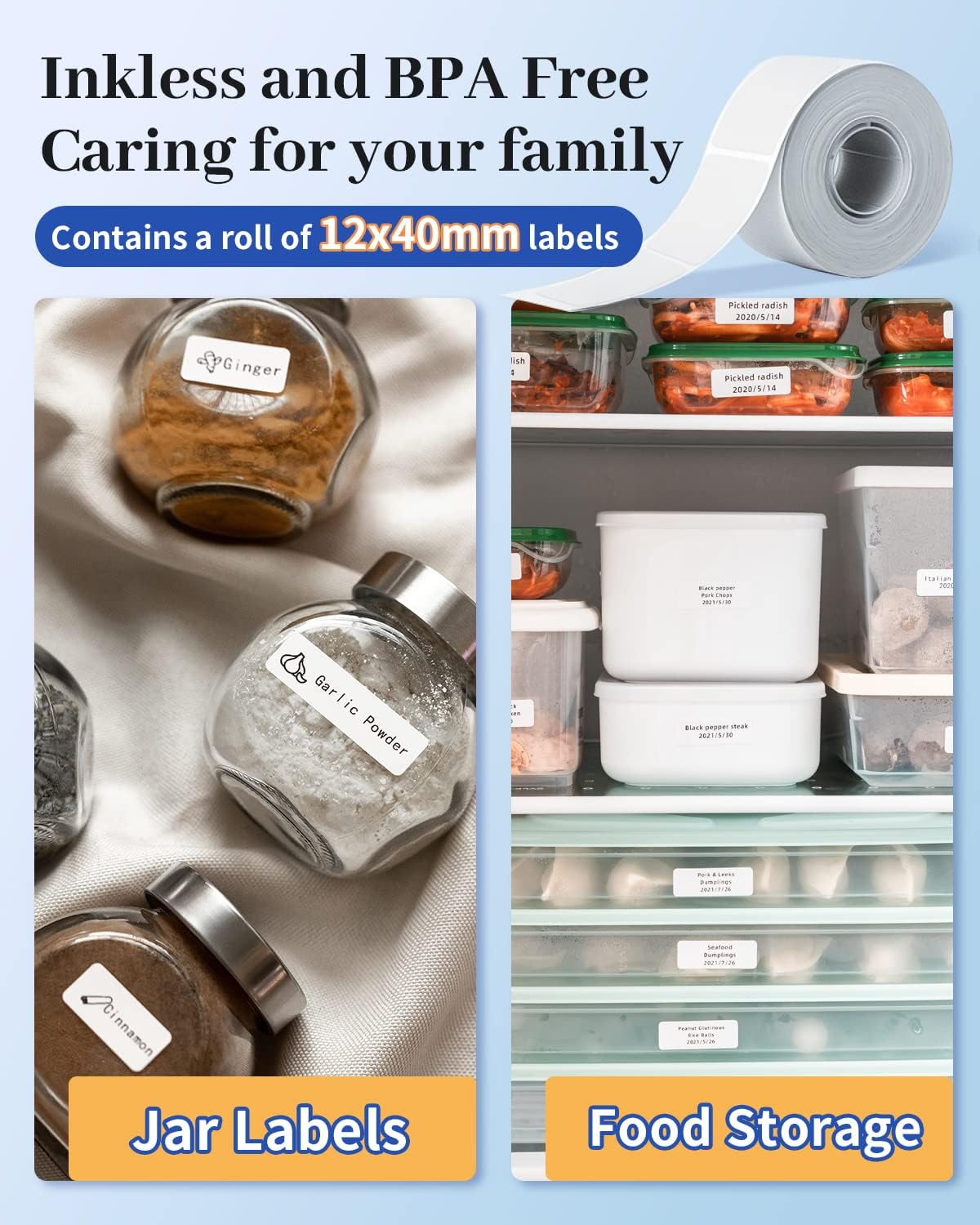
Image: A Phomemo Q30S label maker actively printing a label, which is then applied to a jar of almond nuts, demonstrating its use for marking food items and dates.
3. ലേബൽ തരങ്ങളും സവിശേഷതകളും
The Phomemo Q30S is compatible with various label types and offers durable label properties.
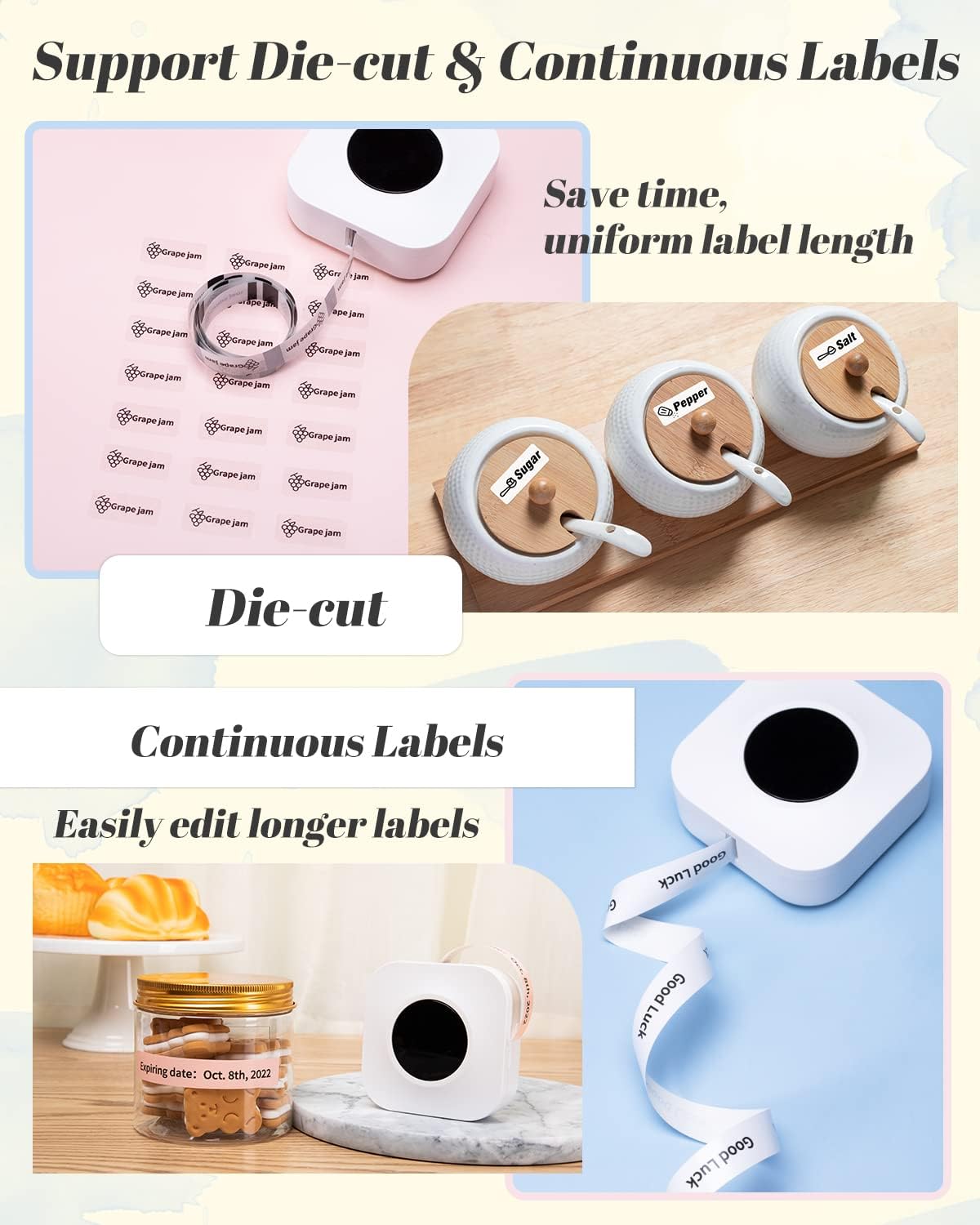
- Die-cut Labels: Pre-cut labels for consistent sizing.
- തുടർച്ചയായ ലേബലുകൾ: Allows for custom label lengths, saving material.
- Transparent & Color Labels: Supports a range of aesthetic options.
- Inkless & BPA Free: Uses thermal printing, eliminating the need for ink and ensuring safety.
- Waterproof & Scratch Resistant: Labels are designed to withstand moisture and minor abrasions.
- Easy to Tear Off: Labels can be removed cleanly without leaving residue.
- Clear Print: Produces sharp and legible text and graphics.

Image: Illustration of the Phomemo Q30S's capability to print both die-cut labels (shown as small, individual labels for jars) and continuous labels (shown as a long strip for custom lengths), highlighting their use in kitchen organization.
ചിത്രം: ഉദാamples of Phomemo Q30S labels applied to spice jars and food storage containers, emphasizing the inkless and BPA-free nature of the labels for family safety.

Image: A series of demonstrations showing the durability of Phomemo Q30S labels, including being waterproof (wiping a labeled bottle), scratch-resistant (scissors near a label), easy to tear off (peeling a label), and providing clear print (a labeled jar of black pepper).
മെയിൻ്റനൻസ്
1 പ്രിന്റർ വൃത്തിയാക്കുന്നു
To ensure optimal print quality and longevity of your Phomemo Q30S, regular cleaning is recommended.
- Turn off the printer and disconnect any power cables.
- ലേബൽ കമ്പാർട്ട്മെന്റ് തുറക്കുക.
- Gently wipe the thermal print head with a soft, lint-free cloth dampened with isopropyl alcohol. Allow it to dry completely before closing the cover.
- Clean the exterior of the printer with a dry, soft cloth.
2. Storing Labels
Store label rolls in a cool, dry place away from direct sunlight and extreme temperatures to preserve their adhesive and print quality.
ട്രബിൾഷൂട്ടിംഗ്
| പ്രശ്നം | സാധ്യമായ കാരണം | പരിഹാരം |
|---|---|---|
| പ്രിന്റർ ഓണാകുന്നില്ല. | കുറഞ്ഞ ബാറ്ററി അല്ലെങ്കിൽ പവർ ഇല്ല. | Charge the printer using the Type-C cable or replace the AAA batteries. |
| ബ്ലൂടൂത്ത് വഴി ബന്ധിപ്പിക്കാൻ കഴിയില്ല. | Incorrect connection method; Bluetooth not enabled; app issue. | Ensure Bluetooth is enabled on your device. Connect through the "Print Master" app, not directly via system settings. Restart the app and printer. |
| മോശം പ്രിന്റ് നിലവാരം അല്ലെങ്കിൽ ശൂന്യമായ ലേബലുകൾ. | Label roll inserted incorrectly; dirty print head; low battery. | Ensure the label roll is inserted with the printing side facing up. Clean the thermal print head. Charge the printer. |
| Labels not feeding properly. | Label jam; incorrect label type; sensor obstruction. | Open the cover and clear any jammed labels. Ensure you are using compatible Phomemo Q30S labels. Check for any debris obstructing the label path. |
| First label prints incorrectly (text in one spot). | Initial feed issue. | This can sometimes occur. Try printing a second label immediately after, or gently pull the label forward slightly before the first print. |
For further assistance, refer to the "Operation Guide" within the Print Master app or contact Phomemo customer support.
സ്പെസിഫിക്കേഷനുകൾ
| ഫീച്ചർ | വിശദാംശങ്ങൾ |
|---|---|
| മോഡലിൻ്റെ പേര് | Q30S |
| കണക്റ്റിവിറ്റി ടെക്നോളജി | ബ്ലൂടൂത്ത് |
| പ്രിൻ്റിംഗ് ടെക്നോളജി | തെർമൽ |
| പരമാവധി മീഡിയ വലുപ്പം | 15 മി.മീ |
| അച്ചടി മാധ്യമം | ലേബലുകൾ |
| അനുയോജ്യമായ ഉപകരണങ്ങൾ | സ്മാർട്ട്ഫോണുകൾ (iOS, Android) |
| Maximum Print Resolution (B&W) | 203 ഡിപിഐ |
| ഉൽപ്പന്ന അളവുകൾ | 9.3 x 9.3 x 5.7 സെ.മീ |
| ഇനത്തിൻ്റെ ഭാരം | 98 ഗ്രാം |
| ഉൾപ്പെടുത്തിയ ഘടകങ്ങൾ | ടൈപ്പ്-സി ചാർജിംഗ് കേബിൾ |
| ബാറ്ററികൾ ഉൾപ്പെടുത്തിയിട്ടുണ്ട് | No (requires 4 AAA batteries or USB-C power) |
വാറൻ്റിയും പിന്തുണയും
Phomemo products are designed for reliability and performance. For specific warranty details, please refer to the warranty card included with your product or visit the official Phomemo website. For technical support, troubleshooting, or inquiries regarding your Phomemo Q30S Mini Label Maker, please contact Phomemo customer service through the contact information provided in the Print Master app or on the official Phomemo webസൈറ്റ്.
When contacting support, please have your product model (Q30S) and purchase information ready.
Ask a question about this manual
Ask about setup, troubleshooting, compatibility, parts, safety, or missing instructions. Manuals+ will review the question and use this page’s manual context to help answer it.